How to Convert Live Photos to Still Photos on Mac
Convert Live Photos to still photos on Mac: turn Live off in Photos, export a still, or remove the motion from many photos at once with Vision AI.
Do you know those birthday cards that sing when you open them? The card has a picture on the front. Inside, a tiny music chip is glued to the paper. A Live Photo is a card like that. The picture is the photo you see. The chip is a very short video that plays when you press and hold the photo.
Sometimes you only want the card and not the song. Maybe the photo box on your Mac is getting full, or you want to send one plain picture. This guide shows three ways to do that: by hand in the Photos app, as a new file with Export, and for many photos at once with Vision AI: Photo Cleaner. We make Vision AI: Photo Cleaner, and we say so openly. The pictures in this guide come from our own app.
1. What is inside a Live Photo?
A Live Photo is two things kept together. One is the still picture, the card. The other is a short video with sound, the music chip. Your iPhone records it just before and just after you tap the button. On a Mac you see only one photo in the Photos app, but both parts are there.
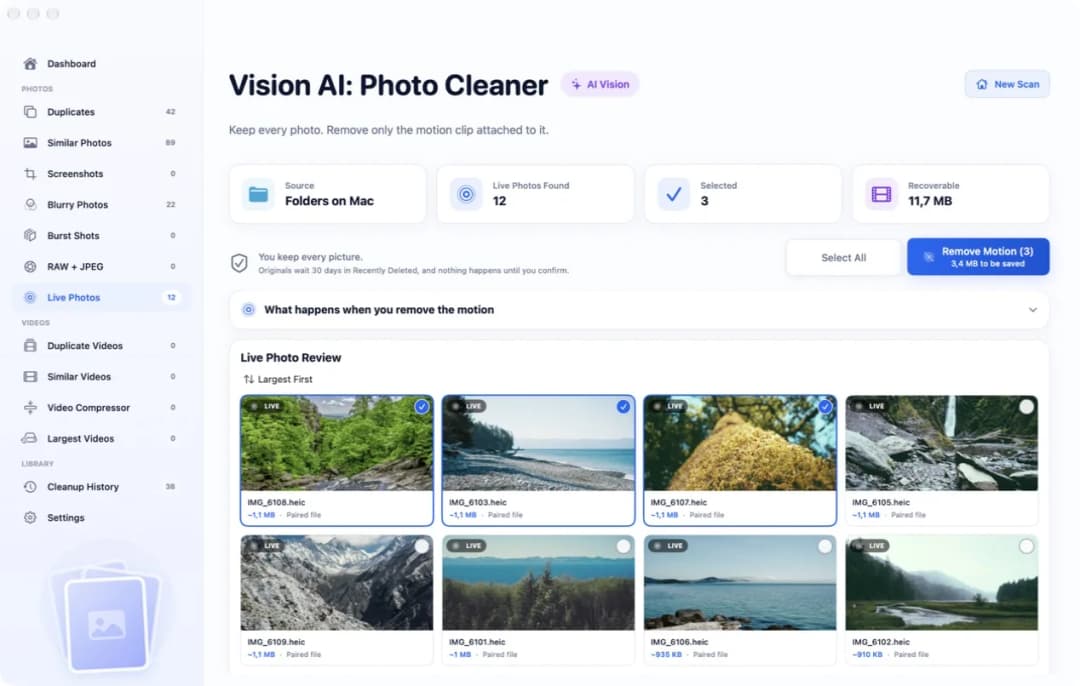
The chip is not small. The short video is often as big as the picture itself, and sometimes bigger. So a thousand Live Photos can take the room of about two thousand photos. If you copy Live Photos into a folder, you can see both parts: a picture file and a video file with the same name, like IMG_0001.HEIC and IMG_0001.MOV. In Vision AI: Photo Cleaner all of them are on one page called Live Photos, each with a small LIVE badge.
2. One photo: turn Live off in the Photos app
For one or two photos you do not need any extra app. Open the Photos app. In the sidebar, under Media Types, click Live Photos. Double-click the photo and click Edit. Open the Live Photo menu, choose Off and click Done. Now the photo stays still. If you change your mind, open Edit again and click Revert to Original.
There is one catch. Photos does not throw the chip away. It keeps the short video so you can turn it on again, and the photo box stays as full as before. If you want a real still photo, choose Image, then Duplicate 1 Photo, then Duplicate as Still Photo. Photos makes a new picture without the video. The old Live Photo is still there until you delete it. When you have hundreds of them, this is a lot of clicking. A helper first asks where your photos are and then finds every Live Photo for you.
3. A still file to send or save: use Export
Sometimes you need a plain picture file, for example for an email or a website. Click the Live Photo in the Photos app. Choose File, then Export, then Export 1 Photo. Pick a kind such as JPEG and save it. You get one normal picture. The Live Photo in your library does not change.
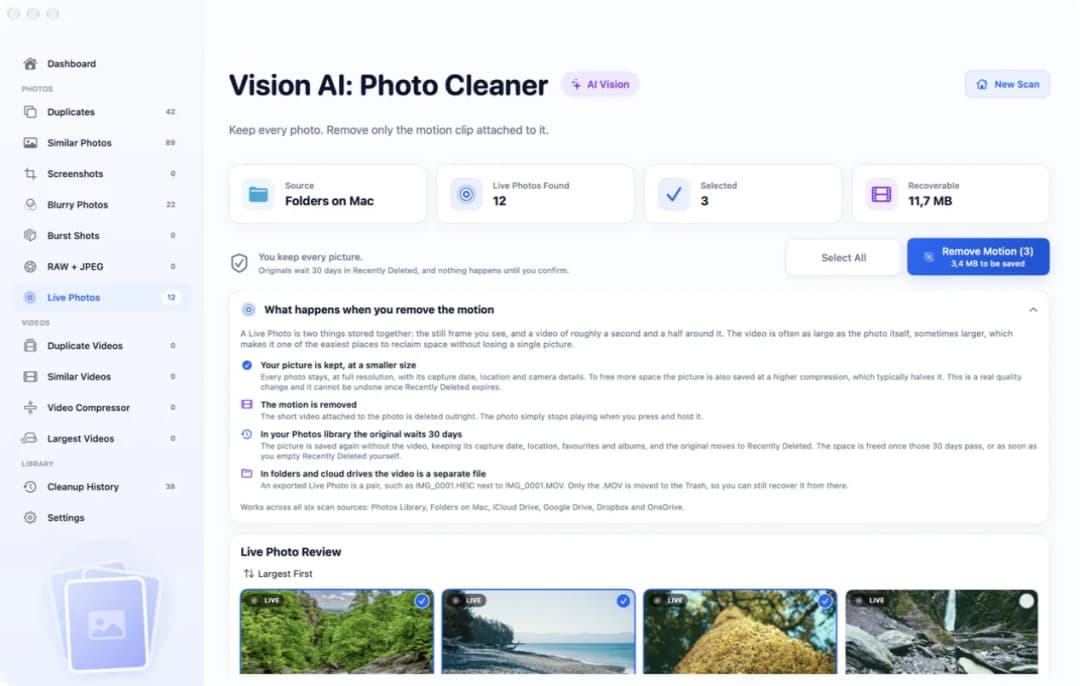
The same menu has a second choice, Export Unmodified Original. It gives you both parts as two files, most often a HEIC picture and a MOV video with the same name. This is how Live Photos look in a folder, on an external drive or in a cloud folder. To make such a pair still, the video file has to go. Vision AI: Photo Cleaner explains this on its Live Photos page, under What happens when you remove the motion.
4. Many photos at once with Vision AI: Photo Cleaner
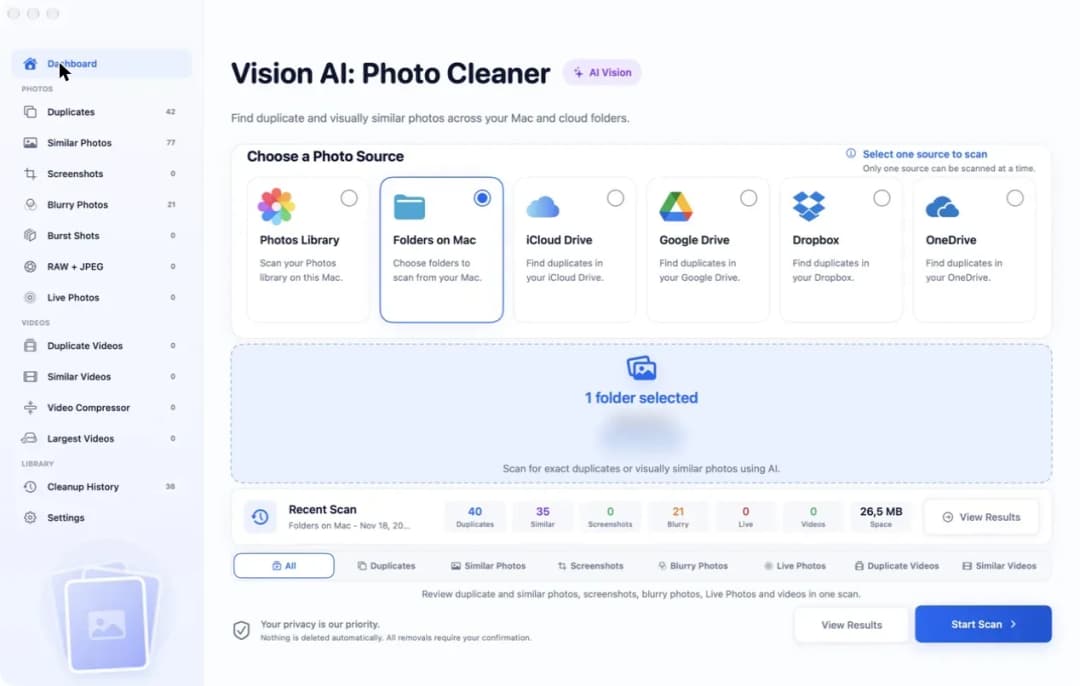
This is our own app, so read this part with that in mind. Open it and pick where your photos are, for example Photos Library or Folders on Mac. Start the scan and click Live Photos in the sidebar. At the top you see how many Live Photos were found and how much room the short videos take. Scanning and looking are free. Your photos are looked at on your Mac. The app does not upload them anywhere.
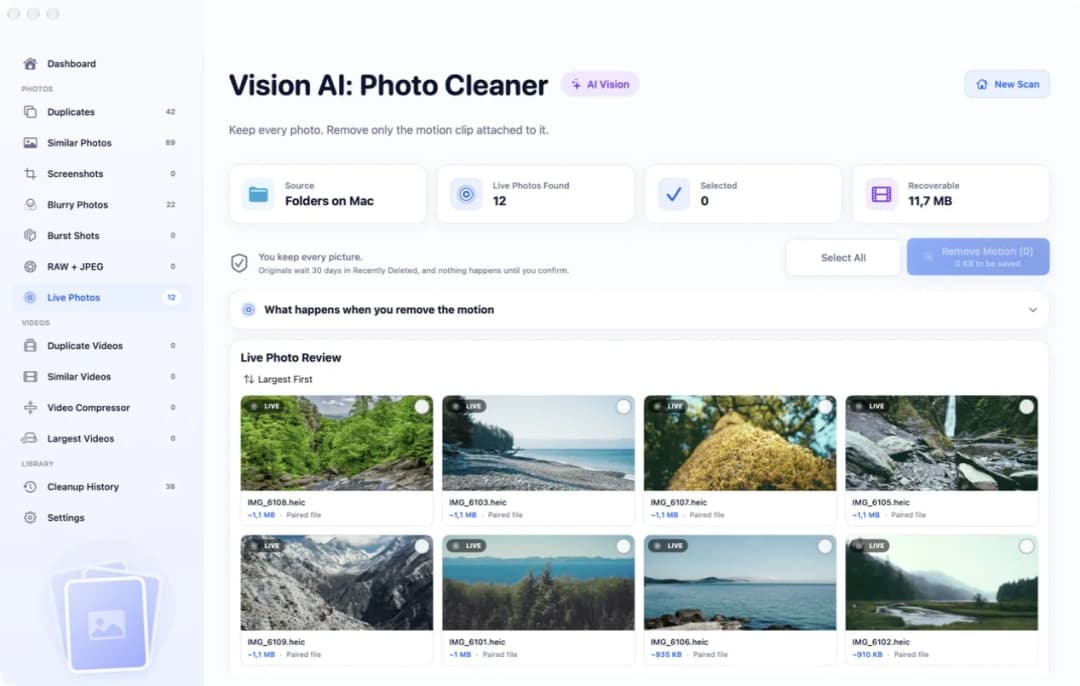
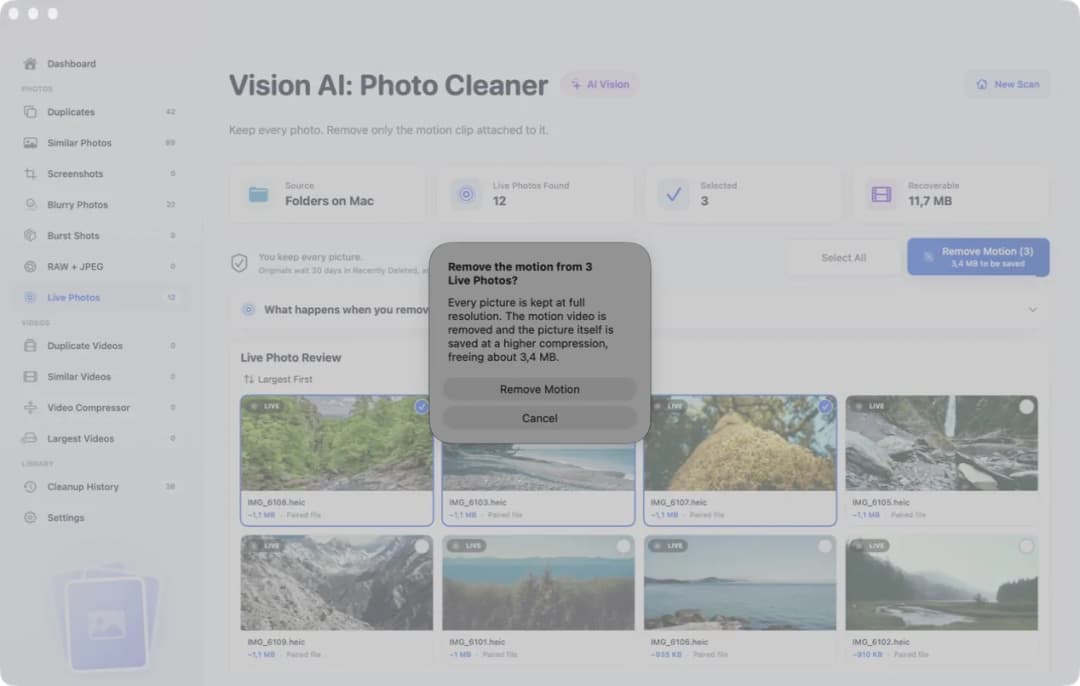
Now pick the photos. Click the round mark on each card you want to make still, or click Select All. The blue button counts with you. In our picture it says Remove Motion (3) and 3,4 MB to be saved. Pictures you do not mark stay Live Photos. To really remove the motion you need Premium.
5. What happens when you click Remove Motion
First the app asks you once more. Nothing happens until you say yes. Then every picture stays, at full size, with its date, place and camera details. The short video is removed. To free more room, the picture is also saved a little more tightly packed, which often makes the file about half as big. This is a real change in quality, so try it on a few photos first.
Where the old parts go depends on where the photo lives. In your Photos library the picture is saved again without the video. It keeps its date, place, favorite mark and albums. Edits you made in Photos do not come along. The Live original moves to Recently Deleted and waits there for 30 days. The room is free after those 30 days, or when you empty Recently Deleted yourself. In a folder or a cloud folder only the video file moves to the Trash, so you can still take it back from there.
6. Three things to check before you start
First, make a backup. Time Machine or a copy on an external drive is enough. Once Recently Deleted or the Trash is empty, the short video is gone for good and the photo cannot move again. Second, think about iCloud Photos. If it is turned on, a change on your Mac shows up on your iPhone and iPad too. A Live Photo you delete on the Mac is deleted there as well.
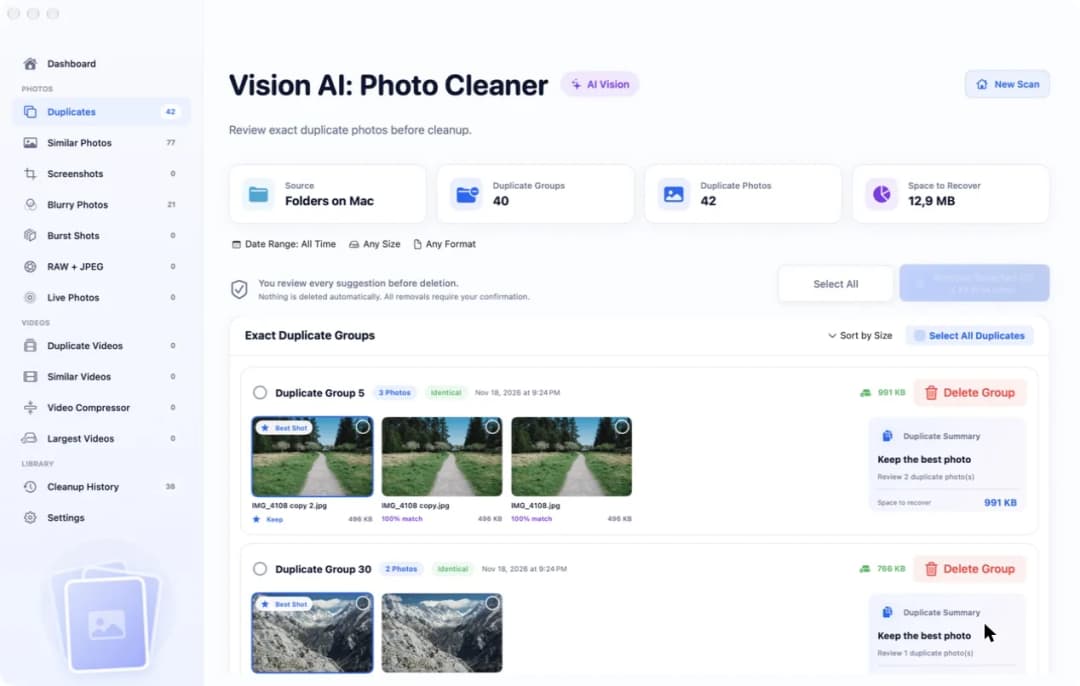
Third, keep the songs you love. A baby laughing or a dog jumping into a lake is worth the extra room. A photo of a receipt or a parking sign is not. And if the photo box is still too full afterwards, look at the other pages of the app. Exact copies of the same photo often take much more room than the short videos do.
How to convert Live Photos to still photos on Mac
- 1
Make a backup
Back up your photos with Time Machine or copy them to an external drive before you change anything.
- 2
Find your Live Photos
In the Photos app click Live Photos under Media Types. In Vision AI: Photo Cleaner run a scan and click Live Photos in the sidebar.
- 3
Make them still
For one photo choose Image, Duplicate 1 Photo, Duplicate as Still Photo in Photos. For many, select them in Vision AI: Photo Cleaner and click Remove Motion.
- 4
Check the result
Look at a few photos. If something is wrong, take the originals back from Recently Deleted or from the Trash.
Frequently asked questions
Does turning off Live in the Photos app free up space?▼
No. Photos keeps the short video so you can turn Live on again. The photo only stops playing. To get room back, the video itself has to be removed.
Will I lose my photo when I remove the motion?▼
No. The still picture stays. Only the short video that plays when you press and hold the photo goes away.
Can I get the motion back later?▼
Yes, for a while. In the Photos library the Live original waits 30 days in Recently Deleted. In a folder the video file is in the Trash until you empty it. After that it is gone.
How do I save a Live Photo as a JPEG on Mac?▼
Click the photo in the Photos app, choose File, Export, Export 1 Photo and pick JPEG. You get one still picture file. The Live Photo in the library does not change.
Is Vision AI: Photo Cleaner free for this?▼
Scanning and looking at your Live Photos is free. Removing the motion inside the app needs Premium.

See how many Live Photos you have
Vision AI: Photo Cleaner finds every Live Photo on your Mac and shows how much room the short videos take. The scan is free.

Sources
Related guides

· 9 min read
How to Find Blurry Photos on Mac
Find blurry photos on Mac: scan for out-of-focus and shaky shots, read the sharpness score, check them at full size and remove only the bad ones.
· 9 min read
How to Find Duplicate Photos on an External Drive on Mac
Find duplicate photos on an external drive on Mac: choose the drive as a folder, scan it, check each group and remove only the extra copies.
· 9 min read
How to Find Duplicate Photos in OneDrive on Mac
Find duplicate photos in OneDrive on Mac: download a batch, scan a working copy, check each group and learn what deleting does on your other devices.
Ready when you are
Download Vision AI - Photo Cleaner for Mac
Find duplicate and similar photos, review large videos and compress videos locally on your Mac. Choose what to keep and confirm every cleanup.
By using Vision AI - Photo Cleaner, you agree to our Terms of Use and Privacy Policy.