How to Find Duplicate Photos on an External Drive on Mac
Find duplicate photos on an external drive on Mac: choose the drive as a folder, scan it, check each group and remove only the extra copies.
Think of the big box in the basement. Every time you tidy up, you put a few things in it. After some years nobody knows what is inside, and some things are in there three times. An external drive is that box for photos. You copy the camera card onto it. Later you copy the old laptop onto it. Then you copy the same holiday once more, just to be safe.
This guide shows you how to let the Mac look through the box, how to see which photos are in it twice, and how to take out only the extra copies. We show the steps in Vision AI: Photo Cleaner. It is our app, and we say so openly. We checked the steps with version 1.4.3 on November 18, 2026. For the test we did not use a real drive. We used a disk image called Photo Drive. A Mac shows a disk image the same way it shows a drive that is plugged in. The numbers in the pictures come from this one test and are not a promise for your drive.
1. Plug in the drive and choose it as a folder
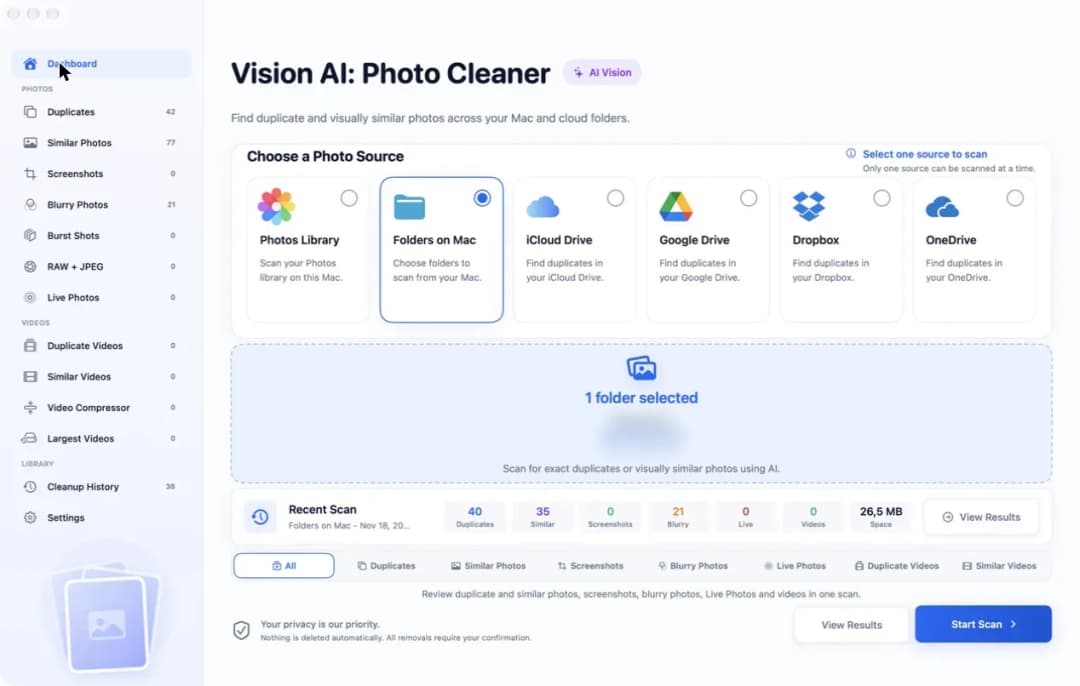
Plug the drive into your Mac and wait until it shows up in the Finder. Then open Vision AI: Photo Cleaner. At the top you see the places where photos can be: Photos Library, Folders on Mac, iCloud Drive, Google Drive, Dropbox and OneDrive. There is no card called external drive. You do not need one. For the Mac a drive is just one more folder, so click Folders on Mac.
Now click the blue area below the cards. A window opens. Pick your drive there and confirm. After that the blue area shows 1 folder selected and, under Allowed Areas, the path of the drive. In our test that was /Volumes/Photo Drive. Choose All in the row of scan types and click Start Scan. Leave the drive plugged in while the Mac is looking. The photos are looked at on your Mac. The app does not upload them anywhere.
2. Read the list of duplicate photos
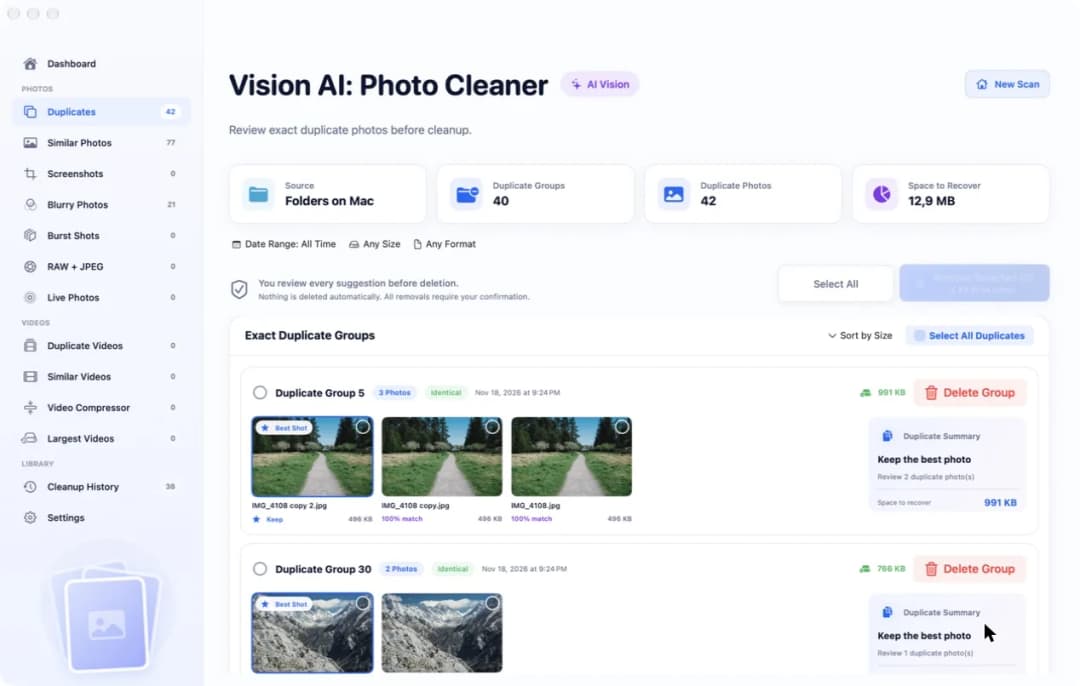
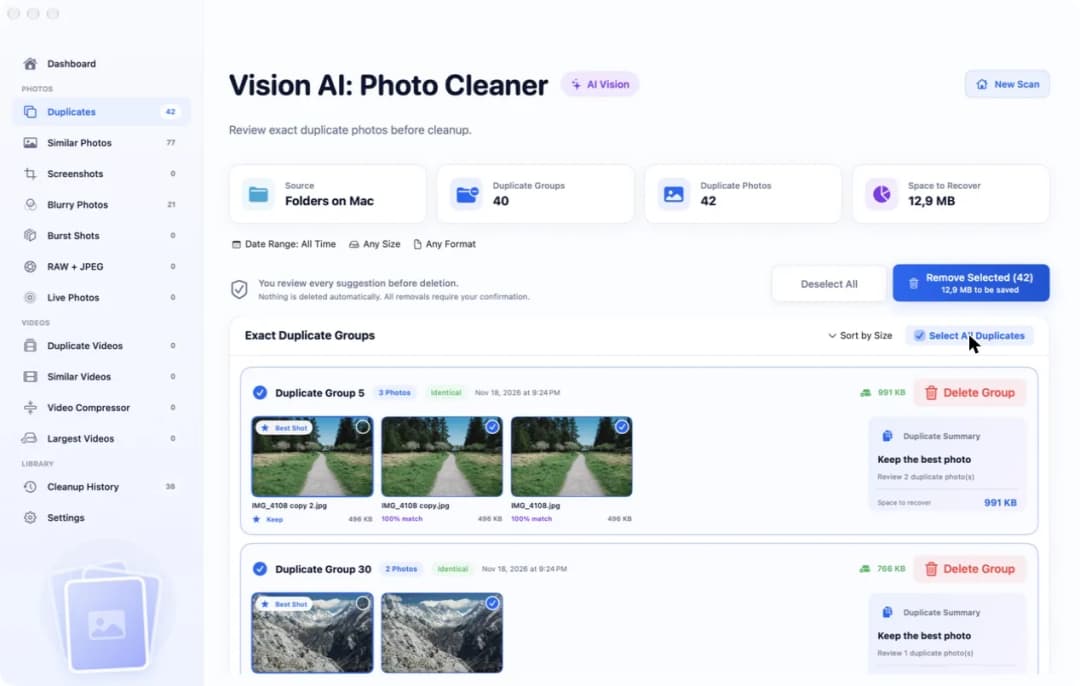
When the scan is done, click Duplicates in the sidebar. Four tiles at the top tell you what was found. In our test they said: Source Folders on Mac, 40 Duplicate Groups, 42 Duplicate Photos and 12,9 MB Space to Recover. A duplicate is a photo that is on the drive more than once, exactly the same, like two socks of the same pair.
Below the tiles, the photos that belong together sit in one group. Our first group had 3 photos and the label Identical. One photo wears a small badge that says Best Shot, and below it the word Keep. That is the copy the app wants to keep. The other two say 100% match. In this group each photo was 496 KB, so removing the two extra copies would give back 991 KB.
3. See where a copy lives on the drive
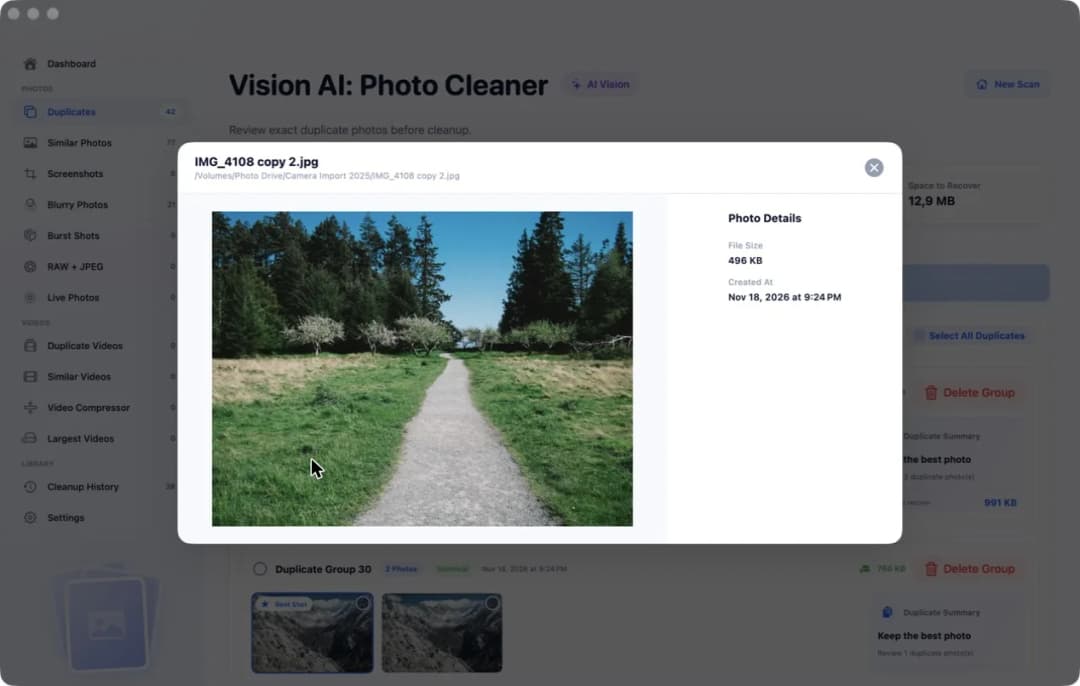
On a drive it matters where a photo is, not only what it shows. Maybe one copy sits in your tidy holiday folder and the other in an old folder you never open. Double-click a photo to find out. It opens big, and under its name you see the full path. In our test that was /Volumes/Photo Drive/Camera Import 2025/IMG_4108 copy 2.jpg.
Next to the big picture, Photo Details shows the File Size and Created At, the day the file was made. File names help too. A name that ends in copy or copy 2 tells you that someone copied the photo inside the same folder. Close the window with the round button in its corner and look at the next photo the same way.
4. Almost the same is not the same
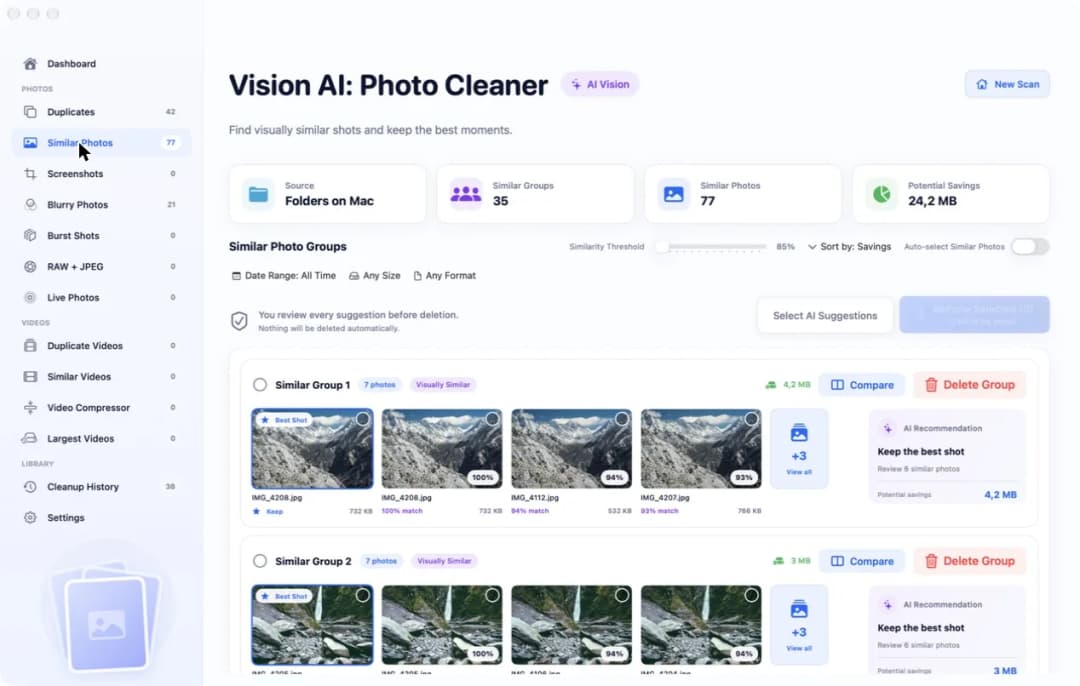
Some photos are not twins. They are more like brother and sister. You took five pictures of the same mountain, one after the other, and each is a tiny bit different. These are not on the Duplicates page. Click Similar Photos in the sidebar to see them. In our test there were 35 Similar Groups with 77 Similar Photos and 24,2 MB of Potential Savings.
Every photo in a group shows how close it is to the best one, for example 94% match. The slider called Similarity Threshold stood at 85% in our test. The Compare button puts the photos of one group side by side. Take more time here than with the exact duplicates. With twins it does not matter which one stays. With brother and sister it does, because the faces, the light or the moment can be different.
5. Tick the extra copies, not the last one
Go back to Duplicates. You can tick photos one by one with the small circle in their corner. If you have looked through the groups and trust them, click Select All Duplicates. In our test the blue button then said Remove Selected (42) and 12,9 MB to be saved.
Look closely at the picture below. In every group the photo with the Best Shot badge has no tick. So one copy of each photo stays on the drive, and only the extra ones are marked. If you would rather keep a different copy, for example the one in the tidy folder, take its tick away and tick the other one.
6. Remove them and empty the Trash
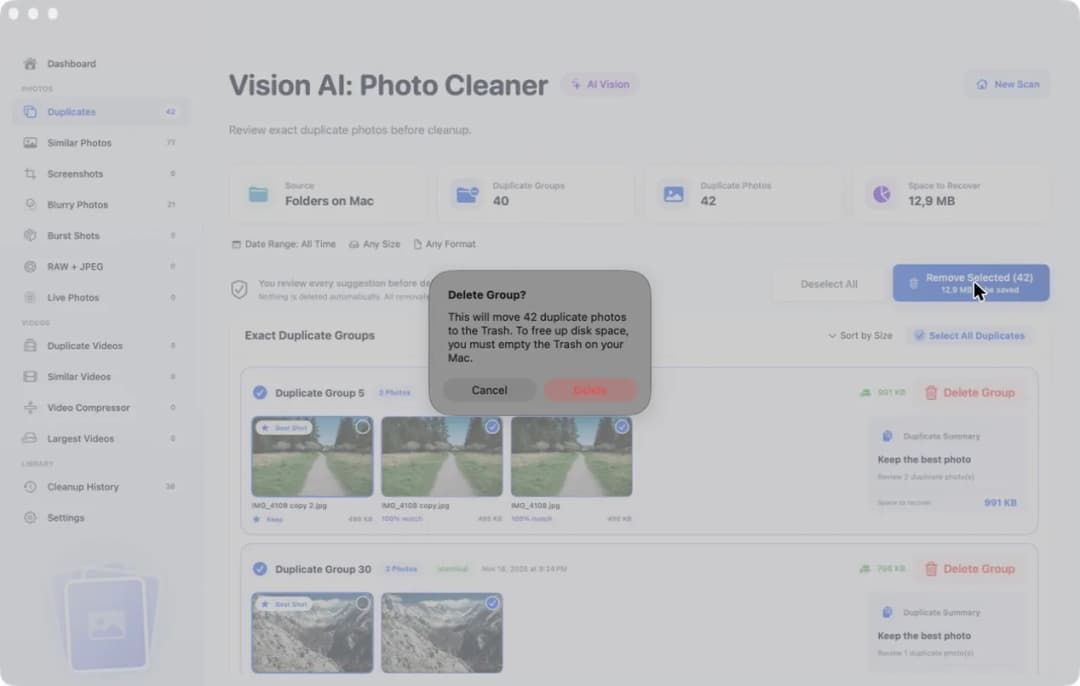
Click Remove Selected. The app does not delete right away. It asks first. In our test the message said that 42 duplicate photos will be moved to the Trash, and that you must empty the Trash on your Mac to free up disk space. Click Cancel to look again, or Delete if you are sure. We stopped at this question in our test and did not delete the photos. Nothing is deleted automatically. Removing needs the full version. Scanning and looking are free.
With a drive, the Trash has one special rule. Photos you throw away stay on the drive until you empty the Trash, and you have to do that while the drive is plugged in. Until then the drive is just as full as before. Two more things are good to know. A Mac can read a drive in the Windows format NTFS, but it cannot change anything on it, so nothing can be removed there. And if the drive holds a Photos library, do not clean inside it by hand. Open that library in the Photos app and use its Duplicates album.
How to find duplicate photos on an external drive on Mac
- 1
Choose the drive
Plug in the drive, open Vision AI: Photo Cleaner, click Folders on Mac, pick the drive and click Start Scan.
- 2
Read the groups
Click Duplicates in the sidebar. Each group holds the same photo more than once. One copy is marked Best Shot.
- 3
Check where the copies are
Double-click a photo to see it big and to read its path on the drive.
- 4
Remove the extra copies
Click Select All Duplicates, check the ticks, click Remove Selected and confirm. Then empty the Trash while the drive is plugged in.
Frequently asked questions
Can the Photos app find duplicates on an external drive?▼
Only inside a Photos library. Photos has a Duplicates album for the library that is open. It does not look through loose photo folders on a drive. For those you need a duplicate photo finder.
Why is my external drive still full after I removed the photos?▼
Removed photos go to the Trash and stay on the drive. The space becomes free when you empty the Trash while the drive is plugged in.
Do I have to copy the photos to my Mac first?▼
No. In our test the app scanned the drive directly. You choose it under Folders on Mac, and the photos stay where they are.
Does this work with every external drive?▼
We tested with a disk image that the Mac shows like a plugged-in drive, not with every kind of drive. Scanning needs a drive the Mac can read. Removing needs a drive the Mac can also write to. A Mac can read NTFS drives but cannot write to them.
Should I make a backup before I clean the drive?▼
If the drive is the only place where these photos are, yes. Copy the most important folders somewhere else first. Then a wrong click cannot cost you a photo.

Let your Mac look through the box
Vision AI: Photo Cleaner looks through the folders on your external drive and puts the same photos into groups. Scanning and looking are free. You decide what goes.

Sources
Related guides

· 9 min read
How to Delete Duplicate Photos on Mac
Delete duplicate photos on Mac: find copies in folders with the Finder, group exact and similar photos with Vision AI, and move extras to the Trash safely.

· 9 min read
How to Remove Duplicates in Photos Library on Mac
Remove duplicate photos from the Photos library on your Mac: use the Duplicates album, scan for look-alikes, check each group and get space back safely.
· 9 min read
How to Find Duplicate Photos in OneDrive on Mac
Find duplicate photos in OneDrive on Mac: download a batch, scan a working copy, check each group and learn what deleting does on your other devices.
Ready when you are
Download Vision AI - Photo Cleaner for Mac
Find duplicate and similar photos, review large videos and compress videos locally on your Mac. Choose what to keep and confirm every cleanup.
By using Vision AI - Photo Cleaner, you agree to our Terms of Use and Privacy Policy.