How to Delete Duplicate Photos on Mac & MacBook (2026 Guide)
Learn how to delete duplicate photos on Mac, MacBook Pro, and Photos app. Remove duplicates from Photos library, Finder, and iCloud with safe on-device AI.



Your 60-second decision
How to Delete Duplicate Photos on Mac & MacBook (Complete 2026 Guide)
If you are looking for how to delete duplicate photos on Mac, you have three practical methods: use the built-in Duplicates album in Apple Photos app (macOS Ventura, Sonoma, Sequoia), organize files manually in Finder, or run a dedicated duplicate photo cleaner for Mac like Vision AI - Photo Cleaner to find exact copies, burst shots, and visually similar photos without cloud uploads.
The best way to delete duplicate photos on Mac depends on where your photos live. Apple's built-in Duplicates tool only works inside your Photos library. It cannot scan the hundreds of loose photos in your Downloads folder, Desktop folders on your MacBook Pro, or synced iCloud, Google Drive, Dropbox, and OneDrive storage.
This complete guide explains how to remove duplicate photos on Mac and MacBook, how to find duplicates in Photos on Mac, and how to safely get rid of duplicate photos without risking precious family memories.
Where do your duplicates live?
Why Duplicate Photos Pile Up on Mac & MacBook Pro
Macs and MacBooks accumulate duplicate photos quietly through everyday use. The main causes include:
- Repeated imports: Connecting an iPhone or SD card and importing "All Items" when half were already in your Photos library.
- iCloud and cloud sync duplicates: Photos synced through iCloud Photos, AirDrop, and cloud backup folders create duplicate copies across directories.
- Multiple edits and exports: An original image duplicated into IMG_1020.jpg, IMG_1020_edited.jpg, and IMG_1020_final.jpg.
- Burst sequences and similar takes: Taking ten rapid shots of the same pose when you only need the single sharpest keeper.
- Old migration backups: Backup folders copied to your MacBook Pro desktop that were never cleared.
Over time, duplicate photos on Mac consume tens of gigabytes of disk space and make searching your Apple Photos library slow and cluttered.
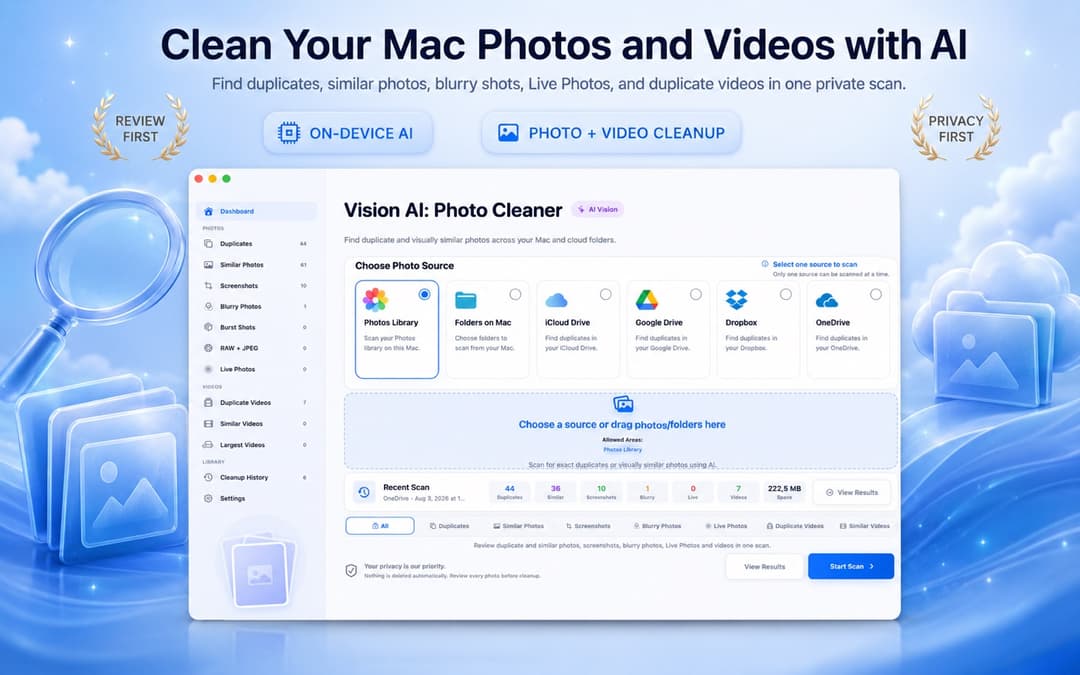
Exact Duplicates vs. Similar Photos: Why the Difference Matters
Before you delete duplicate photos on Mac, understanding the two types of duplicates is essential:
Exact duplicates are byte-for-byte identical image files. Exact file matches can generally be reviewed with higher confidence than visually similar photos, but users should still verify selections before deletion.
Visually similar photos are slightly different files that look nearly identical: consecutive burst frames, compressed versions from WhatsApp, cropped shots, or different exposures. These should never be deleted blindly, as you want to preserve the highest-resolution and sharpest keeper.
Standard tools only look at file checksums, missing near-duplicates where the bulk of wasted space resides. A modern duplicate photo finder for Mac uses on-device visual recognition to group similar shots so you can compare and pick the best one.
Method 1
Method 1: How to Delete Duplicates in Mac Photos App (Built-In Duplicates Album)
If your Mac or MacBook Pro runs macOS Ventura, macOS Sonoma, or macOS Sequoia, you can delete duplicates in Mac Photos natively:
- Open the Photos app on your Mac.
- In the left sidebar under Utilities, click Duplicates.
- Review duplicate pairs or click Merge [X] Duplicates to combine metadata and keep the highest-quality version.
What it does well: It is free, built into macOS, and preserves the highest-quality image metadata during merge.
Limitations to keep in mind:
- It only scans inside your Apple Photos library. Loose files in Finder or external hard drives are completely ignored.
- It does not group similar shots, burst frames, or blurry photos.
- It cannot scan or remove duplicate photos from iCloud Drive folders or third-party cloud drives.
- The Duplicates album may take days to populate on large libraries after indexing.
Method 2
Method 2: Manual Cleanup in Mac Finder
For loose folders on your MacBook or external drive, Finder can help you find duplicate files manually:
- Open Finder and navigate to the folder you want to inspect (e.g., Downloads or Pictures).
- Switch to List View (Command + 2) and click the Size or Name column header to sort.
- Files with identical sizes or names like IMG_1020 copy.jpg will cluster together for manual deletion.
Limitation: Manual sorting cannot detect visual similarity or renamed files, and reviewing thousands of photos by hand is tedious and error-prone.
Method 3
Method 3: Dedicated Duplicate Photo Finder for Mac & MacBook Pro (Vision AI)
When you need to remove duplicates from Photos library, Mac folders, external drives, and cloud storage in one place, use Vision AI - Photo Cleaner.
Vision AI runs locally on your Mac using on-device image processing. It groups exact duplicates, similar burst photos, blurry shots, and duplicate videos side-by-side with synchronized zoom, letting you review visual differences and confirm every deletion.
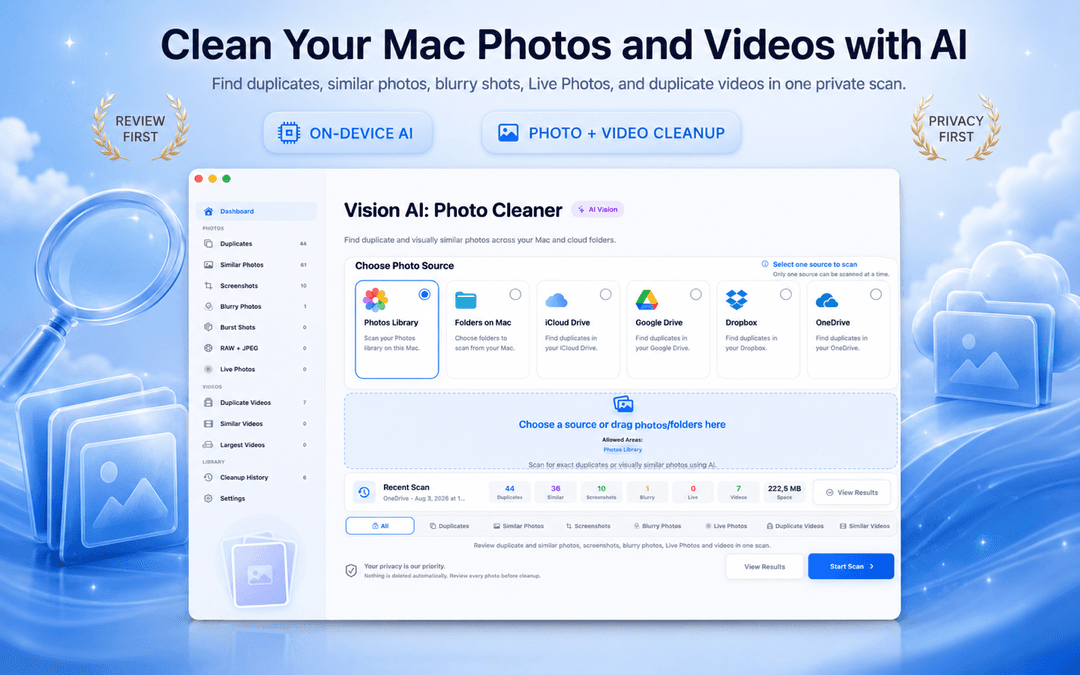
How to Review Duplicate Groups Before Deleting on Mac
A trustworthy Mac photo cleaner makes comparison effortless. Look at file resolutions, capture dates, and sharpness ratings side by side:
The general rule: keep the copy located in your primary Photos library or main project folder, and send redundant copies in Downloads or temporary folders to Trash.
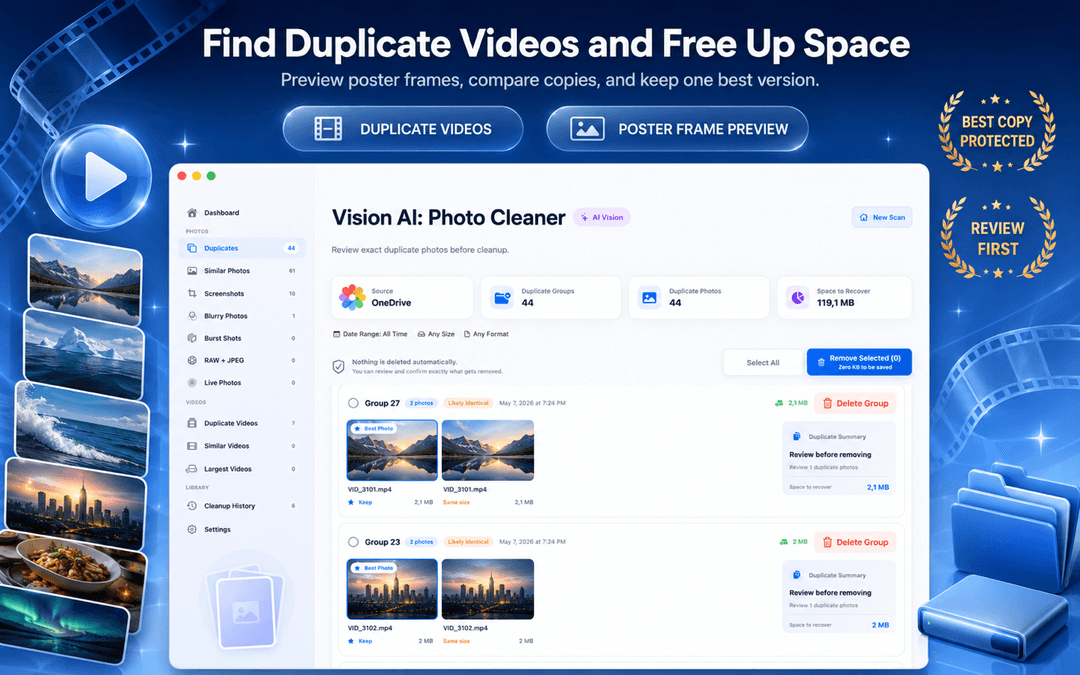
Cleaning Visually Similar Photos & Bursts: Where the Real Gigabytes Live
Similar shots and burst photos consume multiple times more storage than exact duplicates. When reviewing similar groups:
- Verify focus sharpness on the subject's face and eyes.
- Select the original high-resolution camera file over compressed social media copies.
- Keep one photo per scene and send the rest to Trash.
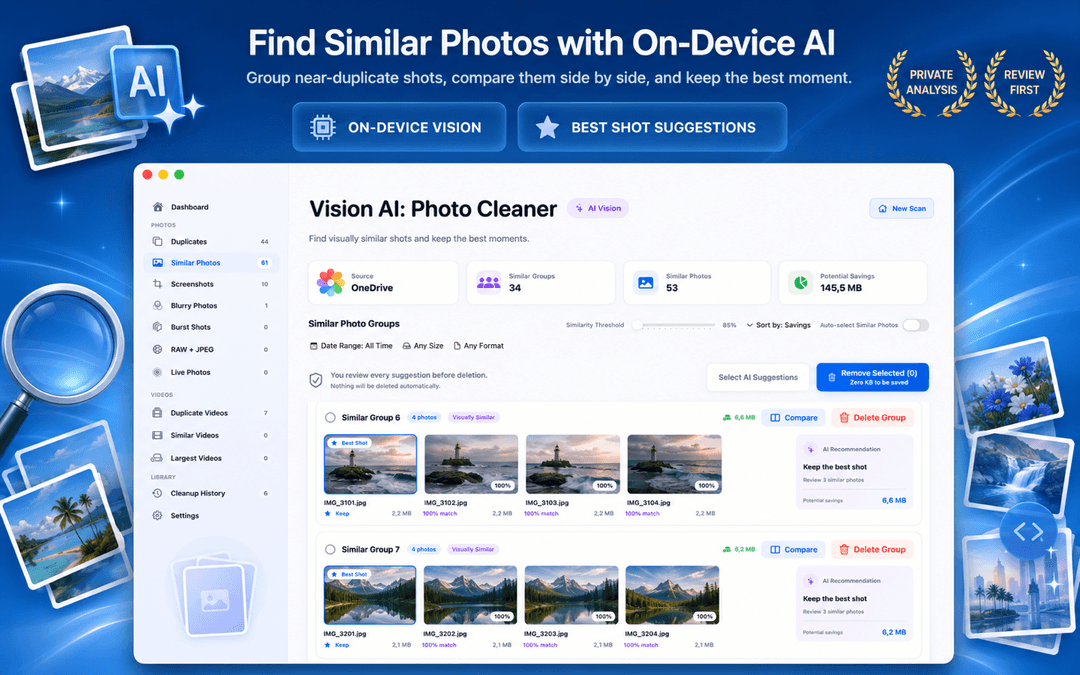
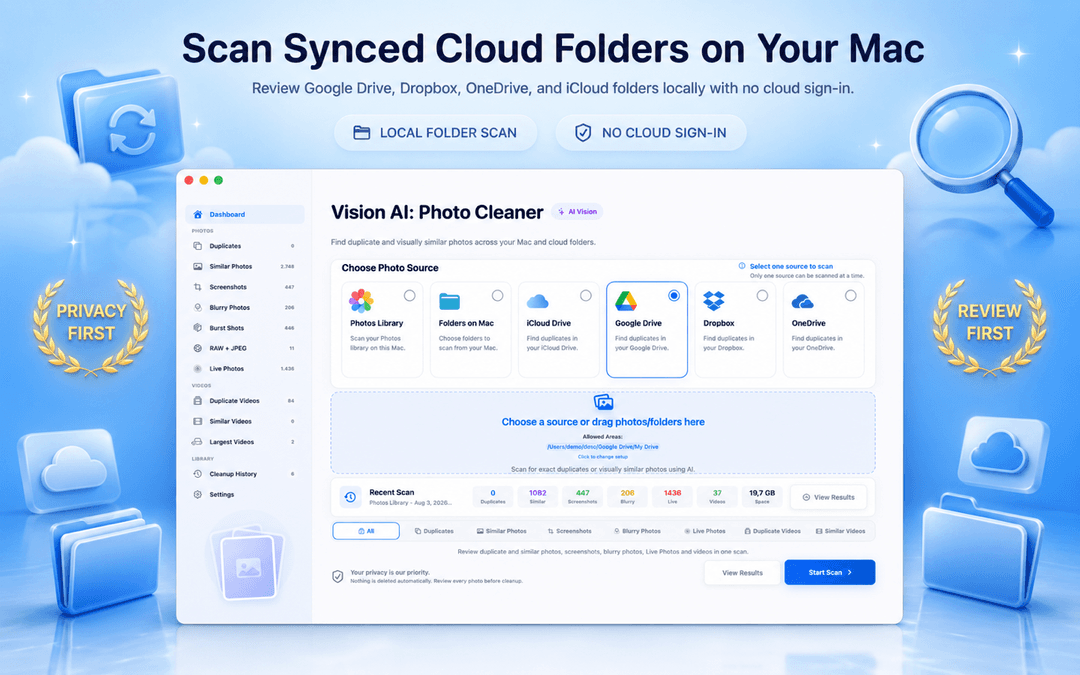
How to Remove Duplicate Photos from iCloud & Synced Cloud Drives
If you use iCloud Photos, iCloud Drive, Google Drive, Dropbox, or OneDrive, duplicate photos may be synchronized across all your devices:
- iCloud Photos sync: When you delete duplicates in Photos app on Mac, macOS moves them to Recently Deleted and updates iCloud automatically.
- Cloud Drive folders: Deleting a duplicate from your synced Dropbox or OneDrive folder removes it across all connected devices. Make sure you keep the file in your preferred archive location.
Don't Forget Screenshot Cleanup on Mac
Retina screenshots on macOS are lossless PNG files that can run to several megabytes each. Old receipts, one-time verification codes, and temporary captures clutter your desktop and storage. Culling obsolete screenshots is a fast, low-risk way to reclaim space before sorting personal photos.
How to Delete Duplicate Photos on Mac Safely Without Losing Originals
Follow this safety checklist to delete duplicate photos on Mac with zero regrets:
- Create a Time Machine backup before running a large library cleanup.
- Always delete to Trash first so you can restore anything until you empty it.
- Never allow automatic deletion of similar photos without a preview check.
- Empty Trash and Recently Deleted only after verifying your remaining photo library is intact.
How to Prevent Duplicate Photos From Returning on Mac
Build these 4 simple habits to keep your Mac photo storage permanently organized:
- Set Apple Photos as your single source of truth and avoid creating duplicate manual backup folders.
- Avoid syncing the same photo folder to multiple cloud providers simultaneously.
- Clean your MacBook Downloads and Desktop folders at the end of each month.
- Cull burst shots and duplicate takes on the day you take them.
How to Delete Duplicate Photos on Mac in 3 Simple Steps
Choose a scan source
Select your Apple Photos library, a Mac Finder folder, or synced iCloud Drive in Vision AI - Photo Cleaner.
Scan with on-device Vision AI
Let the on-device AI find exact duplicates, similar burst photos, and screenshots locally on your Mac.
Review side-by-side and delete to Trash
Review candidate groups, select redundant copies, and move them to macOS Trash safely.
Frequently Asked Questions About Deleting Duplicate Photos on Mac
How do I find and delete duplicate photos on Mac for free?Show answer
You can use the built-in Duplicates album in Apple Photos (Utilities > Duplicates) for exact matches in your library. For near-duplicates, burst shots, and Finder folders, download Vision AI - Photo Cleaner for free on the Mac App Store.
How to delete duplicate photos on MacBook Pro?Show answer
Open Vision AI - Photo Cleaner on your MacBook Pro, select your Photos library or drive folder, and run an on-device scan. Review the side-by-side candidate groups, keep the sharpest shot, and delete duplicate photos to Trash.
How do I remove duplicates from Photos library on Mac?Show answer
In the Apple Photos app, click Duplicates in the sidebar and select Merge. For duplicates and similar photos that Apple's tool misses, scan the library with Vision AI - Photo Cleaner to find near-duplicates, Live Photos, and burst shots.
How to remove duplicate photos from iCloud?Show answer
When you delete duplicates in the Photos app on Mac or via Vision AI - Photo Cleaner, macOS sends them to Recently Deleted. The deletion automatically syncs across iCloud Photos, freeing storage on your iPhone, iPad, and iCloud account.
What is the best duplicate photo finder for Mac?Show answer
Vision AI is designed for users who need exact and similar-photo review across Photos, Finder folders and supported storage locations. It provides side-by-side preview and synchronized zoom so you can verify each deletion before sending files to Trash.
Why is my Mac storage still full after deleting duplicate photos?Show answer
When you delete photos on Mac, they move to macOS Trash or the Photos app's Recently Deleted album. Storage is only reclaimed once you empty the Trash and delete items from Recently Deleted.
The Bottom Line: Reclaim Mac Storage Safely
To organize duplicate photos on Mac effectively, start with Apple Photos' built-in Duplicates album for standard library duplicates, and consider a dedicated tool like Vision AI - Photo Cleaner if you need to compare visually similar shots or scan external folders. Review candidate groups carefully and always verify your Trash safety net before emptying it.
Have questions? Support Center
Related guides

· 9 min read
How to Compress Videos on Mac: 4 Built-In and Free Ways
Compress videos on Mac with Photos, QuickTime Player, Finder or Vision AI. Compare quality options, keep your originals safe and free up storage.

· 9 min read
How to Clean Up Burst Photos on Mac & Keep the Best Frames (2026)
Learn how to clean up burst photos on Mac. Select peak action frames, expand burst stacks, and delete dozens of redundant shots to free up storage.

· 9 min read
How to Find Blurry Photos on Mac: Safe Cleanup & Focus Detection (2026)
Learn how to find blurry, out-of-focus, and camera-shake photos on Mac. Distinguish low shutter speed blur from artistic bokeh and clean clutter safely.
Ready when you are
Download Vision AI - Photo Cleaner for Mac
Find duplicate and similar photos, review large videos and compress videos locally on your Mac. Choose what to keep and confirm every cleanup.
By using Vision AI - Photo Cleaner, you agree to our Terms of Use and Privacy Policy.