How to Free Up Mac Storage: Clean Duplicate Photos & Videos with On-Device AI
Complete guide to free up Mac and MacBook Pro storage: clean duplicate photos, similar shots, blurry photos, Retina screenshots, Live Photos, and large videos.


Where the space actually is
How to Free Up Mac Storage: Clean Duplicate Photos & Videos with On-Device AI
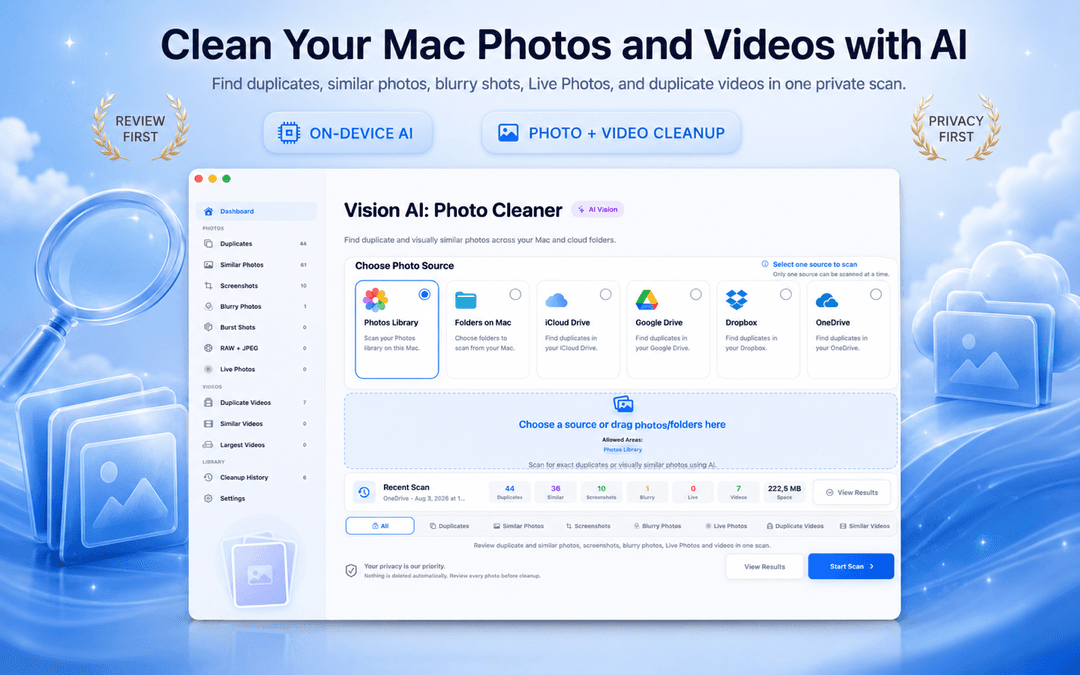
Looking for the best way to free up Mac storage and get rid of duplicate photos on Mac? Photo and video clutter is typically spread across ten distinct categories: exact duplicate photos on Mac, visually similar shots, blurry photos, Retina screenshots, Live Photos motion data, burst sequences, RAW + JPEG pairs, duplicate videos, similar takes, and massive 4K video files.
Vision AI - Photo Cleaner is a powerful, on-device Mac photo cleaner and duplicate photo cleaner for Mac. It scans your Apple Photos library, MacBook Pro drives, iCloud Drive, and synced Google Drive, Dropbox, or OneDrive folders entirely locally. You can download it for free on the Mac App Store.
This 2026 guide explains how to delete duplicate photos on Mac, reclaim gigabytes from video files, and remove duplicate photos from iCloud safely with zero risk to original shots.
Mac storage hides in three places
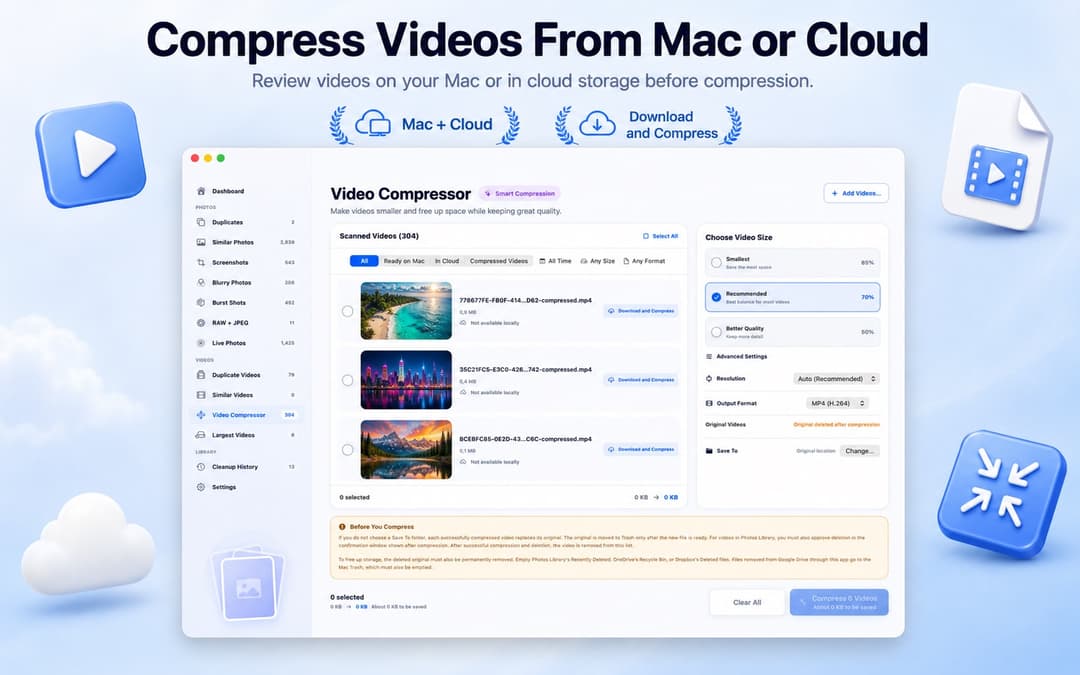
Video Compressor · 1.4.2
Reduce video sizes with quality and resolution controls. Save compressed copies in a separate folder, or replace originals only after the new video passes safety validation. Processing stays on your Mac.
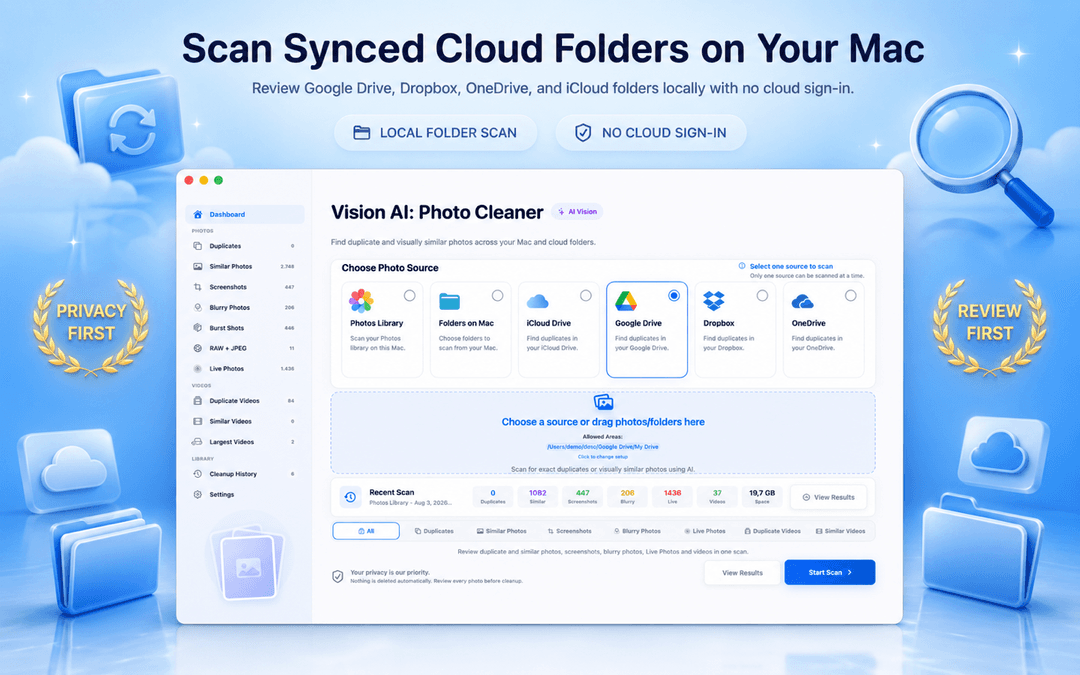
Start by Choosing One Source: Photos Library, Mac Folders & iCloud
The biggest mistake when cleaning photos is scanning your entire drive at once. When identical photos live in both your Photos library and a synced Dropbox folder, mixed results make it hard to tell which file you should keep.
Scan in this structured order:
- Apple Photos library first: Clean your main library so you know your keepers before inspecting other folders.
- Mac & MacBook folders next: Scan Downloads, Desktop, and old backup folders.
- Synced cloud folders one by one: Clean iCloud Drive, Google Drive, Dropbox, and OneDrive individually to avoid sync conflicts.
Vision AI runs 100% on-device, reading the local directories your cloud apps sync to your Mac without requiring cloud logins.
Exact Duplicates: The Safe Bulk Deletion
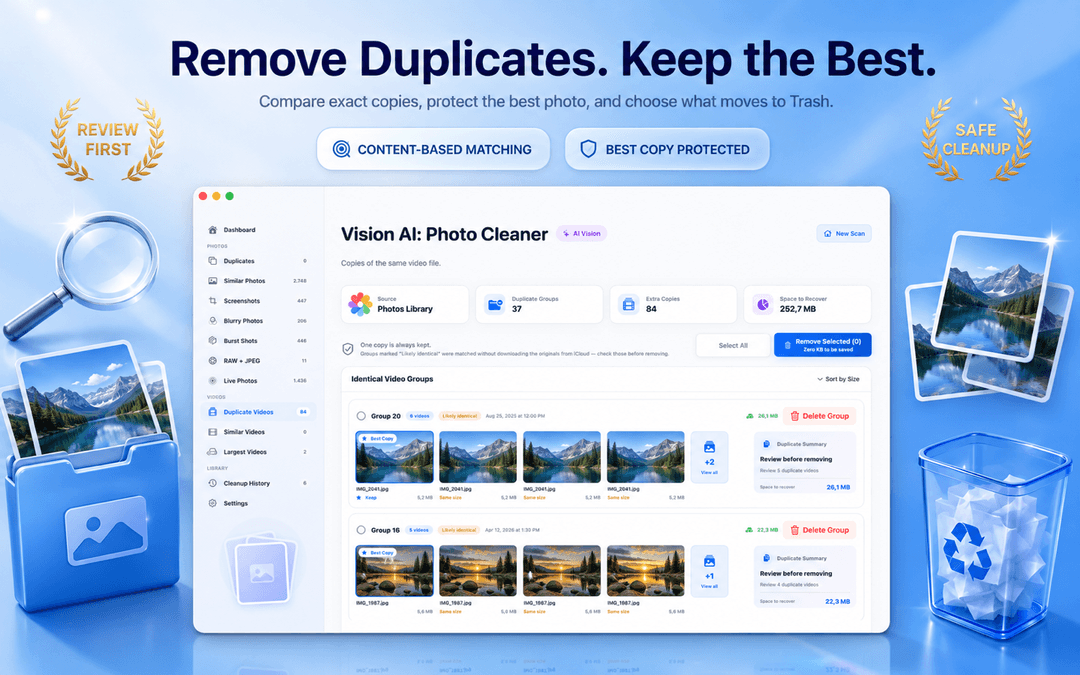
Exact duplicate photos on Mac share identical image content. Vision AI matches photos by content rather than filename, meaning IMG_4021.jpg and IMG_4021 copy.jpg are correctly grouped even after renaming.
One copy in each group is automatically preserved as the best keeper, protecting you from deleting whole sets by accident. You can filter by date, file size, and format, and bulk-delete exact duplicates to Trash with complete confidence.
Visually Similar Photos: Where Most of Your Disk Space Lives
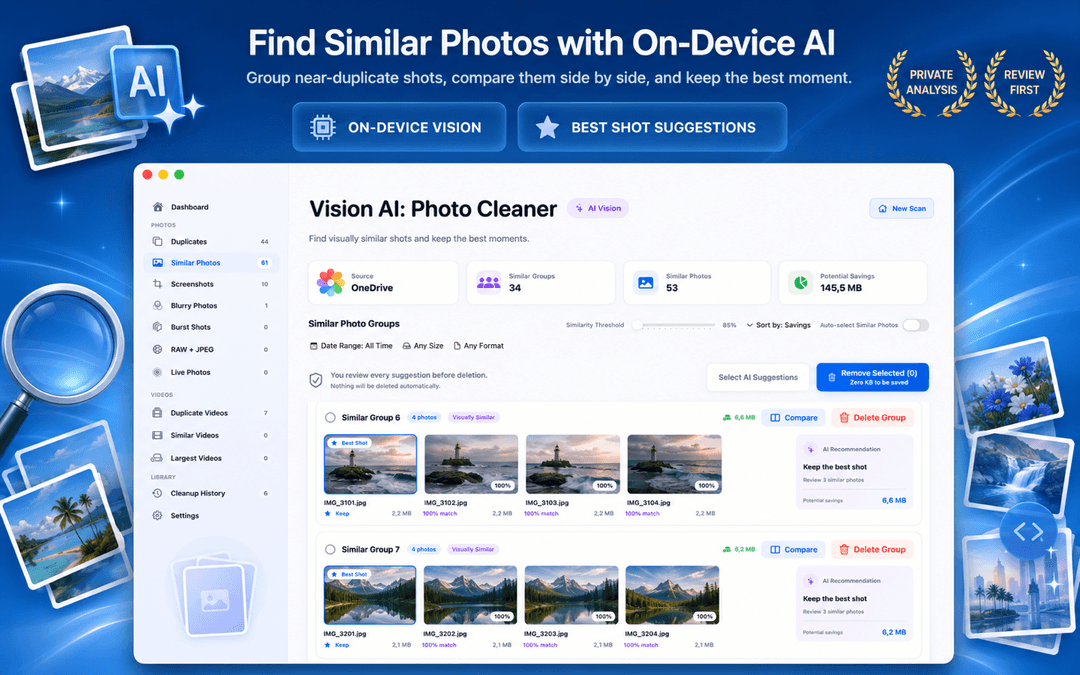
Most Mac photo libraries are filled with visually similar shots: consecutive burst takes, resized social media exports, and different framing of the same scene.
On-device Vision AI scores similarity locally on your Mac. Using the similarity slider and side-by-side synchronized zoom, you can compare fine details, pick the sharpest shot, and delete redundant copies quickly.
Blurry Photos: Scored and Ranked with On-Device AI
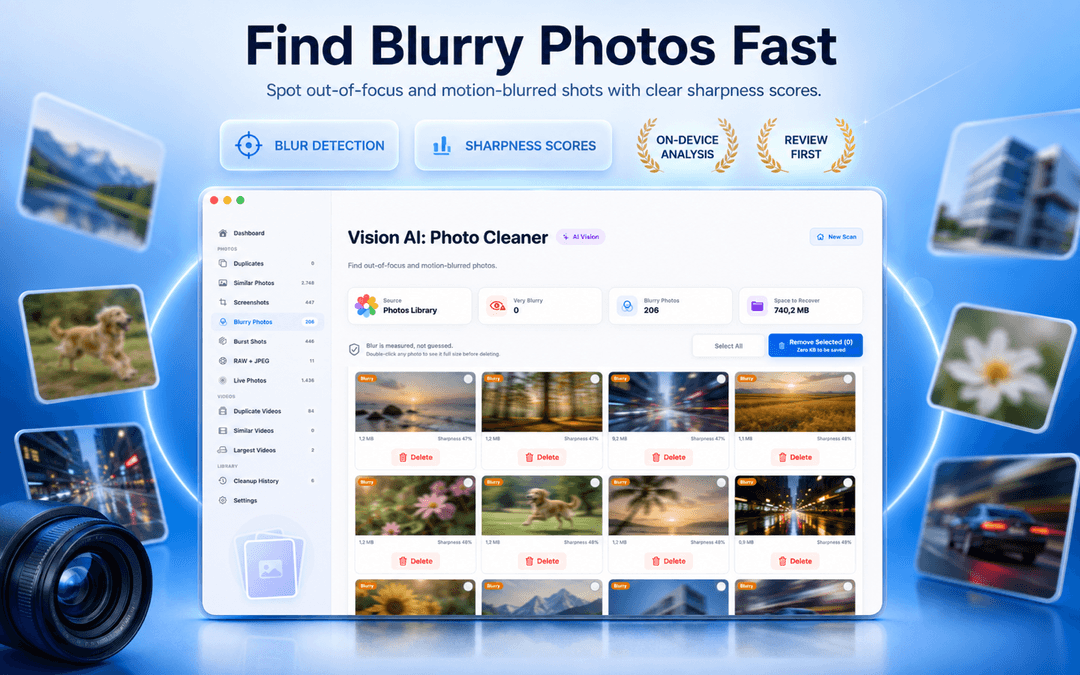
Out-of-focus and motion-blurred photos are obvious candidates for deletion, but scrolling through thousands of photos to find them is impractical.
Vision AI calculates sharpness ratings on your Mac, ranking the blurriest shots first. Adjustable blur sensitivity lets you cull ruined takes in seconds.
Live Photos: Keep the High-Res Still, Drop the Video Motion
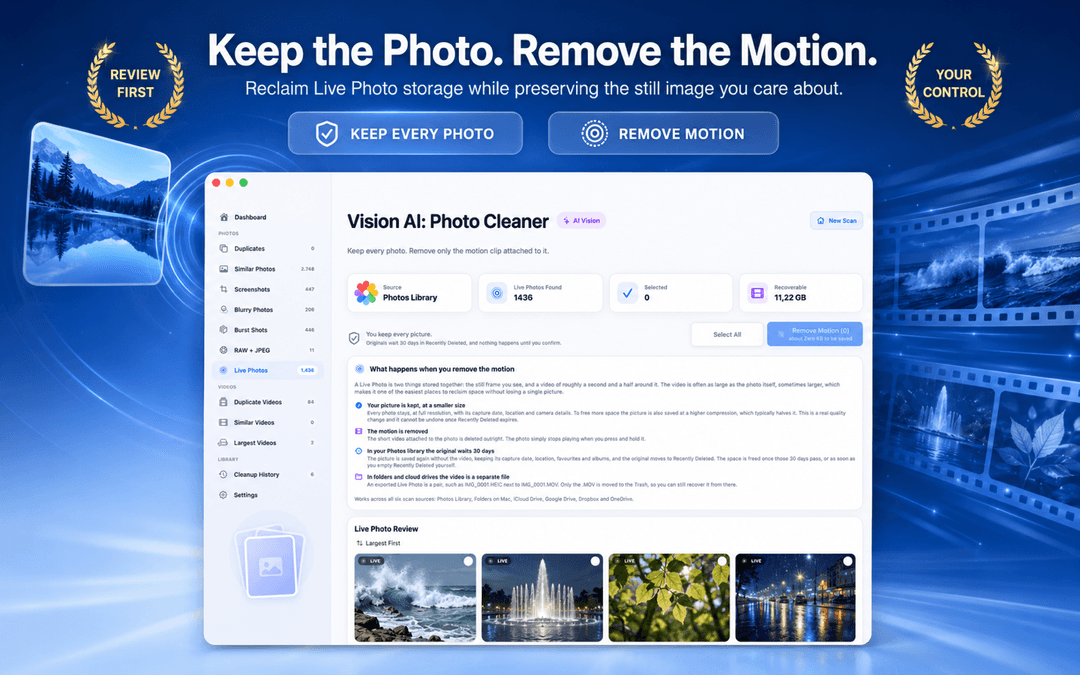
Every Live Photo stores a high-resolution still image plus a roughly three-second video clip, which adds noticeably to its file size.
Converting Live Photos to stills preserves your high-resolution pictures while purging the underlying video clips, freeing space across large libraries while keeping album organization and dates intact.
Burst Sequences: Pick One Keeper Per Moment
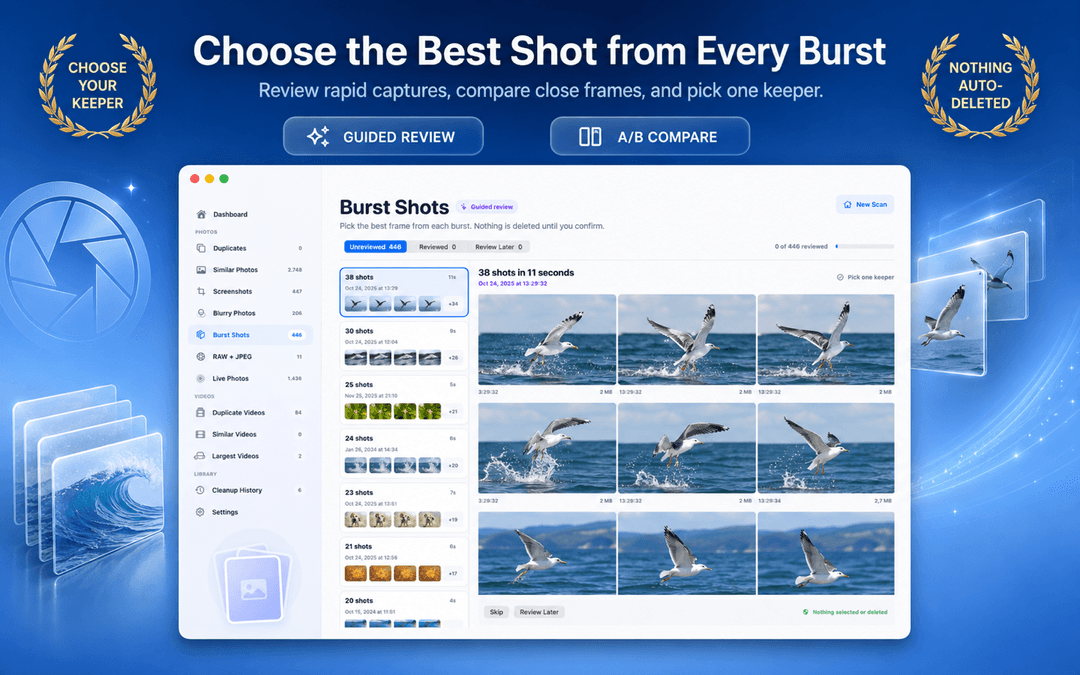
Burst mode can quickly generate 30 frames in a few seconds. Vision AI groups burst frames by capture moment, allowing you to select the best pose or smile and discard the rest.
RAW + JPEG Pairs: Manage Camera Originals
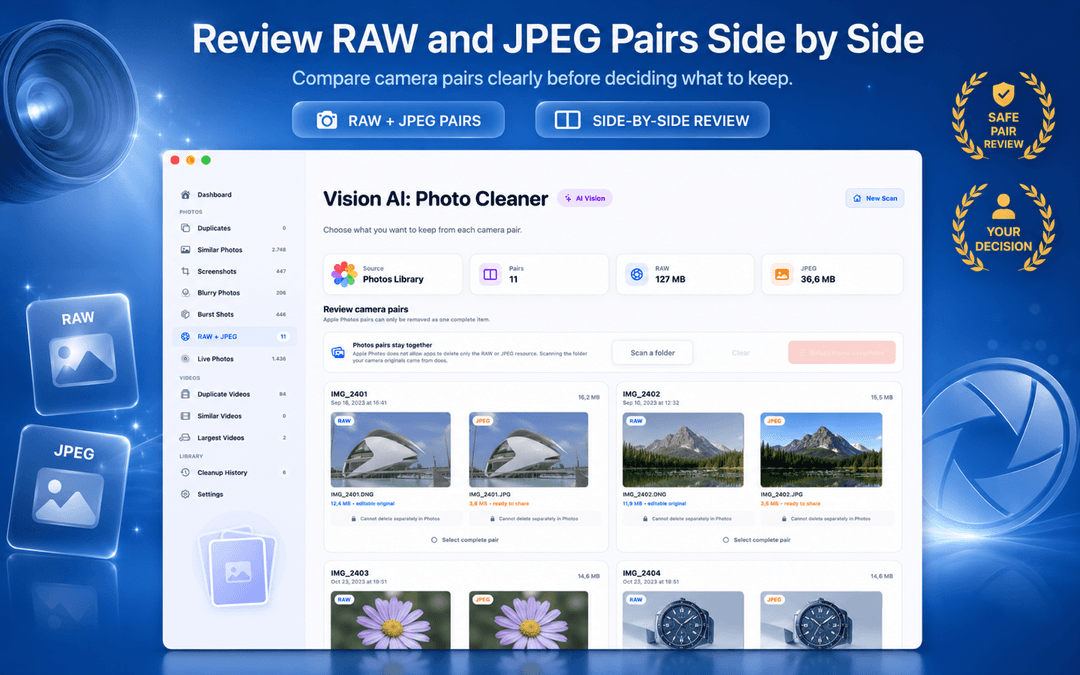
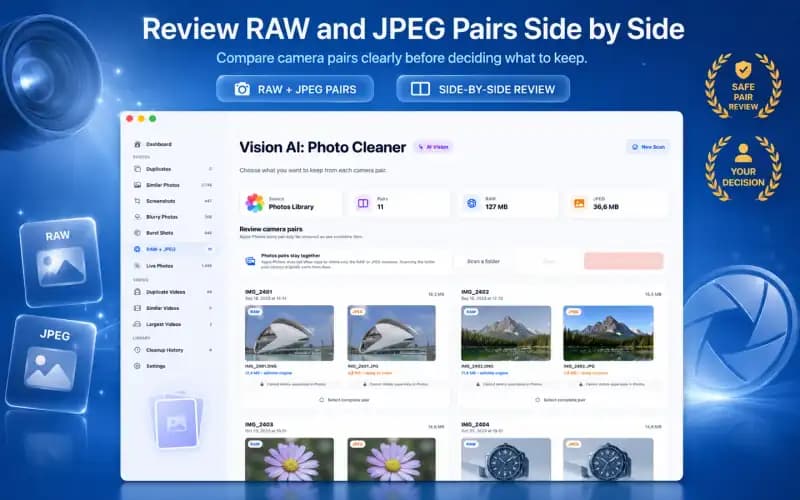
Shooting in RAW + JPEG significantly increases your storage consumption. Vision AI displays pairs side by side with respective file sizes, letting you review your archives and remove redundant RAW files for finished shoots.
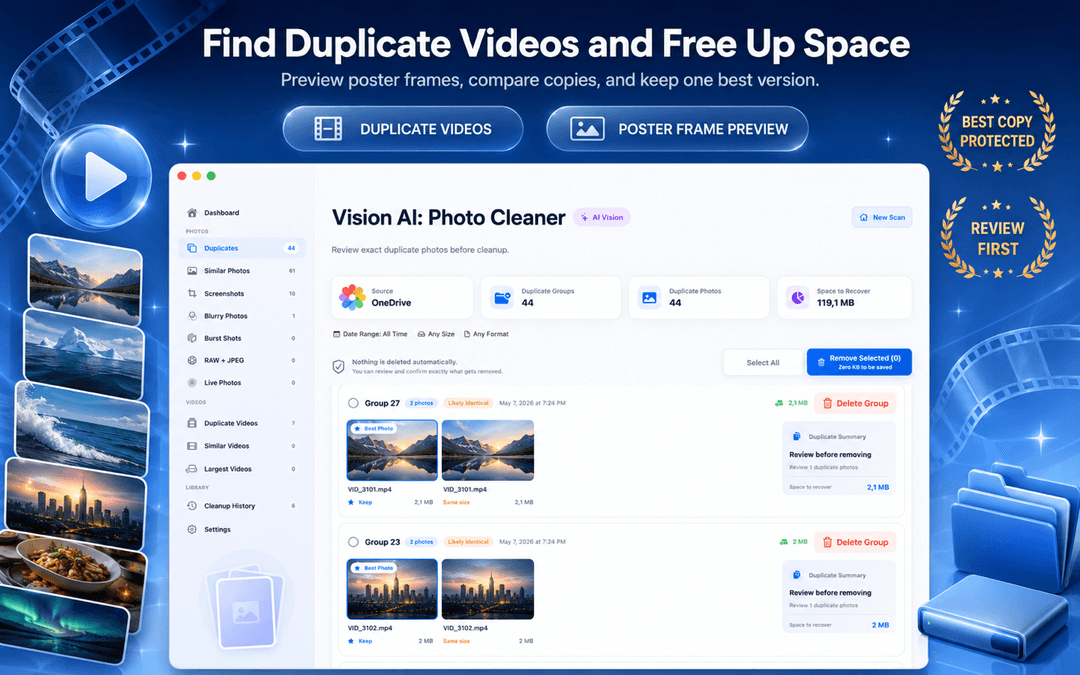
Duplicate & Large Video Cleanup: Maximum Storage Recovery
Video cleanup provides the fastest storage gains:
- Duplicate videos: Exact matches that can be purged in bulk.
- Similar video takes: Compare poster frames to keep the final edited take.
- Largest video files: A ranked list of the heaviest video files taking up space on your Mac.
Screenshots: Clean Clutter with Zero Regrets
Retina screenshots on macOS are heavy PNGs that quickly become obsolete. Culling outdated screenshots is a low-risk way to reclaim space before sorting personal photos.
Cloud Folders & iCloud Drive: How Sync is Handled
When cleaning synced iCloud Drive, Google Drive, Dropbox, or OneDrive folders, remember that deletions sync to all devices on that account. Vision AI protects you by always marking a keeper and routing deletions to macOS Trash.
Safe Trash-First Workflow: Nothing Deleted Without Confirmation
Vision AI never deletes files behind your back:
- Review before delete: You confirm every removal.
- Trash & Recently Deleted: Files move to macOS Trash (restorable until you empty it) or to the Photos Recently Deleted album (kept for 30 days).
- 100% on-device: All analysis remains strictly local to your Mac.

How to Clean Mac Photos and Videos in 3 Steps
Choose a scan source
Select your Apple Photos library, a Mac Finder folder, iCloud Drive, or synced cloud storage.
Run on-device Vision AI scan
Let the on-device AI analyze duplicate photos, similar shots, blurry photos, and videos locally.
Review and delete safely to Trash
Review candidate groups carefully and move unneeded files to macOS Trash so you can restore them until you empty it.
Frequently Asked Questions About Mac Storage Cleanup
What is the best duplicate photo cleaner for Mac?Show answer
Vision AI - Photo Cleaner is designed for comprehensive Mac cleanup, featuring on-device scanning for exact duplicates, similar photos, blurry shots, Live Photos, and duplicate videos with side-by-side verification.
How to delete duplicate photos on MacBook Pro?Show answer
Open Vision AI - Photo Cleaner on your MacBook Pro, select your Photos library or drive folders, review the side-by-side matches, and delete redundant copies directly to Trash.
How do I remove duplicate photos from iCloud?Show answer
Deleting duplicate photos in the Apple Photos app on Mac automatically moves them to Recently Deleted and synchronizes the deletion across all devices on your iCloud account.
Can Vision AI clean duplicate videos on Mac?Show answer
Yes. Vision AI includes dedicated views for exact duplicate videos, similar video takes, and a list of your largest video files.
Is Vision AI - Photo Cleaner free?Show answer
Yes. It is free to download on the Mac App Store and allows you to scan, review, and delete duplicate photos without a paywall.
Can I compress videos without replacing the originals?Show answer
Yes. You can save compressed video files into a separate folder to keep originals untouched, or choose to replace originals only after the newly compressed video passes safety validation.
Reclaim Your Mac Storage Today
From exact duplicate photos to large video files and Live Photos, Vision AI - Photo Cleaner is the complete Mac photo cleaner that puts safety and privacy first. Download it on the Mac App Store or read more on the product page.
Have questions? Support Center
Related guides

· 9 min read
On-Device Processing Explained: What Stays on Your iPhone and Mac
What on-device processing means, how photo apps find duplicates without uploading your library, and what still uses the network. Plain-English guide.

· 9 min read
Are Mac Photo Cleaner Apps Safe? A Privacy Checklist
Before a duplicate photo finder scans your Mac, check these 8 things: privacy labels, Photos and folder access, cloud drives, network activity and safe deletion.
· 9 min read
RAW + JPEG Photos on Mac: What Should You Keep? (2026 Guide)
Master RAW + JPEG pair management on Mac. Learn how Apple Photos handles camera RAW files, how to avoid double-storage bloat, and when to keep RAW masters.
Ready when you are
Download Vision AI - Photo Cleaner for Mac
Find duplicate and similar photos, review large videos and compress videos locally on your Mac. Choose what to keep and confirm every cleanup.
By using Vision AI - Photo Cleaner, you agree to our Terms of Use and Privacy Policy.