How to Track Water Intake in Apple Health on iPhone
Log water in Apple Health, change units, review data sources, and connect DropWise without recording the same drink twice.


Set it up in 6 steps
- Open Health on iPhone, tap Browse and search for Water.
- Tap Add Data, enter the amount and time, and tap Add to log a drink by hand.
- Optional: tap Pin to Summary so Water shows on the Summary tab.
- In DropWise, open Settings → Apple Health and turn it on.
- In the Health permission sheet, allow DropWise to write Water.
- Log one drink in DropWise and confirm it in Health → Water → Show All Data.
Apple Health stores water entries under Water, the data type called Dietary Water in HealthKit. You can add an entry directly in Health or let DropWise write entries from your drink log. Choose one place to record each drink so you can tell where each entry came from.
1. Find Water and add an entry
Open Health on iPhone, tap Browse, and search for Water. You can also look under Nutrition. Open the Water page to see the chart and switch between the available time ranges. If you check it often, use Pin to Summary when that option appears.
Tap Add Data, enter the amount in the unit shown, and set the date and time when you drank it. Tap Add, then confirm that the entry appears for that date. To change how Health displays water, scroll to Options, tap Unit, and choose your preferred unit. Check whether the input is in milliliters or fluid ounces before entering a number.
2. Check who can read and write water data
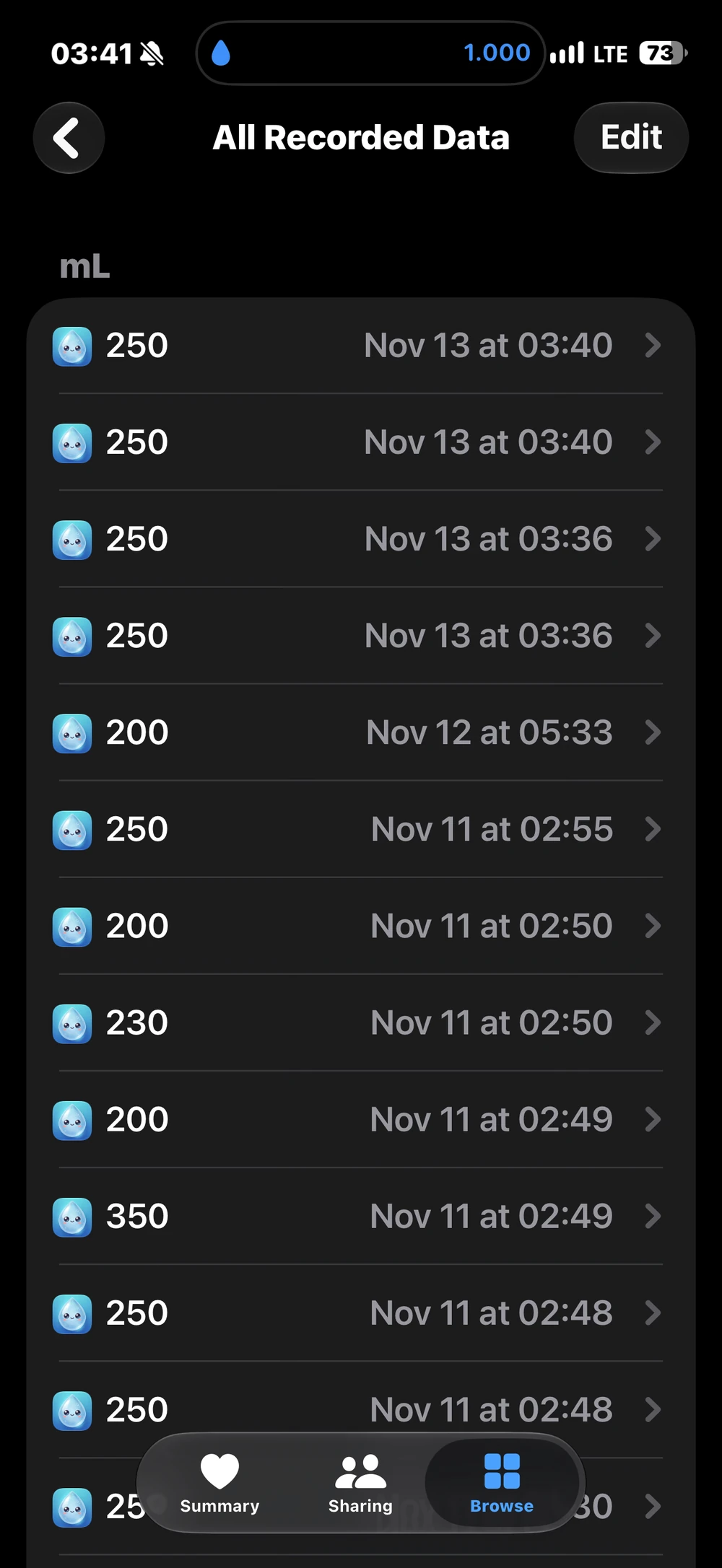
On the Water page, scroll to Options and tap Data Sources & Access to review connected apps and contributing sources. Use Show All Data to inspect individual entries and their timestamps and sources. That is the best place to investigate a total that looks off.
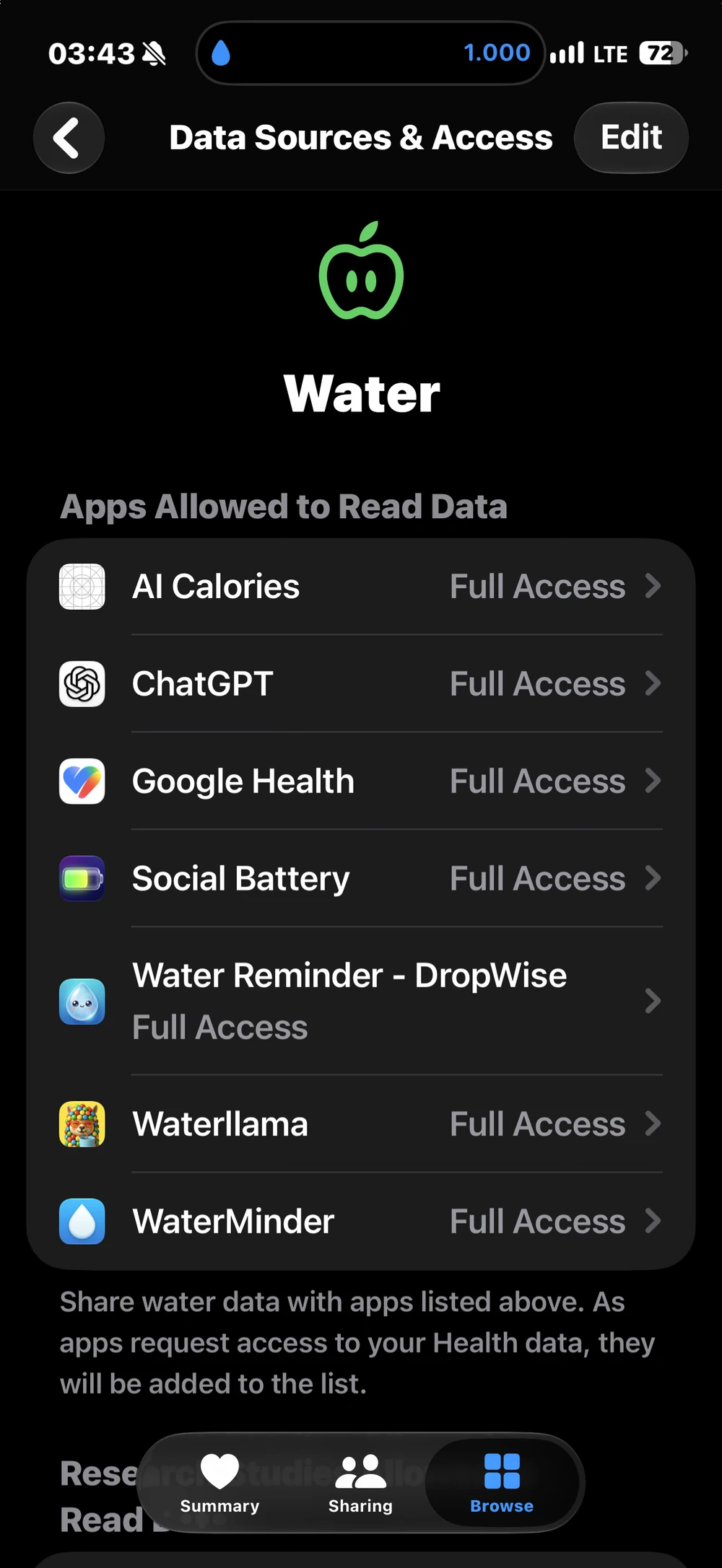
For app permissions, open Health, tap your profile picture or initials, then open Apps or Apps and Services under Privacy and select DropWise. Permission to write Water lets the app save entries. Permission to read Water lets it query existing entries. The switches are separate. Turning off write access stops new writes and leaves existing entries in Health.
3. Connect DropWise and verify one entry
Open DropWise → Settings → Apple Health and turn on the integration. In the Health permission sheet, allow DropWise to write Water. DropWise requests read access too, which supports checking whether a matching sample already exists. The integration exports DropWise entries. It does not import other apps’ water entries into your DropWise log.
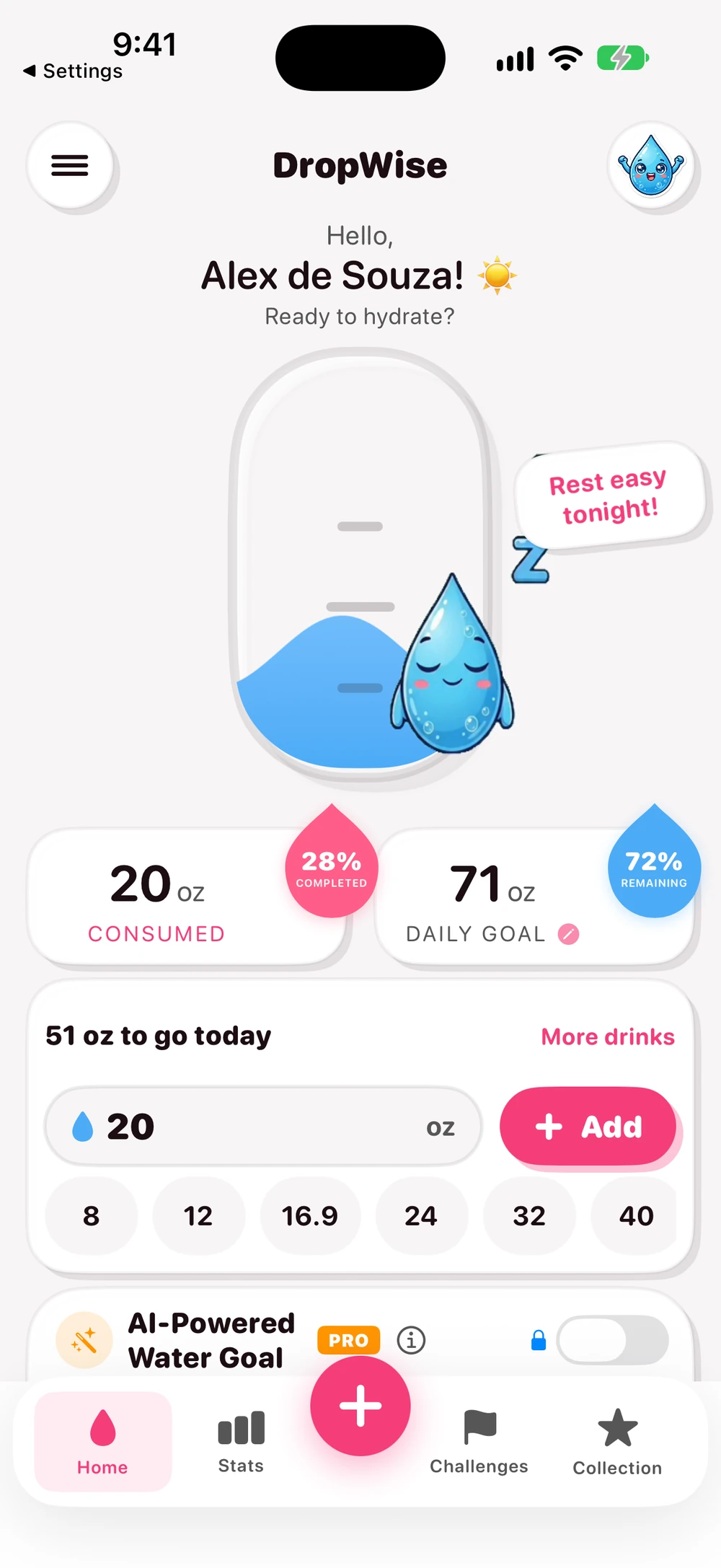
Log a drink once in DropWise. Then return to Health → Browse → Water → Show All Data and check for a corresponding entry from DropWise. If nothing appears, confirm the integration is enabled in DropWise and Water write permission is enabled in Health. DropWise 4.1.2 checks both before saving. Its basic Apple Health connection has no Premium gate in the settings or write path. The app is free to download and offers optional purchases.
4. Avoid logging the same drink twice
If you record a drink in DropWise with sync enabled, skip the manual Health entry for that drink. Apply the same rule when another app also writes Water. DropWise uses identifiers and matching checks to avoid some repeat writes, but two independent records may still be saved for the same drink.
If you suspect a duplicate, compare the time, amount, and source in Show All Data. Delete only the extra record you can identify. If the extra record originated in DropWise, also review the original DropWise log so the two histories reflect what you intended to record. If you want to stop future sync, switch Apple Health off in DropWise or revoke Water write permission in Health. Review old entries separately if you want to remove them.
- DropWise privacy and health data
- Water reminders and quick logging on Apple Watch
- DropWise product page
- DropWise on the US App Store
- Apple's guide to viewing Health data
- Apple's guide to managing Health data and sources
| Method | Best for | Watch out for |
|---|---|---|
| Add Data in Health | A quick manual entry now and then | Typing the wrong unit (ml vs fl oz) |
| DropWise with Apple Health on | Daily logging with reminders and quick-add buttons | Logging the same drink again in Health |
| Another app that writes Water | People who already use that app | Two apps writing the same drink |
| DropWise on Apple Watch | Logging from your wrist | The watch must sync with the iPhone app first |
Tips for clean water data
- Set the Water unit in Health → Water → Options → Unit before you enter numbers.
- Use Show All Data to see the source of each entry and delete only real duplicates.
- Turning off write access stops new entries but keeps old ones in Health.
- DropWise writes its own entries to Health; it does not import water added by other apps.
Frequently asked questions
Where is water in the Apple Health app?
Open Health, tap Browse and search for Water, or look under Nutrition. Pin it to Summary if you check it often.
Can I log water in Apple Health without an app?
Yes. On the Water page tap Add Data, enter the amount and time, and tap Add.
Does DropWise read water I add in Health?
No. DropWise writes its own entries to Health. It reads Water only to avoid saving the same entry twice, and it does not import other apps' entries into its log.
Why is my water total in Health too high?
Usually the same drink was logged twice, for example in DropWise and again in Health or another app. Compare time, amount and source in Show All Data.
Is the Apple Health connection free in DropWise?
Yes. In DropWise 4.1.2 the basic Apple Health connection works without Premium.
How much water do you need?
Enter your weight, exercise and weather for a quick daily estimate.
(155 lb)
Your estimated daily water needs
2.65 L
(89.6 US fl oz)
About 10.5 (250 mL (8.5 fl oz) per glass)
A flexible estimate, not a drinking requirement. Avoid excessive water intake, especially over short periods. Adjust according to thirst, activity, health and medical advice.
Open the full water intake calculator →Related guides
· 6 min read
How to Set Up a Water Reminder on Apple Watch (2026)
Set up a water reminder on any Apple Watch (Series, Ultra, or SE). Compare built-in Reminders with DropWise watch face complications and 1-tap logging.

· 9 min read
Is Your Water Reminder App Private? A Health Data Checklist
Hydration apps can see your weight, routines and Apple Health data. Check these 8 things before you grant access: privacy labels, Health permissions, sync and more.

· 4 min read
Water Tracking App Not Syncing With Apple Health?
Find out why DropWise water logs are missing, late, or duplicated in Apple Health. Check Water permissions, data sources, and iCloud sync.

Ready when you are
Download DropWise for iPhone
Track hydration more easily with reminders, Apple Health sync, and a privacy-first flow.
By using DropWise, you agree to our Terms of Use and Privacy Policy.