Is Your Water Reminder App Private? An 8-Point Health Data Checklist for iPhone and Apple Watch
Hydration apps can see your weight, routines and Apple Health data. Check these 8 things before you grant access: privacy labels, Health permissions, sync and more.
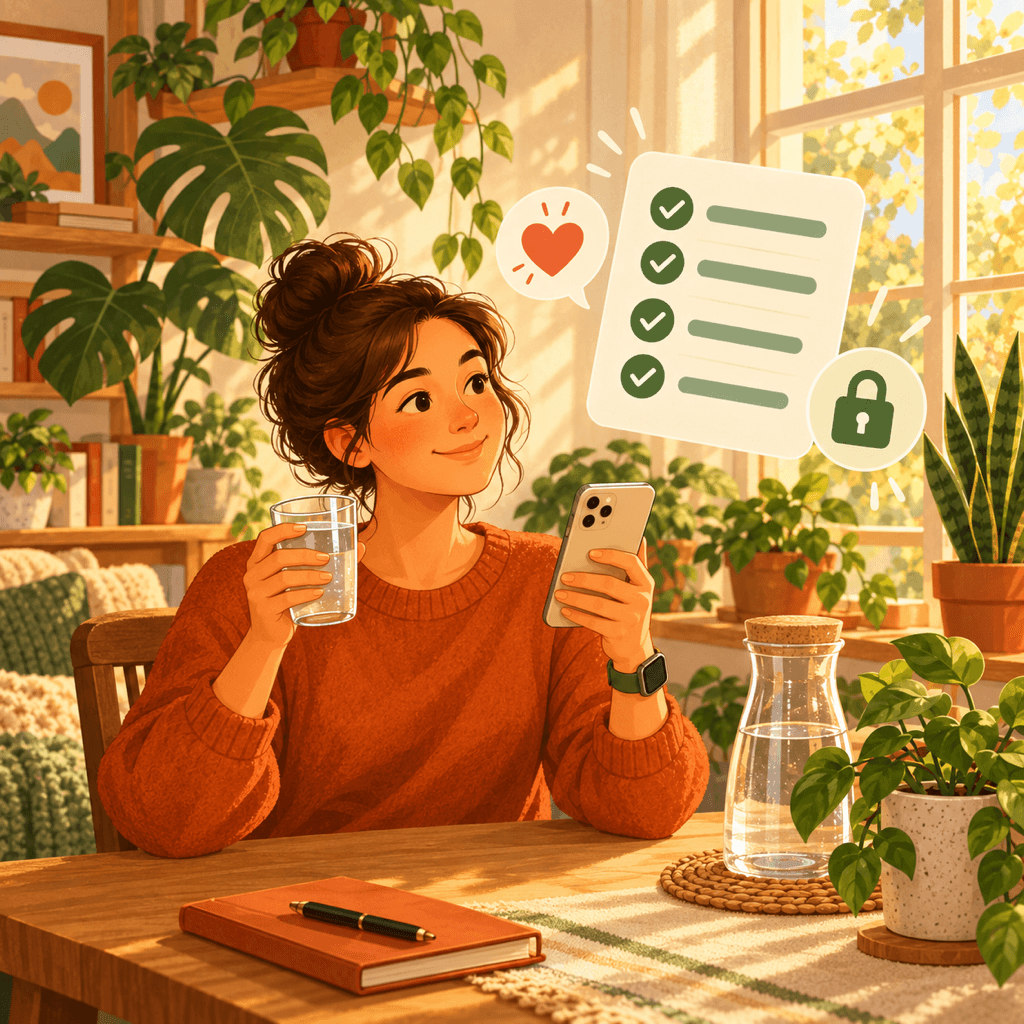
A water reminder looks like a harmless little app, but to set a sensible goal it usually asks for your weight, age, activity level and daily routine, and it may read from or write to Apple Health. Over weeks it builds a detailed picture of when you wake up, when you exercise and how your habits change. That is health data, and it deserves the same care as any other.
The good news is that iPhone gives you clear controls over every piece of it. This guide walks through eight checks you can run in a few minutes, on the App Store listing and in Settings, to see what a hydration app collects, where that data goes and how to take it back.
Why Hydration Apps Hold More Data Than You Think
To calculate a daily goal, many water trackers ask for body weight, age, sex or activity level. Logs add timestamps for every drink, and a connected Apple Watch may add activity information if you grant the relevant Health permissions. Combined, these details reveal routines, health goals and sometimes medical situations such as pregnancy or a fasting plan.
None of that needs to leave your iPhone for a reminder to work. Notifications, goal calculations and charts can all run on the device. The checks below help you tell apart apps that keep this data local from apps that treat it as a product.
1. Read the App Privacy Label Before You Install
Every App Store listing has an App Privacy section filled in by the developer. Look for three groups: Data Used to Track You, Data Linked to You and Data Not Linked to You. The best case is Data Not Collected.
For a hydration app, Health & Fitness data listed under Data Used to Track You is a clear warning sign. Remember that the label is self-reported, so treat it as a starting point and confirm it with the checks that follow.
2. Grant Apple Health Access One Data Type at a Time
When an app connects to Apple Health, iOS shows a sheet where you can turn reading and writing on or off for each data type, such as water, weight or active energy. You do not have to tap Turn On All. For basic logging, writing water intake may be enough; features such as two-way sync or personalized goals may also need permission to read selected data types, such as weight or activity.
You can review these choices later in the Health app: tap your profile picture, then Apps, and select the app. Switching a category off stops the app from reading or writing it from then on, without deleting the app. What the app already stored is covered by its own privacy policy.
3. Check Where Your Logs Are Stored and Synced
Look in the app description or privacy policy for where intake logs live. A privacy-friendly design keeps logs on the device and, if you want sync between iPhone, iPad and Apple Watch, uses your own iCloud account rather than a developer account you have to create.
Be careful with apps that require you to sign up before you can log a single glass. An account is not automatically bad, but it usually means your history is stored on the developer's servers, which you should only accept if the policy explains why and how long it is kept.
4. Question Permissions a Reminder Does Not Need
A water reminder needs notifications. It may optionally use Apple Health and Apple Watch. It has no obvious reason to need your contacts, photos, microphone or the ability to track you across other companies' apps and websites.
If an app adjusts goals to the weather, it may ask for your location. Approximate location is enough for a forecast, so you can turn off Precise Location in Settings → Privacy & Security → Location Services. If a tracking prompt appears, you can tap Ask App Not to Track and keep using the app.
5. Look for Advertising and Analytics Inside the App
Free hydration apps often pay for themselves with ads. Ad networks and analytics SDKs can receive device identifiers and usage events, and in a health app those events can be revealing. The App Privacy label should list this as Identifiers or Usage Data.
To see what actually happens, turn on App Privacy Report in Settings → Privacy & Security, use the app for a day and check which domains it contacted. A short list for purchases or crash reports is normal; a long list of advertising domains is not.
6. Keep Notifications Useful, Not Revealing
Reminders appear on the Lock Screen, where other people can see them. If you track a sensitive goal, choose neutral reminder wording or set Show Previews to When Unlocked in Settings → Notifications.
A well-designed app lets you set quiet hours and a sensible frequency instead of nudging you every few minutes. Too many alerts are not only annoying; they also make it more likely that you switch notifications off altogether.
7. Make Sure You Can Export or Delete Your History
Check the privacy policy for how to delete your data. For an app that stores logs only on your device, deleting the app removes them. If the app syncs through iCloud, you can review its iCloud use in Settings → your name → iCloud. Water you wrote to Apple Health stays in Health until you delete it there.
If the app keeps an account on its own servers, the policy should explain how to request deletion. Clear answers here are a good sign that the developer takes your data seriously.
8. Remember That a Reminder Is Not Medical Advice
Daily water goals are estimates. Needs change with heat, exercise, pregnancy, illness and some medications, and certain conditions require fluid limits. A trustworthy app presents its goal as guidance and encourages you to follow your doctor's advice when it differs.
Be wary of hydration apps that promise weight loss, detoxing or disease prevention. Those claims are a sign of marketing, not of a careful product, and they often come with aggressive data collection.
Run the Privacy Check in Five Minutes
- 1
Open the App Privacy section
On the App Store listing, scroll to App Privacy and look for health data under Data Used to Track You or Data Linked to You.
- 2
Choose Health data types one by one
Allow only what the app needs, then review it any time in the Health app under your profile picture → Apps.
- 3
Turn on App Privacy Report
Enable it in Settings → Privacy & Security, use the app for a day and review which domains it contacted.
- 4
Hide sensitive previews
Set Show Previews to When Unlocked in Settings → Notifications if your reminders mention personal goals.
A Water Reminder Built Around This Checklist
Water Reminder DropWise keeps your logs on your device, uses Apple Health only with your permission and can sync through your own iCloud account. If you allow location, it is used only to adjust your daily goal to the local weather and is never sent to us or stored. Its App Store privacy label is Data Not Collected.

Frequently asked questions
Are water reminder apps safe to use?▼
Many are, but they handle health-related data. A privacy-friendly app keeps logs on your device, asks for Apple Health access one data type at a time, does not track you for advertising and lets you delete your history. Use the App Privacy label and App Privacy Report to check.
Does a hydration app need access to Apple Health?▼
No. Health access is optional and lets the app save water intake next to your other health data. You can allow only water and skip everything else, or decline Health access entirely and log in the app.
Can I stop an app from reading my weight in Apple Health?▼
Yes. In the Health app, tap your profile picture, then Apps, select the app and turn off the categories you do not want to share. The app keeps working with the data you enter yourself.
What happens to my data if I delete a water reminder app?▼
Data stored only inside the app is removed with it. Water entries already saved to Apple Health stay in Health until you delete them there, and data synced to iCloud or a developer account follows those services' own deletion steps.
Is a water reminder app a medical device?▼
A typical consumer water reminder is intended for general wellness, not diagnosis or treatment, and daily goals are estimates. If you are pregnant, ill, an athlete in hot weather or have been told to limit fluids, follow your doctor's advice over any app.
Sources
Related guides
· 6 min read
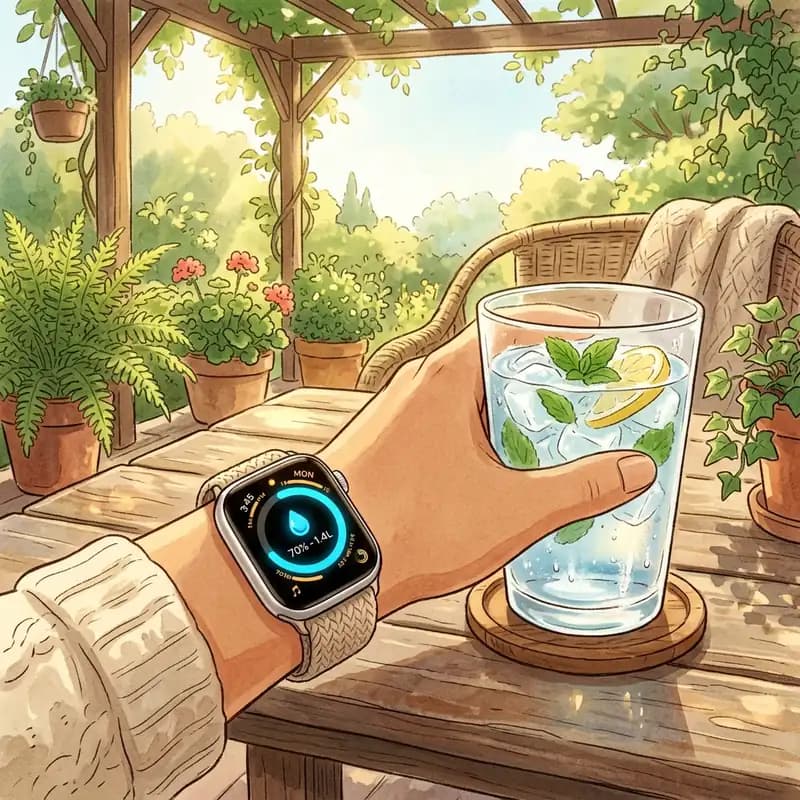
The Best Way to Use Apple Watch as a Water Reminder
How to turn Apple Watch into a real hydration coach: one-tap logging from your wrist, activity-based goals, and a watch face complication that shows your progress.

· 7 min read
How Many Liters of Water Should I Drink Per Day? A Personalized Calculation Guide
Calculate your exact daily water needs based on weight, activity, and climate. Move beyond the '8 glasses' rule with science-backed hydration targets.

· 6 min read
Daily Hydration: How to Build a Consistent Drinking Routine
Build a sustainable daily hydration routine without complicated rules. Learn practical habits to drink water consistently throughout your day.
Ready when you are
Download DropWise for iPhone
Track hydration more easily with reminders, Apple Health sync, and a privacy-first flow.
By using DropWise, you agree to our Terms of Use and Privacy Policy.