How to Organize Screenshots on iPhone: Sort Them, Keep the Important Ones Safe and Find Them Fast
Sort iPhone screenshots into groups like tickets and receipts, keep the important ones safe and find any screenshot fast. Easy steps with real screens.
Screenshots are like sticky notes. You take one to remember something: a train ticket, a receipt, a recipe or a chat. A few weeks later you have hundreds, and they all look the same in your library.
Deleting is only half the job. The other half is knowing which screenshots still matter. This guide is about that part: how to sort screenshots into groups, how to keep the important ones safe and how to find one again when you need it.
You will see two ways. Apple Photos is free and works for a small pile. Smart Screenshot Cleanup in Photos Cleaner - Cleanup Phone sorts screenshots by what they show, right on your iPhone.
Why a Pile of Screenshots Gets Messy
Think of a drawer where you throw every paper you get. Bills, tickets, notes and flyers all end up in one heap. To find one paper, you have to dig through all of them. The Screenshots album on your iPhone works the same way: everything is in it, sorted only by date.
Most screenshots are useful for a short time. A parking spot or a coupon code is done after a day. Some keep their value for months, like a receipt for a return or a ticket for next week. When each kind sits in its own group, you can treat them differently: keep the useful ones and let the rest go.
Start With What Apple Photos Gives You
Apple Photos already keeps all screenshots in one place. It is a good first step and it costs nothing.
- Open the Photos app and tap Collections at the bottom.
- Scroll down to Media Types and tap Screenshots.
- To keep some screenshots together, tap Select, tap the ones you want, then tap the More button (three dots), tap Add To and choose Album. You can make albums like Tickets or Receipts.
- To find one screenshot fast, tap Search and type a word that was in it, like the name of a shop or an airline. Photos can read text inside images.
This works well for a few dozen screenshots. With hundreds, making albums by hand takes a long time, and Photos does not tell you which screenshots are important.
Let the App Sort Screenshots Into Groups
Smart Screenshot Cleanup in Photos Cleaner reads the words and barcodes in each screenshot on your iPhone. Then it puts the screenshot in a group, like putting each paper into the right folder.
- Open Photos Cleaner. On the Home screen, find Screenshots and tap See All.
- Give the app a moment. More screenshots appear as they are sorted.
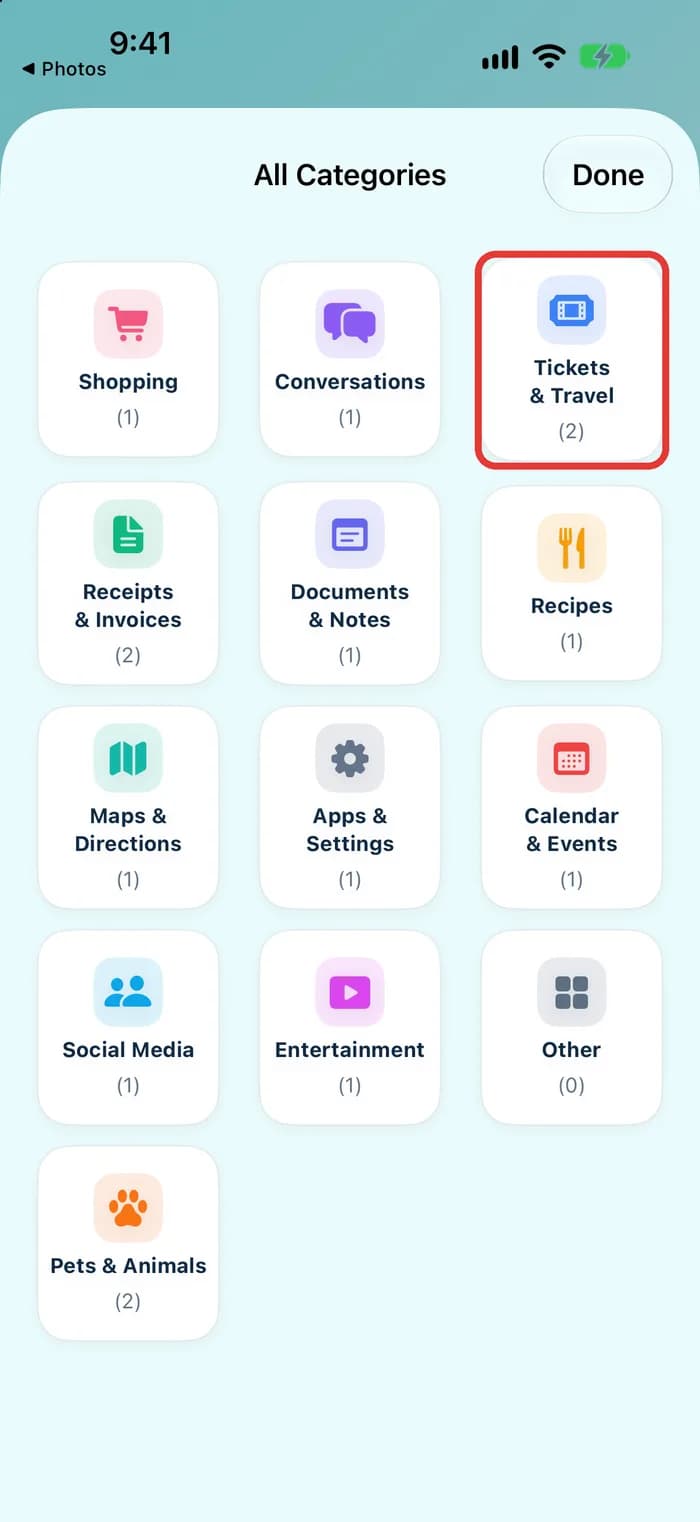
- Under Content Categories, tap All Categories to see every group and how many screenshots are in it.
There are 13 groups: Shopping, Conversations, Tickets & Travel, Receipts & Invoices, Documents & Notes, Recipes, Maps & Directions, Apps & Settings, Calendar & Events, Social Media, Entertainment, Pets & Animals and Other. AI categories and cleanup suggestions are a Premium feature.
Open One Group at a Time
Now you can look at one kind of screenshot at a time. Checking ten tickets is much easier than checking 400 random images.
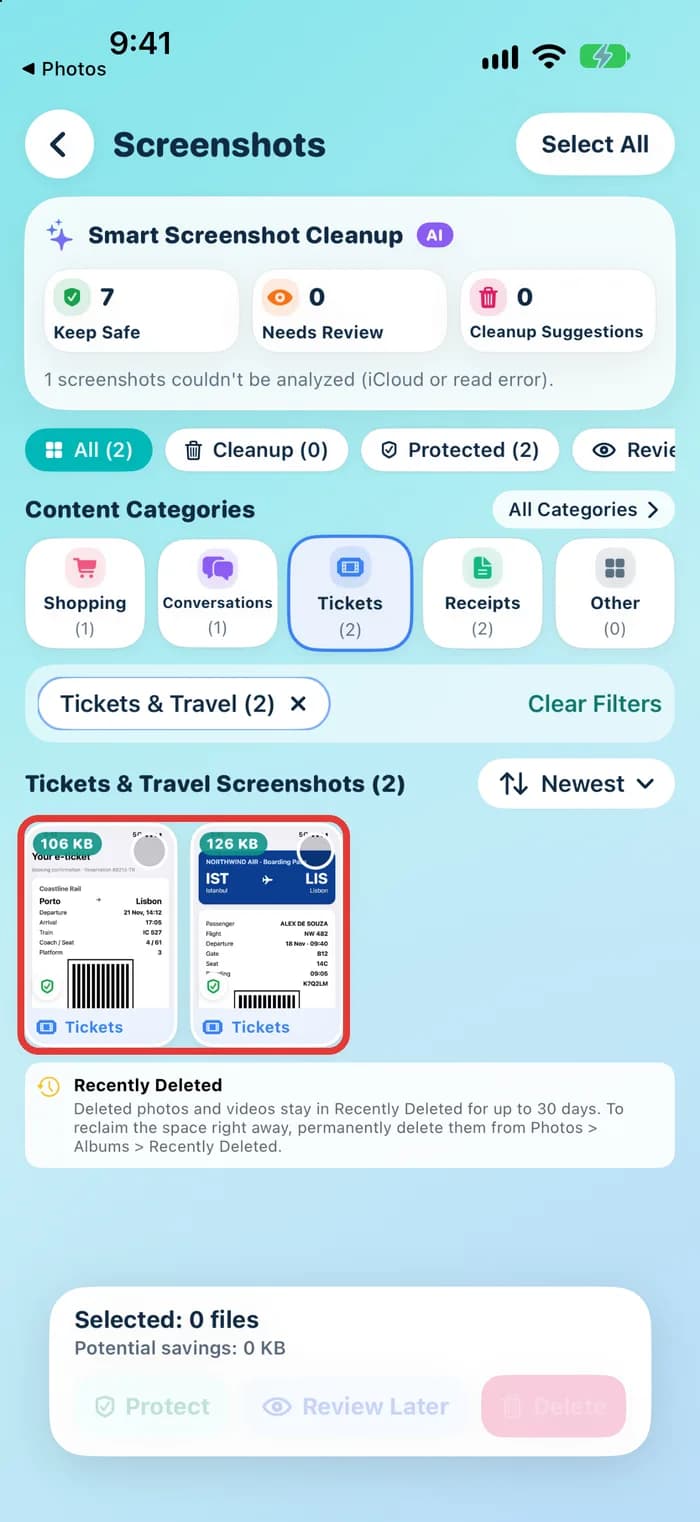
- Tap a group, for example Tickets & Travel. Only those screenshots stay on the screen.
- Tap the sort button to switch between Newest, Oldest and Largest. Oldest is handy when you look for something from months ago.
- A small green shield on a screenshot means the app keeps it safe.
- Tap Clear Filters to see all screenshots again.
Keep Important Screenshots Safe
Some screenshots are like a spare house key. You do not need them every day, but losing one causes trouble. Tickets, receipts, documents and calendar details often belong here, and the app already marks many of them Keep Safe.
- Tap the circle on each screenshot you want to keep.
- Tap Protect at the bottom of the screen.
- Changed your mind later? You can remove the protection again.
Protected screenshots are never included when you delete in the app, not even when you tap Select All. Protection only works inside Photos Cleaner, so you can still delete those screenshots yourself in Apple Photos.
Fix a Wrong Group or Decide Later
The app is good at reading screenshots, but it is not perfect. A blurry picture or a screenshot with very few words can end up in the wrong group. You can fix that in a few taps.
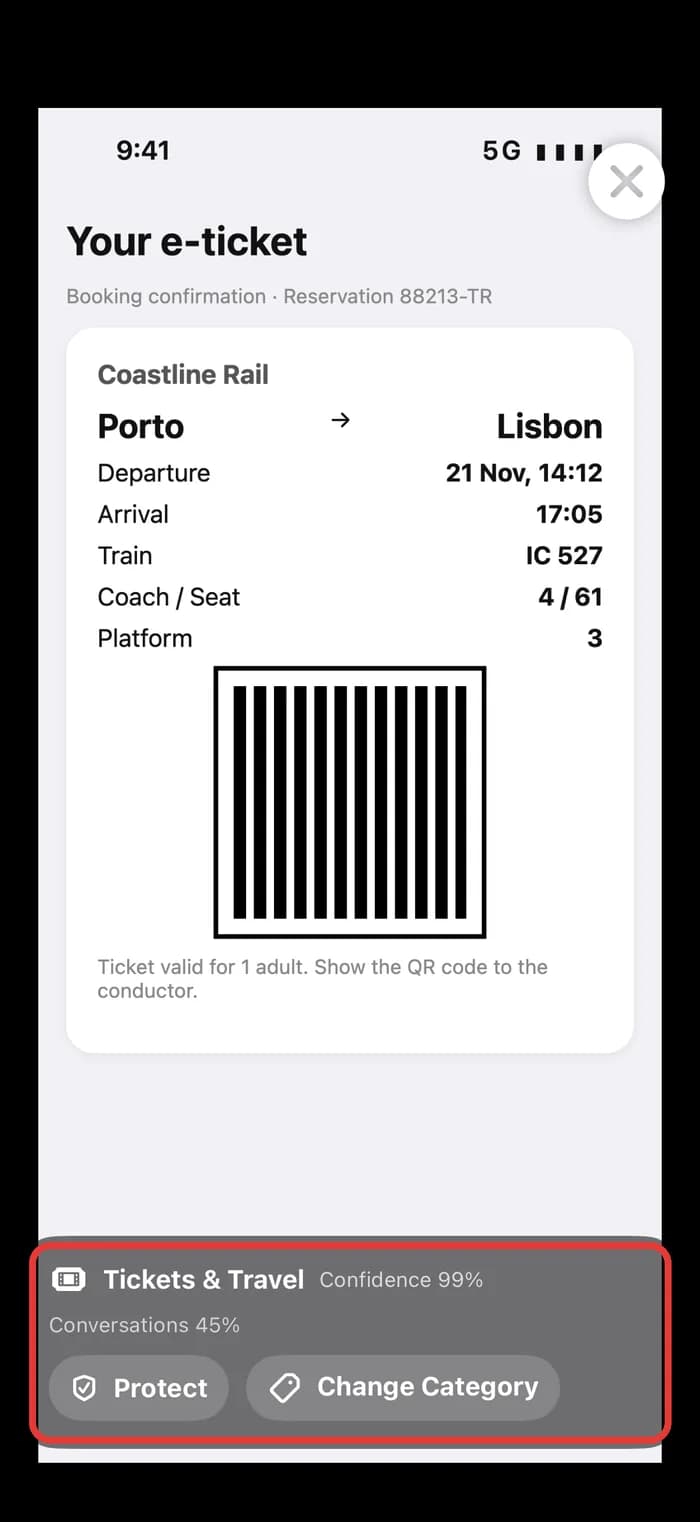
- Tap a screenshot to open it.
- At the bottom you see its group and how sure the app is, for example Tickets & Travel, Confidence 99%.
- Tap Change Category to move it to a different group, or tap Protect to keep it.
- Not sure yet? Close it, select the screenshot and tap Review Later. It waits in the Review filter until you decide.
Screenshots the app is unsure about go to Needs Review too. Look there now and then, because that is where most mistakes show up.
Your Screenshots Stay on Your iPhone
The sorting happens on your iPhone. The app reads text and barcodes with Apple's on-device tools, and your screenshots are not uploaded to be sorted.
When you delete screenshots, they move to Recently Deleted in Apple Photos and stay there for up to 30 days. That is your safety net. The space comes back after they are removed from there.
A Short Monthly Routine
Once your screenshots are sorted, a few minutes a month keeps them that way.
- Open Needs Review and decide on each screenshot.
- Protect new tickets, receipts and documents you still need.
- Look at Cleanup Suggestions and delete what is clearly old.
- Empty Recently Deleted in Apple Photos to get the space back.
How to organize screenshots on iPhone
- 1
Open Smart Screenshot Cleanup
Open Photos Cleaner, find Screenshots on the Home screen and tap See All. The app sorts each screenshot on your iPhone.
- 2
Look at the groups
Tap All Categories to see all 13 groups with a count, such as Tickets & Travel and Receipts & Invoices.
- 3
Open one group
Tap a group to see only those screenshots. Sort by Newest, Oldest or Largest, and tap Clear Filters to go back.
- 4
Protect what you need
Select tickets, receipts or documents you want to keep and tap Protect. The app will never delete them.
- 5
Fix or postpone
Open a screenshot and tap Change Category if the group is wrong. Use Review Later when you are not sure yet.
- 6
Repeat once a month
Check Needs Review, protect new important screenshots and delete old clutter.
Frequently asked questions
How do I organize screenshots on my iPhone?▼
Open Photos, tap Collections, then Screenshots under Media Types, and move important ones into albums with Add to Album. To sort them into groups like tickets, receipts and shopping automatically, use Smart Screenshot Cleanup in Photos Cleaner.
Can my iPhone sort screenshots by category on its own?▼
Apple Photos keeps all screenshots in one Screenshots album, sorted by date. It does not split them into groups like tickets or receipts. Photos Cleaner does that on your iPhone and shows 13 groups.
How do I find an old screenshot quickly?▼
In Photos, tap Search and type a word that was in the screenshot. In Photos Cleaner, open the right group, such as Tickets & Travel, and sort by Oldest.
What does Protect do?▼
A protected screenshot is never deleted by Photos Cleaner, not even with Select All. It only applies inside the app, so you can still delete it yourself in Apple Photos.
What if a screenshot is in the wrong group?▼
Open the screenshot and tap Change Category to move it. If you are not sure what to do with it, select it and tap Review Later.
Are my screenshots uploaded to be sorted?▼
No. Smart Screenshot Cleanup reads text and barcodes on your iPhone with Apple's on-device tools.
Do I need Premium?▼
AI categories and cleanup suggestions are a Premium feature in Photos Cleaner. The Apple Photos steps in this guide are free.

Sort your screenshots in a few taps
Photos Cleaner - Cleanup Phone puts your screenshots into groups, keeps tickets and receipts safe and helps you find any screenshot fast.

Sources
Related guides

· 6 min read
How to Clean Up Screenshots on iPhone
Find all your screenshots on iPhone, delete old ones in a few taps, let Photos Cleaner sort them into groups and get the space back. Easy steps with real screenshots.

· 9 min read
How to Organize Photos on iPhone With Albums and Folders
Sort your iPhone photos into albums and folders, find any picture fast and clear out look-alike shots first. Easy steps with real screens.
· 6 min read
iPhone Storage Full Again? Why It Keeps Filling Up
Find out what keeps filling your iPhone storage, fix the biggest category first, and change the settings that stop it from filling up again.
Ready when you are
Download Photos Cleaner - Cleanup Phone for iPhone
Remove duplicate photos, compress videos, and organize contacts with a privacy-first cleanup flow.
By using Photos Cleaner - Cleanup Phone, you agree to our Terms of Use and Privacy Policy.