How to Organize Photos on iPhone and Free Up Storage
Learn how to organize photos on iPhone with albums, folders and People & Pets, then clear duplicates, screenshots and big videos to free up storage.

A photo library rarely becomes messy all at once. A few burst shots here, a screenshot of a receipt there, a handful of forwarded memes, and one day the Photos app holds thousands of pictures that you can no longer browse with any confidence. Finding a single photo from last summer turns into several minutes of scrolling.
The mess also costs storage. Duplicates, near-identical shots, old screenshots and long videos all take up room, and sooner or later your iPhone warns you that storage is almost full. The fix is rarely one big purge. It is a handful of small habits: decide what is worth keeping, let Apple's automatic collections do part of the sorting, and clear out what you never needed in the first place.
This guide walks through each task in Apple's Photos app first, using the exact taps for the current version of iOS. Where a job is repetitive, such as reviewing hundreds of duplicates, it also shows how Clean Up Storage - Photo Clean can speed up the review. Nothing here requires deleting photos you care about.
The Best Way to Organize Photos on iPhone
The best system is the one you will actually keep up. For most people that means leaving the main library in date order, then adding a few albums for things you want to find again quickly: family events, a pet, recipes, documents, a project. Apple's own collections take care of much of the rest.
Think in three layers. The first is the Library, which holds everything in date order. The second is the set of automatic collections that Photos builds for you, such as People & Pets, Trips and Media Types. The third is your own albums and folders, which you create only for groups that matter to you. Keeping those layers separate stops you from trying to file every single picture by hand.
A practical limit helps. If you end up with more than twenty or thirty albums, you are probably filing too much. Merge small albums into broader ones or move them into folders, and rely on search for everything else. Search in Photos can look for a person, an object or a place, so a typed word often finds a photo faster than any album would.
- Keep the Library as your complete archive and do not try to file every photo.
- Create albums for topics you revisit, not for every month of the year.
- Use folders to group albums once you have more than a handful.
- Let People & Pets, Trips and the Map view find photos for you.
- Review duplicates, similar shots, screenshots and large videos on a schedule.
Albums vs Folders on iPhone: What's the Difference?
An album is a collection of photos and videos. It does not hold separate copies. It points to items that stay in your library, so one photo can appear in several albums without being duplicated.
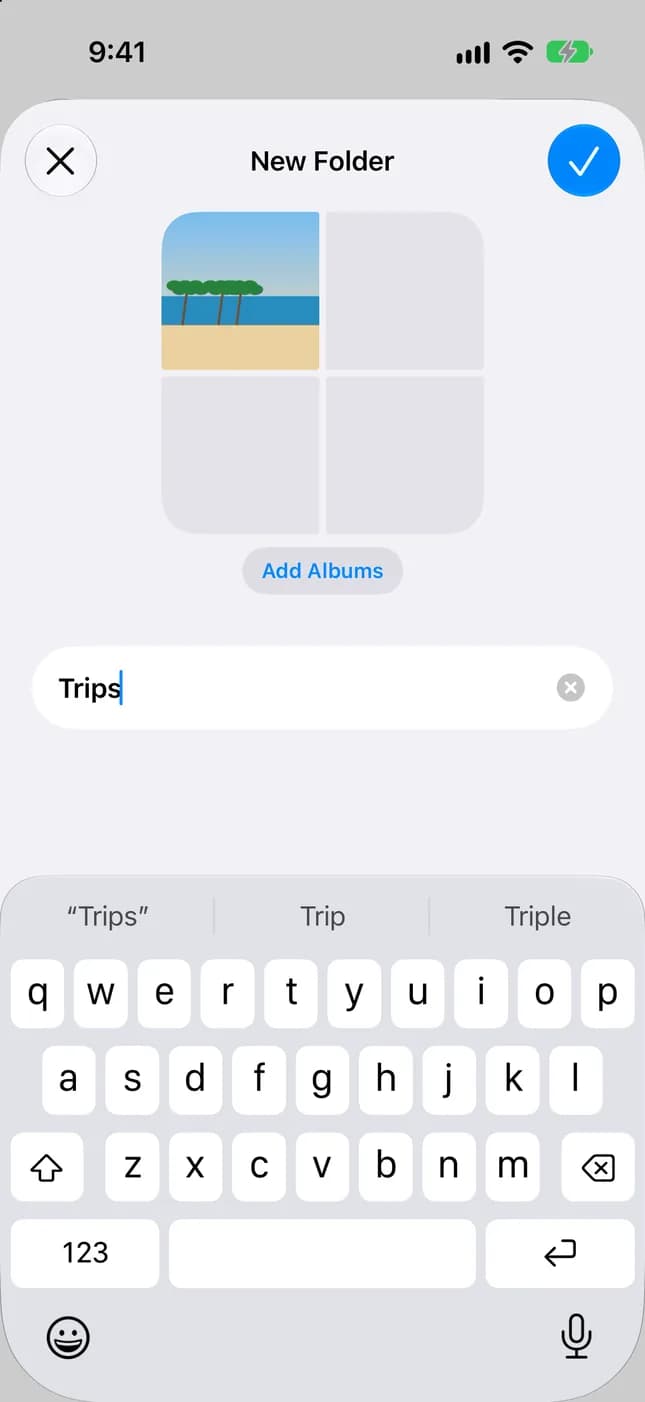
A folder is a container for albums. It cannot hold photos directly. If you keep one album per family trip, a folder called Trips keeps them together and shortens the Albums list.
For example, one photo of your sister at the beach can sit in the albums Family, Beach 2026 and Prints at the same time. There is still only one underlying photo, so you never have to wonder which copy is the original.
Because albums only reference your photos, removing a picture from an album, or deleting an entire album, does not delete the picture from your iPhone. Apple confirms that when you delete an album, the photos and videos inside it remain in your photo library. Deleting a photo from the Library itself is different: that removes it from every album and, if iCloud Photos is on, from your other devices signed in to the same Apple Account.
- Album: holds photos and videos, and the same photo can be in many albums.
- Folder: holds albums only, and helps you group them.
- Library: the full archive. Deleting here deletes everywhere.
How to Create Photo Albums on iPhone
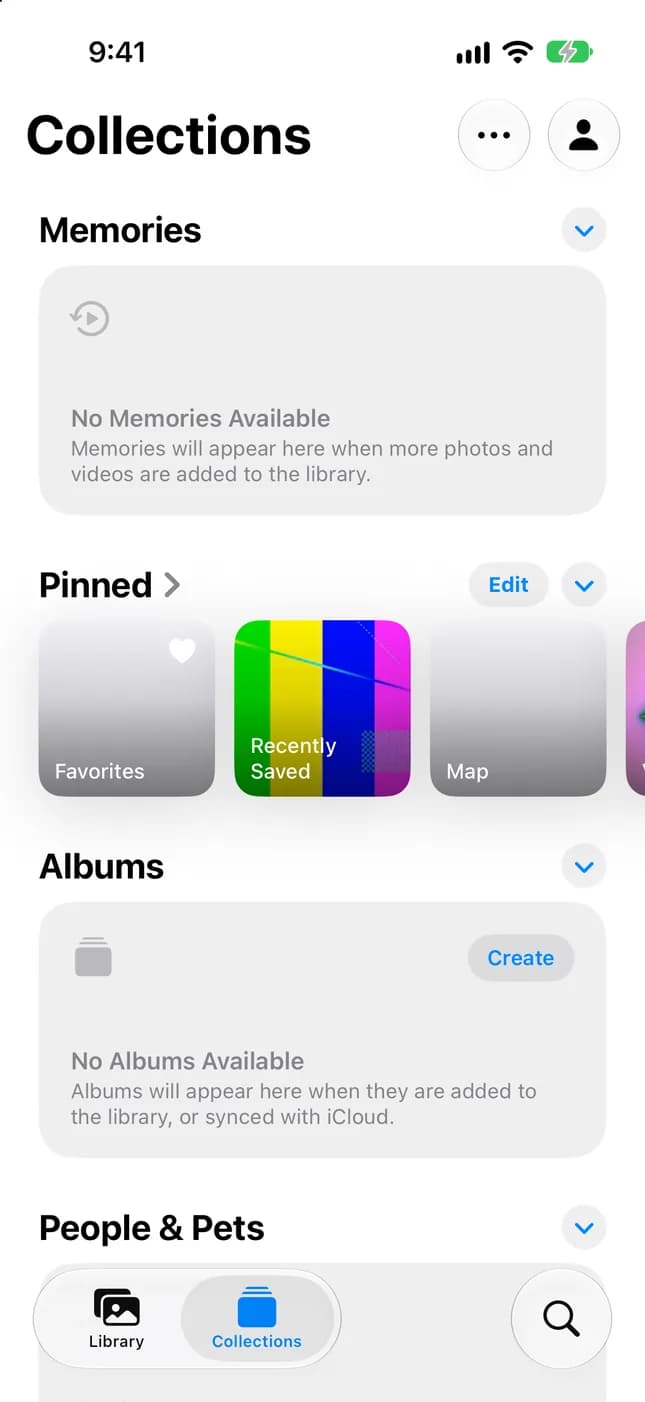
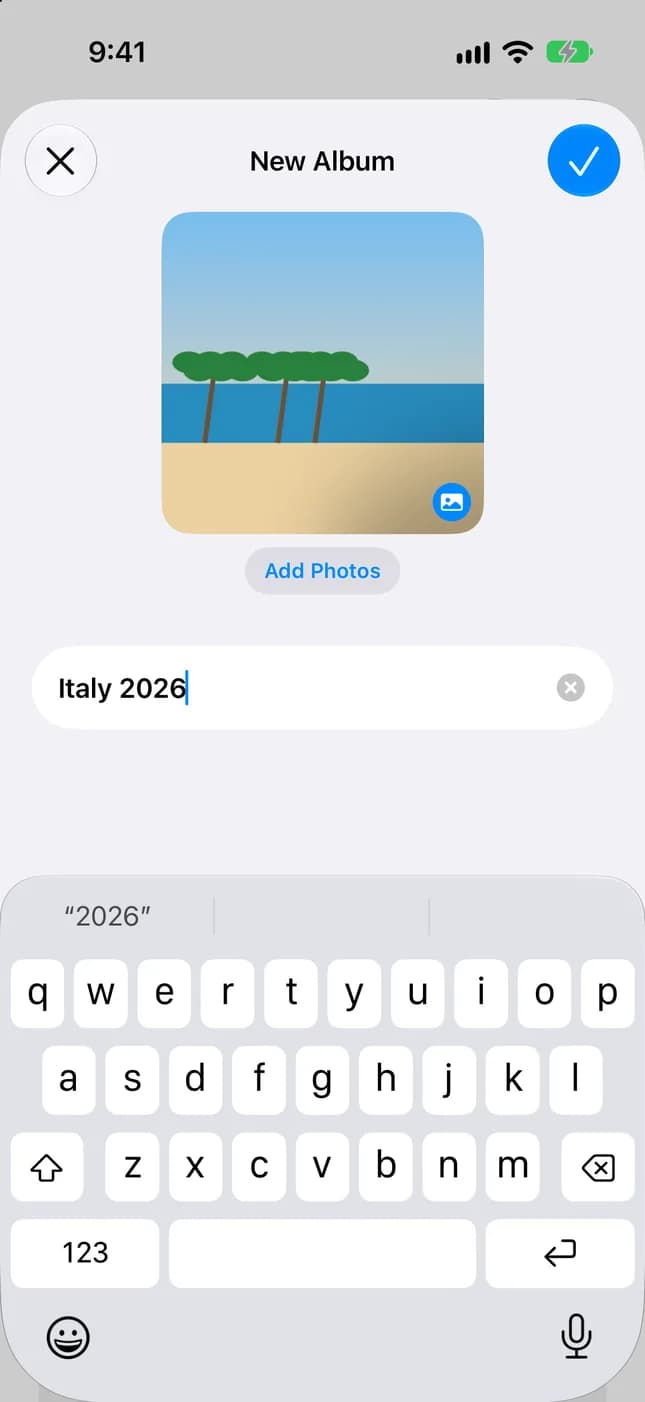
Albums are the simplest way to gather the photos you want to find again. Create one for each topic that matters, name it clearly, and choose a key photo so it is easy to recognize in the list.
- Open the Photos app.
- Tap Collections.
- Tap Albums, then tap the add button (+).
- Tap New Album, type a name, add photos, and choose a key photo to represent the album.
- Tap Create.
These steps follow the current Photos app, which has Library and Collections tabs. On iOS 18, Albums is available directly in the Photos app, so skip the Collections step: tap Albums, then Create, then New Album, and finish with Done.
Tip: short, specific names work best, such as Italy 2026 or Kitchen Renovation. If iCloud Photos is on, your albums are stored in iCloud and appear on every device signed in to the same Apple Account.
How to Create Folders in iPhone Photos
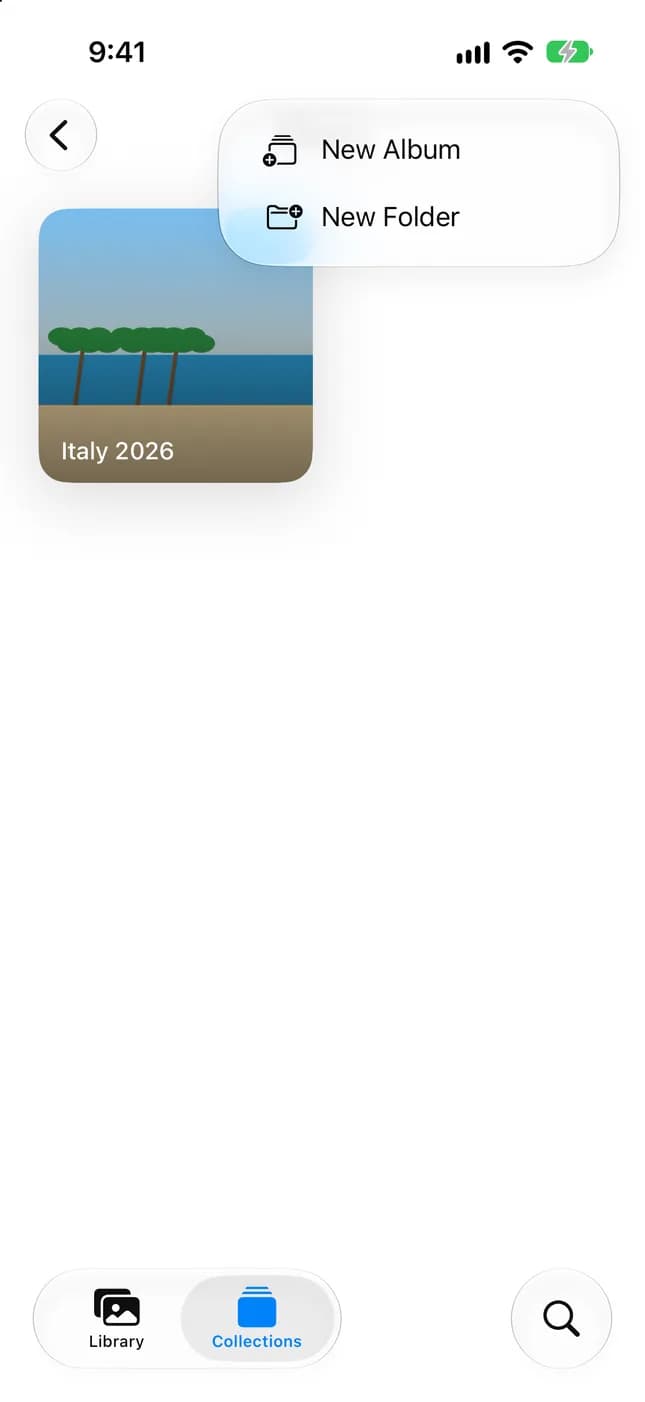
Once you have more than a handful of albums, folders keep the list manageable. A folder appears in your Albums collection like an album does, and opens to show the albums inside it.
- Open Photos and tap Collections.
- Tap Albums, then tap the add button (+).
- Tap New Folder.
- Name the folder, tap Add Albums, and select the albums you want inside it.
- Save and close the folder.
To take an album out of a folder, open the folder, touch and hold the album, then tap Remove from Folder. To show only albums or only folders in your list, open the sort menu in Albums, tap Filter, and choose Albums or Folders.
A good rule is to create a folder only when you have at least four or five related albums. A folder with a single album just adds a tap.
How to Move Photos Into Albums
Strictly speaking, you add photos to albums rather than move them. The original stays in your Library, and the album simply includes it. You can add photos from inside an album or from the Library, depending on what is faster.
- From an album: open Collections, tap Albums, then tap the album.
- Tap Add Photos, select the photos or videos you want, then confirm.
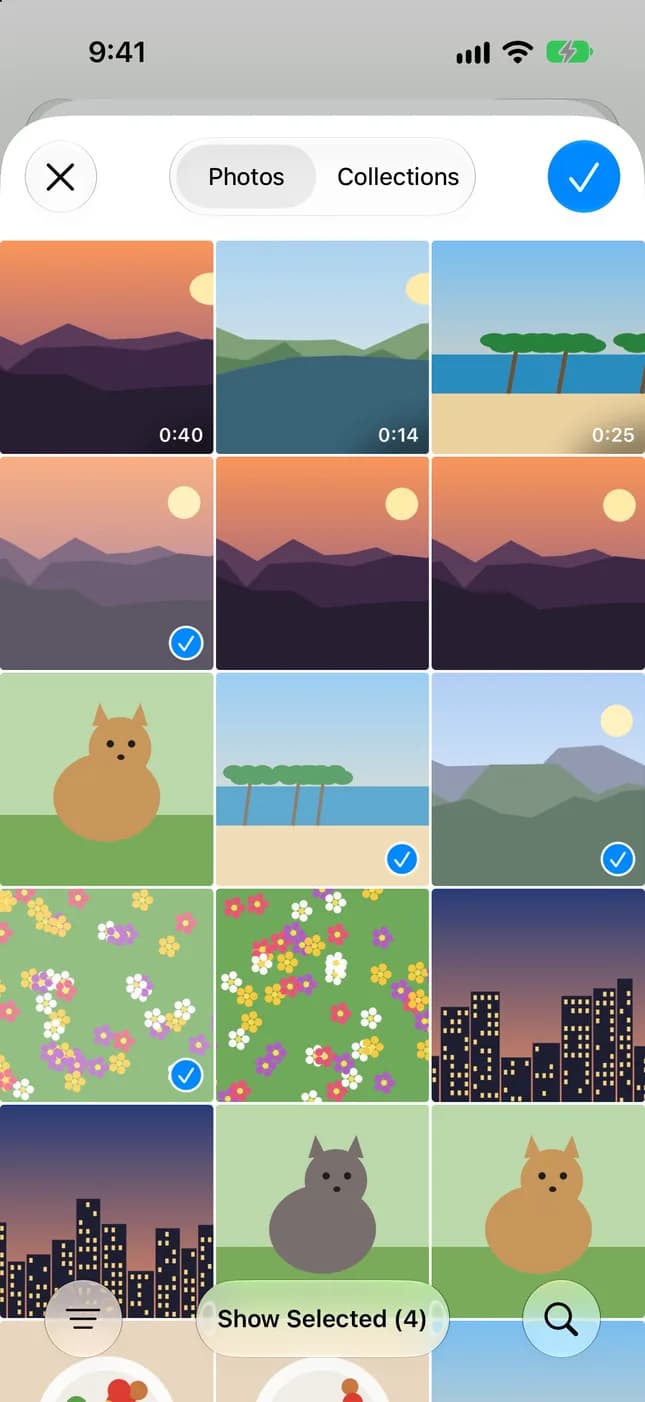
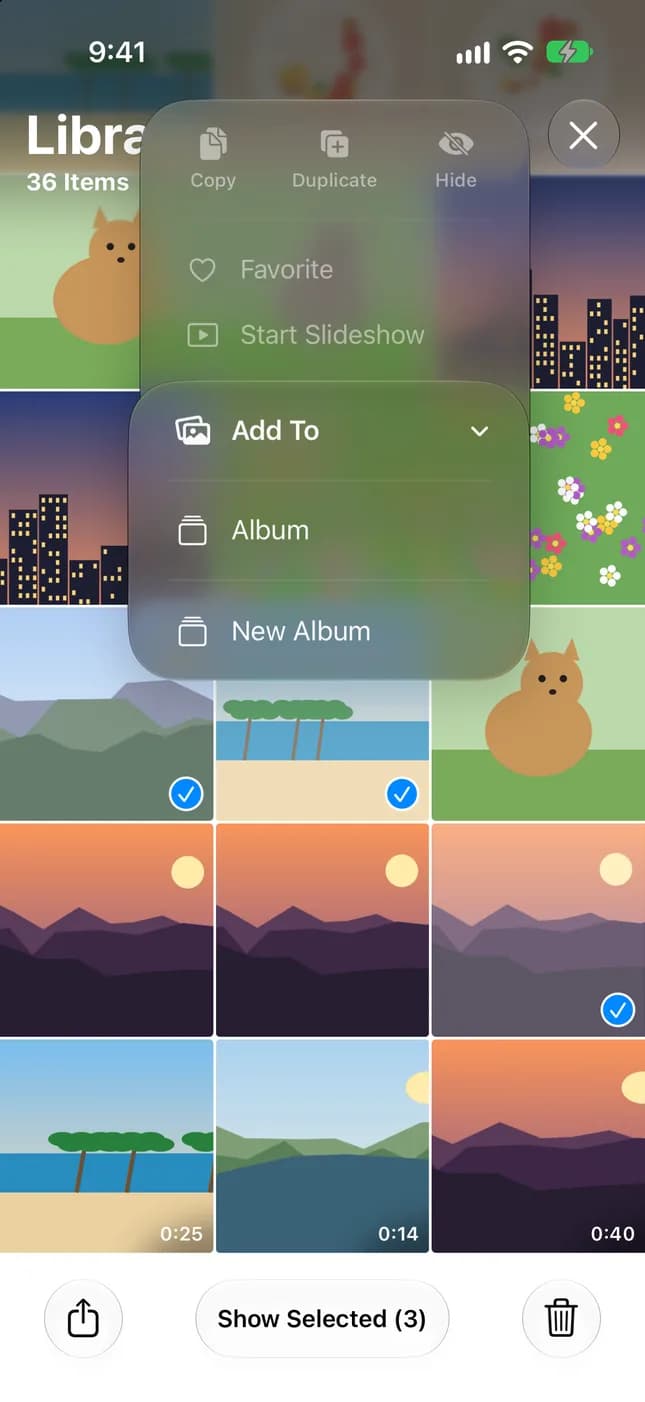
- From the Library: tap Library, then tap a photo, or tap Select and tap several items.
- Open the more menu, tap Add To, then tap Album.
- Choose the album, or create a new one.
Tip: when you are picking photos for an album, use the search field to find them by location, date or keyword instead of scrolling.
To remove a photo from an album without deleting it, open the album, touch and hold the photo, then tap Remove from Album. The photo stays in your Library.
A useful habit is to add photos to albums right after an event, while you still remember which shots mattered, instead of months later when the Library has grown.
How to Organize Photos by People, Places and Trips
Photos already sorts a great deal for you. You mostly need to teach it a few names and know where to look. These collections are views of your library rather than copies, so they cost no extra storage and need no maintenance.
- People & Pets: open Collections, tap People & Pets, choose a face, then tap Name This Person or Name This Pet. Once named, the person is labeled across your library.
- Places: tap Library, open the menu, then tap Show Map. Only photos and videos with embedded location data appear on the map.
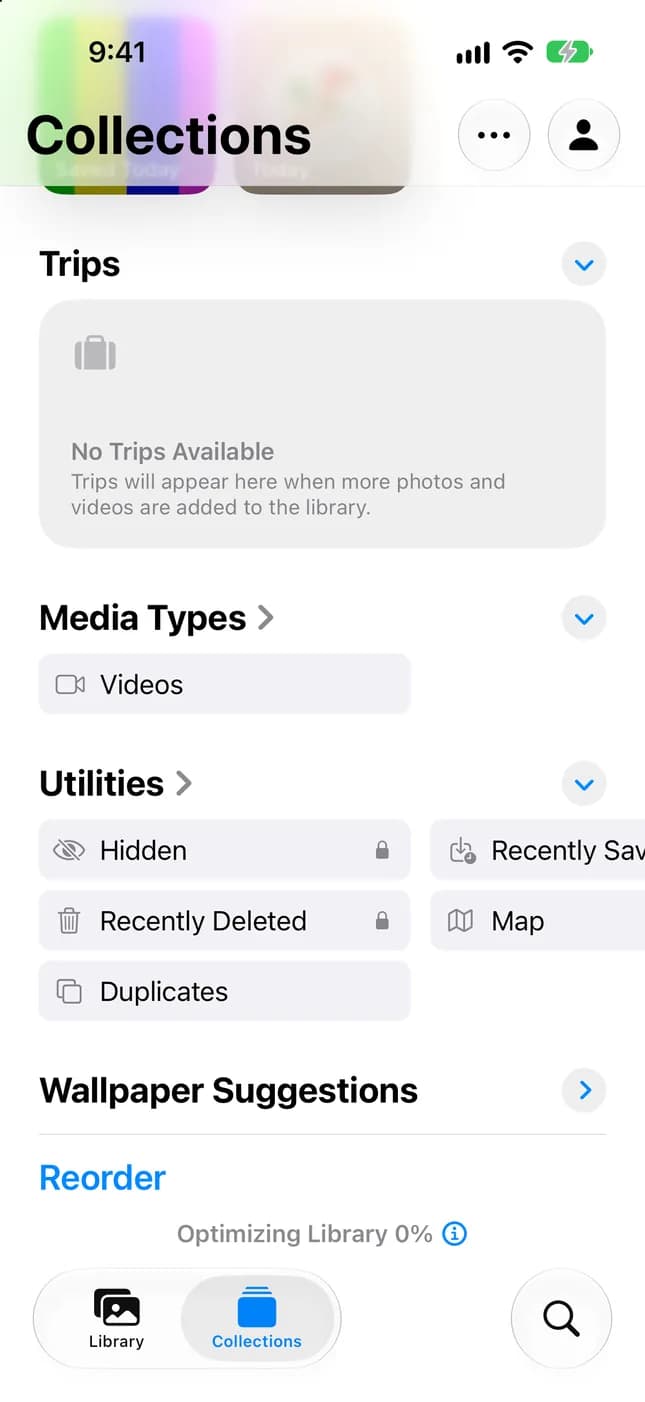
- Trips: in Collections, scroll down to Trips and tap a trip. Tap a year at the top to find older ones.
- Media Types: in Collections, scroll down to Media Types for videos, screenshots, Live Photos and more.
If a collection you expect is missing, the photos may not have location data, or faces may not have been recognized yet. If you have many people in your library, tap Add People at the bottom of People & Pets to see more faces.
How to Find and Remove Duplicate Photos
Start with Apple's built-in tool. The Photos app identifies duplicate photos and videos in your library and lists them in a Duplicates collection, where you can merge each set to save space and tidy up.
- Open the Photos app and tap Collections.
- Scroll to Utilities, then tap Duplicates.
- Tap Merge next to a set of duplicates.
- Tap Merge, followed by the number of items, to confirm.
If you do not see Duplicates, your library has none to show: the collection only appears when duplicates exist. On iOS 18, Duplicates is under Utilities in the main Photos screen.
Duplicates are only part of the story. Similar photos, such as ten almost identical burst shots, are not exact duplicates, so you have to compare them and pick the best one yourself. That is where a large library gets tiring.
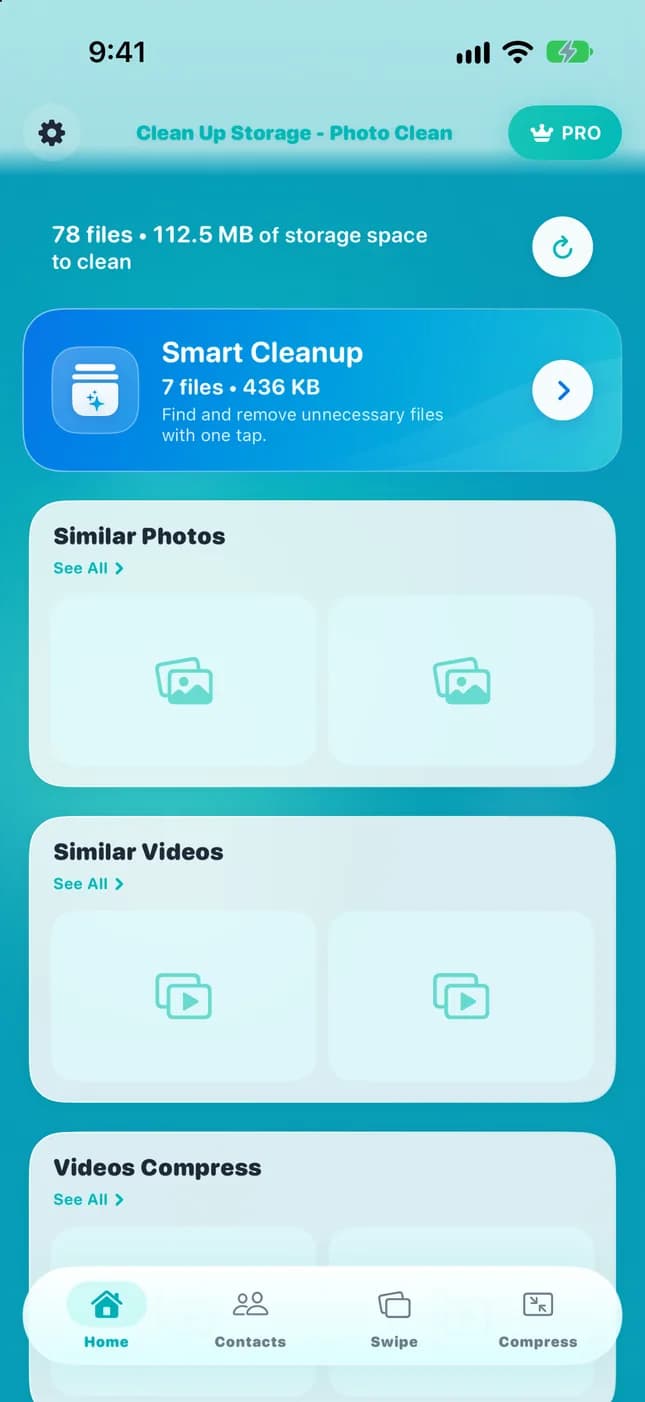
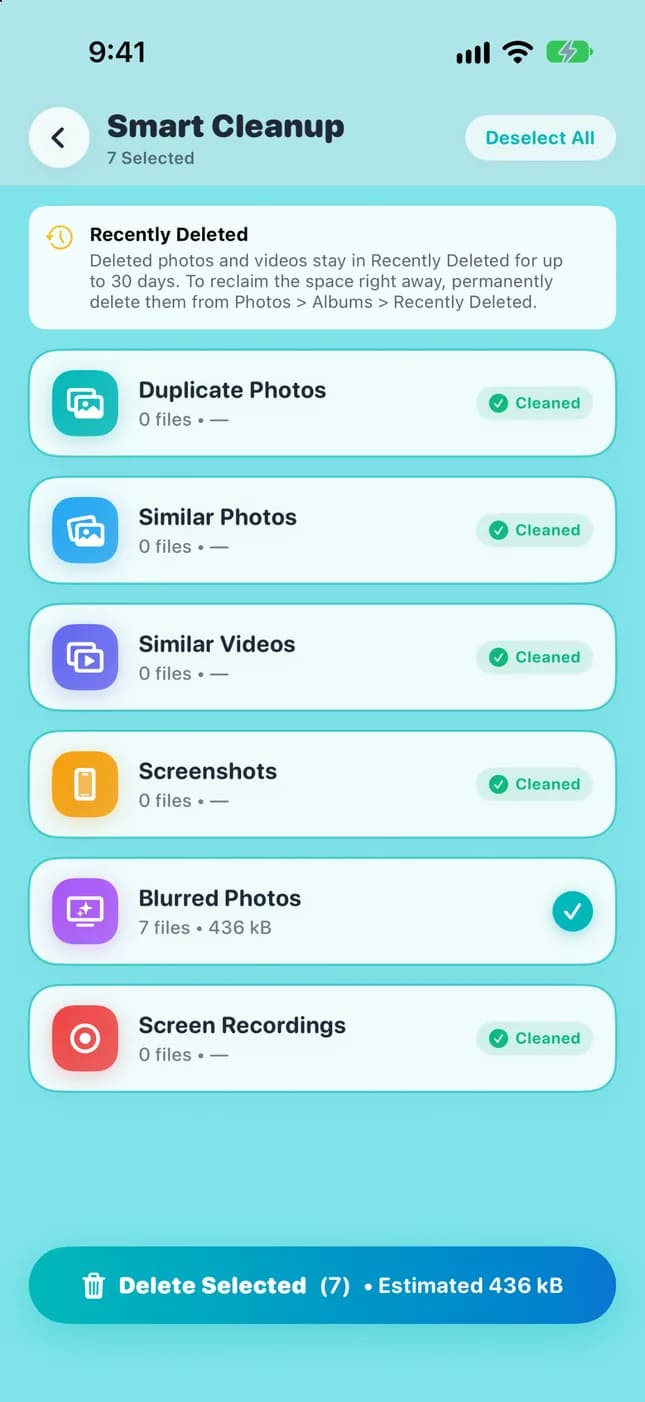
For libraries with thousands of photos, Clean Up Storage - Photo Clean offers an additional way to review them. It finds duplicate and similar photos, groups them for review, and removes nothing until you review and approve it. Scanning and analysis run on your iPhone.
If your library is small, Apple's Duplicates collection and a quick manual pass are enough. A dedicated app earns its place when the volume of photos makes manual review impractical.
How to Delete Unnecessary Screenshots
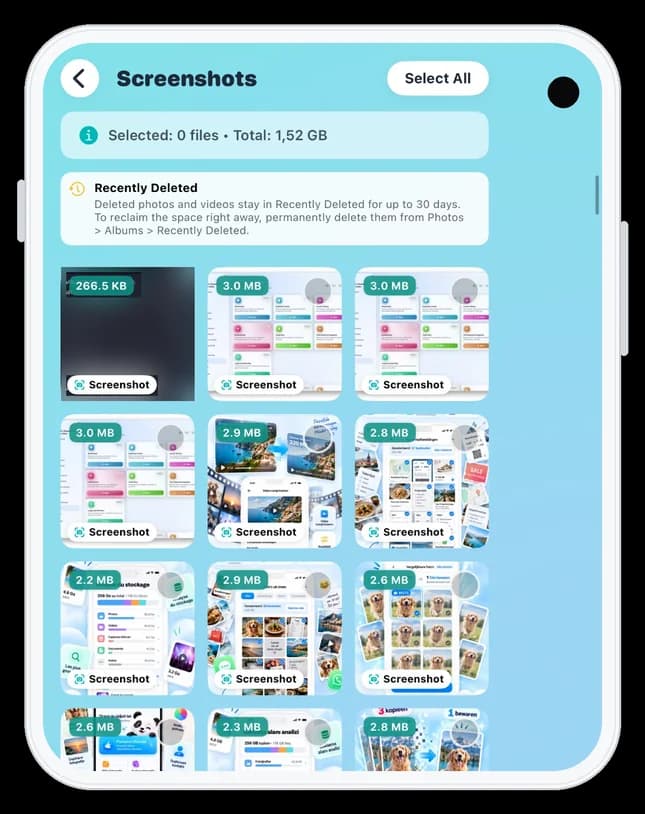
Screenshots pile up quietly: receipts, directions, confirmation codes that expired long ago. Because they look nothing like your best photos, they are some of the safest items to clear.
Before deleting, glance through for screenshots worth keeping: a boarding pass for an upcoming trip, a warranty receipt, a recipe. Move those into an album called Documents or Keep first, then clear the rest.
- Open Photos, tap Collections, and scroll down to Media Types.
- Tap Screenshots.
- Tap Select, then tap the screenshots you no longer need.
- Tap the delete button and confirm.
Deleted screenshots stay in the Recently Deleted collection, under Utilities in Collections, for 30 days before they are permanently removed. During that time you can recover them. Recently Deleted is locked by default and opens with Face ID, Touch ID or your passcode.
You can also filter the Library by Media Types to show screenshots only, or hide screenshots from the Library entirely: tap the menu, tap View Options, then turn off Screenshots.
Clean Up Storage - Photo Clean can bring screenshots together in one place so you can scan through them without hunting across the Library, and it asks for your approval before anything is removed.

How to Find Large Videos Taking Up Storage
Video is usually the heaviest content in a photo library. A few minutes of high-resolution video can take far more space than many photos, so a handful of long clips can explain an iPhone that is almost full.
Start with the big picture, then look at the videos themselves.
- Open Settings, tap General, then tap iPhone Storage to see what uses the most space.
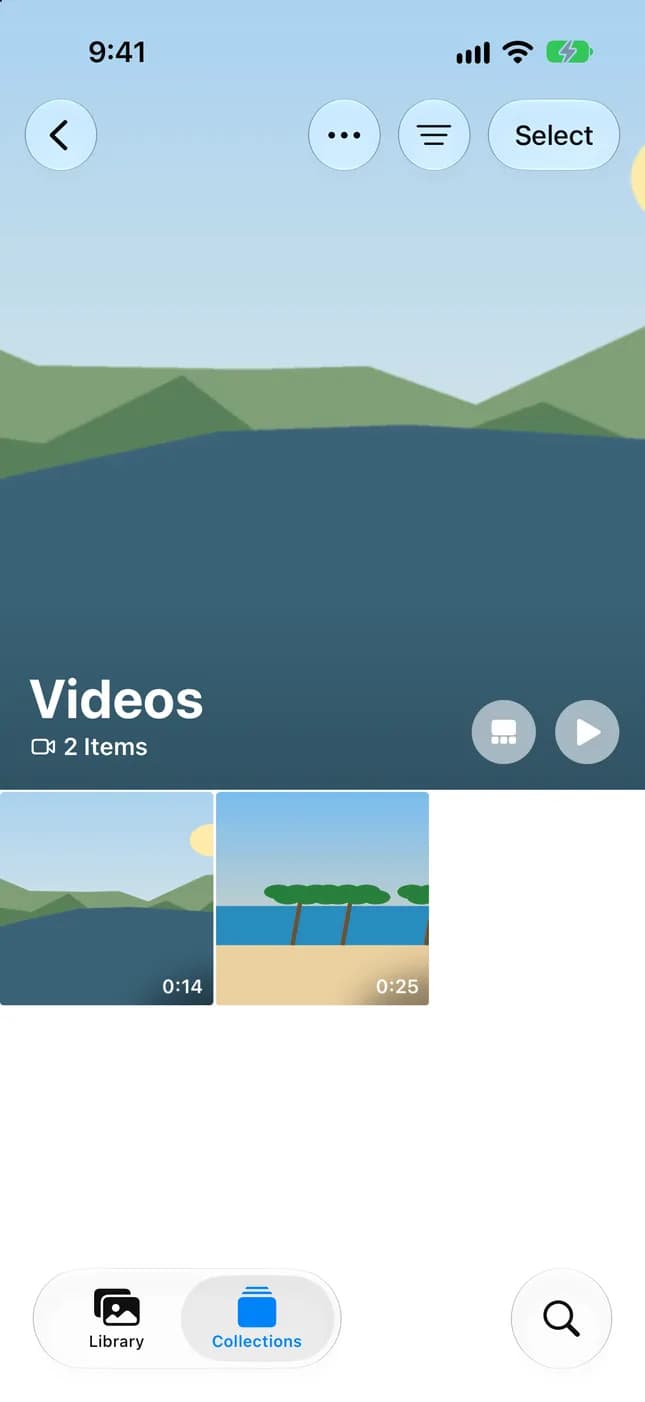
- Open Photos, tap Collections, and scroll to Media Types.
- Tap Videos.
- Review the clips, starting with the longest ones, since duration is the easiest clue to size.
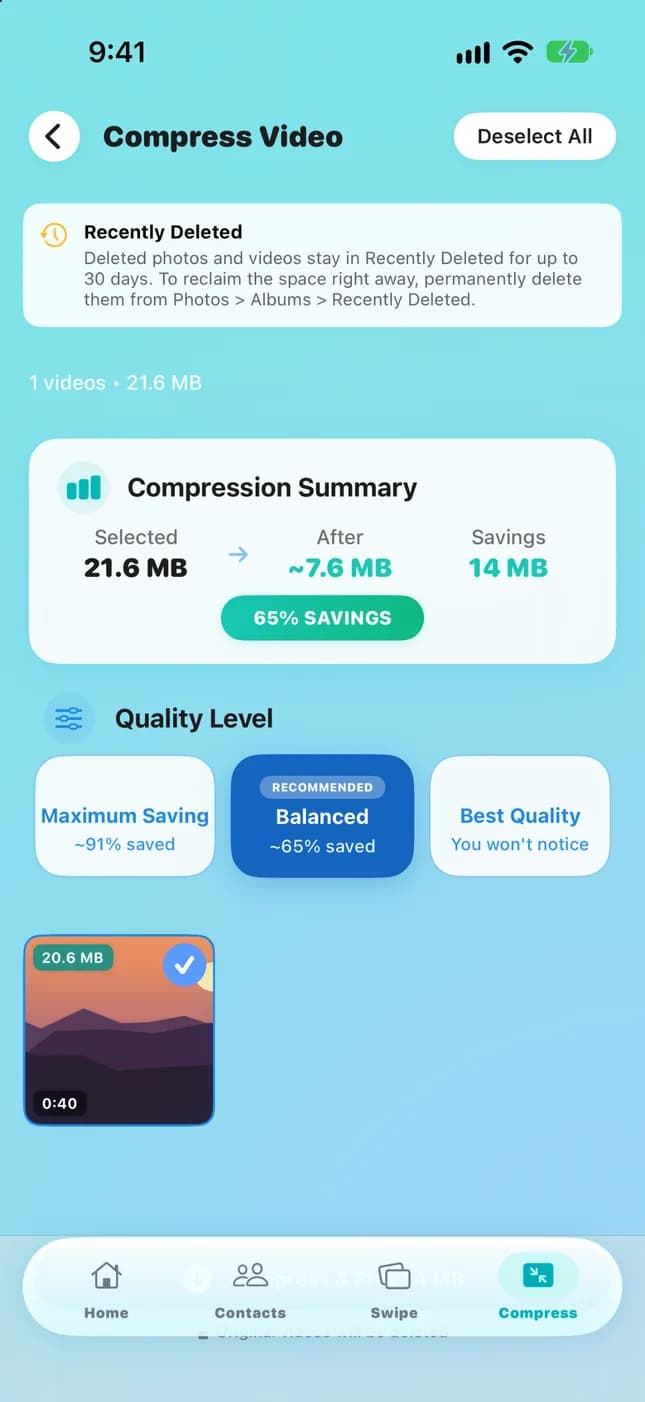
- Tap Select to delete the clips you do not need, or keep them and compress them instead.
Photos shows you the videos, but it is up to you to judge which ones are worth their space. Clean Up Storage - Photo Clean can find large videos and compress them to reduce the space they use, and you review each one before anything changes.
Before deleting or replacing any video you care about, check that it plays correctly and that a copy exists in iCloud or on your computer.
How to Free Up iPhone Storage Without Deleting Important Photos
You do not have to sacrifice your best pictures to get space back. Most of the storage in a cluttered library comes from items you would not miss. Work through them in this order, from safest to most deliberate.
A good test for any photo is whether you would miss it. If the honest answer is that it is the third of five identical shots, it is a candidate for deletion. If it is the only picture of an event, keep it and make sure it is backed up.
- Review duplicates: merge exact duplicates in Utilities > Duplicates.
- Review similar photos: keep the best shot from each group and delete the rest.
- Delete unnecessary screenshots you no longer need.
- Remove downloaded media: Apple lists videos downloaded for offline viewing in the TV app and other streaming apps as a common source of storage use, so remove the ones you have already watched.
- Use iCloud Photos with Optimize iPhone Storage: your full-resolution photos and videos are stored in iCloud in their original formats, and storage-saving versions stay on your iPhone.
- Compress large videos where appropriate, and keep a copy of anything irreplaceable.
Before deleting anything in bulk, confirm that your photos are backed up. In Photos, tap Collections and check the sync status icon at the top right. A paused sync or a full iCloud storage warning appears there.
Remember that with iCloud Photos on, deleting a photo on your iPhone deletes it on your other devices too. Deleted items remain in Recently Deleted for 30 days, so a mistake is recoverable if you act quickly.

A Simple Monthly iPhone Photo Cleanup Routine
A short, regular cleanup beats an occasional marathon. Pick the same day each month, set a reminder, and work through this five-minute list.
- Minute 1: open Collections > Utilities > Duplicates and merge the sets you recognize.
- Minute 2: open Media Types > Screenshots and delete the ones you no longer need.
- Minute 3: open Media Types > Videos and review the longest clips.
- Minute 4: add the month's best photos to an album using Select > Add To > Album.
- Minute 5: check Settings > General > iPhone Storage and the iCloud sync status in Photos.
Where to go next: for a deeper walkthrough of removing copies, read "How to Delete Duplicate Photos on iPhone (Fast & Safe)". For the full storage picture beyond photos, see "How to Manage iPhone Storage the Right Way (2026)". And if videos are your biggest problem, continue with "How to Find and Compress Large Videos on iPhone".
If a month goes by without time for the full list, run only Minute 1 and Minute 5. Even a two-minute pass keeps duplicates and storage warnings from building up, and the next full cleanup stays short.
Organize Your iPhone Photos in Four Steps
- 1
Group what matters
Create a few albums for topics you revisit, then place related albums in folders so the list stays short.
- 2
Let Photos help
Name the people and pets who matter, and use Trips, the Map view and Media Types to find the rest.
- 3
Clear the clutter
Merge duplicates, review similar shots, delete old screenshots and check your largest videos.
- 4
Repeat every month
Spend five minutes a month on the routine so the library stays easy to manage.

Sort and Clean Your iPhone Photo Library Faster
Clean Up Storage - Photo Clean is free to download and helps you review duplicate and similar photos, screenshots and large videos on your iPhone. Analysis runs on the device, nothing is removed until you approve it, and it requires iOS 17.6 or later.

Frequently asked questions
How do I organize thousands of photos on my iPhone?▼
Do not try to file everything. Keep the Library as your complete archive, create albums for the topics you revisit, and group those albums in folders. Then use People & Pets, Trips, the Map view and Media Types to find the rest, and clear duplicates, screenshots and large videos on a regular schedule.
What is the difference between an album and a folder on iPhone?▼
An album holds photos and videos, and the same photo can appear in many albums. A folder holds albums only, which makes it useful for grouping them. Neither creates extra copies of your photos.
Does deleting a photo from an album delete it from the iPhone?▼
No. Removing a photo from an album, or deleting the album, leaves the photo in your Library. Deleting a photo from the Library is different: it removes it everywhere, and with iCloud Photos on it also removes it from your other devices. It stays in Recently Deleted for 30 days.
Can iPhone automatically organize photos?▼
Partly. The Photos app automatically builds collections such as People & Pets, Trips and Media Types, and groups photos by place on a map. It does not create your personal albums for you, so you still add the photos you want to keep together.
How do I find duplicate photos on iPhone?▼
Open Photos, tap Collections, scroll to Utilities, and tap Duplicates. If the collection does not appear, your library has no duplicates to show. For large libraries or similar shots that are not exact duplicates, Clean Up Storage - Photo Clean can help you review them faster before you decide what to delete.
How can I free up photo storage without deleting important pictures?▼
Start with duplicates, similar shots and screenshots, then check large videos. Turn on iCloud Photos with Optimize iPhone Storage so full-resolution originals stay in iCloud, and keep a backup of anything irreplaceable. Remember that deletions sync across devices when iCloud Photos is on.
How often should I clean my iPhone photo library?▼
A short cleanup once a month is enough for most people. Heavy photographers or anyone who takes many screenshots and videos may prefer a quick pass every two weeks, or a check whenever iPhone storage warnings appear.
Sources
Related guides

· 6 min read
How to Delete Duplicate Photos on iPhone (Fast & Safe)
Step-by-step guide to find and delete duplicate photos on iPhone, free up storage, and prevent duplicates from coming back.

· 7 min read
How to Manage iPhone Storage the Right Way (2026)
Settings shows you what is using storage. Here is the full workflow for actually managing and recovering iPhone storage, from Documents & Data to duplicate photos and large videos.

· 7 min read
How to Find and Compress Large Videos on iPhone
Learn how to find hidden large videos on your iPhone and compress them to reclaim gigabytes of storage without losing your memories.
Ready when you are
Download Clean Up Storage - Photo Clean for iPhone
Remove duplicate photos, compress videos, and organize contacts with a privacy-first cleanup flow.
By using Clean Up Storage - Photo Clean, you agree to our Terms of Use and Privacy Policy.