How to Find Duplicate Files on Mac (Finder, Photos, Terminal & AI Guide)
Learn how to find duplicate files on Mac using Finder Smart Folders, Photos and Music tools, Terminal hashes, and Smart Cleaner AI to free up disk space.

Duplicate files rarely appear all at once. You download the same PDF invoice twice, save an email attachment to both Desktop and Documents, duplicate a project folder before making edits, or export the same video twice. Over months of daily work, those extra copies quietly consume gigabytes of SSD space and make it harder to know which file is the current version.
Finding duplicates manually is tricky because filenames do not tell the whole story. A re-downloaded archive might be named Archive (1).zip while holding the exact same bytes, and two completely different reports in separate project folders might both be named Summary.pdf. Deleting by name alone risks removing the wrong file.
This guide walks through four safe ways to find duplicate files on a Mac: using Finder Smart Folders, using built-in duplicate detectors inside Apple Photos and Apple Music, verifying exact byte matches with Terminal checksums, and scanning folders by content with Smart Cleaner AI - Disk Clean.
Why Duplicate Files Pile Up on a Mac (And Why Filenames Mislead You)
Most duplicate clutter comes from everyday habits rather than system errors. Browsers save a fresh copy every time you click a download link, appending (1) or (2) to the filename. Messaging and mail apps save attachments into Downloads while you move another copy into Documents. Creative workflows also create copies when you duplicate a folder before a major edit or export the same presentation for different clients.
When you clean up, comparing filenames is not enough. Two files with different names can be 100 percent identical byte for byte, while two files named invoice.pdf from different months are completely distinct documents. Safe duplicate cleanup means checking file size, modification date, folder path, and—ideally—the binary content of the file before moving anything to the Trash.
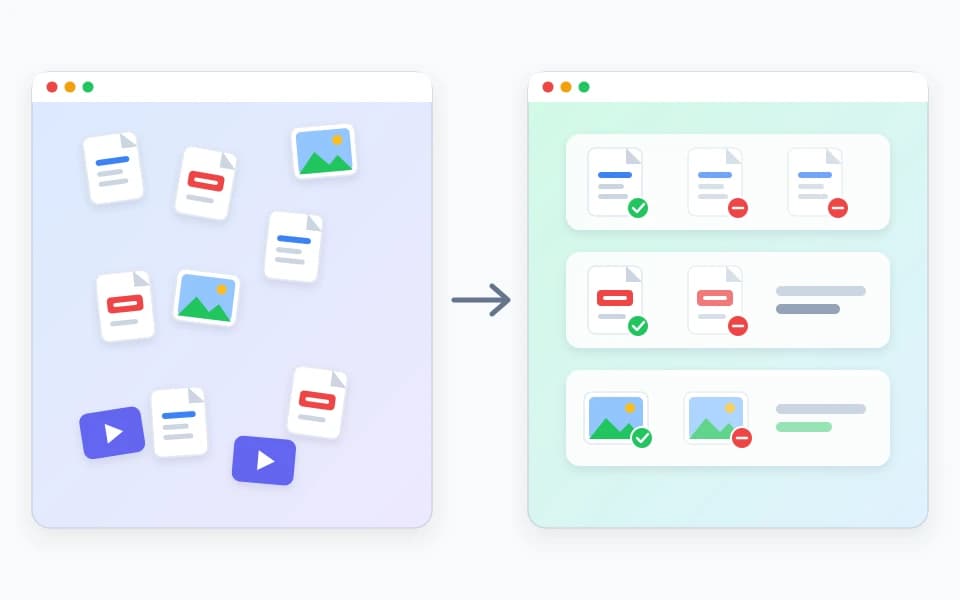
Method 1: Find Duplicate Files Manually with Finder Smart Folders
macOS Finder does not have a single one-click duplicate button, but its Smart Folder search filters let you gather files of the same type across your Mac and sort them side by side in List View. This is the safest manual method for spotting duplicate installers, PDFs, zip archives, and video exports in Downloads, Desktop, and Documents.
- Open Finder and choose File > New Smart Folder from the menu bar (or press Option-Command-Space).
- Make sure This Mac (or your Home folder) is selected at the top of the window, then click the + button on the right side of the filter bar.
- Set the first filter to Kind is Document, PDF, Archive, or Movie. To focus on storage-heavy files first, add a second filter set to File Size is greater than 50 MB.
- Press Command-2 to switch to List View, choose View > Show Path Bar at the bottom of Finder, and click the Size or Name column header to group identical-sized files together.
When you see two files with the exact same byte size or a numbered suffix like (1), press Spacebar to preview each one with Quick Look and check its folder path in the Path Bar before moving the extra copy to the Trash.

Method 2: Use Built-In Duplicate Tools in Apple Photos and Apple Music
Never use Finder to reach inside structured app libraries such as ~/Pictures/Photos Library.photoslibrary to delete files by hand. Removing internal package files in Finder can break database references and corrupt your library. Instead, use the duplicate tools built directly into Apple’s media apps.
- Apple Photos: Open Photos, click Duplicates under Utilities in the left sidebar, review each pair, and click Merge Items. Photos keeps the highest-resolution version and combines captions, keywords, albums, and favorites while moving the redundant copy to Recently Deleted.
- Apple Music: Open Music, select Songs in the sidebar, and choose File > Library > Show Duplicate Items. Hold down the Option key and choose File > Library > Show Exact Duplicate Items to narrow the list to tracks from the same album release.
- Loose photo folders outside the Photos app: If you also keep exported camera shoots, RAW + JPEG folders, or burst shots in regular Finder folders, a dedicated photo tool such as Vision AI - Photo Cleaner can compare visual similarity alongside exact matches.
Method 3: Verify Exact Byte Matches in Terminal with SHA-256 Checksums
If you have a single project folder with several similarly named archives or videos and want to prove whether two files are truly identical without opening both, macOS includes the shasum command-line tool. A cryptographic hash reads every byte of a file and produces a unique fingerprint string.
Open Terminal, navigate to the folder you want to inspect (for example cd ~/Downloads), and run shasum -a 256 * to print the SHA-256 hash for each file in that folder. Any two files that display the exact same 64-character hash string contain identical data, even if their filenames or timestamps differ.
Avoid running automated rm delete loops from internet forums in Terminal—a single typo in a wildcard path can permanently erase important work bypassing the Trash. Use Terminal to verify hashes if you enjoy the command line, then remove unneeded copies through Finder so they land safely in the Trash.
Method 4: Scan Across Folders by Content with Smart Cleaner AI - Disk Clean
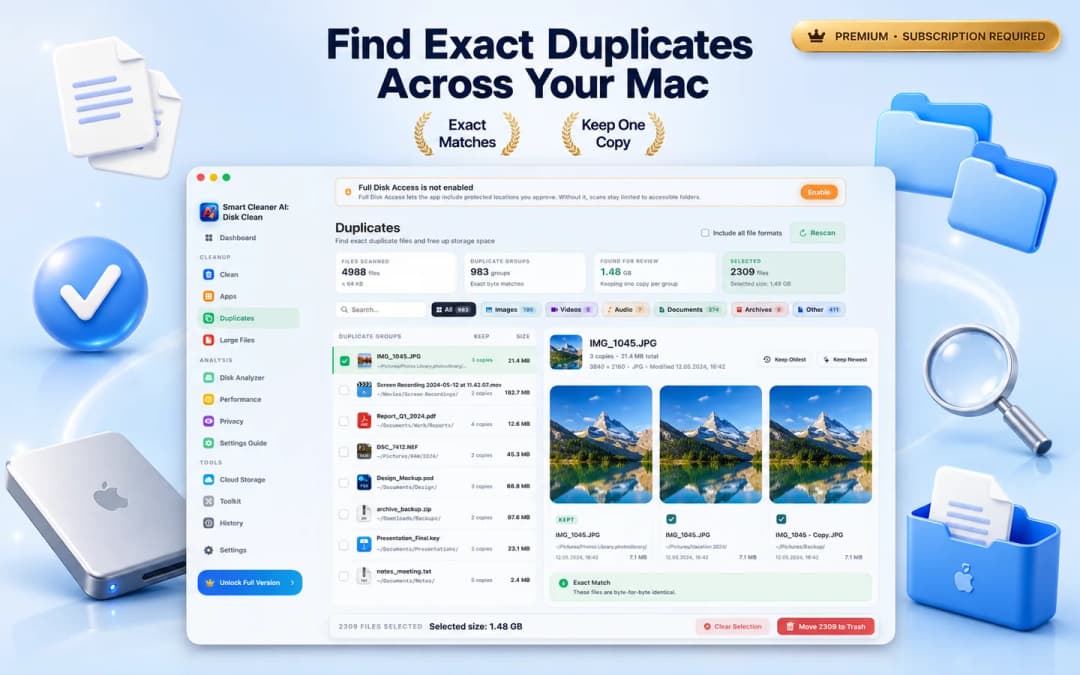
Checking folders one by one in Finder works for a handful of downloads, but it misses identical files stored in two different directories under two different names. Smart Cleaner AI - Disk Clean includes a dedicated Duplicates module that scans accessible folders on your Mac and matches files by exact byte content rather than filename alone.
After a scan, results are organized into duplicate groups with filter pills for All, Images, Videos, Audio, Documents, Archives, and Other. Selecting any group shows the copies side by side with their full folder paths, file sizes, and modification dates. You can use Keep Oldest or Keep Newest as a starting point, inspect individual items, and move only the selected redundant copies to the macOS Trash.
Checking Cloud Folders and External Drives Without Surprises
Many duplicate files live inside synced cloud folders such as iCloud Drive, Google Drive, OneDrive, or Dropbox. Before deleting files in a synced folder, remember two rules: first, deleting a file inside a synced cloud folder usually deletes it from your cloud account and other synced devices as well; second, cloud-only placeholder files take up almost zero local SSD space until they are downloaded.
Smart Cleaner AI - Disk Clean includes a Cloud Storage view that shows connected cloud providers, separates locally materialized files from cloud-only items, and lets you reveal large or redundant files in Finder so you know whether removing a copy will actually free local disk space.

What Never to Delete When Cleaning Up Duplicate Files
Not every repeated file on a Mac is junk. Certain operating system folders, application bundles, and backup drives intentionally store identical assets so apps and backups can function independently. Follow these safety rules every time you clean up:
- Never delete files inside /System, /Library, or unfamiliar ~/Library/Application Support subfolders—apps often keep shared frameworks, templates, or icons that look identical.
- Never delete inside .app application bundles or .photoslibrary / .musiclibrary packages through Finder.
- Do not manually delete files inside a Time Machine backup drive; Time Machine uses hard links and APFS snapshots to reference unchanged files efficiently.
- Always move duplicates to the macOS Trash first, test that your projects and apps open normally, and empty the Trash only when you are confident you no longer need the extra copies.
How to Find and Remove Duplicate Files on Mac in 4 Steps
- 1
Check Downloads and Smart Folders first
Open Finder, create a New Smart Folder filtered by Document, Archive, or Movie, and sort by Size in List View to remove obvious re-downloads.
- 2
Merge media library duplicates natively
Use the built-in Duplicates view in Apple Photos and Show Duplicate Items in Apple Music rather than editing library packages in Finder.
- 3
Run an on-device content scan
Open Smart Cleaner AI - Disk Clean and select Duplicates to find exact byte-for-byte duplicate documents, archives, videos, and images across folders.
- 4
Review paths and move extras to Trash
Compare folder paths and dates, keep one copy in your preferred folder, move the redundant copies to the Trash, and empty the Trash after verifying.

Find Exact Duplicate Files Across Your Mac
Download Smart Cleaner AI - Disk Clean free from the Mac App Store to scan for exact byte-match duplicate documents, archives, videos, and photos across your folders. It runs locally on your Mac and moves only the copies you approve to the Trash. Requires macOS 14.6 or later.

Frequently asked questions
Does macOS have a built-in duplicate file finder?▼
macOS includes built-in duplicate detection for media libraries (the Duplicates album in Apple Photos and Show Duplicate Items in Apple Music), and Finder Smart Folders can help you sort files by size and name. However, macOS does not include a system-wide tool that automatically groups byte-identical documents, archives, and folders across your drive.
How can two duplicate files have different names on a Mac?▼
When you download the same attachment or installer more than once, browsers automatically rename the new file with a suffix such as (1) or copy. You may also rename a file after copying it to a new project folder. Content-based duplicate finders compare the file bytes (checksums) so they find exact matches even when filenames differ.
Is it safe to delete duplicate files found in Finder?▼
It is safe to delete duplicate personal files inside user folders such as Downloads, Documents, Desktop, Movies, and Music—provided you verify the folder path and keep one copy. Never delete duplicate-looking files inside /System, /Library, application bundles, or Photos Library packages.
How do I find duplicate photos vs. duplicate documents on Mac?▼
For photos inside the Apple Photos app, start with Photos > Utilities > Duplicates. For general files across folders (PDFs, Office documents, ZIP archives, DMG installers, videos, and images), use Smart Cleaner AI - Disk Clean. If you want deep visual similarity scanning across photo libraries, bursts, and RAW + JPEG pairs, use Vision AI - Photo Cleaner.
Does Smart Cleaner AI delete duplicate files automatically?▼
No. Smart Cleaner AI - Disk Clean scans locally on your Mac and groups exact byte matches for your review. You choose which copy to keep (or use Keep Oldest / Keep Newest), and any removed items are moved to the macOS Trash so you can restore them if needed.
Why did my free storage space not increase right after deleting duplicates?▼
Files moved to the Trash still occupy disk space until you empty the Trash in Finder. If you deleted duplicates inside Apple Photos, they remain in Recently Deleted for up to 30 days until you clear that album.
Sources
Related guides
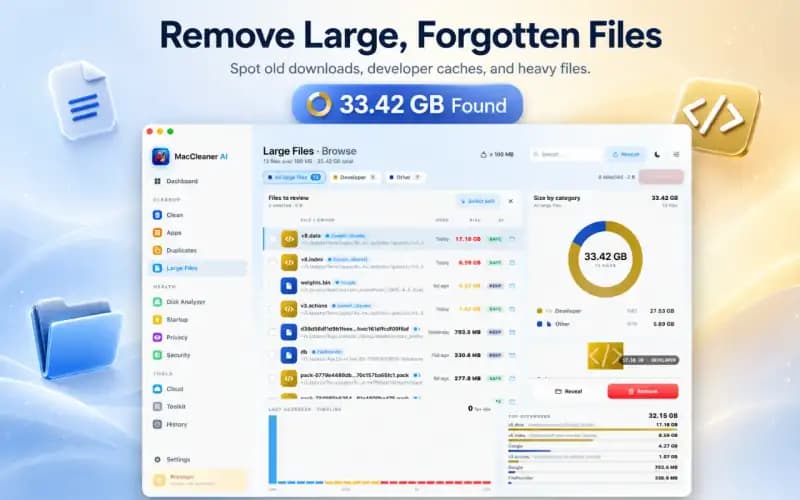
· 9 min read
How to Find Large Files on Mac & Free Up Space Safely (2026)
Learn how to find and delete large files on Mac. Use Finder filters, macOS Storage Manager, and Smart Cleaner AI to locate hidden space hogs quickly.
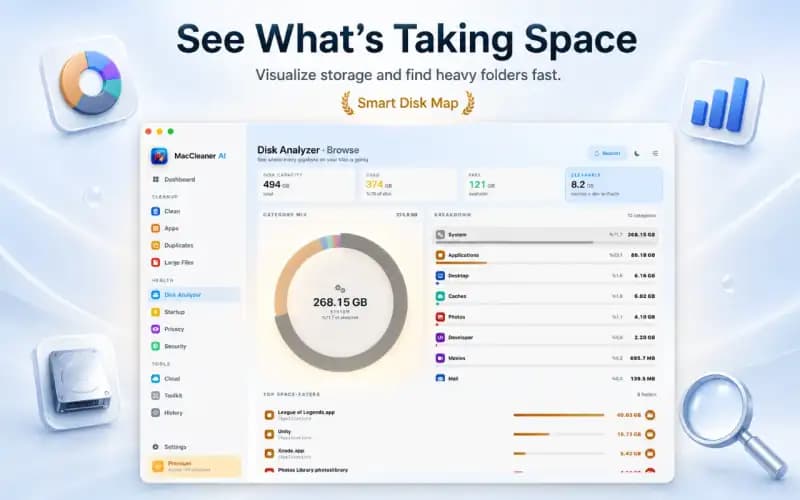
· 9 min read
What Is Taking Up Space on My Mac? Breakdown & Safe Fixes (2026)
Discover what is taking up space on your Mac. Learn how to inspect System Data, user caches, hidden local snapshots, and app leftovers safely.

· 9 min read
Messy Mac Desktop? 7 Easy Ways to Organize
Messy Mac desktop? Use 7 easy ways to organize files and folders with tags, aliases and Stacks, then free up the disk space that clutter wastes.
Ready when you are
Download Smart Cleaner AI for Mac
Analyze Mac storage, safely clear system data caches, find large files, and remove app leftovers with on-device controls.
By using Smart Cleaner AI, you agree to our Terms of Use and Privacy Policy.