What Is Taking Up Space on My Mac? (Complete Storage Breakdown)
Discover what is taking up space on your Mac. Learn how to inspect System Data, user caches, hidden local snapshots, and app leftovers safely.

Running out of disk space on your Mac can happen unexpectedly. You might be downloading a system update, editing a 4K video project, or launching an application only to be greeted by the dreaded 'Your disk is almost full' notification. When you open macOS Storage settings, you often see a mysterious, colorful bar where 'System Data' or giant hidden folders consume over half your solid-state drive.
Understanding what actually occupies your hard drive is the essential first step before deleting anything. Blindly trashing random folders in Finder or copying unverified Terminal commands can damage your macOS installation or delete active project files. Here is an honest, comprehensive breakdown of what takes up space on your Mac, how to inspect each category safely, and how to reclaim your storage using Apple's built-in utilities and Smart Cleaner AI - Disk Clean.
How macOS Measures Disk Space: Deciphering the Storage Bar
In modern macOS (Ventura and later), you can inspect storage by navigating to Apple menu () → System Settings → General → Storage. Apple categorizes your storage into Applications, Documents, Photos, macOS, and System Data (formerly labeled as 'Other').
While categories like Applications and Photos are straightforward, the size displayed often includes auxiliary caches and temporary files. Furthermore, macOS separates 'Available' storage from 'Purgeable' storage: files that macOS considers safe to delete automatically when disk space becomes critically low, but which still occupy blocks on the physical drive until reclaimed.
The Biggest Storage Hogs on Modern Macs
Storage accumulation on a Mac typically falls into several key categories:
1. Application Support and Leftovers: When applications are moved to Trash, supporting files, cached frameworks, and preferences often remain in ~/Library/Application Support. 2. Application and Browser Caches: Web browsers, streaming apps, and creative software store cached media and temporary render files locally. 3. Developer and Build Data: Xcode DerivedData, container images, virtual machines, and dependency directories can grow substantially over time. 4. Local Time Machine Snapshots: macOS creates local APFS snapshots that are retained temporarily until backed up or automatically reclaimed. 5. Forgotten Downloads: Installer disk images (.dmg), compressed archives, and downloaded attachments that accumulate in Downloads.
Using Built-in macOS Storage Recommendations First
Before installing any software, take advantage of Apple's native storage management tools located in System Settings → General → Storage.
Click on the 'i' (info) icon next to Documents to view Large Files, Downloads, and Unsupported Apps. macOS sorts your personal files by size, allowing you to easily review and delete large video exports or outdated disk images. Additionally, enabling 'Empty Trash Automatically' ensures that discarded items do not consume storage indefinitely.
Visualizing Hidden Bloat with Smart Cleaner AI - Disk Clean
Built-in macOS settings are helpful for personal documents, but navigating nested directories manually in Finder can be tedious.
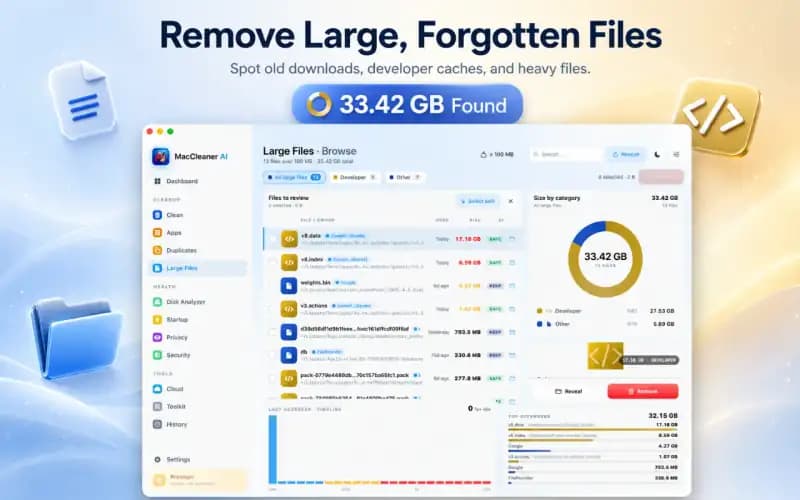
Smart Cleaner AI - Disk Clean includes a visual Disk Analyzer module that maps your user storage into an interactive visual hierarchy. You can see which folders take up the most room, inspect subdirectories by size, and identify large folders or unneeded downloads for manual review.
A Safe, Repeatable Mac Decluttering Workflow
To keep your Mac running smoothly and prevent recurring storage warnings, establish a safe, practical cleanup habit:
Restarting your Mac periodically can help macOS release dynamic swap memory and clear temporary system files, though ongoing storage management focuses on removing unneeded caches, leftovers, and forgotten downloads. Avoid deleting files inside /System or protected root directories; focus on user-accessible files and verify your backups regularly.
How to Find What Is Taking Up Space on Mac in 4 Steps
- 1
Open macOS Storage settings
Go to Apple menu () → System Settings → General → Storage to check your total used and available capacity.
- 2
Review native recommendations
Inspect the Documents and Applications categories to review large files, downloads, and unused software bundles.
- 3
Scan with Smart Cleaner AI Analyzer
Launch Smart Cleaner AI - Disk Clean and open Disk Analyzer to visually map folder sizes across your internal drive.
- 4
Safely purge verified cache clutter
Review identified application caches, logs, and obsolete leftovers, then move unwanted clutter safely to macOS Trash.

Find What Is Taking Up Space on Your Mac
Smart Cleaner AI - Disk Clean visualizes your storage, identifies bloated folders, and helps you safely reclaim disk space on your Mac.

Frequently asked questions
Why is System Data taking up so much space on my Mac?▼
System Data contains browser caches, developer build artifacts (Xcode DerivedData), local APFS Time Machine snapshots, application support files, and temporary system logs.
Is it safe to delete everything in ~/Library/Caches?▼
Many app caches are recreated automatically, but deleting files from ~/Library/Caches while applications are running can cause unexpected errors or performance slowdowns. It is best to close applications before clearing their caches and review what is being removed.
Does emptying the Trash immediately free up disk space?▼
Yes, but only for files stored on your local drive. If you use iCloud Drive with Optimize Mac Storage, some deletions simply remove cloud placeholders rather than local gigabytes.
Can Smart Cleaner AI damage essential macOS system files?▼
Smart Cleaner AI focuses on user-accessible directories and files that you choose to scan, allowing you to review items before anything is moved to Trash. Protected macOS system files are managed by standard macOS system permissions.
How much free space should I keep on my Mac for optimal performance?▼
Keeping some free space helps macOS handle updates, temporary files, and virtual memory. The amount required depends on your Mac and workload.
Sources
Related guides

· 9 min read
How to Clear System Data on Mac Safely: Step-by-Step (2026)
Learn how to clear System Data on Mac and MacBook safely. Reduce caches, logs, old backups, and app leftovers to free up space without risking system folders.

· 9 min read
How to Uninstall Apps Completely on Mac & Remove Leftovers (2026)
Step-by-step guide to uninstall apps completely on Mac and delete hidden leftover caches, preferences, and helpers with an on-device app uninstaller for Mac.
· 9 min read
How to Find Large Files on Mac & Free Up Space Safely (2026)
Learn how to find and delete large files on Mac. Use Finder filters, macOS Storage Manager, and Smart Cleaner AI to locate hidden space hogs quickly.
Ready when you are
Download Smart Cleaner AI for Mac
Analyze Mac storage, safely clear system data caches, find large files, and remove app leftovers with on-device controls.
By using Smart Cleaner AI, you agree to our Terms of Use and Privacy Policy.