How to Find Large Virtual Machine Files on Mac
Find the virtual machines that fill your Mac, see how big each one is with Smart Cleaner AI and learn how to make one smaller without breaking it.

A virtual machine is like a doll's house standing in your room. It is a whole little house with its own rooms, its own furniture and its own toys. On your Mac it is a whole little computer, for example Windows or Linux, that lives inside one package.
A whole house needs a lot of room. That is why one virtual machine can be bigger than all your photos together. This guide shows where the houses stand, how to see how big each one is and how to make one smaller without breaking it.
1. See how full your Mac is
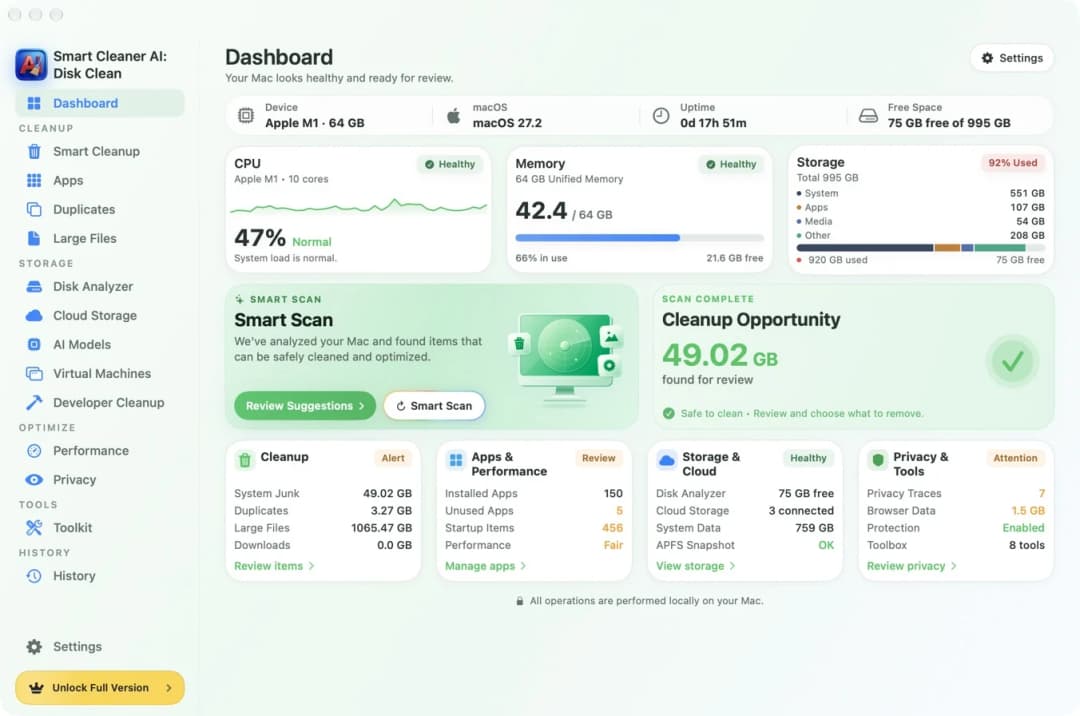
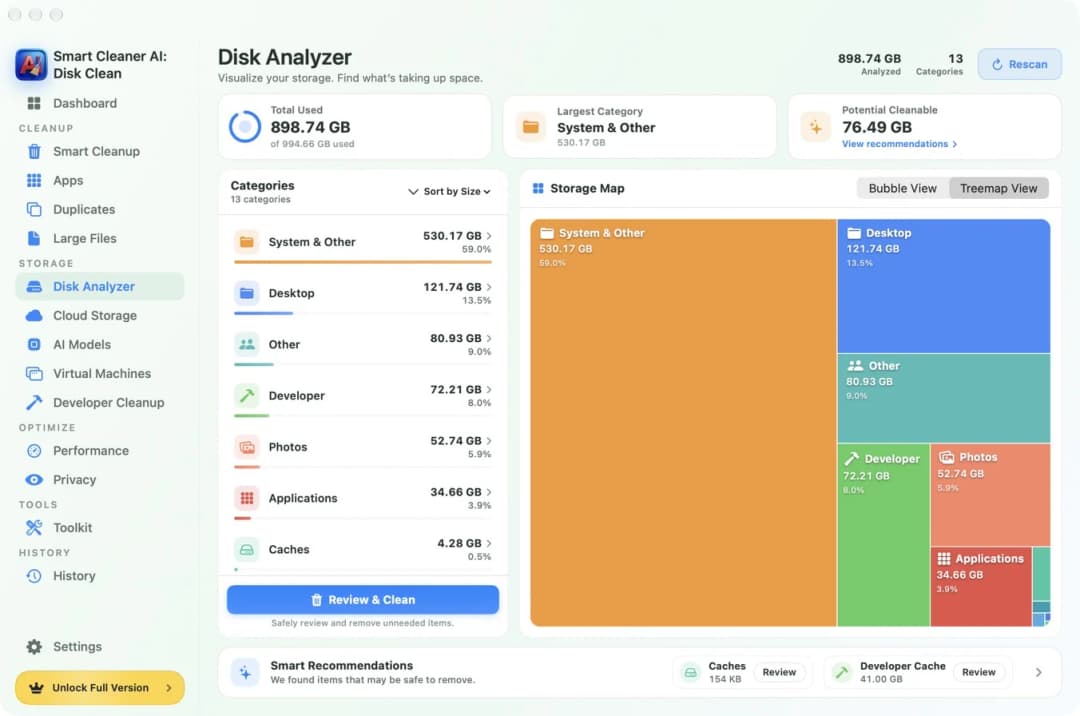
Before you look for the houses, look at the whole room. Open the Dashboard in Smart Cleaner AI. It shows how much of your Mac is full and how much is still free. If a big part is full and you do not know why, a virtual machine is one of the first things to check.
A virtual machine holds a whole system: Windows or Linux, the apps in it and the files you saved there. All of this sits in one package on your Mac. So a single package can be as big as tens or even hundreds of gigabytes.
2. Find all your virtual machines in one list
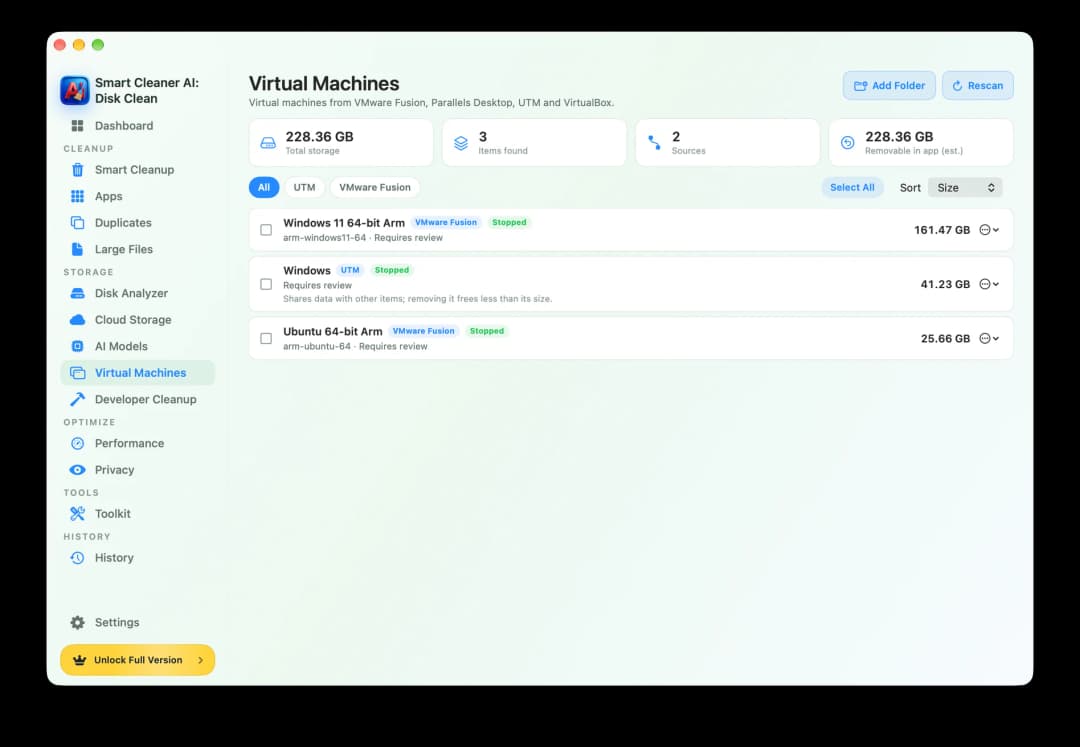
Open Virtual Machines in Smart Cleaner AI. The app looks for virtual machines made with VMware Fusion, Parallels Desktop, UTM and VirtualBox. It looks in the usual folders. If you keep a virtual machine somewhere else, click Add Folder and choose that folder. Looking at this list is free.
Every row shows the name, the app it belongs to and the size. On our test Mac the list showed three virtual machines with 228.36 GB together. One Windows machine was 161.47 GB. Under each name stands Requires review. That means: look closely before you do anything. Sometimes a row also says that the machine shares data with other items. Then removing it frees less than its size.
3. Know where the houses stand in Finder
You can also look yourself. In Finder, press Command, Shift and G together, type a path and press Return. VMware Fusion usually keeps its machines in ~/Documents/Virtual Machines. Parallels Desktop often uses ~/Parallels. VirtualBox uses ~/VirtualBox VMs. UTM from the App Store keeps them in ~/Library/Containers/com.utmapp.UTM/Data/Documents. The little wave at the start means your own home folder.
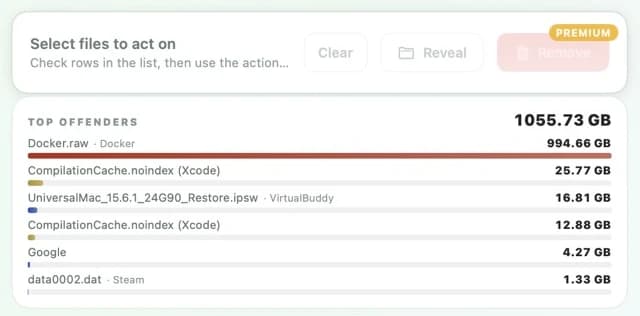
These are only the usual places. A virtual machine can be moved to another folder or to an external drive. Inside the package lies a very big disk file. You can find such files in Large Files in Smart Cleaner AI too. Some disk files are stretchy. They grow when you save more inside the virtual machine, and they do not get smaller by themselves.
4. Never pull one brick out of the house
A virtual machine is built from files that hold each other, like the bricks of a house. There is the disk, and there can be snapshots. A snapshot is a saved moment that you can go back to. Each snapshot leans on the disk and on the snapshots before it. If you delete one of these files in Finder, the house can fall down. The virtual machine may not start again, and the files in it can be lost.
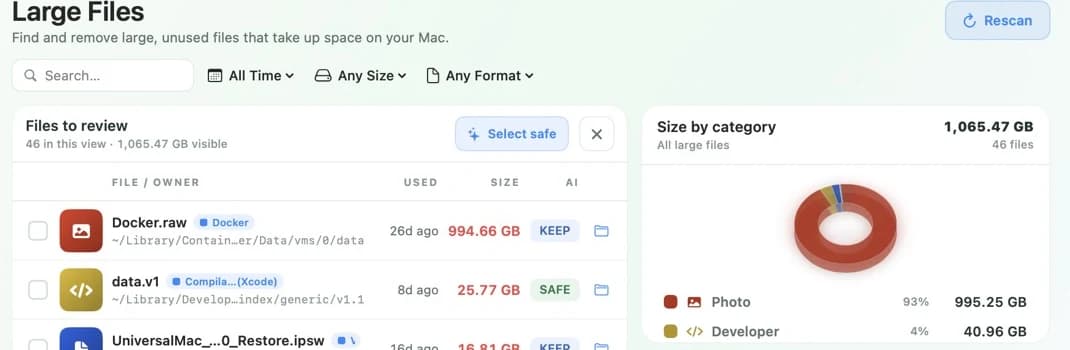
So do not delete a file ending in .vmdk, .vdi, .hdd or .qcow2 just because it is big. In Large Files such a file often carries the label KEEP. KEEP means think first, because an app may still use the file. Smart Cleaner AI does not tick KEEP files for you.
5. Make the house smaller or take it away as a whole
Do you still need the virtual machine? Then tidy up from the inside. First shut it down completely. Pausing is not enough. Then make a copy of the whole package as a backup. Now open the app that runs the machine. Remove snapshots you no longer need there, and use its own tool to give free space back to the Mac. VMware Fusion, Parallels Desktop and UTM each have such a tool. Deleting files inside Windows alone does not always make the package smaller.
Do you not need it any more? Then take the whole house away, never just a part. Make sure you have saved everything you want to keep. Then remove the machine in its own app, or tick it in Virtual Machines in Smart Cleaner AI and remove it there. Smart Cleaner AI removes the whole virtual machine with its snapshots. It does not shrink it. Removing needs Pro. Looking is free.
How to find large virtual machines on a Mac
- 1
Open the list
Open Virtual Machines in Smart Cleaner AI and read the size of each virtual machine.
- 2
Add other folders
If a virtual machine is kept somewhere else, click Add Folder and choose that folder.
- 3
Shut down and back up
Shut the virtual machine down completely and copy the whole package to a safe place.
- 4
Tidy up in its own app
Remove old snapshots and give space back with the app that runs the virtual machine, or remove the whole machine if you no longer need it.
Frequently asked questions
Can I delete a .vmdk or .vdi file?▼
Not just because it is big. It can be the disk the virtual machine is using, or a part that snapshots lean on. Find out which machine it belongs to and use the app of that machine instead.
Why did my Mac not get more free space after I deleted files inside the virtual machine?▼
The free space inside the virtual machine and the space the package takes on your Mac are two different things. Often the app of the machine has to give the space back with its own clean-up tool.
Does removing a snapshot delete my virtual machine?▼
No, if you do it in the app of the machine. The app joins the changes into the disk. You only lose the way back to that saved moment. Make a backup first and let the app finish its work.
Where are virtual machines stored on a Mac?▼
VMware Fusion usually uses ~/Documents/Virtual Machines, Parallels Desktop often uses ~/Parallels and VirtualBox uses ~/VirtualBox VMs. A machine can also be moved to another folder or an external drive.
Is pausing the virtual machine enough before a backup?▼
No. A paused machine still keeps its running session. Shut the system inside it down completely, and copy the whole package after that.

See How Big Your Virtual Machines Are
Virtual Machines in Smart Cleaner AI puts the machines from VMware Fusion, Parallels Desktop, UTM and VirtualBox into one list with their sizes. The scan runs only on your Mac. You look first and decide yourself what goes.

Sources
- Apple Support: Go directly to a specific folder on Mac
- Broadcom: Locating the virtual machine bundle in VMware Fusion
- Broadcom: Consolidating snapshots in VMware Fusion
- Broadcom: Defragmenting, shrinking and cleaning up VMware Fusion disks
- Parallels: Locate a virtual machine on Mac
- Parallels: Free Up Disk Space
- UTM: Drive settings
- UTM: Snapshots
- UTM: Resize and compress a drive
- Oracle VirtualBox: VBoxManage reference
We built a custom disk scan algorithm for Smart Cleaner AI so you can quickly see what’s taking up space and review what to clean.
Related guides
· 9 min read
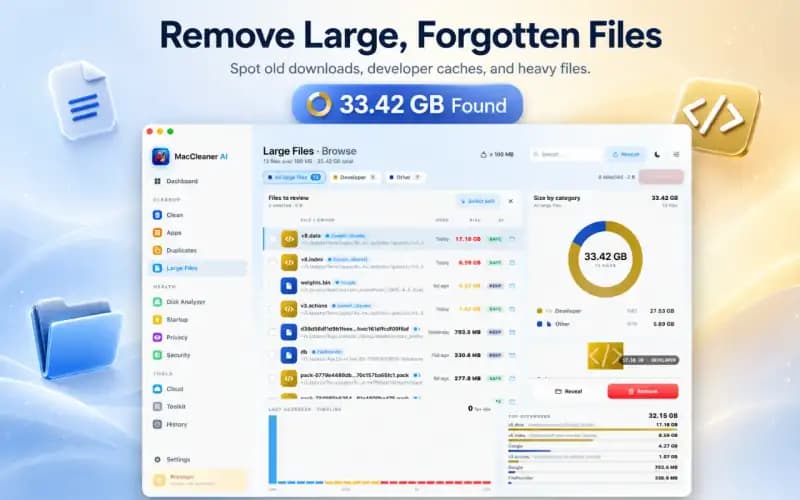
How to Find Large Files on Mac
A full Mac is like a suitcase that is too heavy. Put it on the scale, find the heaviest files with Finder and Smart Cleaner AI, and take out only what you can spare.

· 9 min read
How to Free Up Docker Disk Space on Mac
See how much room Docker takes on your Mac with Smart Cleaner AI, learn why you must not delete Docker.raw and free up space with Docker's own commands.
· 9 min read
How to Clear Xcode Cache and DerivedData on Mac
Clear Xcode cache on Mac step by step: Clean Build Folder, DerivedData, unused simulators and old runtimes. See what is safe to delete and what to keep.

Ready when you are
Download Smart Cleaner AI for Mac
Analyze Mac storage, safely clear system data caches, find large files, and remove app leftovers with on-device controls.
By using Smart Cleaner AI, you agree to our Terms of Use and Privacy Policy.