How to Clean Xcode DerivedData, Caches & Simulators Safely
Step-by-step developer guide to clean Xcode DerivedData, module caches, and unused iOS simulators on Mac without breaking your build environment.

For iOS, macOS, and visionOS developers, Xcode is an indispensable tool. But it can also become a significant storage consumer on a developer's Mac. Over months of building, testing, and debugging, Xcode accumulates index stores, intermediate build artifacts, module caches, archives, and simulator runtimes.
Xcode build directories and simulators can consume significant disk space over time, depending on the number of active projects, dependencies, and simulator runtimes. When storage runs low, build operations slow down and indexing issues can occur. Here is how to clean Xcode DerivedData, build caches, and unused iOS simulators safely without breaking your project configurations.
What Is Xcode DerivedData and Why Does It Grow?
Xcode stores build-time information in a central directory located at ~/Library/Developer/Xcode/DerivedData. Inside this directory, Xcode creates a dedicated subfolder for each project and workspace you open.
DerivedData contains: 1. Indexing Data: Syntax maps, symbol graphs, and cross-references used for code completion and Quick Help. 2. Build Products: Intermediate object files (.o), precompiled frameworks, and dSYMs. 3. Module Caches: Precompiled Swift and Clang modules. Because artifacts from older builds, renamed targets, or archived branches can accumulate, DerivedData tends to expand until it is cleared.
Is It Safe to Delete DerivedData?
DerivedData contains generated build and indexing data that Xcode can usually recreate. Removing it may trigger a full rebuild and reindex, so confirm you are deleting DerivedData rather than project or archive data.
Clearing DerivedData is a standard troubleshooting step in the Apple developer community when Xcode behaves erratically, displays persistent build errors, or fails to resolve Swift Package Manager dependencies. Keep in mind that the subsequent build will take longer because Xcode must reindex your codebase and recompile dependencies.
Manual Methods to Clean DerivedData
You can clean DerivedData manually using Xcode settings or Finder, or via Terminal:
• Via Xcode Settings & Finder (Recommended): Open Xcode → Settings (Command + ,) → Locations. Under 'Derived Data', click the small arrow icon next to the path to open the folder in Finder. Confirm you are inside DerivedData, quit Xcode, then select and move project subfolders to Trash. This allows you to inspect what is being removed and recover files from Trash if needed.
• Via Terminal (Advanced): If you prefer command-line workflows, quit Xcode first and run: rm -rf ~/Library/Developer/Xcode/DerivedData/* . Note that rm -rf permanently deletes files immediately without moving them to Trash, so verify the path carefully before running it.
Cleaning Unused iOS, watchOS & tvOS Simulators
Each simulator runtime downloaded through Xcode consumes several gigabytes of storage. Over time, as new OS updates are installed, older simulator versions remain on your drive.
To inspect installed simulators, run xcrun simctl list in Terminal. To remove unavailable or orphaned simulator devices and clear their caches, run xcrun simctl delete unavailable. You can also navigate to Xcode Settings → Components to view, manage, and remove downloaded platform simulator runtimes you no longer test against.
Using Smart Cleaner AI Alongside Xcode Storage Maintenance
When managing developer storage, visual inspection helps identify where drive capacity is concentrated.
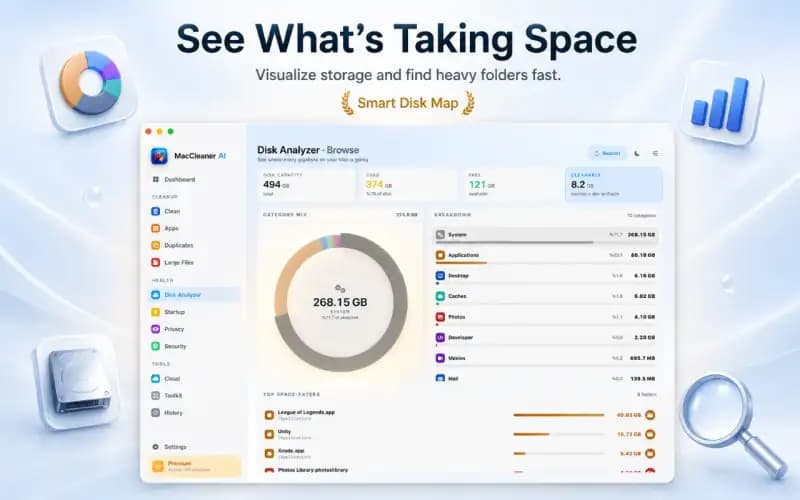
Smart Cleaner AI's Disk Analyzer can help you inspect storage-heavy folders and files that are visible to the scanner across your system. Xcode-specific cleanup, such as managing DerivedData, build products, and simulators, should still be reviewed and performed using Xcode settings, Finder, and developer command-line tools so that project configurations remain intact.
How to Clean Xcode DerivedData & Simulators in 4 Steps
- 1
Quit Xcode completely
Ensure Xcode and all active simulator instances are closed before performing any cache removal.
- 2
Locate DerivedData in Finder
Open Xcode Settings → Locations and click the arrow next to DerivedData, or navigate directly to ~/Library/Developer/Xcode/DerivedData in Finder.
- 3
Delete DerivedData build subfolders
Select unwanted project folders inside DerivedData and send them to Trash. Xcode will recreate fresh indexes on rebuild.
- 4
Manage simulators in Components or Terminal
Use xcrun simctl delete unavailable in Terminal, or open Xcode Settings → Components to delete unused simulator runtimes.

Inspect Storage & Reclaim Disk Space
Smart Cleaner AI - Disk Clean helps you visualize disk usage, locate large files, and remove unneeded application caches so you can keep your Mac fast and lean.

Frequently asked questions
Will deleting DerivedData delete my source code or Git history?▼
No. DerivedData only contains temporary build artifacts and indexes. Your project files, source code, and Git repositories remain completely untouched.
Why is my first build slow after deleting DerivedData?▼
Because Xcode must rebuild its internal symbol indexes and recompile Swift packages from scratch. Subsequent incremental builds will return to full speed.
Where are Xcode Archives stored?▼
Xcode stores distribution archives at ~/Library/Developer/Xcode/Archives/. You can review and delete old development archives via Xcode Organizer (Window → Organizer).
Can I move DerivedData to an external SSD?▼
Yes, in Xcode Settings → Locations, you can set a custom DerivedData path on an external NVMe drive, though internal Mac SSDs offer faster build throughput.
How often should developers clean DerivedData?▼
Developers typically clean DerivedData when troubleshooting indexing or compilation errors, after major Xcode updates, or when reclaiming storage from old, inactive projects.
Sources
Related guides
· 9 min read
What Is Taking Up Space on My Mac? Breakdown & Safe Fixes (2026)
Discover what is taking up space on your Mac. Learn how to inspect System Data, user caches, hidden local snapshots, and app leftovers safely.

· 9 min read
How to Clear System Data on Mac Safely: Step-by-Step (2026)
Learn how to clear System Data on Mac and MacBook safely. Reduce caches, logs, old backups, and app leftovers to free up space without risking system folders.
· 9 min read
How to Clear Purgeable Space on Mac Safely: Complete Guide (2026)
Understand what purgeable space is on Mac and how to clear it. Reclaim storage from APFS local snapshots, system caches, and cached cloud files safely.
Ready when you are
Download Smart Cleaner AI for Mac
Analyze Mac storage, safely clear system data caches, find large files, and remove app leftovers with on-device controls.
By using Smart Cleaner AI, you agree to our Terms of Use and Privacy Policy.