How to Free Up Docker Disk Space on Mac
See how much room Docker takes on your Mac with Smart Cleaner AI, learn why you must not delete Docker.raw and free up space with Docker's own commands.

Docker keeps everything in one big chest on your Mac. The chest is a single file called Docker.raw. Inside it are many small boxes: the images you downloaded, the containers you started, the things Docker saved to build faster and the volumes with your data.
From the outside you only see the chest, and it can look huge. You cannot open it in Finder. Only Docker has the key. This guide shows how to find the chest, why you must never throw it away and how to take out the boxes you no longer need.
1. See how full your Mac is
Before you look for the chest, look at the whole room. Open the Dashboard in Smart Cleaner AI. It shows how much of your Mac is full and how much is still free. If you work with Docker and a big part is full, Docker is one of the first things to check.
Docker Desktop runs a small Linux computer inside your Mac. Everything Docker needs lives on the disk of that small computer. On your Mac this disk is one single file. That is why you do not find hundreds of Docker files in Finder. You find one very big one.

2. Find the big chest called Docker.raw
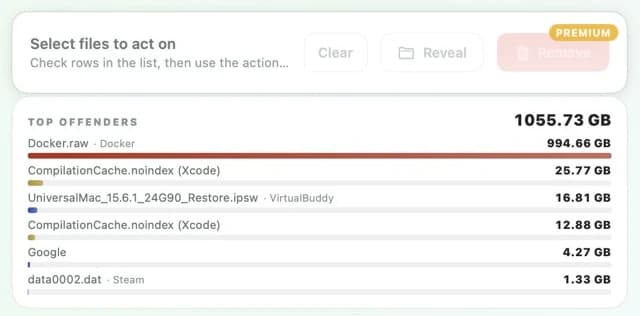
Open Large Files in Smart Cleaner AI. The app puts the biggest files of your Mac at the top. On our test Mac the first place went to Docker.raw with 994.66 GB. The next file was far behind it. Looking at this list is free.
Next to the name stands a small tag that says Docker. So you know at once which app the file belongs to. You do not have to guess, and you do not have to search through hidden folders yourself.
3. Why the chest looks so big
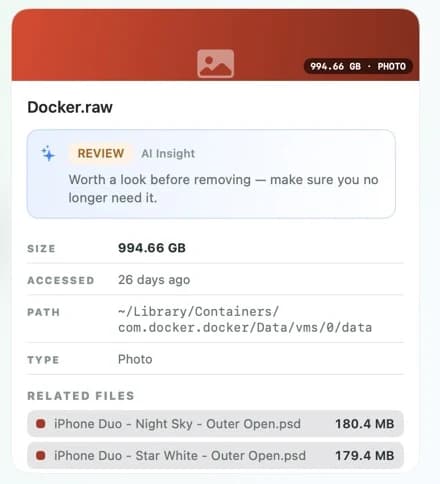
Click the file to see more. The card shows the size, the day it was last used and the place where it lies. On our test Mac that place was ~/Library/Containers/com.docker.docker/Data/vms/0/data. The little wave at the start means your own home folder. Docker Desktop also shows this place in its settings under Resources.
The number can be bigger than the room the file really takes. Think of a chest that is painted very large on the outside but is only partly full inside. The size you see can be the largest size the chest is allowed to grow to. So do not be scared by the number. Ask Docker what is really inside. In Terminal, type docker system df. It lists images, containers, volumes and build cache with their sizes.
4. Never throw away the chest
It is tempting to delete one file and get all that room back. Please do not. If you throw away the chest, everything in it is gone: your images, your containers and your volumes. A volume is the box where a database keeps its data. It can be the only copy you have.
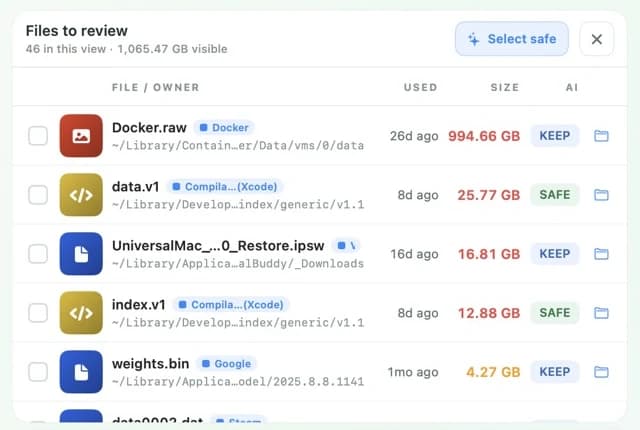
In Large Files, Docker.raw carries the label KEEP. KEEP means think first, because an app may still use the file. Smart Cleaner AI does not tick KEEP files for you. Do not move the file in Finder either. If you want it in another place, change the location in the settings of Docker Desktop.
5. Take out the boxes with Docker's own key
Open Docker Desktop and wait until it has started. Begin with the smallest step. The command docker builder prune removes the build cache. These are the things Docker saved to build faster. Your next build may take longer, but nothing else is lost. Docker asks before it removes anything. Read the question, and type n if you are not sure.
The command docker system prune goes further. It removes stopped containers, networks that are not used, images without a name and build cache. A stopped container can still hold work you did not save elsewhere, so look first with docker container ls -a. This command leaves your volumes alone. Do not add --volumes or -a unless you know what each box holds and you have a backup. Afterwards run docker system df again. The room on your Mac may not come back right away.
How to free up Docker disk space on a Mac
- 1
Find the file
Open Large Files in Smart Cleaner AI and look for Docker.raw at the top of the list.
- 2
Ask Docker what is inside
Open Terminal and type docker system df to see images, containers, volumes and build cache.
- 3
Remove the build cache
Type docker builder prune, read the question and confirm only if you are sure.
- 4
Tidy up more if needed
Type docker system prune to remove stopped containers and unused images, and leave your volumes alone.
Frequently asked questions
Can I delete Docker.raw to free up space?▼
No. Docker.raw is the disk of Docker Desktop. Your images, containers and volumes are inside it. Use Docker's own commands and make a backup of important data first.
Does docker system prune delete my volumes?▼
Not by itself. The plain command leaves volumes alone. They are only removed if you add --volumes. A volume can hold the only copy of a database, so look at it and back it up first.
Why is Docker.raw still big after I tidied up?▼
The size you see can be the largest size the file is allowed to grow to. The room it really takes on the Mac can be smaller, and it can take a while until freed room shows up.
Where is Docker.raw on a Mac?▼
On our test Mac it was in ~/Library/Containers/com.docker.docker/Data/vms/0/data. Docker Desktop shows the place in its settings under Resources. It can be changed there.
Will tidying up Docker delete my project folder?▼
The commands in this guide remove things Docker keeps itself. A project folder on your Mac that a container only uses is a normal folder. Keep your own backup of it anyway.

See How Much Room Docker Takes
Large Files in Smart Cleaner AI puts the biggest files of your Mac at the top and shows which app each one belongs to. The scan runs only on your Mac. You look first and decide yourself what goes.

Sources
We built a custom disk scan algorithm for Smart Cleaner AI so you can quickly see what’s taking up space and review what to clean.
Related guides

· 9 min read
How to Find Large Virtual Machine Files on Mac
Find the virtual machines that fill your Mac, see how big each one is with Smart Cleaner AI and learn how to make one smaller without breaking it.
· 9 min read
How to Clear Xcode Cache and DerivedData on Mac
Clear Xcode cache on Mac step by step: Clean Build Folder, DerivedData, unused simulators and old runtimes. See what is safe to delete and what to keep.

· 9 min read
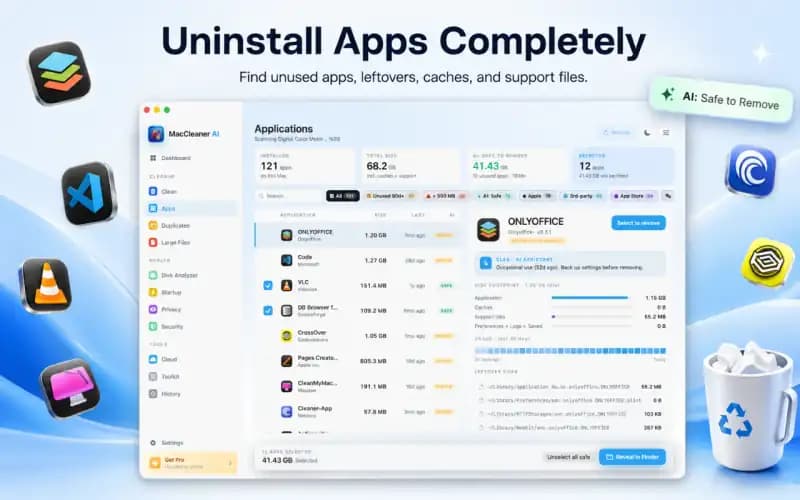
How to Uninstall Apps on Mac Completely
How to uninstall apps on Mac completely: move the app to the Trash, find the files it left in your Library and stop helpers that still start by themselves.

Ready when you are
Download Smart Cleaner AI for Mac
Analyze Mac storage, safely clear system data caches, find large files, and remove app leftovers with on-device controls.
By using Smart Cleaner AI, you agree to our Terms of Use and Privacy Policy.