How to Find Large Application Support Files on Mac
Find the big folders in Application Support on your Mac with Finder and Smart Cleaner AI, see which app they belong to and learn what to leave alone.

Think of every app on your Mac as a child with a toy box under the bed. The child is small. The box can be huge. The app sits in the Applications folder, and its box is hidden in a folder called Application Support. The app keeps its things there: downloads, game parts, profiles and settings.
That is why an app can look small and still take a lot of room. This guide shows how to open the place where the boxes stand, how to find the biggest ones and which boxes you should not empty.
1. Open the place where apps keep their boxes
The boxes stand in a hidden folder. In Finder, press Command, Shift and G together, type ~/Library/Application Support/ and press Return. The little wave at the start means your own home folder. Now you see one folder for almost every app or app maker.
To see which box is the biggest, press Command and 2 for the list view. Then press Command and J and tick Calculate all sizes. Wait a moment until Finder has counted, then click the word Size at the top of the list. The biggest folders move to the top. If a folder shows only a dash, Finder is still counting.

2. See how big the box of one app is
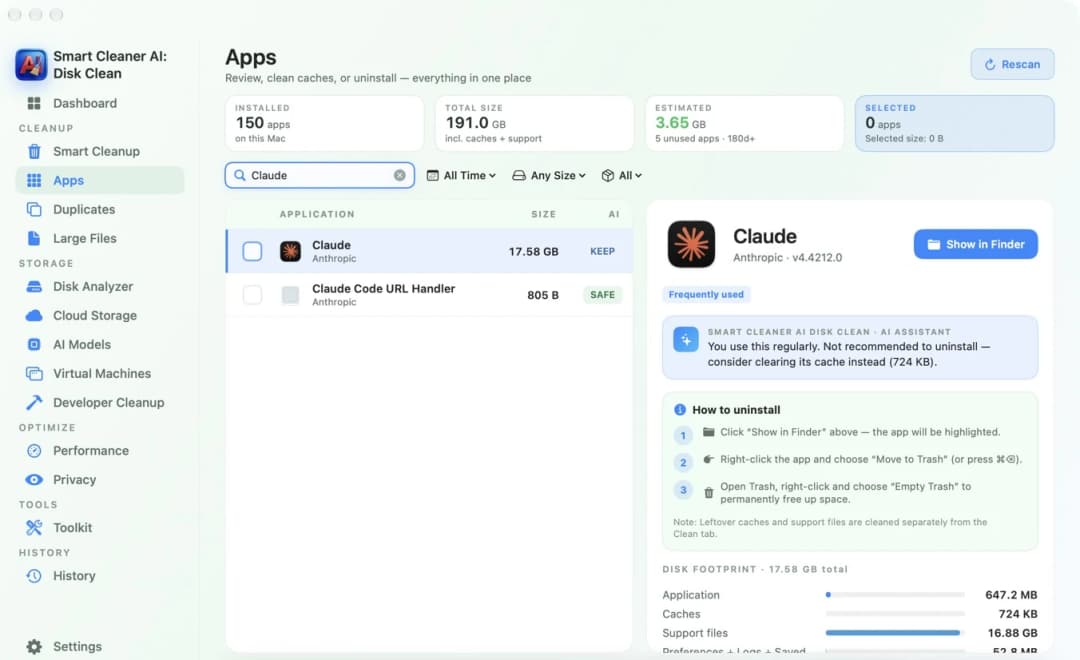
You can also let an app measure the boxes for you. Open Apps in Smart Cleaner AI and click an app in the list. On the right you see how much room the app takes in total, and one line called Support files. That line is the toy box.
On our test Mac one app was 647.2 MB by itself. Its support files were 16.88 GB. So the box was about 26 times bigger than the child. Click Show in Finder if you want to see where the app is. Looking at this page is free.
3. Find the biggest single files
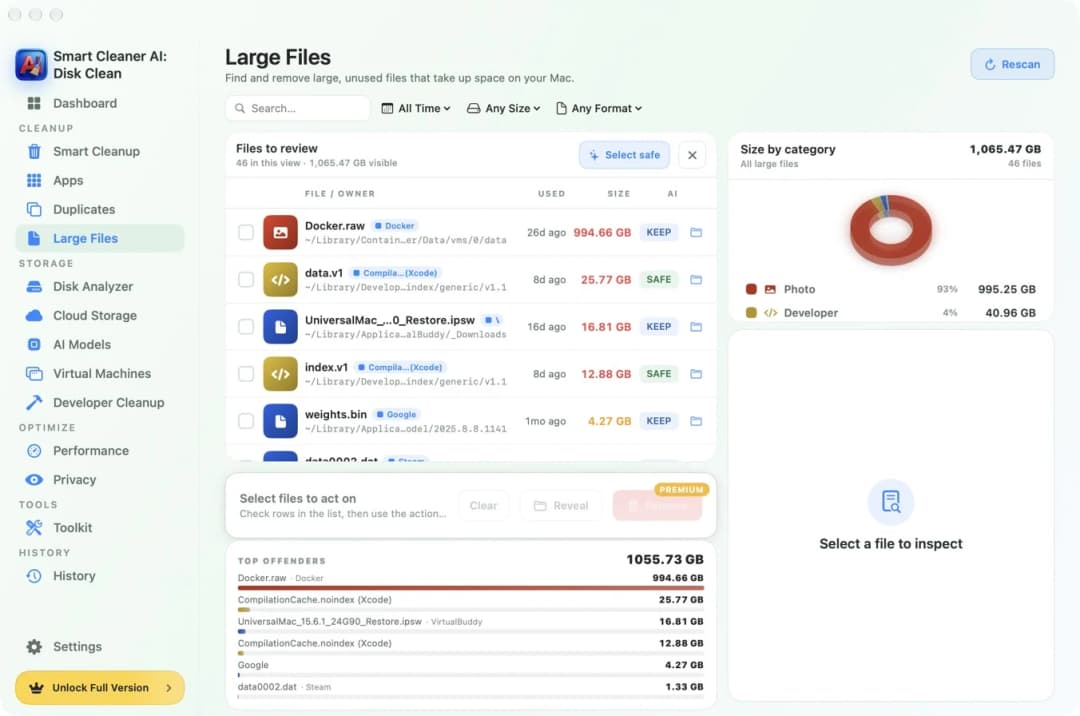
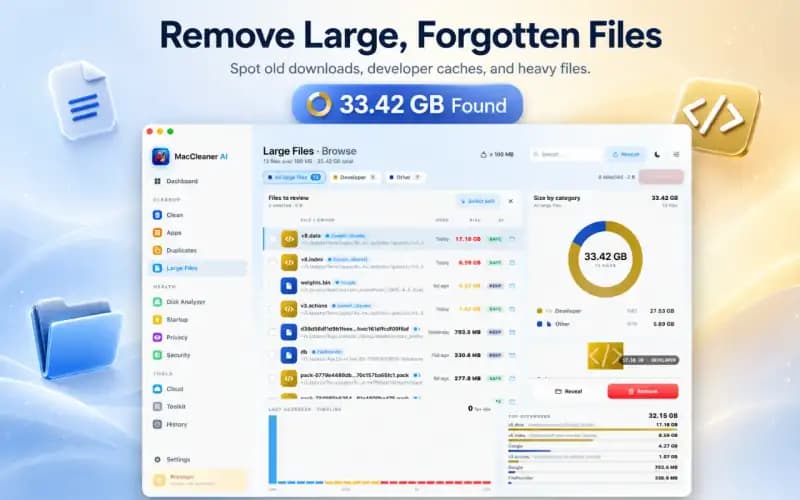
A big box is often big because of one or two very heavy toys. Open Large Files in Smart Cleaner AI. It puts the biggest files on your Mac into one list, with the size and a short path for each one. Type a name such as Google or Steam into the search box to see only the files of that app.
Here is what often makes the boxes heavy. Chrome keeps its profiles under Google/Chrome. Steam keeps installed games in a folder called steamapps. Adobe keeps presets and profiles in its own folder. Some apps for local AI keep very big model files. Not every big file lives in Application Support, though. Ollama, for example, keeps its models in ~/.ollama/models.
4. Read the path to find out whose box it is
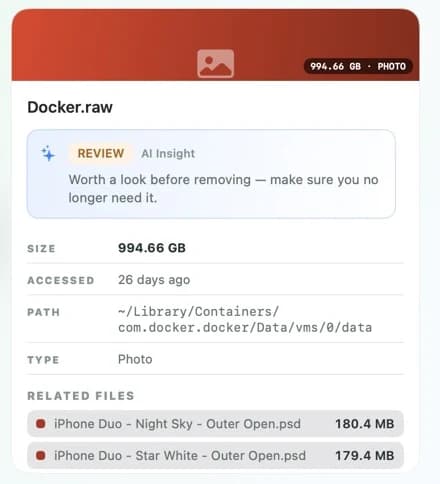
Click a row and a card opens with the full path, the size and the date the file was last used. The path is like the name tag on the box. If it contains Application Support/Google/Chrome, the file belongs to Chrome. If it contains Application Support/Steam, it belongs to Steam.
Your Mac has more than one place for boxes. ~/Library/Application Support is for your own user account. ~/Library/Containers holds a separate room for each app that runs in a sandbox. ~/Library/Group Containers holds things that several apps share. /Library/Application Support, without the wave, is for everyone who uses this Mac. Knowing the place helps you understand who else may need the file.
5. Know which boxes you should not empty
Never throw away the whole Application Support folder, and do not empty Containers or Group Containers either. Inside the boxes are things you cannot get back easily: browser profiles with your bookmarks, saved games, project libraries, your own presets and databases. Even a folder called Cache inside a box can be something the app needs.
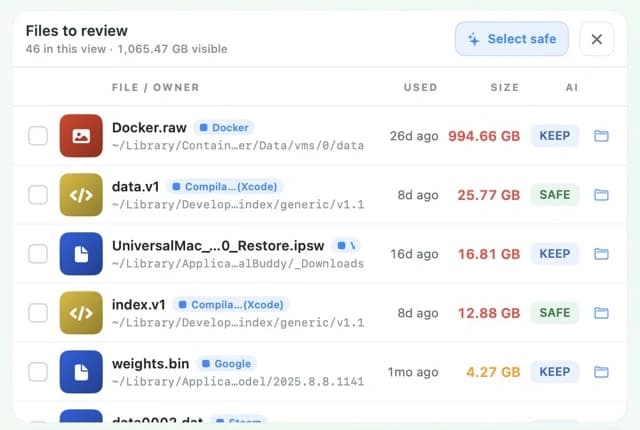
In Large Files every row has a small label. KEEP means think first, because an app may still use the file. SAFE means the app thinks the file can go. Smart Cleaner AI does not tick KEEP files for you. The best way to make a box smaller is the app itself. Open its settings and remove a download, a game or a model there. If you do want to remove a file in Smart Cleaner AI, tick it, click Remove and say yes. The file goes to the Trash. Remove needs Pro. Looking and searching are free.
How to find large Application Support folders
- 1
Open the folder
In Finder, press Command, Shift and G, type ~/Library/Application Support/ and press Return.
- 2
Sort by size
Press Command and 2 for the list view, press Command and J, tick Calculate all sizes and click Size.
- 3
Find the owner
Open Apps or Large Files in Smart Cleaner AI and read the path to see which app a big folder or file belongs to.
- 4
Make it smaller in the app
Open the settings of that app and remove a download, a game or a model you no longer need.
Frequently asked questions
What is the Application Support folder on Mac?▼
It is a folder in your Library where apps keep the things they need to work, such as profiles, downloads, presets and game files. Each app or app maker usually has its own folder there.
Why does Finder show a dash instead of a folder size?▼
In list view, press Command and J and tick Calculate all sizes. Give Finder a moment to count everything inside. For one folder, click it and press Command and I.
Can I delete the Application Support folder?▼
No. Do not delete the whole folder. Apps keep profiles, saved games and settings there. Find out which app a big folder belongs to and remove data from inside that app instead.
Can I delete a support folder after I uninstall the app?▼
First make sure which app made the folder, that no other installed app shares it and that nothing you need is inside. Save what you want to keep before you move the folder to the Trash.
How can I see the folder sizes in Terminal?▼
Type du -k -d 1 "$HOME/Library/Application Support" | sort -nr | head -n 16 and press Return. The command only reads. It lists the biggest folders first, with sizes in kilobytes.

See Which App Takes the Most Space
Apps in Smart Cleaner AI shows how big each app is together with its support files. Large Files shows the biggest files with their path. The scan runs only on your Mac. You look first and decide yourself what goes to the Trash.

Sources
We built a custom disk scan algorithm for Smart Cleaner AI so you can quickly see what’s taking up space and review what to clean.
Related guides
· 9 min read
How to Find Large Files on Mac
A full Mac is like a suitcase that is too heavy. Put it on the scale, find the heaviest files with Finder and Smart Cleaner AI, and take out only what you can spare.

· 9 min read
How to Uninstall Apps on Mac Completely
How to uninstall apps on Mac completely: move the app to the Trash, find the files it left in your Library and stop helpers that still start by themselves.

· 9 min read
How to Find and Delete Chrome AI Model Files on Mac
Find the weights.bin file of Chrome's Gemini Nano model on your Mac, see how big it is with Smart Cleaner AI and stop Chrome from downloading it again.

Ready when you are
Download Smart Cleaner AI for Mac
Analyze Mac storage, safely clear system data caches, find large files, and remove app leftovers with on-device controls.
By using Smart Cleaner AI, you agree to our Terms of Use and Privacy Policy.