How to Find and Delete Chrome AI Model Files on Mac
Find the weights.bin file of Chrome's Gemini Nano model on your Mac, see how big it is with Smart Cleaner AI and stop Chrome from downloading it again.

Think of your Mac as a bookshelf. One day a very thick book stands on it, and you did not put it there. Chrome did. The book is called weights.bin. Chrome's small helper, Gemini Nano, reads from it so it can work on your Mac without the internet.
On the Mac we checked, this one book was 4.27 GB. This guide shows where the book stands, how to see how thick it is, and how to tell Chrome not to bring a new one.
1. Learn why Chrome puts a thick book on your shelf
Chrome can use AI models that run on your own Mac. They help with things like spotting scam pages, helping you write and making short summaries of pages. For that, Chrome needs the model on your disk. On Macs that are able to run it, Chrome can download the files quietly in the background, or the first time a feature needs them.
Chrome picks the model that fits your Mac, so the book is not the same size for everyone. On our test Mac the main file, weights.bin, was 4.27 GB. If your shelf is nearly full, that is a lot of room for one book.

2. Find the book in Finder
The book stands in a folder called OptGuideOnDeviceModel. In Finder, press Command, Shift and G together and paste this path: ~/Library/Application Support/Google/Chrome/OptGuideOnDeviceModel/. Inside you will see a folder with a number as its name. On our test Mac it was 2025.8.8.1141. Open it, click weights.bin once and press Command and I to see its size.
Chrome Beta and Chrome Canary keep their own folders. If you are not sure where your Chrome keeps its things, type chrome://version in the Chrome address bar and read the line Profile Path. The Chrome folder is one step above that profile folder. You can also let an app look for you. Large Files in Smart Cleaner AI lists the biggest files on your Mac.
3. Let Smart Cleaner AI find weights.bin
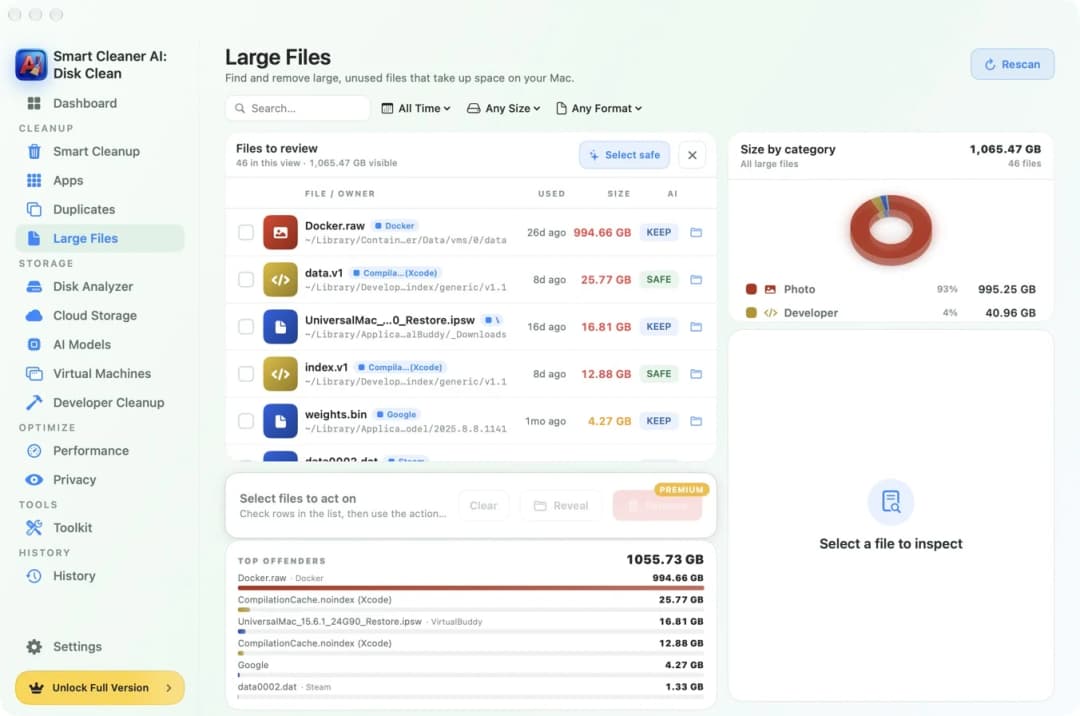
Chrome keeps the book in a place that apps may not look into unless you allow it. Open System Settings, then Privacy & Security, then Full Disk Access, and turn it on for Smart Cleaner AI. Go back to the app, open Large Files and click Rescan.
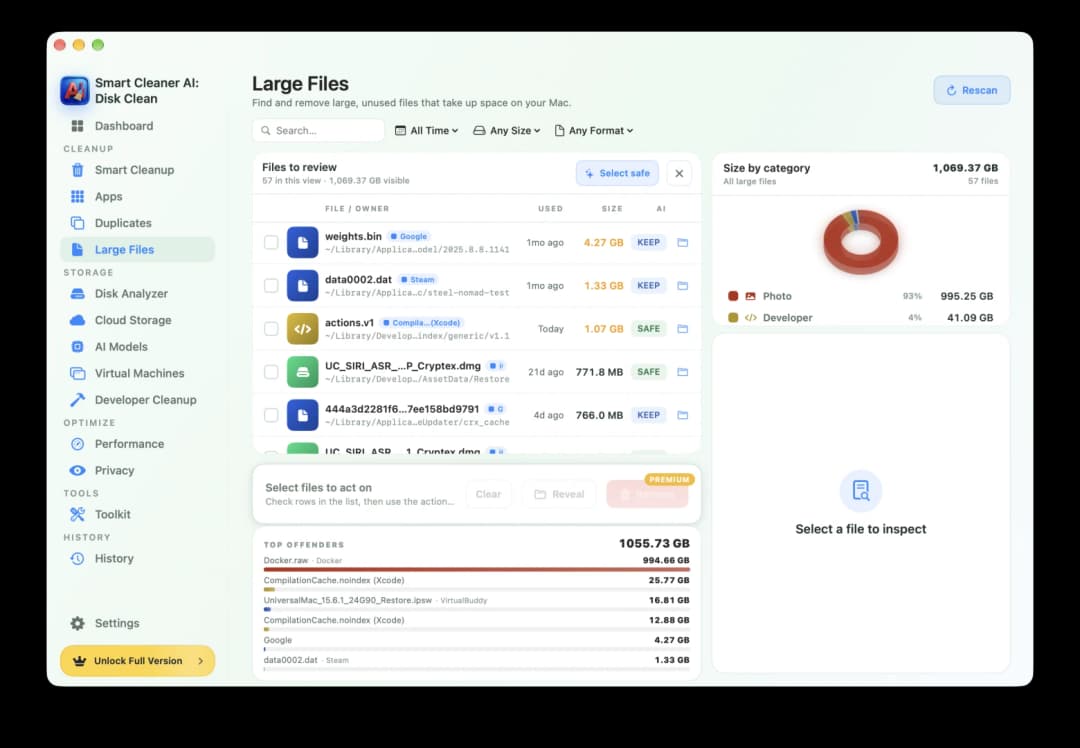
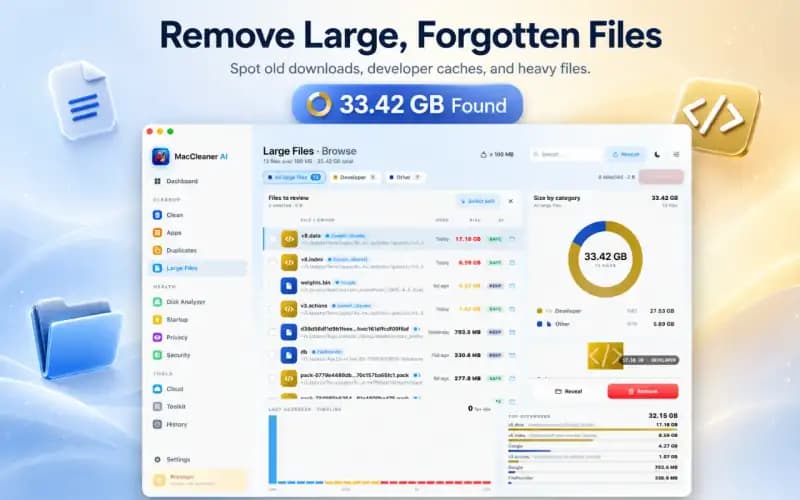
Under Files to review, type weights.bin into the search box. On our test Mac the row showed a Google tag and 4.27 GB. Read the path under the name. It should contain Google/Chrome/OptGuideOnDeviceModel. Another app may also have a file called weights.bin, so the path tells you whose book it is.
4. Read the label before you take the book away
Every row in Large Files has a small label. On our test Mac, weights.bin had the label KEEP. That is the app telling you: an app still uses this file, so think first. Smart Cleaner AI does not tick this file for you. You tick it yourself, click Remove and say yes, and the file goes to the Trash. Remove needs Pro. Looking and searching are free.
Smart Cleaner AI also has a page called AI Models. In the version we tested, that page looks in other places, for example where Ollama and LM Studio keep their models, and it did not list the Chrome model. So for this book, Large Files is the right page. And if you only move the file to the Trash, Chrome may simply bring a new one. The next step stops that.
5. Tell Chrome not to bring the book back
As long as On-device AI is switched on, Chrome can download the model again. The way Google describes is this: type chrome://settings/ai in the Chrome address bar and turn off On-device AI. Chrome then removes its local AI model files itself and does not download new ones while the switch stays off.
The Chrome features that need the local model stop working after that. To check that the book is really gone, open the folder in Finder again or run a new scan in Large Files. If you want to see first which model Chrome has, open chrome://on-device-internals. If Chrome says that debugging pages are turned off, turn them on at chrome://chrome-urls and go back. On our Mac the Models table showed a Weights Path that ended in weights.bin.
How to check and remove the local AI model of Chrome
- 1
Find the file
In Finder, press Command, Shift and G, go to ~/Library/Application Support/Google/Chrome/OptGuideOnDeviceModel/ and look for weights.bin in the folder with the number.
- 2
Check the size
Click the file and press Command and I in Finder, or give Smart Cleaner AI Full Disk Access and rescan Large Files.
- 3
Turn off On-device AI
Open chrome://settings/ai in Chrome and switch off On-device AI. Chrome removes the model and does not download it again.
- 4
Check that it is gone
Open the folder in Finder again or rescan Large Files and make sure weights.bin is no longer there.
Frequently asked questions
What is weights.bin in the Chrome folder on Mac?▼
If it is inside the OptGuideOnDeviceModel folder of Chrome, weights.bin holds the data of the AI model that Chrome runs on your Mac. On our test Mac, Chrome named the installed model Gemini Nano v3.
Why is the weights.bin file of Chrome 4 GB?▼
The file holds everything Chrome needs to run the model on your Mac without a server. Our test file was 4.27 GB. The size can change with the model and version that Chrome installs.
Does clearing the Chrome cache remove Gemini Nano?▼
No. Chrome keeps Gemini Nano in its own folder, not in the cache. Turn off On-device AI in the Chrome settings to remove it.
Why can Smart Cleaner AI not find the Chrome model?▼
On our Mac the file appeared after we turned on Full Disk Access and rescanned Large Files. Look under Files to review and search for weights.bin. If it still does not appear, open chrome://on-device-internals to see if a model is installed at all.
Will Chrome download Gemini Nano again after I delete it?▼
It can, as long as On-device AI is on. If you turn off On-device AI in the Chrome settings, Chrome removes the local models and does not download them again while the switch stays off.

See What Takes Up Space on Your Mac
Large Files in Smart Cleaner AI shows the biggest files on your Mac with their size and their place. The scan runs only on your Mac. You look first and decide yourself what goes to the Trash.

Sources
We built a custom disk scan algorithm for Smart Cleaner AI so you can quickly see what’s taking up space and review what to clean.
Related guides

· 9 min read
How to Uninstall AI Apps on Mac (ChatGPT, Claude, Ollama)
Uninstall ChatGPT, Claude, Ollama or LM Studio on Mac in five easy steps: see what the app keeps, find the big model files, remove them safely, then trash the app.
· 9 min read
How to Find Large Files on Mac
A full Mac is like a suitcase that is too heavy. Put it on the scale, find the heaviest files with Finder and Smart Cleaner AI, and take out only what you can spare.

· 9 min read
How to Clear Cache on Mac: Safari, Chrome and Apps
Clear the cache on your Mac step by step: Safari, Chrome, Firefox and single apps. See which caches are big and which ones you should leave alone.

Ready when you are
Download Smart Cleaner AI for Mac
Analyze Mac storage, safely clear system data caches, find large files, and remove app leftovers with on-device controls.
By using Smart Cleaner AI, you agree to our Terms of Use and Privacy Policy.