How to Find and Delete Duplicate Videos on Mac
Find duplicate videos on Mac with Finder, Apple Photos, or Vision AI. Verify exact copies, compare similar clips, and delete extras without losing originals.

To find duplicate videos on your Mac, start where the clips live. In Apple Photos, go to Duplicates and merge the videos you can verify. In Finder, narrow a folder to movies, preview the candidates and compare file contents before deleting a copy. If you have several folders or need to compare re-encoded clips, scan with Vision AI - Photo Cleaner and review the matches before removing anything.
A downloaded copy of a clip, a shorter edit, and a 1080p export of a 4K master can all look the same at first. Only the downloaded copy might match byte for byte. Check which version belongs in your archive or editing project before you move anything to the Trash.
Choose a method based on where the videos are stored
Open one video you suspect is duplicated and locate its source. A project folder or an external drive stores files that Finder can show individually. Apple Photos stores managed clips in a library with its own database. iCloud Drive and iCloud Photos are different services: removing a clip from iCloud Drive is a file operation, while removing a clip in Photos changes the Photos library.
Work on a single source first. If two folders are deliberate backups of each other, keep them out of the same cleanup group. A scan can identify matching contents, but it cannot tell you which folder you rely on for recovery.
| What you have | First step | What it tells you |
|---|---|---|
| Videos already in Apple Photos | Open Duplicates in the Photos sidebar | Shows library matches Photos has already detected |
| A few MOV or MP4 files in one folder | Sort the folder in Finder and preview candidates | Finds likely copies and shows their locations |
| Two likely identical files with different names | Compare SHA-256 checksums in Terminal | Verifies whether their contents match |
| Many folders or clips with different resolutions | Use a duplicate and similar video scan | Groups files to review, including likely variants |
Find candidate videos in Finder
Finder is useful if you remember the folder or the event. Start with Downloads, Movies, or the folder where you export projects. Keep the search local to that folder so you do not mix work files with deliberate backups. If you need to search a wider area, choose the appropriate scope at the top of the Finder search results and add a Kind filter for movies using the plus button.
Switch to List view with Command-2. Sort by Size or Name and choose View > Show Path Bar to reveal each file's location. Identical file sizes or a suffix such as (1) make a good starting point. Neither tells you whether the film is the same.
- Select each candidate in Finder and press Space to preview it in Quick Look. Compare the first and last scenes, then scrub through the middle.
- Press Command-I for Get Info and check the folder, kind, exact size, and available media details. Use QuickTime Player's Movie Inspector if you need to compare resolution or encoding.
- If the pair looks identical and you want proof before removal, compare its hashes. If the clips differ in length, framing, audio, or output settings, review them as separate versions.
Verify exact matches with a SHA-256 checksum
Terminal can compare two files without modifying them. Open Terminal, type shasum -a 256 followed by a space, and drag both files from Finder into the Terminal window. Make sure there is a space between their paths, then press Return. Dragging files inserts their paths so you do not have to type a folder name or escape spaces yourself.
Compare the 64-character string at the beginning of each result. The same SHA-256 value is strong evidence that the two files contain the same bytes, even if their names or Finder dates differ. If the values differ, the files are not exact copies. Two versions can look identical and still have different hashes because they use a different codec, container, export setting, or embedded metadata.
A checksum reads the whole file, so a long clip on an external drive may take a while. For a cloud-only file, download it first and make sure the command completed for both files. Use the output to decide what to keep, then move the extra file through Finder so you can still recover it. There is no need to run a deletion command in Terminal.
Merge duplicate videos in Apple Photos
If you imported the videos into Photos, start with the library's own Duplicates collection. Open Photos and select Duplicates under Utilities in the sidebar. If you use iCloud Shared Photo Library, Apple recommends choosing Both Libraries from the Library menu in the Photos toolbar when you want to check both.
Look through the groups, select a pair you recognize, and use Merge for that pair. Photos leaves one item in the library and sends the others to Recently Deleted. Review a small batch before merging more. If Duplicates does not appear, Photos may not have found any matches yet. The separate Videos collection lets you browse clips but does not group duplicate files.
Keep Photos library maintenance inside the Photos app. Do not open the .photoslibrary package in Finder to remove internal video files. For a video that is in both Photos and Downloads, inspect the two copies separately. Before deleting the Finder copy, verify that the version in Photos plays and that your backup includes the original you intend to keep.
Scan several folders or look for similar footage with Vision AI
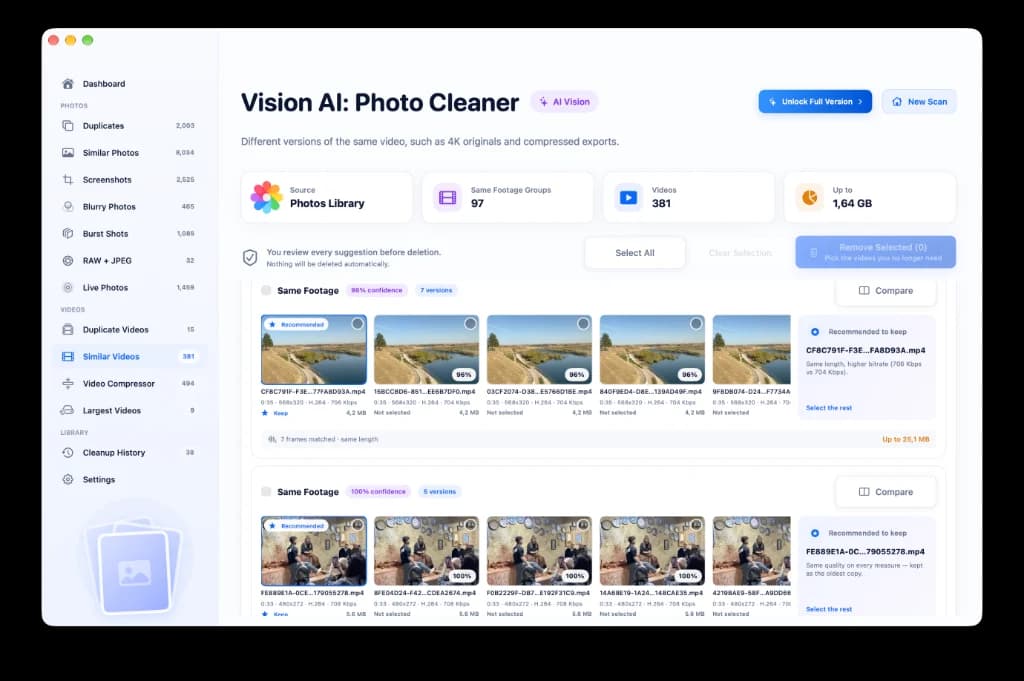
Vision AI - Photo Cleaner can scan supported videos in Apple Photos, Mac folders, external drives, and synced folders that are accessible from Finder. It analyzes media on the Mac. A file stored only online may need downloading for the scan, so start with one folder or one library you can comfortably review.
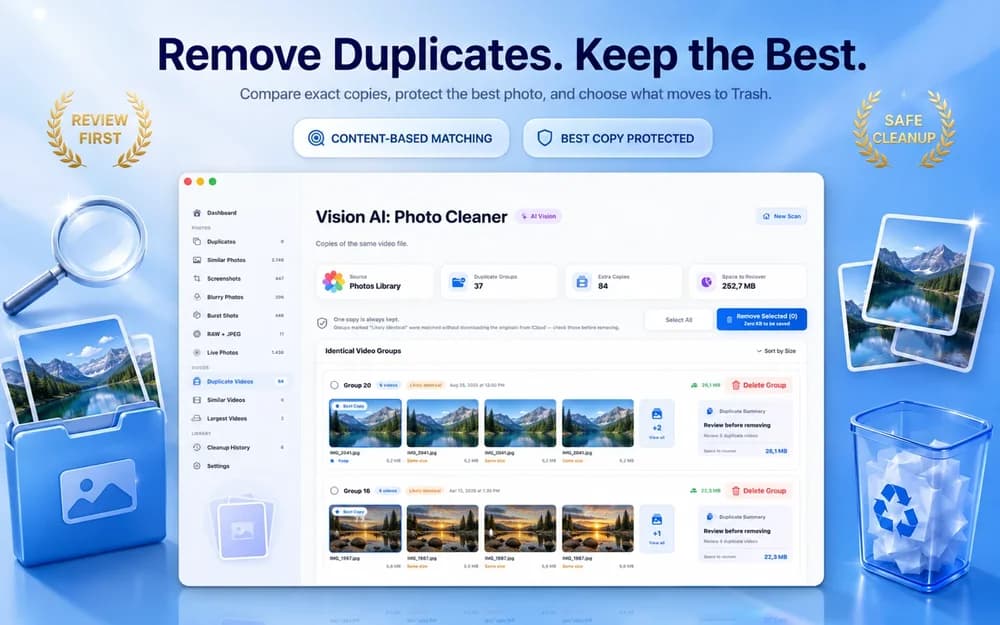
Open the video results and review duplicate matches separately from similar clips. Preview each clip before choosing a keeper. For a group of exact copies, the path tells you which copy belongs with your project. For similar footage, check whether a version has a different audio track, captions, watermark, trim, frame rate, or resolution. A strong visual match is a reason to compare clips, not sufficient evidence to delete one.
Scanning and reviewing matches are free. Batch removal within Vision AI requires Premium. Review the selection and confirm only the copies you intend to remove. The developer documents that Finder files go to the Mac Trash and items removed from Photos go to Recently Deleted.
Decide which clip to keep before deleting a version
Keep the camera master if you still edit from it or need the original resolution, frame rate, HDR, or audio tracks. Retain a smaller copy if it serves a separate purpose, such as a client-approved delivery or a subtitled export. Discard an export only after you can identify it and reproduce it from the master or no longer need it.
Editing apps may reference files by their original path. If one copy is inside a project folder and another is in Downloads, open the project and confirm which path it expects before removing either. A duplicate video sitting next to a project can be the copy needed to reopen the timeline. Keep any intentional backup that protects against the loss of the drive or the library.
| Pair | What to check | Typical decision |
|---|---|---|
| Same hash, original and download | Project path and backup location | Keep the copy in the expected folder |
| 4K original and 1080p export | Whether you need to edit or deliver either version | Keep the master and retain the export only if it serves a purpose |
| Similar takes with different audio | Dialog, subtitles, camera angle and frame range | Keep each take you would have trouble recreating |
Verify reclaimed space and keep a recovery path
Play the clips you kept from the folders or library you intend to use. Confirm that any relevant editing project opens with its media connected and that at least one separate backup is readable. Then decide when to empty Trash or permanently delete items in Photos. Apple allows recovery of deleted Photos items for up to 30 days unless they are removed permanently sooner.
If free space barely changes, check which drive held the removed files. Deleting a copy from an external drive does not empty the internal SSD. APFS clones can also share physical blocks, so removing one copy may recover less space than its listed size. With iCloud Photos or another sync service, deleting a clip can propagate to other devices. A synced copy is not a separate backup.
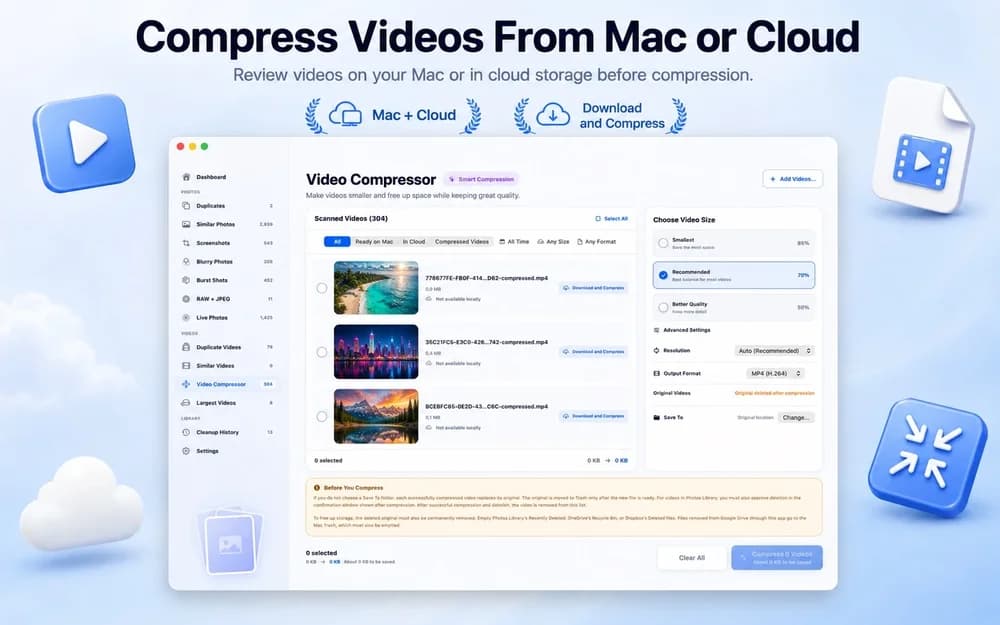
If the remaining large videos are unique, compressing a share copy is a different job. Keep the source until you have played the compressed file and checked its audio and quality. If the source is already compact and serves a purpose, there may be little to gain.
Four mistakes to avoid
Use the first cleanup as a trial. These checks are especially useful when your videos are scattered across imports, cloud folders, and working projects.
- Trusting the filename alone. A repeated name can refer to different footage, and the same file can be saved under a new name.
- Treating similar results as duplicates. Open and compare variants before removal. A cropped video, an export without captions, and a camera master may each serve a purpose.
- Scanning the only backup with the working folder. Exclude backup volumes and make sure the copy you keep is where your editing app expects it.
- Emptying recovery folders immediately. Play the keepers and check your backup before clearing Trash or Recently Deleted.
Find and remove duplicate videos safely on Mac
- 1
Choose one source
Open the Photos library or the Finder folder that contains the suspected duplicates. Exclude backup folders from the cleanup.
- 2
Group suspected matches
Open Duplicates in Photos, sort movie files in Finder, or run a duplicate and similar video scan in Vision AI.
- 3
Verify the copy to keep
Compare hashes for exact Finder copies. For similar clips, play them and check duration, quality, audio, and project paths.
- 4
Remove extras and test recovery
Merge the duplicates in Photos or move the extras to Finder Trash. Play the keeper and verify a backup before clearing Recently Deleted or Trash.
Frequently asked questions
Can a Mac find duplicate videos without installing an app?▼
Yes. Apple Photos can detect and merge duplicate videos inside its library. In Finder, sort and preview local candidates, then compare SHA-256 checksums with the built-in shasum command if you want to verify exact matches.
Why do two matching videos have different file sizes or hashes?▼
They may use different quality settings, codecs, audio, or metadata, even when the footage looks the same. Review them as versions rather than exact copies and keep the one that meets your needs.
Can Apple Photos find duplicate videos outside the library?▼
The Duplicates collection works within the Photos library. For a video in an external drive folder, Downloads, or iCloud Drive, use Finder and file checksums or a tool that scans folders.
Can I scan duplicate and similar videos for free with Vision AI?▼
Vision AI's scan and review are free. Batch removal from inside the app requires Premium. Start with one folder and preview the results to decide whether the cleanup tools fit your library.
Can I restore a duplicate video I deleted by mistake?▼
Look in the Mac Trash for a file or in Recently Deleted for a Photos item. Photos normally allows recovery for up to 30 days. If you already deleted it permanently, check a separate backup that contains the original.

Review duplicate and similar videos with Vision AI
Scan a Mac folder or Photos library and preview the matches for free. Review the clip you want to keep before using Premium to remove selected copies.

Free up video space without risking your original clips
Use Photos to merge library matches, Finder and checksums to confirm a few exact copies, or Vision AI to review a larger collection and similar footage. Keep the file with the quality, path, and purpose you need. Verify your backup and play the keeper before removing the recovery copy.
Sources
Related guides

· 9 min read
How to Compress Videos on Mac: 4 Built-In and Free Ways
Compress videos on Mac with Photos, QuickTime Player, Finder or Vision AI. Compare quality options, keep your originals safe and free up storage.

· 9 min read
How to Find Duplicate Files on Mac
The same file often lives on your Mac two or three times. See how to find duplicate files with Smart Cleaner AI, check each copy and keep just one.

· 9 min read
How to Remove Duplicates in Photos Library on Mac
Remove duplicate photos from the Photos library on your Mac: use the Duplicates album, scan for look-alikes, check each group and get space back safely.
Ready when you are
Download Vision AI - Photo Cleaner for Mac
Find duplicate and similar photos, review large videos and compress videos locally on your Mac. Choose what to keep and confirm every cleanup.
By using Vision AI - Photo Cleaner, you agree to our Terms of Use and Privacy Policy.