How to Clear Cache on Mac Without Breaking Anything
Learn how to clear cache on Mac safely: Safari, Chrome and Firefox caches, app caches in your Library folder, and which cache folders to leave alone.

Caches are temporary files that apps and browsers keep so they can load things faster next time. They are meant to be disposable, which is why clearing them is a common fix for a browser that misbehaves or a disk that is running out of space. They also come back as you use your Mac, so clearing them is a cleanup step, not a permanent fix.
This guide shows how to clear browser caches, how to remove app caches from your user Library folder, which folders you should not touch, and what to expect afterwards.
What Clearing Cache Does
A cache holds copies of data an app has already downloaded or generated, such as website images, thumbnails or previews. Deleting it is usually safe because the app will rebuild what it needs, but the first launch afterwards can be slower, and some apps may ask you to sign in again if you also remove their saved data.
On most Macs, browsers and creative or developer tools create the largest caches. A few gigabytes is common; much more usually points to one specific app.
Clear the Safari Cache
Safari hides its cache command in the Develop menu.
- Open Safari and choose Safari > Settings, then click Advanced.
- Turn on Show features for web developers. The Develop menu appears in the menu bar.
- Choose Develop > Empty Caches.
- Restart Safari.
Apple's Safari developer documentation describes Empty Caches as clearing the network cache and other Safari caches. It does not delete your history, bookmarks or saved passwords. If the setting is greyed out, a configuration profile from work or school, or Screen Time, may be restricting it.
Clear Chrome and Firefox Caches
Each browser has its own cache, so if you use more than one, clear each of them.
- Chrome: open Chrome > Delete Browsing Data, choose a time range, tick Cached images and files only, and confirm.
- Firefox: open Firefox > Settings > Privacy & Security, find Cookies and Site Data, click Clear Data, tick only Temporary cached files and pages (called Cached Web Content in older versions), and click Clear.
- Untick cookies and passwords unless you want to be signed out of websites. Cache, cookies and saved logins are different things: the cache only speeds up loading, while cookies keep you signed in.
Clear App Caches in Your Library Folder
Most apps store their caches in the Caches folder inside your user Library. Work carefully and only remove what you understand.
- Quit the apps whose caches you want to clear.
- In Finder, choose Go > Go to Folder, type ~/Library/Caches and press Return.
- Switch to list view and sort by Size to see the largest folders.
- Open a large folder that belongs to an app you recognise and move its contents, not the folder itself, to the Trash.
- Restart the app, check that it works, then empty the Trash.
Leave alone anything you do not recognise, and never delete files from /System or the top-level /Library folder. macOS manages system caches itself, and removing them by hand can cause problems without freeing much space.
What Not to Clear
Some folders look like caches but hold real data. When in doubt, leave it.
- System caches and anything inside /System.
- Folders for apps that are open or syncing, such as cloud storage clients.
- Containers and Application Support folders, which hold app data and settings, not just caches.
- Developer caches you still need for active projects; see our Xcode cleanup guide before deleting those.
A Faster, Review-First Option
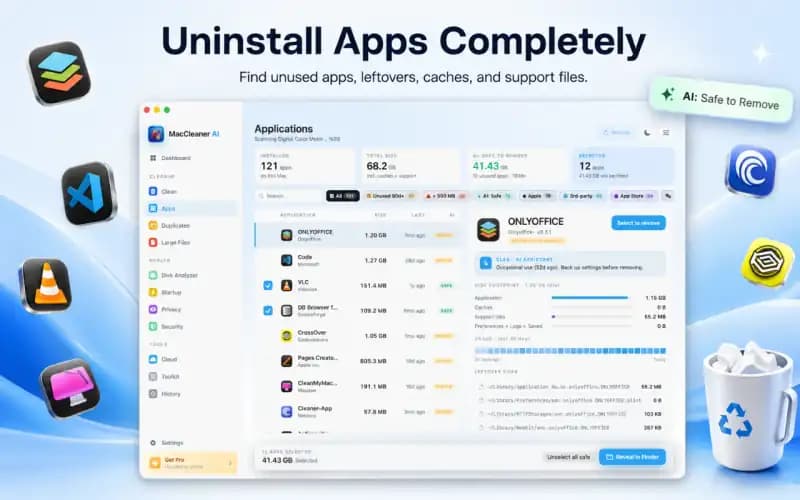
If you would rather not browse Library folders by hand, Smart Cleaner AI - Disk Clean scans application caches, user caches, logs, browser data and developer files, shows sizes and paths, and moves items to the Trash only after you review and approve them. Scanning and storage analysis are free; removing files from cleanup categories requires Pro access.
Clear Cache on Mac Safely
- 1
Empty browser caches
Use Develop > Empty Caches in Safari and the browsing data settings in Chrome or Firefox.
- 2
Quit the app
Close any app before clearing its cache folder.
- 3
Open ~/Library/Caches
Use Go > Go to Folder in Finder and sort by size.
- 4
Remove contents, then test
Move the contents of a known app's cache folder to the Trash, relaunch the app, then empty the Trash.

Review Mac Caches Before You Delete
Smart Cleaner AI - Disk Clean scans app caches, logs and browser data, shows every path and size, and moves items to the Trash only after you approve them.

Frequently asked questions
Is it safe to clear cache on Mac?▼
Clearing browser caches and app caches in your user Library is generally safe because apps rebuild them. Avoid system folders and anything you do not recognise.
How do I clear the Safari cache on Mac?▼
Turn on Show features for web developers in Safari > Settings > Advanced, then choose Develop > Empty Caches.
Will clearing cache delete my passwords or history?▼
Not if you clear only cached files. In Chrome and Firefox, leave cookies and passwords unticked; Safari's Empty Caches keeps history and passwords.
Why did my cache come back after clearing it?▼
Apps rebuild their caches as you use them. Clearing frees space temporarily and fixes corrupted cache problems, but caches will grow again.
Where are cache files stored on Mac?▼
Most user app caches are in ~/Library/Caches. Browsers also keep caches in their own folders, which their settings can clear for you.
Sources
Related guides
· 9 min read
How to Clean Xcode DerivedData, Caches & Simulators Safely (2026)
Step-by-step developer guide to clean Xcode DerivedData, module caches, and unused iOS simulators on Mac without breaking your build environment.

· 9 min read
Mac Storage Full? Find What Fills Your Disk
See why your Mac storage is full, find large files and System Data, and clean up safely with practical steps. Start reclaiming disk space today.

· 9 min read
Delete Time Machine Local Snapshots on Mac Safely
Time Machine local snapshots using disk space on your Mac? Learn what they are, why macOS counts them as available, and how to remove them safely.
Ready when you are
Download Smart Cleaner AI for Mac
Analyze Mac storage, safely clear system data caches, find large files, and remove app leftovers with on-device controls.
By using Smart Cleaner AI, you agree to our Terms of Use and Privacy Policy.