How to Completely Uninstall AI Apps on Mac (2026 Guide)
Remove ChatGPT, Claude, Ollama, LM Studio and other AI apps from your Mac, including the hidden model files and caches that can take up many gigabytes.

AI apps arrive on a Mac quickly. You try a chatbot desktop app one week, install a local model runner the next, and download a couple of language models just to see how they compare. A few months later, your free space has dropped by 30 or 40 GB and you are not quite sure why.
Local model runners often store their largest files outside the app bundle. The app bundle in Applications may only be a few hundred megabytes, while the downloaded models, chat caches and helper processes sit in hidden folders inside your user Library or home directory. Dragging the app to the Trash leaves all of that behind.
This guide shows you how to remove AI apps from your Mac properly: what to delete first, where the big model files usually live, how to stop background helpers, and how Smart Cleaner AI - Disk Clean helps you see the full footprint before anything goes to the Trash.
Why AI Apps Leave So Much Behind
A typical Mac app stores a few preferences and caches when you use it. AI apps go much further. Local model runners such as Ollama and LM Studio download full model files, often several gigabytes each, and keep them in their own folders so they can load them offline. Developer tools that use Hugging Face libraries store models in a shared cache that no single app owns.
Cloud chatbot apps such as ChatGPT, Claude or Perplexity are lighter, but they still keep conversation caches, downloaded attachments, logs and web data in Application Support. Some also install a login item or a menu bar helper so the assistant opens with a keyboard shortcut.
When you drag only the app icon to the Trash, macOS removes the app bundle and nothing else. The models, caches and helpers stay exactly where they were and keep using disk space.

Step 1: Delete Downloaded Models From Inside the App First
The fastest way to free space is to let the app remove its own models. It knows exactly which files belong to each model, so you avoid leaving half-deleted folders behind.
Keep Ollama running while using ollama list and ollama rm. Back up custom models before deletion: ollama rm removes model data directly, without sending it to the Trash. Only quit the app and its server after model removal is complete.
- Ollama: open Terminal, run ollama list to see your installed models and their sizes, then run ollama rm followed by the model name (for example ollama rm llama3) for each one you no longer need.
- LM Studio: open the My Models section, review the size of each model and use the delete option on the ones you want to remove.
- Other local AI apps (Jan, GPT4All, Msty, DiffusionBee and similar): look for a Models, Library or Downloads section in the app settings and remove models there before uninstalling.
- Image generators: check the app's output folder as well. Generated images and upscaled copies can quietly add up to several gigabytes.
Step 2: Quit the App and Stop Its Background Services
After removing the models, quit the app and its background services before deleting the app bundle or remaining files.
- Quit the app from its menu (App name > Quit) and from the menu bar icon if it has one.
- Open Activity Monitor from Applications > Utilities and search for the app name, for example ollama or LM Studio. If a process is still running, select it and click the Stop button.
- Open System Settings > General > Login Items & Extensions and turn off or remove the app under Open at Login and Allow in the Background.
If you skip this step, the app may recreate its cache folders a few seconds after you delete them, or macOS may refuse to move a file that is still in use.
Step 3: Move the App to the Trash
Once the models are gone, remove the app itself. Open Finder, go to Applications, and drag the app to the Trash, or right-click it and choose Move to Trash.
If the app came with its own uninstaller, such as a helper inside the app menu or an uninstall script on the developer's website, use that instead. Official uninstallers know about command-line tools and system extensions that Finder cannot see.
Step 4: Find Leftover AI Files in Your Library and Home Folder
Now check the places where AI apps usually keep their data. In Finder, choose Go > Go to Folder (Shift-Command-G), paste a path, and press Return. Folders that start with a dot are hidden; press Shift-Command-Period in Finder to show them.
- ~/.ollama/models: models downloaded by Ollama, usually the largest folder on this list.
- ~/.lmstudio/models/: the default LM Studio model folder. Check the model directory in My Models first: you may have selected a different location. Older installations may also leave files in ~/.cache/lm-studio.
- ~/.cache/huggingface: shared model cache used by Python tools, notebooks and many open-source AI apps.
- ~/Library/Application Support/: folders named after the app or developer, such as Claude, ChatGPT-related folders or com.openai.chat.
- ~/Library/Caches/ and ~/Library/Logs/: temporary data and logs that the app can recreate.
- ~/Library/Preferences/: small .plist files with the app's settings.
- ~/Library/LaunchAgents/: background launchers that start AI servers at login.
Open each folder before deleting it and check the name and size with Get Info. Only remove folders that clearly belong to the AI app you uninstalled. If you still use another AI tool, keep the shared Hugging Face cache or check which models it relies on first.
For Ollama, also review ~/.ollama, ~/Library/WebKit/com.electron.ollama and ~/Library/Saved Application State/com.electron.ollama.savedState. Its CLI link may remain at /usr/local/bin/ollama; follow the official macOS uninstall documentation in Sources and verify the link belongs to Ollama before removing it.

Step 5: See the Full Footprint With Smart Cleaner AI - Disk Clean
The Apps section of Smart Cleaner AI - Disk Clean lists every installed application with its real disk footprint, split into the app itself, caches, support files, and preferences and logs. Each app gets a Keep, Review or Safe suggestion based on how you use it, so a forgotten AI app you opened once in spring stands out from the ones you rely on every day.
Select an app to inspect its data, then use Show in Finder to reveal its location. This button does not delete anything; move the app or identified files to the Trash in Finder. Review remaining caches separately in the Clean section.

Step 6: Track Down Large Model Files You Forgot About
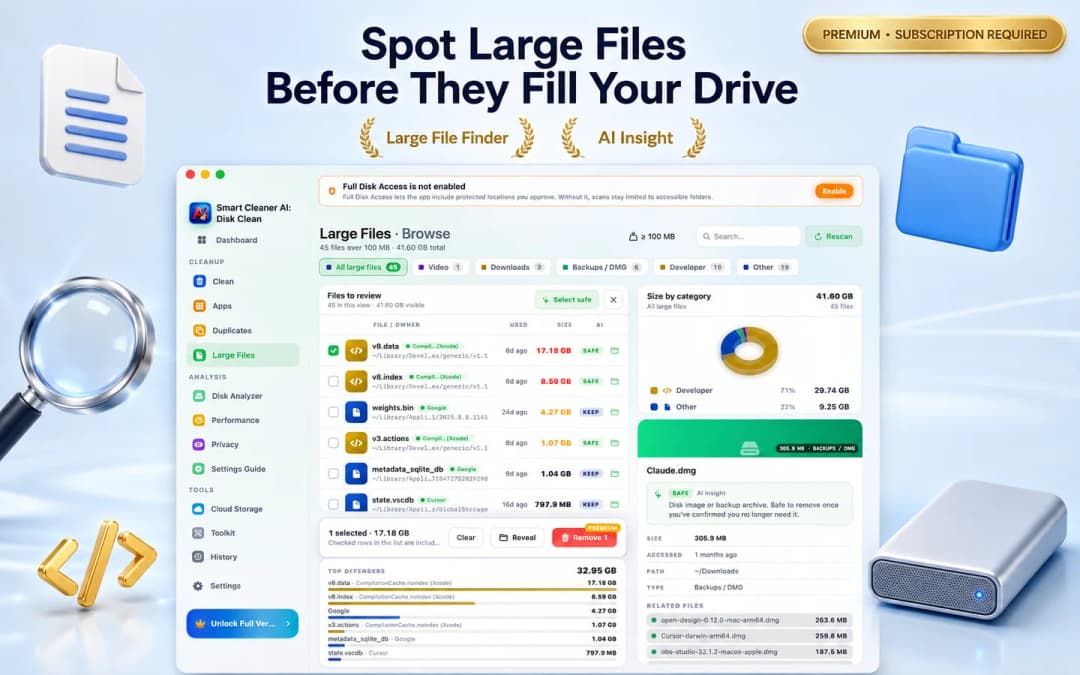
Model files have names that do not look like apps: weights.bin, model.safetensors, a long string of letters in a blobs folder, or a .gguf file in Downloads. That makes them easy to overlook in Finder.
The Large Files view in Smart Cleaner AI - Disk Clean lists files over 100 MB across your Mac, groups them by type and shows the owner app, full path and last access date. You can spot a 4 GB model you downloaded for a single test, check where it came from, and reveal it in Finder before deciding.
Step 7: Remove Login Items and Background Agents
Local AI servers are designed to be available all the time, so many of them add a launch agent that starts quietly when you log in. If the app is gone but its agent remains, macOS may show a warning about a missing item, or a leftover process may keep using memory.
The Performance section of Smart Cleaner AI - Disk Clean lists your Login Items and Background Items (LaunchAgents and LaunchDaemons) side by side, so you can see what still starts with your Mac and open the right setting to turn it off.

What Not to Delete
Cleaning up after AI apps is safe as long as you stay inside your own user folders and remove only what you can identify. Keep these rules in mind:
- Do not delete anything inside /System or the main /Library folder unless an official uninstaller tells you to.
- Do not remove Apple Intelligence or built-in macOS models by hand. They are managed by the system and can be turned off in System Settings > Apple Intelligence & Siri.
- Keep the Hugging Face cache if you still use Python projects, notebooks or other AI apps that depend on the same models.
- Export any chats, prompts or generated images you want to keep before deleting an app's support folder.
- Always move files to the Trash first, restart your Mac, and empty the Trash only when everything works as expected.
How to Completely Uninstall an AI App on Mac in 5 Steps
- 1
Delete models inside the app
Remove downloaded models with ollama rm, the My Models section in LM Studio, or the model library in your AI app. Keep Ollama running while using ollama list and ollama rm. Back up custom models before deletion: ollama rm removes model data directly, without sending it to the Trash. Only quit the app and its server after model removal is complete.
- 2
Quit the app and its helpers
Quit the app, stop any remaining process in Activity Monitor, and turn it off in Login Items & Extensions.
- 3
Move the app to the Trash
Drag the app from Applications to the Trash, or use the developer's own uninstaller if one is provided.
- 4
Review leftovers with Smart Cleaner AI
Use the Apps, Large Files and Performance views in Smart Cleaner AI - Disk Clean to find remaining caches, model files and login items.
- 5
Empty the Trash after checking
Restart your Mac, confirm your other apps still work, then empty the Trash to free the space.

See What Your AI Apps Really Take Up
Download Smart Cleaner AI - Disk Clean free from the Mac App Store to see each app's full disk footprint, find forgotten model files and review login items in one place. Scanning runs on your Mac, and only what you approve goes to the Trash. Requires macOS 14.6 or later.

Frequently asked questions
Why is my Mac still full after I deleted an AI app?▼
Most AI apps store their models and caches outside the app bundle, in folders such as ~/.ollama, ~/.lmstudio, ~/.cache/huggingface or ~/Library/Application Support. Deleting the app does not remove those folders, and files you moved to the Trash keep using space until you empty it.
Where does Ollama store models on a Mac?▼
By default Ollama keeps downloaded models in the hidden folder ~/.ollama/models in your home directory. The cleanest way to remove them is to run ollama list and then ollama rm with the model name before you uninstall the app.
How much space do local AI models use?▼
It depends on the model and its quantization. Small models are around 2–5 GB, mid-sized models often take 8–20 GB, and large models can exceed 40 GB. A few downloads can easily use more space than all your other apps combined.
Is it safe to delete the ~/.cache/huggingface folder?▼
It is safe in the sense that it does not affect macOS, but any Python project, notebook or app that uses those models will download them again next time. Delete it only if you no longer use Hugging Face–based tools, or remove individual model folders you recognize.
Does uninstalling ChatGPT or Claude delete my conversations?▼
No. Your chat history for cloud assistants is stored in your online account, not only on your Mac. Uninstalling the desktop app removes the local caches and settings, while your conversations remain available when you sign in again.
Does Smart Cleaner AI delete AI apps automatically?▼
No. Smart Cleaner AI - Disk Clean scans locally on your Mac and shows each app's footprint, large files and login items for you to review. Scanning and analysis are free; cleanup actions require Pro, and nothing is removed without your confirmation. Removed items go to the Trash so you can restore them.
Sources
Related guides

· 9 min read
How to Uninstall Apps Completely on Mac & Remove Leftovers (2026)
Step-by-step guide to uninstall apps completely on Mac and delete hidden leftover caches, preferences, and helpers with an on-device app uninstaller for Mac.
· 9 min read
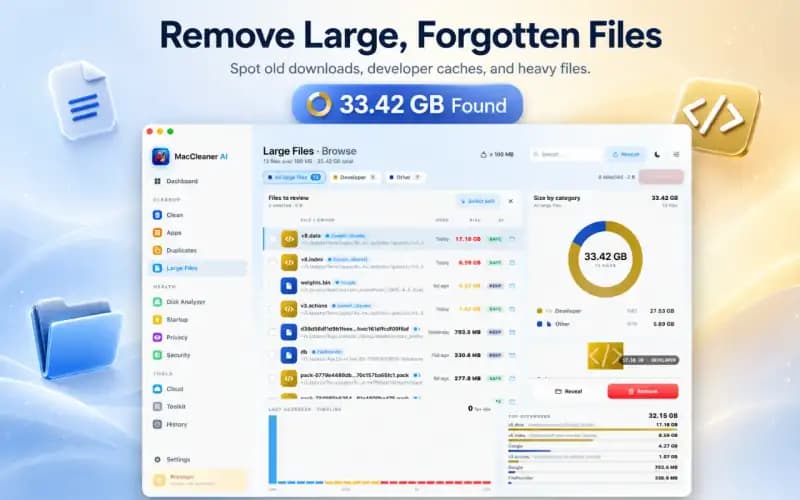
How to Find Large Files on Mac & Free Up Space Safely (2026)
Learn how to find and delete large files on Mac. Use Finder filters, macOS Storage Manager, and Smart Cleaner AI to locate hidden space hogs quickly.

· 9 min read
How to Remove Mac Startup Items and Speed Up Login (2026)
Learn how to remove Mac startup items and background login agents in macOS. Stop apps opening on startup and speed up your Mac login safely.
Ready when you are
Download Smart Cleaner AI for Mac
Analyze Mac storage, safely clear system data caches, find large files, and remove app leftovers with on-device controls.
By using Smart Cleaner AI, you agree to our Terms of Use and Privacy Policy.