Mac Storage Full After the macOS 27 Update? Fix It
Your Mac storage got full after the macOS 27 update? See why: update files, snapshots and Apple Intelligence. Then free space safely in 5 steps.

You installed macOS 27 Golden Gate, and now your Mac says the disk is almost full. Space that was free yesterday is gone. Do not worry. Most of it is not lost. An update leaves helper files behind for a while, Time Machine keeps a snapshot from before the update, and Apple Intelligence downloads its own files. This guide shows you what is going on and how to get space back in five easy steps, with pictures from a real Mac on macOS 27.
We make Smart Cleaner AI: Disk Clean, a Mac cleanup app, and we say so openly. You can do the first three steps with the settings on your Mac alone.
1. Restart and give your Mac a day
Right after an update, your Mac is still busy. It keeps a snapshot from before the update and may keep update files it no longer needs. Apple says macOS clears staged macOS updates and other safe caches by itself when space is needed.
- Save your work and restart your Mac.
- Leave it on and plugged in for a few hours, or overnight.
- Open Smart Cleaner AI or Storage settings the next day and look at the free space again.
Apple also says your Mac counts space used by Time Machine snapshots as available, and deletes old snapshots as they age or when space is needed. So the free space number often goes up again on its own.
2. Look at what grew in Storage settings
Now find out which part got bigger. Your Mac has a list for that.
- Click the Apple menu and choose System Settings.
- Click General in the sidebar, then click Storage.
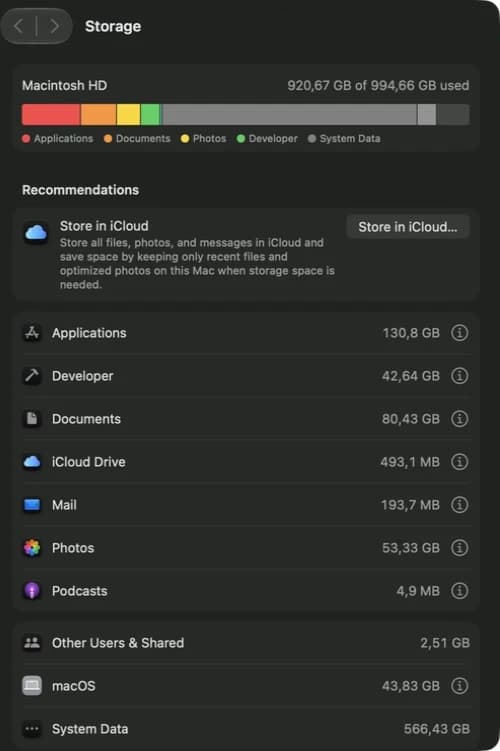
- Wait a little while your Mac counts. Then look at the bar and the list below it.
The list shows Applications, Documents, Photos, macOS and System Data, each with a size. Remember the big numbers. If you check again in a few days, you see what really grows.
3. Know what Apple Intelligence needs
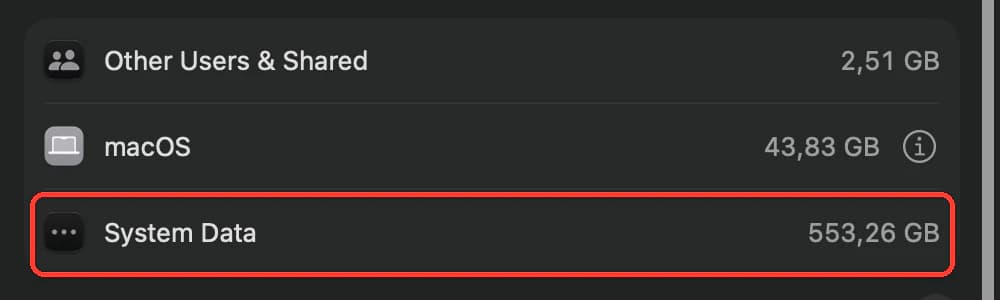
macOS 27 downloads files for Apple Intelligence after the update. Apple says this needs up to 14 GB on Macs with M3 or later and at least 12 GB of memory, and up to 8 GB on other Macs that support Apple Intelligence.
- Look for the System Data and macOS lines in Storage settings.
- Do not try to delete files from system folders to make the number smaller.
- Plan to keep this much space free for Apple Intelligence.
Storage settings may not show Apple Intelligence on its own line, so its files can sit inside a bigger line. This space is used on purpose, and you cannot clear it safely by hand.
4. Find big files you forgot about
Often the space was full before the update, and the update just showed it. Old disk images, downloads and videos are easy to forget.
- Open Smart Cleaner AI and click Large Files in the sidebar.
- Look at the list. The biggest files are at the top, with the date you last used them.
- Check the small label next to each file. It hints whether the file looks safe to remove or better to keep.
- Tick only the files you know, then remove them.
Removing files from Large Files needs the paid version. You can also find big files yourself in Finder: open your Downloads folder and sort the files by size.

5. Clear caches after you review them
Caches, logs and leftovers from old apps can grow big. You can clear the ones that are safe, but always look first.
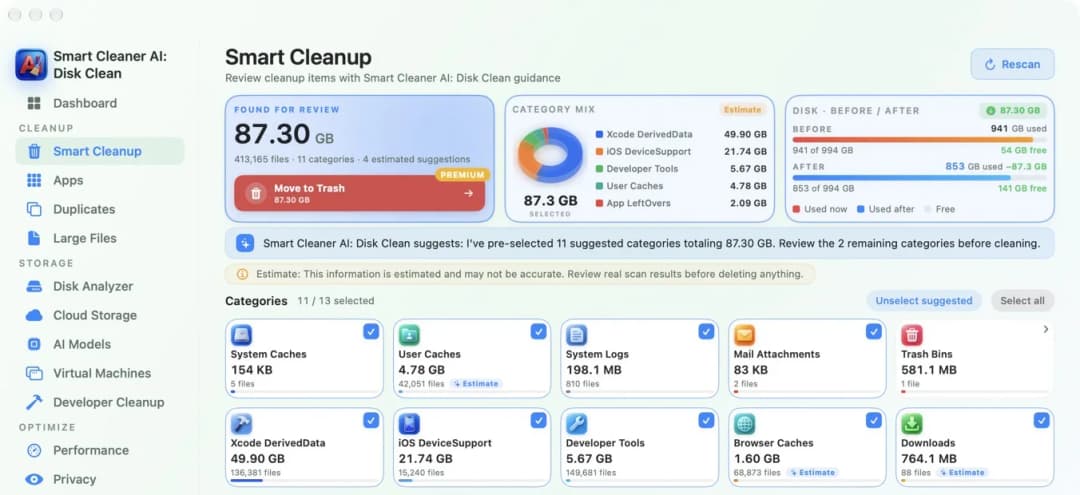
- Open Smart Cleaner AI and click Smart Cleanup.
- Look at the categories it found and how big each one is.
- Untick anything you are not sure about.
- Click Move to Trash. Files go to the Trash first, so you can still put them back.
Moving files to the Trash needs the paid version, but scanning is free. Empty the Trash only when you are sure you do not need anything in it. The space comes back when the Trash is empty.
How to free space on your Mac after macOS 27
- 1
Restart and wait
Restart your Mac and give it a day so update files and snapshots can go.
- 2
Check Storage
Open System Settings, General, Storage and see which part grew.
- 3
Leave system files alone
Keep space free for Apple Intelligence and do not delete system folders.
- 4
Remove big files
Find large files you do not need and remove them.
- 5
Clear caches carefully
Review caches before you move them to the Trash, then empty it.
Frequently asked questions
Why is my Mac storage full after the macOS 27 update?▼
After an update your Mac keeps a snapshot from before it, may keep update files for a while, and downloads Apple Intelligence files. Most of the extra space comes back on its own within a day or so, but the Apple Intelligence space stays used.
How much space does Apple Intelligence use on a Mac?▼
Apple says up to 14 GB on Macs with M3 or later and at least 12 GB of memory, and up to 8 GB on other Macs that support Apple Intelligence. Some people see more in Storage settings, so keep some extra space free.
Can I delete System Data after the update?▼
Not by hand. System Data holds files macOS needs, like snapshots and caches. macOS clears what is safe by itself when space is needed. You can review user caches with a cleaner app, but never delete files inside system folders.
Should I delete the Install macOS app?▼
If you downloaded the full installer from the App Store and the Install macOS app is still in your Applications folder after the update, you can move it to the Trash. You only need it to make a bootable installer.
Do Time Machine snapshots take my space?▼
Apple says your Mac counts snapshot space as available, and deletes old snapshots as they age or when space is needed. Time Machine also saves a snapshot before each macOS update.
How much free space should my Mac have?▼
Keep enough space free for Apple Intelligence and for the next update. When the disk is almost full, the next macOS update may not install.

Find what fills your Mac
Smart Cleaner AI: Disk Clean shows your free space, lists your biggest files and lets you review caches before anything goes to the Trash.

Sources
We built a custom disk scan algorithm for Smart Cleaner AI so you can quickly see what’s taking up space and review what to clean.
Related guides

· 9 min read
Why Is My Mac Storage Full? How to Find What Fills It
Mac storage full and you do not know why? See what fills the disk, why deleting files does not free space, and how to make room safely.

· 9 min read
How to Clear System Data on Mac Safely
How to clear System Data on Mac safely: see what is inside, clear caches you can review first, and leave alone the files your Mac needs.

· 9 min read
How to Clear Purgeable Space on Mac
Purgeable space is storage your Mac empties by itself when it needs room. See what is inside it and how to make real free space with Smart Cleaner AI.

Ready when you are
Download Smart Cleaner AI for Mac
Analyze Mac storage, safely clear system data caches, find large files, and remove app leftovers with on-device controls.
By using Smart Cleaner AI, you agree to our Terms of Use and Privacy Policy.