How to Clear Purgeable Space on Mac (and What It Actually Means)
Understand what purgeable space is on Mac and how to clear it. Reclaim storage from APFS local snapshots, system caches, and cached cloud files safely.

You check your Mac's storage and see available space, but when you try to install an application or copy a large file, macOS may report that there isn't enough room. In many cases, this discrepancy involves 'Purgeable Space': storage containing files that macOS marks as available because it can purge them when another process needs the space.
Purgeable space consists of APFS local Time Machine snapshots, cached iCloud files, and temporary system assets that macOS intends to remove automatically as space is needed. Here is what purgeable space actually means, how Apple manages it, and how to safely handle storage on your Mac.
What Exactly Is Purgeable Space on macOS?
Introduced with the Apple File System (APFS), purgeable space is a dynamic storage tier. It allows macOS to keep useful files on your drive, such as cached iCloud documents, high-resolution photos, and local Time Machine recovery snapshots, until another process genuinely needs the space.
When you check storage in Disk Utility or Finder, macOS calculates 'Available' space as: Real Free Space + Purgeable Space. However, discrepancies can arise when third-party installers or applications check strictly for raw unallocated disk space before starting, even while macOS reports purgeable capacity as part of overall available storage.
How Time Machine Local Snapshots Work in APFS
A common component of purgeable storage is APFS Time Machine local snapshots. When Time Machine is enabled, macOS automatically creates local snapshots of your drive (roughly once per hour and generally kept for about 24 hours), whether or not your external backup disk is currently connected.
Apple counts these local snapshots as part of available storage because macOS automatically deletes older snapshots as disk space is needed by other tasks. Under normal conditions, users do not need to manage or delete local snapshots manually.
Inspecting Local Snapshots via Terminal (Advanced Diagnostic)
Under normal circumstances, macOS manages local snapshots automatically without user intervention. However, if you are diagnosing storage issues, you can inspect snapshots using built-in tools:
1. Open Terminal and run: tmutil listlocalsnapshots / to view active local snapshots. 2. For diagnostic purposes, you can thin snapshots with: tmutil thinlocalsnapshots / <bytes> <urgency> to request that macOS reclaim space. 3. To remove an individual snapshot manually, you can use: sudo tmutil deletelocalsnapshots <snapshot_date_string>. Because deleting snapshots removes local restore points, this should only be done as a troubleshooting step, not routine maintenance.
Standard Methods for Managing Available Storage
Instead of trying to force purgeable clearing through unverified workarounds, rely on standard macOS mechanisms:
• Allow Time Machine to Complete Routine Backups: Keeping your regular backup routine helps Time Machine transfer backup data to your external drive, allowing older local snapshots to age out according to Apple's retention rules. • Enable Optimize Mac Storage: In System Settings → [Apple Account] → iCloud, enabling Optimize Mac Storage allows macOS to offload older iCloud Drive documents and Photos when local space is constrained. • Let macOS Handle Large Operations: Because purgeable space is designed to be reclaimed on demand, starting a large file transfer or installer will often prompt macOS to clear purgeable assets automatically.
Reclaiming Real Free Space with Smart Cleaner AI - Disk Clean
Purgeable space accounting is managed directly by macOS and the APFS filesystem, which means third-party utilities cannot directly toggle or clear the purgeable category.
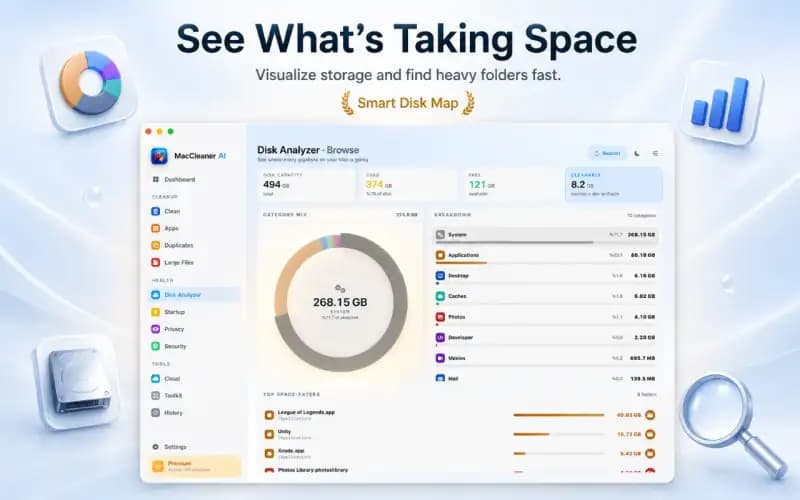
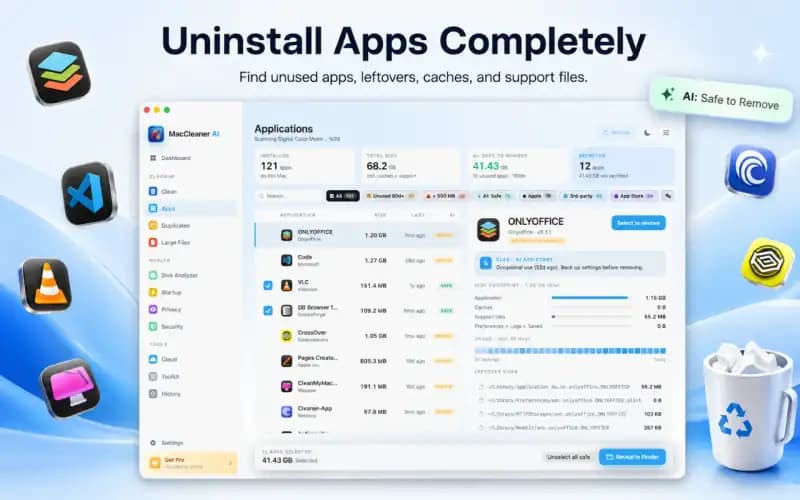
However, you can create genuine free space by removing actual unneeded files. Smart Cleaner AI - Disk Clean helps you identify verified user-accessible items, such as application caches, app leftovers, duplicate files, and large obsolete downloads, which you can review and delete. Removing verified files frees up actual storage on your SSD, reducing overall storage pressure without relying on APFS purge cycles.
How to Clear Purgeable Space on Mac in 4 Steps
- 1
Check available and purgeable space
Open Disk Utility or System Settings → General → Storage to inspect your available capacity and purgeable allocation.
- 2
Run routine Time Machine backup
Connect your backup drive and allow routine backups to complete so older local snapshots age out according to schedule.
- 3
Inspect snapshots if diagnosing issues
If troubleshooting a storage discrepancy, use tmutil listlocalsnapshots / in Terminal to check active local snapshots.
- 4
Clean user-accessible files with Smart Cleaner AI
Use Smart Cleaner AI - Disk Clean to identify and remove unneeded user caches, duplicates, and large files to create genuine free space.

Reclaim Real Disk Space on Your Mac
Smart Cleaner AI - Disk Clean helps you find and remove unneeded user caches, large files, and duplicates to free up actual drive capacity.

Frequently asked questions
What happens if I don't clear purgeable space?▼
macOS will continue to manage it automatically. However, you may encounter 'Not enough disk space' errors when third-party apps attempt large installations before macOS purges the data.
Can I turn off APFS local snapshots completely?▼
Local snapshots are created while Time Machine automatic backups are on. Turning automatic backups off stops new snapshots, but it also stops your backups, so it is rarely worth it. macOS removes old snapshots on its own when space is needed.
Does restarting my Mac clear purgeable space?▼
A restart clears temporary system memory and swap files, but local APFS snapshots and iCloud cached assets remain and are cleared automatically by macOS as disk demands require.
Why doesn't Disk Utility let me click 'Delete' on purgeable space?▼
Purgeable space is not a single folder; it is a system flag applied to various caches and snapshots across the filesystem. macOS controls the release mechanism.
Can Smart Cleaner AI clear purgeable space directly?▼
No third-party utility directly manages APFS purgeable space, as that is controlled by macOS. However, Smart Cleaner AI helps you find and remove unneeded user files and caches, creating genuine free space directly.
Sources
Related guides
· 9 min read
What Is Taking Up Space on My Mac? Breakdown & Safe Fixes (2026)
Discover what is taking up space on your Mac. Learn how to inspect System Data, user caches, hidden local snapshots, and app leftovers safely.

· 9 min read
How to Clear System Data on Mac Safely: Step-by-Step (2026)
Learn how to clear System Data on Mac and MacBook safely. Reduce caches, logs, old backups, and app leftovers to free up space without risking system folders.
· 9 min read
How to Clean Xcode DerivedData, Caches & Simulators Safely (2026)
Step-by-step developer guide to clean Xcode DerivedData, module caches, and unused iOS simulators on Mac without breaking your build environment.
Ready when you are
Download Smart Cleaner AI for Mac
Analyze Mac storage, safely clear system data caches, find large files, and remove app leftovers with on-device controls.
By using Smart Cleaner AI, you agree to our Terms of Use and Privacy Policy.