Why Is My Mac Storage Full? How to Find and Delete What's Eating Your Disk
See why your Mac storage is full, find large files and System Data, and clean up safely with practical steps. Start reclaiming disk space today.

When your Mac says storage is full, the cause is not always obvious. You may have deleted old documents and still see only a few gigabytes available, or notice that System Data occupies a surprisingly large part of the disk. The storage chart is a useful starting point, but its categories can change while macOS finishes calculating them.
A full disk can interrupt downloads, app updates and normal work. The answer is to identify what actually uses the space before deleting anything. This guide explains the common causes, a safe manual cleanup process and how a local Mac app can make the review easier without removing files behind your back.
What System Data and Caches Really Are
Open System Settings > General > Storage and wait for macOS to calculate the categories. Applications, Documents, Photos and Messages are usually easy to understand. System Data is broader. Apple formerly grouped much of this material under Other. It can include caches, logs, local snapshots, app support files, plug-ins and files that do not fit another category. Its size can move as macOS indexes the disk or clears temporary data.
Caches can also grow as browsers, creative tools and streaming apps save temporary content. They are not automatically bad, and deleting every cache rarely solves the underlying problem because apps may rebuild them. Focus on unusually large caches from apps you recognize, and close the relevant app before removing its disposable data through the app's own settings when possible.
Large Files, Duplicates and App Leftovers
Large files and old downloads are often the simplest explanation. Video exports, installers, disk images, archives and forgotten project folders can remain for years. Duplicate files and duplicate photos add another layer, especially after copying libraries between drives or importing the same media more than once. Check each duplicate before deletion because similar names do not always mean identical content.
Uninstalling an app by dragging it to the Trash may leave support files, preferences and caches in your user Library. Photos, Messages and iCloud can also retain local copies. An optimized iCloud library does not mean every item is online-only, and opening a cloud file may download it again. Finally, files still in the Trash continue to occupy the disk until you empty it.
Clean a Full Mac Manually, Step by Step
Begin in System Settings > General > Storage. Review each category and use the available storage recommendations, including Optimize Storage when it suits how you use iCloud and media. Read the option carefully before enabling it. Optimization manages local copies, but it is not a substitute for an independent backup.
Next, empty the Trash if you are certain you no longer need its contents. Open Downloads and sort by size or date, then remove old installers, archives and exports. In Finder, choose a folder or search This Mac, switch to list view and sort by Size. You can also use Finder search filters to locate large files. Preview unfamiliar results and confirm that a project is backed up before deleting it.
Apps, Cloud Files and Local Snapshots
Remove applications you no longer use, preferably with the developer's uninstaller when one is supplied. Review Photos and Messages separately because media attachments can be important even when they are large. If iCloud Drive is involved, make sure you understand whether an action removes only a local download or deletes the file from iCloud and your other devices.
Time Machine local snapshots may appear within System Data. macOS normally manages them and removes them when space is needed. If snapshots remain unusually large, connect your backup disk and let Time Machine complete a backup first. Advanced snapshot removal through Terminal should be reserved for people who understand the commands and have a current backup. Never delete system folders by hand just because their names look unfamiliar.
Restart the Mac after a careful cleanup. A restart can release temporary files, finish pending maintenance and prompt the storage chart to recalculate. If the categories still look wrong, give macOS time to finish indexing before making more changes.
A Faster Route With Smart Cleaner AI: Disk Clean
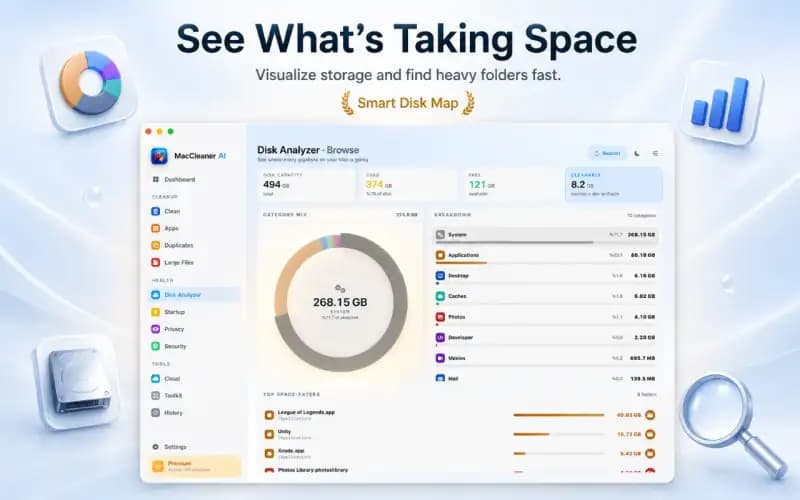
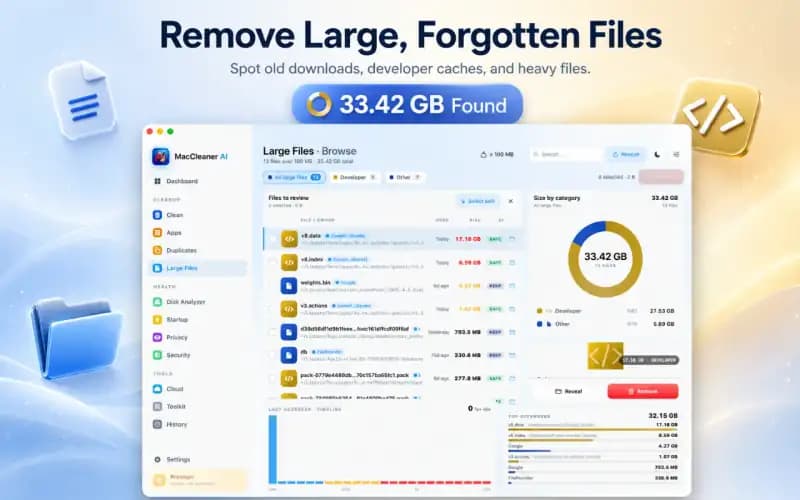
If checking folders one by one feels slow, Smart Cleaner AI: Disk Clean can bring the review into one Mac app. Its storage analyzer, visual disk analyzer and large file finder help show where space is going. Smart disk cleanup and cache review, duplicate file and photo cleaning, and app review and uninstall tools can help you build a focused cleanup list.
The app also offers AI-guided cleanup suggestions, startup item and login management, browser privacy and cache review, a security settings checklist and cloud storage review. These are review tools, not permission to erase everything they find. Smart Cleaner AI scans locally on the Mac, includes no third-party analytics, advertising or tracking SDKs, and moves items to the Trash only after you review them. Nothing is removed automatically.
Smart Cleaner AI requires macOS 14.6 or later and is free to download from the App Store. Whether you use an app or clean manually, keep the same rule: verify each item, preserve anything important in a backup and empty the Trash only when you are comfortable that the selected files are no longer needed.
Free Up Mac Storage in Four Safe Steps
- 1
Find the largest category
Open System Settings > General > Storage, wait for the calculation to finish and note whether Applications, Documents, Photos, Messages or System Data is the main source.
- 2
Clear obvious personal clutter
Empty the Trash after reviewing it, sort Downloads by size and remove old installers, archives and exports that you can confidently replace or no longer need.
- 3
Review large files, apps and copies
Use Finder or a storage analyzer to inspect large files, unused apps, duplicates and local cloud content. Back up important work and never delete system folders manually.
- 4
Restart and check again
Restart the Mac, allow the storage chart to recalculate and confirm that free space increased before beginning another round of cleanup.

See What Is Using Your Mac Storage
Download Smart Cleaner AI: Disk Clean from the App Store to review disk usage, large files, caches, duplicates and unused apps in one place. It scans locally and moves only the items you approve to the Trash. Requires macOS 14.6 or later.

Frequently asked questions
Why is my Mac storage full when I have few files?▼
Files may be outside the folders you usually check. System Data, app caches, local snapshots, Messages attachments, Photos libraries, local iCloud copies and items in the Trash can all use space. Start with System Settings > General > Storage, then inspect the largest category.
What is System Data on a Mac?▼
System Data is a flexible storage category that can include caches, logs, local snapshots, app support files and other items macOS cannot place elsewhere. It was formerly associated with the broader Other category. Its reported size can change while macOS calculates or manages temporary files.
Is it safe to delete System Data manually?▼
Do not delete unfamiliar system folders by hand. Some user-level caches and app leftovers can be reviewed safely, but important support files may look disposable. Use an app's own cleanup controls, keep a current backup and inspect every path before removing anything.
Why did my available storage not change after deleting files?▼
The files may still be in the Trash, the storage chart may still be calculating, or local snapshots and temporary data may be using the newly available space. Empty the Trash only after reviewing it, restart the Mac and allow time for the storage display to refresh.
Can Smart Cleaner AI delete files automatically?▼
No. Smart Cleaner AI scans locally and presents items for your review. Nothing is removed automatically. When you approve an item, the app moves it to the Trash, so you retain a chance to inspect or restore it before emptying the Trash.
Sources
Related guides
· 9 min read
What Is Taking Up Space on My Mac? Breakdown & Safe Fixes (2026)
Discover what is taking up space on your Mac. Learn how to inspect System Data, user caches, hidden local snapshots, and app leftovers safely.

· 9 min read
How to Clear System Data on Mac Safely: Step-by-Step (2026)
Learn how to clear System Data on Mac and MacBook safely. Reduce caches, logs, old backups, and app leftovers to free up space without risking system folders.
· 9 min read
How to Find Large Files on Mac & Free Up Space Safely (2026)
Learn how to find and delete large files on Mac. Use Finder filters, macOS Storage Manager, and Smart Cleaner AI to locate hidden space hogs quickly.
Ready when you are
Download Smart Cleaner AI for Mac
Analyze Mac storage, safely clear system data caches, find large files, and remove app leftovers with on-device controls.
By using Smart Cleaner AI, you agree to our Terms of Use and Privacy Policy.