How to Find and Compress Large Videos on iPhone
Learn how to find hidden large videos on your iPhone and compress them to reclaim gigabytes of storage without losing your memories.


How to Find and Compress Large Videos on iPhone: Reclaim Gigabytes Without Losing Memories
Videos are the single biggest storage hog on most iPhones. A minute of 4K footage at 60 fps can take 400 MB or more, so birthday parties, trips and short clips for social media can fill your storage in days. The frustrating part is that iOS does not make it easy to see which videos are responsible. They sit in your camera roll, inside messaging apps and in social app caches. This guide shows how to find the biggest videos, how to compress the ones you want to keep with Photo Cleaner - Storage Space, how to record smaller videos from now on, and what to check afterwards so the space really comes back.
Why Videos Dominate Your iPhone Storage
- ✦4K 60fps video records at 400MB+ per minute on modern iPhones.
- ✦Slow-motion clips stored in original quality can be 3x larger than standard video.
- ✦Social apps like Instagram and TikTok cache downloaded videos locally.
- ✦Saved WhatsApp and iMessage video attachments accumulate silently over months.
- ✦The Camera Roll doesn't sort by file size, so large videos are invisible by default.
- ✦Compression can shrink a video a lot. In Photo Cleaner - Storage Space the estimated saving ranges from about 40% to about 90%, depending on the quality level you pick.
- ✦You can also record smaller videos from the start in Settings > Camera.
Where Large Videos Hide on Your iPhone
Camera Roll: The Obvious Suspect
The Camera Roll is the first place to look, but iOS sorts photos and videos by date, not by size. This means a 2GB 4K clip from two years ago sits quietly between dozens of photos with no visual cue about its actual file size. Settings only shows the total size of your Photos library, so you need a tool that lists videos by size to find the largest offenders.
Slow-Motion and Cinematic Mode Clips
Slow-motion video recorded at 240fps and Cinematic Mode footage captured on iPhone 13 and later are encoded at extremely high bitrates. A single minute of slow-motion footage can run to several hundred megabytes. These formats preserve maximum quality for editing, but they're overkill for casual viewing and perfect candidates for compression.
Saved iMessage and WhatsApp Videos
Every video someone sends you in a group chat or direct message that you tap 'Save' on gets copied to your Camera Roll. In active family or friend groups, this can mean dozens of videos saved every month without you actively thinking about it.
Instagram, TikTok, and Reels Cache
Social media apps preload and cache videos aggressively so your feed scrolls without buffering. This local cache can grow to several gigabytes over time. While these cached files are technically temporary, many apps hold onto them for weeks, occupying your storage without appearing in your Photos app.
Screen Recordings
Screen recordings are often overlooked but can be surprisingly large. A 10-minute tutorial or gaming session recorded at full resolution can run to several hundred megabytes. Users frequently forget screen recordings exist after capturing them for a one-time purpose, leaving them to accumulate unnoticed.
Downloaded Streaming Content
Netflix, Disney+, Apple TV+, and similar apps allow offline downloads. A single HD movie download can exceed 3GB. Users often download content for a flight and forget to delete it afterward, permanently occupying storage until they manually remove it from the app's download manager.
Third-Party App Video Exports
Video editing apps like CapCut, iMovie, and InShot export final rendered versions of your projects at full quality back to your Camera Roll. If you iterate on a video project multiple times, you may have several near-identical exported versions each consuming hundreds of megabytes.
Live Photos Converted to Videos
Every Live Photo stores a short video clip alongside the still image, and Loop and Bounce effects play that clip as a video. Across thousands of Live Photos, the extra clips add up, yet Settings only shows them as part of the overall Photos total.
Step-by-Step: How to Find and Compress Large Videos
1. Find Large Videos in Photo Cleaner - Storage Space
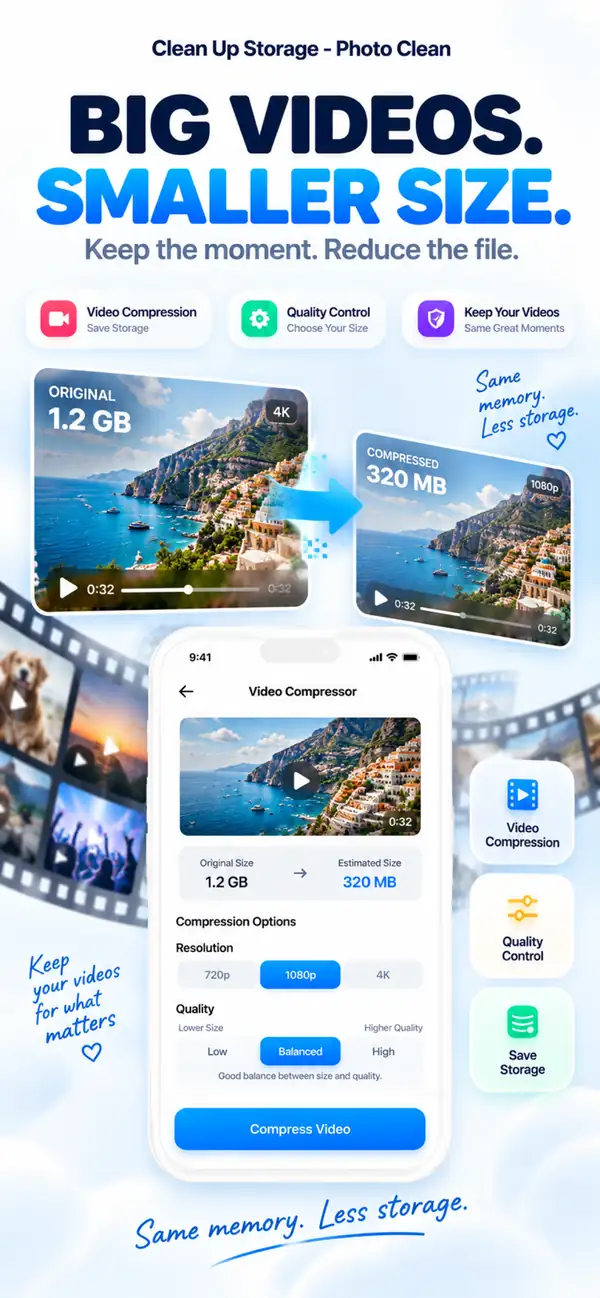
Photo Cleaner - Storage Space has a Compress screen made for this. It lists the videos in your library that are larger than 5 MB, with a count and the total size, so you can see the heavy clips without scrolling through the whole camera roll. You pick the videos, choose a quality level and compress them in one pass.
- Download and open Photo Cleaner - Storage Space from the App Store.
- Tap Compress in the bottom tab bar, or open the Videos Compress card on the home screen.
- Allow photo library access when asked.
- Wait while the app scans for compressible videos. Videos larger than 5 MB are shown.
- Tap the videos you want to compress, or use Select All.

2. Find Large Videos via iPhone Settings
Apple's native Settings app provides a basic but useful overview. You can see the total storage used by your Photos app and identify large video attachments in Messages. But it doesn't let you sort your Camera Roll by file size directly. It's a starting point for rough triage before using a dedicated tool for precision cleanup.
- Open Settings → General → iPhone Storage.
- Tap 'Photos' to see how much total storage your media library uses.
- Tap 'Messages' and then 'Review Large Attachments' to see and delete large video messages.
- Go back and tap any other app with high 'Documents & Data' to find hidden video caches.
- Delete or offload apps with unexpectedly high storage use.

3. Browse Only Videos in the Photos App
The Photos app cannot sort by file size, but it can show only videos. Scroll through them and check each clip's length, since longer clips are almost always larger. This works for a small library. For a big one, use Photo Cleaner - Storage Space instead.
- Open the Photos app and tap Collections.
- Scroll down to Media Types and tap Videos.
- Scroll through the clips and note the long ones, such as old screen recordings or event videos.
- Open a clip you no longer need and tap the trash icon.
- For exact sizes, use Photo Cleaner - Storage Space.

4. Compress Videos Without Deleting Your Memories
Compression is the part most guides skip. Instead of choosing between keeping a video and freeing space, you keep a smaller copy. Photo Cleaner - Storage Space re-encodes each selected video at the quality level you choose, keeps the original date, and then asks iOS to delete the original so the space is actually freed.
- With your videos selected on the Compress screen, look at the Quality Level options: Maximum Saving, Balanced and Best Quality. Each shows an estimated saving, and Balanced is marked Recommended.
- Check the Compression Summary. It shows the selected size, the estimated size after compression and the estimated saving.
- Tap Compress & Free. The button shows how much space you can free.
- Confirm the alert. iOS then asks for permission to delete the original videos after compression.
- The originals are only removed after you approve that iOS prompt.

5. Clear Social Media Video Caches
Instagram, TikTok, and similar apps don't expose their caches in your Photos app. To clear them you need to use the app's own cache-clearing option if one exists, or delete and reinstall the app. This removes locally stored feed videos and preloaded content, but deleting an app also removes its locally stored data. Save anything important before doing so.
- Go to Settings → General → iPhone Storage.
- Tap the social media app with high storage (e.g., TikTok, Instagram).
- Tap 'Delete App' to remove the app and its cache ('Offload App' keeps the cache, so it will not help here).
- Reinstall from the App Store and sign in again. The app starts with a clean cache.
- Alternatively, check within TikTok or Instagram settings for a built-in 'Clear Cache' option.

6. Delete Streaming App Downloads
Downloaded movies and shows from Netflix, Disney+, and Apple TV+ are stored inside their respective apps and invisible in your Camera Roll. Each app has its own download manager where you can delete individual titles or clear all downloads at once. Removing a single downloaded movie can free 2–5GB instantly.
- Open Netflix → tap your profile icon → Downloads → tap the edit icon.
- Select downloaded titles and tap 'Delete Download'.
- For Apple TV+: open the TV app → Library → Downloaded → swipe to delete.
- For Disney+: go to the Downloads tab → tap and hold → Remove Download.
- Check each streaming app individually as none share a central download manager.
7. Record Smaller Videos From Now On
Compression fixes the past. To keep new videos small, change how your iPhone records. A lower resolution or frame rate and the High Efficiency format both produce smaller files, and for everyday clips the difference is hard to notice on a phone screen.
- Open Settings > Camera.
- Tap Record Video and choose a lower option, for example 1080p HD at 30 fps instead of 4K at 60 fps.
- Go back, tap Formats and choose High Efficiency, which uses the space-saving HEVC format.
- Switch to a higher setting only for moments you really want in the best quality.

8. Empty Recently Deleted to Get the Space Back
Deleted videos stay in Recently Deleted for up to 30 days and still use storage. After you compress, check that the space really came back. If you need it right away, delete the originals there for good.
- Open Photos > Collections, scroll to Utilities and tap Recently Deleted.
- Tap Select, then choose the videos or tap Delete All.
- Confirm. This is permanent, so make sure the compressed copies play correctly first.
- Open Settings > General > iPhone Storage to see your new total.

Frequently Asked Questions
Q: How do I see which videos on my iPhone are taking the most space?
A: The Photos app does not sort by file size. The Compress screen in Photo Cleaner - Storage Space lists videos larger than 5 MB with their total size, which is the quickest way to spot heavy clips. For a rough overview, open Settings > General > iPhone Storage > Photos.
Q: Does compressing a video reduce its visible quality?
A: On a phone screen, a clip compressed at Balanced or Best Quality usually looks very close to the original. Maximum Saving makes the smallest files, so try it on one clip first. Differences show mostly on large screens or when you zoom in.
Q: Will compressing a video delete the original?
A: Yes, but only after you approve it. Photo Cleaner - Storage Space saves the compressed copy with the original date, then iOS asks for permission to delete the original so the space is freed. Deleted videos stay in Recently Deleted for up to 30 days. If you want to keep an original, do not approve the prompt.
Q: How much space can I realistically free by compressing videos?
A: It depends on the quality level. The estimates in Photo Cleaner - Storage Space are roughly 40% smaller for Best Quality, 65% for Balanced and 90% for Maximum Saving. The app shows an estimate before you compress, and real results vary from clip to clip.
Q: Are saved WhatsApp and iMessage videos taking up my storage?
A: Yes. Every video you save from a chat is copied to your Camera Roll, and its size depends on the app and the quality it was sent in. Over months, this adds up significantly. Photo Cleaner - Storage Space will include these in its scan since they're part of your photo library. You can also delete them from Settings → iPhone Storage → Messages → Review Large Attachments.
Q: Can I compress slow-motion videos?
A: Yes, you can select them like any other video, and they are often large, so they are good candidates. Compress one clip first and play the result in Photos to make sure it looks the way you expect before you do the rest.
Q: Do streaming app downloads count toward my iPhone storage?
A: Yes, absolutely. Netflix, Disney+, and Apple TV+ downloads are stored on your device and count against your total storage just like photos and videos. Each app has its own download manager, so you need to delete titles within each app separately.
Q: Is it safe to use Photo Cleaner - Storage Space to manage my videos?
A: Yes. Photo Cleaner - Storage Space operates within Apple's privacy framework and only accesses your photo library with your explicit permission. It never automatically deletes anything. Every action requires your confirmation before files are removed.
Q: What video format does iPhone use and why is it so large?
A: iPhone records in HEVC (H.265) by default on modern models, which is already an efficient codec. However, the high resolution (4K) and frame rate (60fps) produce very large files regardless of codec efficiency. Older iPhones or compatibility-mode recordings use H.264, which is less compressed and produces even larger files.
Q: How often should I clean up my iPhone videos?
A: A monthly check is a healthy habit. Run a quick scan with Photo Cleaner - Storage Space, compress the large clips you want to keep, and delete the ones you no longer need. This prevents storage from becoming a crisis that forces you to make fast, regrettable decisions.
Q: Why did my storage not change after I compressed videos?
A: The original videos move to Recently Deleted and keep using space until you remove them or 30 days pass. Open Photos > Collections > Utilities > Recently Deleted and delete them for good.
Q: How can I stop videos from filling my iPhone again?
A: Record at a lower resolution or frame rate and choose High Efficiency in Settings > Camera. Then run a quick pass on the Compress screen once a month and compress the clips you want to keep.
Stop Choosing Between Memories and Storage
You do not have to delete videos to free up space. Compression lets you keep a smaller copy of each memory. Find the heavy clips on the Compress screen, pick a quality level, approve the deletion of the originals, then empty Recently Deleted so the space really comes back. Record smaller from now on, and your storage problem stays solved.
Have questions? Support Center
Related guides

· 9 min read
Organize Photos on iPhone and Free Up Space
Learn how to organize photos on iPhone with albums, folders and People & Pets, then clear duplicates, screenshots and big videos to free up storage.

· 6 min read
How to Delete Duplicate Photos on iPhone (Fast & Safe)
Step-by-step guide to find and delete duplicate photos on iPhone, free up storage, and prevent duplicates from coming back.

· 5 min read
How to Merge Duplicate Contacts on iPhone
Step-by-step guide to merge duplicate contacts, remove incomplete entries, and keep your iPhone address book organized with safe on-device controls.
Ready when you are
Download Photo Cleaner - Storage Space for iPhone
Remove duplicate photos, compress videos, and organize contacts with a privacy-first cleanup flow.
By using Photo Cleaner - Storage Space, you agree to our Terms of Use and Privacy Policy.