Apple Watch Water Reminders Not Working? How to Fix Them
Find out why water reminders are missing on Apple Watch. Check the DropWise schedule, iPhone permissions, Watch mirroring, Focus, and wrist alerts.

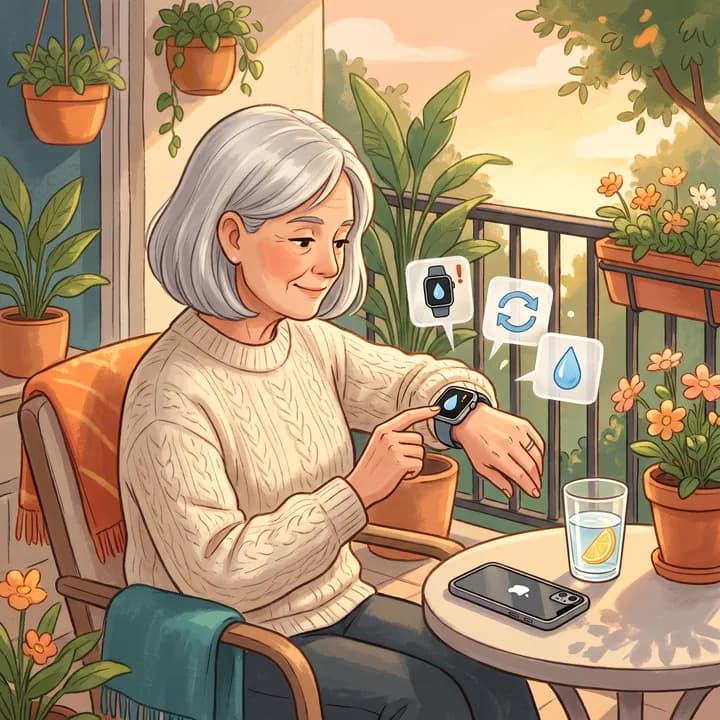
Fix it in 6 steps
- Note the time of the next reminder and check Notification Center on both devices around that time.
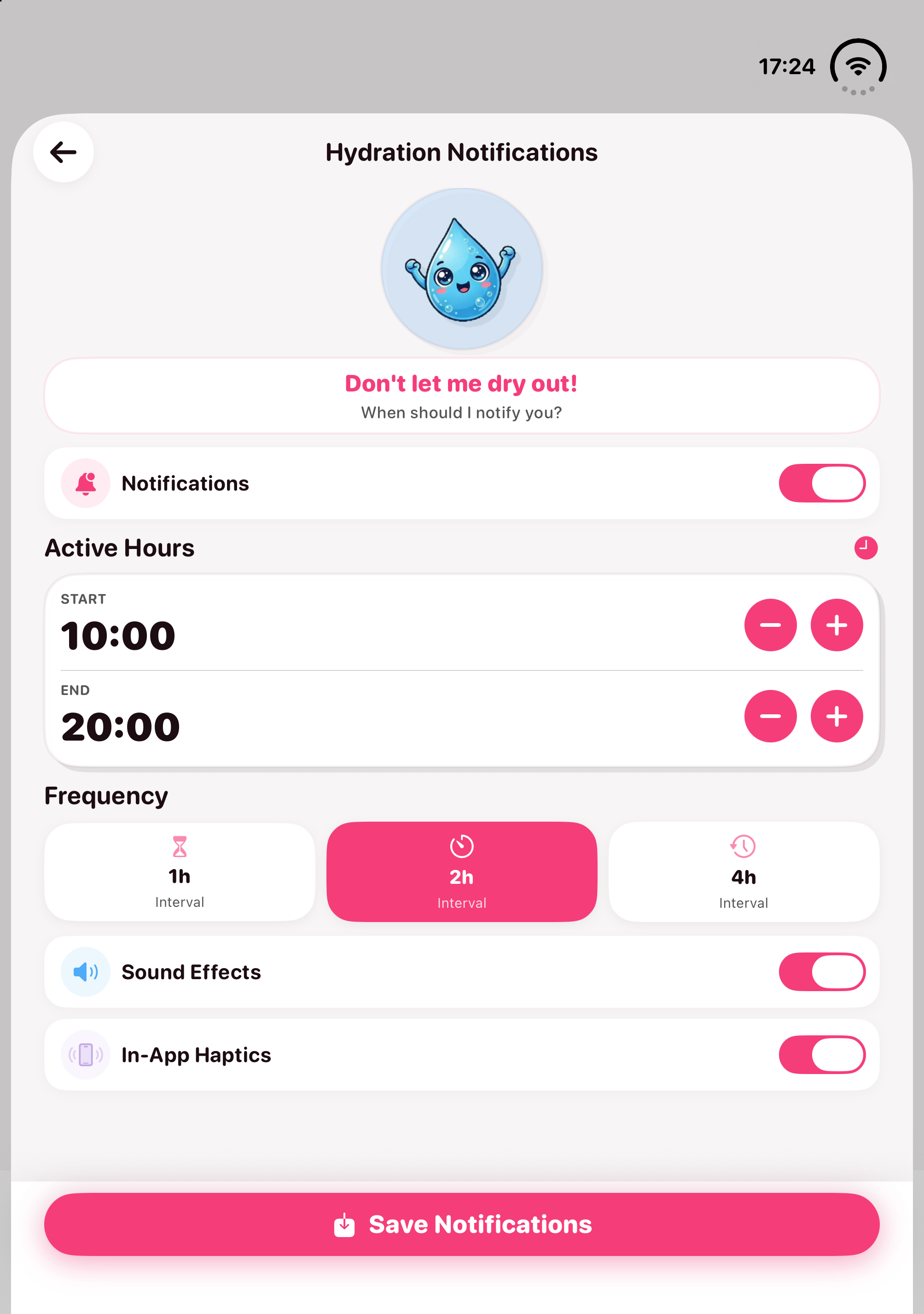
- On iPhone, open DropWise → Settings → Notifications, confirm Active Hours and Frequency, and tap Save Notifications.
- In iPhone Settings → Notifications → DropWise, turn on Allow Notifications.
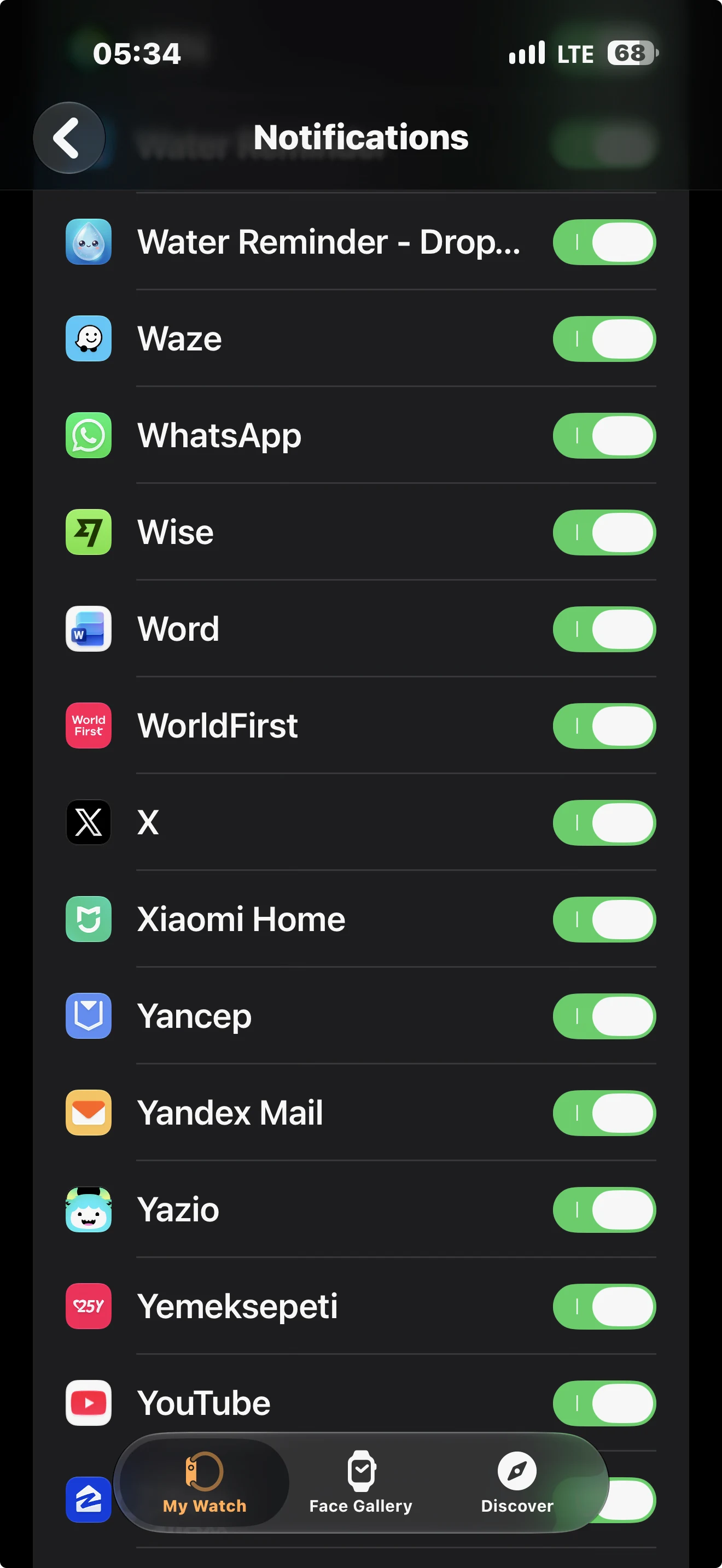
- In the iPhone Watch app → My Watch → Notifications, make sure Water Reminder - DropWise is on.
- On the watch, open Control Center and turn off Focus, Theater Mode, Silent Mode and Water Lock if they are on.
- Wear and unlock the watch, lock the iPhone, keep both close together, and wait for the next reminder.
First find out whether DropWise scheduled the reminder on your iPhone. If it did, the next question is whether Apple routed the alert to your phone or watch. Check those two things separately before changing your schedule or unpairing your watch.
1. Did the reminder appear on either device?
Look in Notification Center on both devices around a time you expected a reminder. Check before dismissing it: Apple can clear a mirrored notification on both devices when you read or dismiss it on one.
- It appeared on your unlocked iPhone: That is normal routing. To test the watch, wear and unlock it, keep it connected to the iPhone, and lock the iPhone before the next scheduled reminder.
- It appeared in Watch Notification Center without a wrist tap: Start with the Watch alert and haptic settings in step 3.
- It appeared nowhere: Start with the iPhone schedule and permissions in step 2.
2. Check the DropWise schedule and iPhone permission
On iPhone, open DropWise → Settings → Notifications. Turn on notifications, check Active Hours and Frequency, and tap Save Notifications. Pick a test time that falls inside the active window. If you are testing at bedtime, an inactive reminder window and Sleep Focus can each explain why there was no alert.
In iPhone Settings → Notifications → DropWise, enable Allow Notifications and select where you want alerts to appear. Check Scheduled Summary if the reminder shows up later than expected. Reopen DropWise, save the schedule again, and check the next expected alert with Focus temporarily off if you can do so without interrupting your routine.
DropWise schedules local notifications on the iPhone. Background App Refresh can help the app refresh its schedule. iOS handles delivery of already scheduled notifications. If reminders stop after several days, open DropWise and save the schedule again before treating Background App Refresh as the cause.
3. Check where the iPhone sends the alert
On iPhone, open Watch → My Watch → Notifications. If DropWise is listed under Mirror iPhone Alerts From, enable it. If the Watch app offers per-app delivery options, choose the setting that allows alerts. Delivery to Notification Center alone can explain a visible notification without a tap.
Wear and unlock the watch. Press the side button to open Control Center and check for a disconnected iPhone icon. Bring the devices close together, turn off Airplane Mode, and check Wi-Fi and Bluetooth on the iPhone. Test again before considering unpairing. If the watch routinely locks while worn, check the fit and review Wrist Detection settings.
In Watch Settings → Sounds & Haptics, check the haptic alert setting. A visible alert without a tap points to presentation or haptics. A missing entry in Notification Center calls for checking delivery and Focus first.
4. Check Focus on both devices
Check Settings → Focus → Sleep on iPhone, along with any Work or Do Not Disturb profile active at the test time. Review the allowed or silenced app list. Also check the watch's Control Center for an active Focus. Run one daytime test outside those Focus windows, or allow DropWise in the relevant Focus if you want it to interrupt you.
5. Separate wrist logging from reminder delivery
Open the DropWise companion app on the watch to verify that it is installed.
If the app is missing on your watch, you can install it from the Watch app on your iPhone:
- Open the Watch app on your iPhone and stay on the My Watch tab.
- Type DropWise in the search field at the top. DropWiseWatch appears in the results. If it shows up more than once, tap the one with the blue water drop icon.
- Or scroll down on My Watch to the list of apps you can add, find DropWiseWatch and tap INSTALL.
- Keep the watch close to the iPhone until the app shows up on the watch, then open it once.
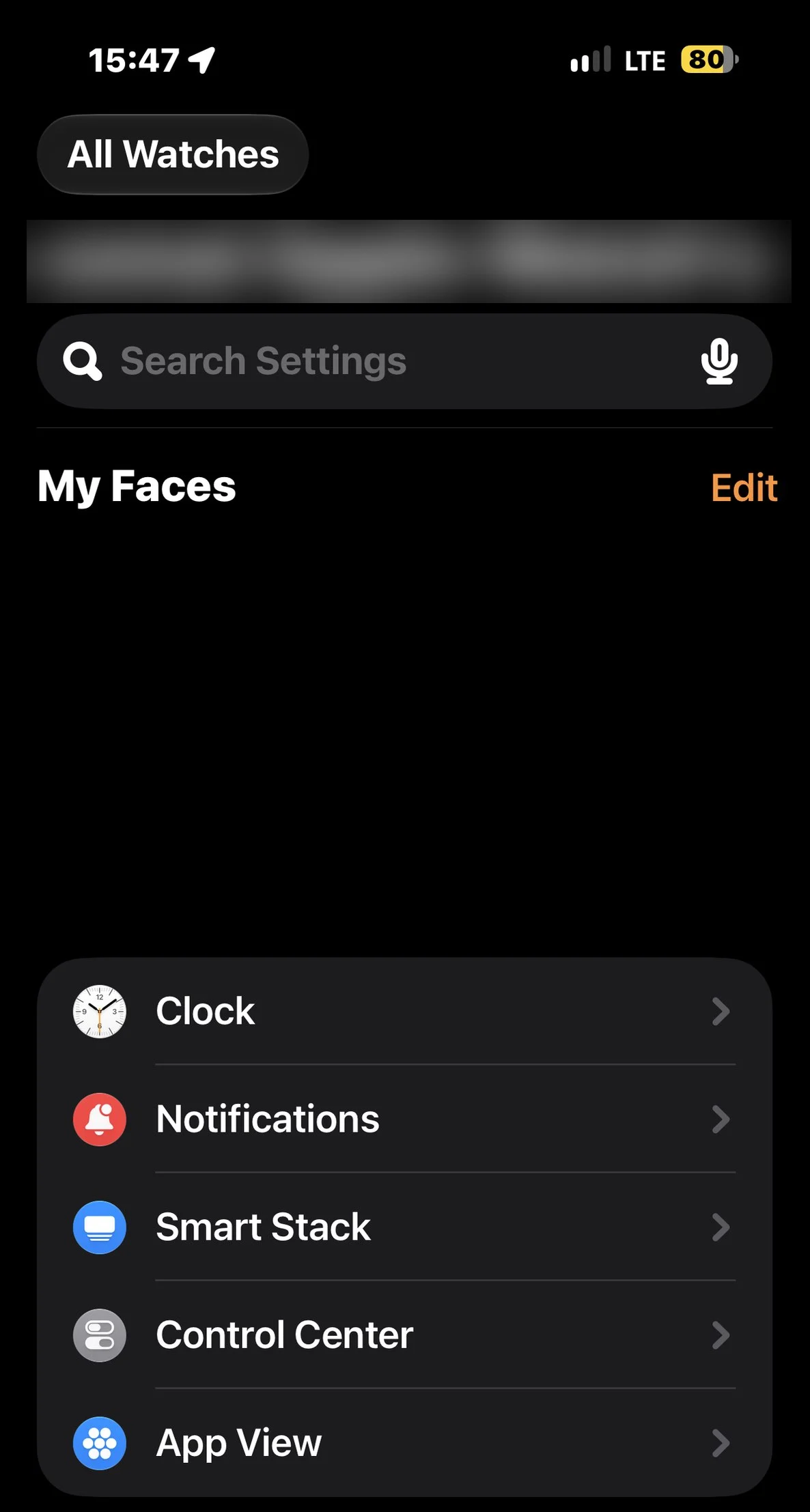
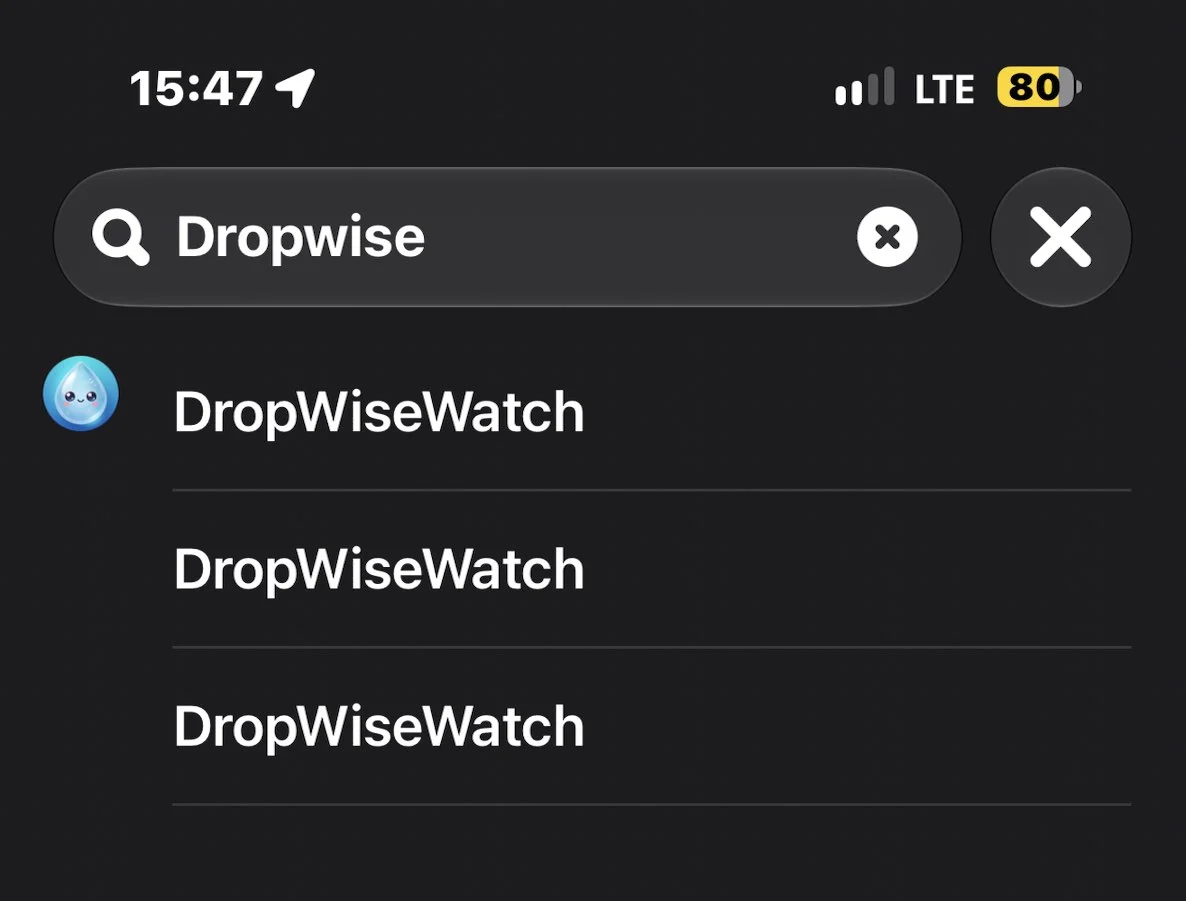
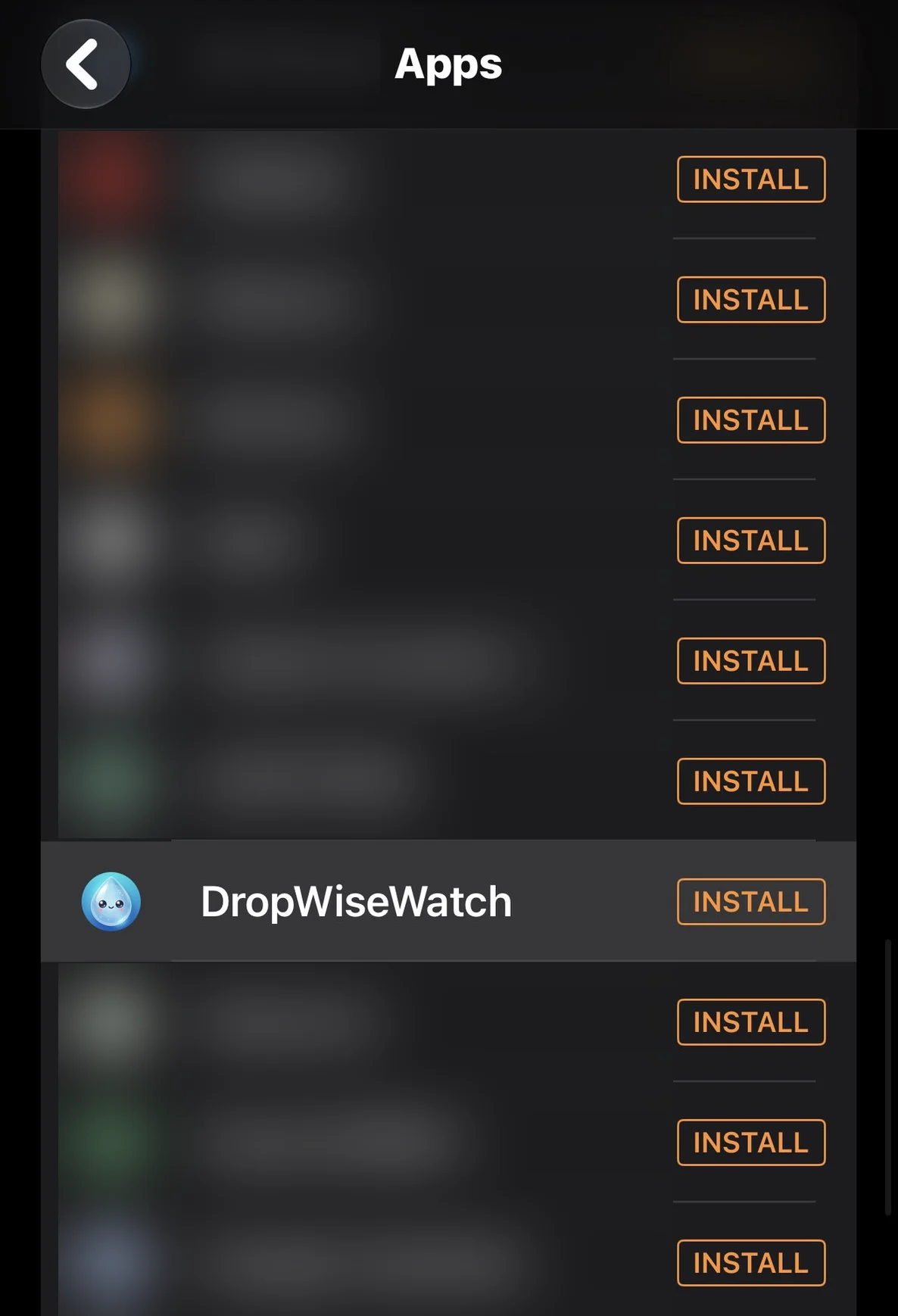
These screenshots come from an iPhone set to English, so the labels on your phone may be in your own language.
A quick-add button or complication confirms that you can open the Watch app or log from your wrist. It does not confirm that an iPhone reminder reached the watch.
DropWise 4.1.2 schedules these reminders in its iPhone app. A notification delivered independently by a watchOS app follows that app's own scheduling and permissions. The DropWise companion app's logging and sync do not establish an independent Watch reminder schedule. When testing DropWise alerts, keep the iPhone and watch connected and use the mirroring checks above.
If the problem persists, record the expected reminder time, the active hours and frequency, whether an alert appeared on either device, and which Focus was active. Those details help distinguish an app scheduling issue from Apple Watch delivery.
DropWise is free to download and offers optional in-app purchases. The 4.1.2 reminder settings and scheduling code do not check for Premium when enabling or saving the basic schedule.
| What you see | Likely cause | What to do |
|---|---|---|
| Reminder only on iPhone | The iPhone was unlocked or in use, so iOS showed it there | Lock the iPhone and wear the unlocked watch for the next test |
| No reminder on either device | Notifications are off, the schedule was not saved, or the time is outside Active Hours | Save the schedule again in DropWise and allow notifications in iPhone Settings |
| Alert in Watch Notification Center but no tap | Silent Mode, Theater Mode or haptic settings | Check Control Center on the watch and Sounds & Haptics |
| Nothing during the night or at work | Sleep or Work Focus is silencing DropWise | Allow DropWise in that Focus or test outside its hours |
| Reminders stop after a few days | The schedule has not been refreshed | Open DropWise and tap Save Notifications again |
| Watch shows a disconnected iPhone icon | The devices are out of range or Bluetooth is off | Bring them together and turn on Bluetooth and Wi-Fi |
Also worth checking
- Wrist Detection: the watch keeps alerts quiet when it does not detect your wrist. A loose band can lock the watch.
- Restart both devices if everything looks right but alerts still do not arrive.
- Update iOS, watchOS and DropWise, then save the reminder schedule once more.
- Mirrored alerts cleared on one device also disappear from the other, so check before you dismiss them.
Frequently asked questions
Why do my water reminders show on iPhone but not on Apple Watch?
Apple sends a notification to the watch only when the iPhone is locked or asleep and the watch is on your wrist and unlocked. If you are using the iPhone, the alert stays there.
Does the DropWise Watch app send its own reminders?
No. DropWise schedules reminders on the iPhone and Apple mirrors them to the watch. The Watch app is for checking progress and logging drinks.
Why does my Apple Watch not vibrate for water reminders?
Check Silent Mode and Theater Mode in Control Center, any active Focus, and the haptic settings in Watch Settings → Sounds & Haptics.
Do I need Premium for water reminders on Apple Watch?
No. In DropWise 4.1.2 the basic reminder schedule works without Premium, and mirrored alerts reach the watch through Apple's notification settings.
Should I unpair my Apple Watch to fix missing reminders?
Only as a last step. Check the DropWise schedule, notification permission, mirroring, Focus and the connection first. Most missing reminders come from one of these.
- Set up water reminders and quick logging on Apple Watch
- Water reminder apps for iPhone
- DropWise product page
- DropWise on the US App Store
Sources: Apple Watch notification delivery and mirroring, Focus app permissions on iPhone, Apple Watch notification settings, and the DropWise 4.1.2 iPhone and Watch source.
How much water do you need?
Enter your weight, exercise and weather for a quick daily estimate.
(155 lb)
Your estimated daily water needs
2.65 L
(89.6 US fl oz)
About 10.5 (250 mL (8.5 fl oz) per glass)
A flexible estimate, not a drinking requirement. Avoid excessive water intake, especially over short periods. Adjust according to thirst, activity, health and medical advice.
Open the full water intake calculator →Related guides
· 6 min read
How to Set Up a Water Reminder on Apple Watch (2026)
Set up a water reminder on any Apple Watch (Series, Ultra, or SE). Compare built-in Reminders with DropWise watch face complications and 1-tap logging.
· 5 min read
Water Reminder App for iPhone: How DropWise Works
A simple tour of the DropWise water reminder app on iPhone: log a drink, set your goal, turn on reminders and read your week, with real screenshots.

· 4 min read
Water Tracking App Not Syncing With Apple Health?
Find out why DropWise water logs are missing, late, or duplicated in Apple Health. Check Water permissions, data sources, and iCloud sync.

Ready when you are
Download DropWise for iPhone
Track hydration more easily with reminders, Apple Health sync, and a privacy-first flow.
By using DropWise, you agree to our Terms of Use and Privacy Policy.