What Happens When You Offload an App on iPhone
Offloading an app removes the app but keeps your data. See what stays, what goes, how to offload one app or all unused apps, and how to get them back.
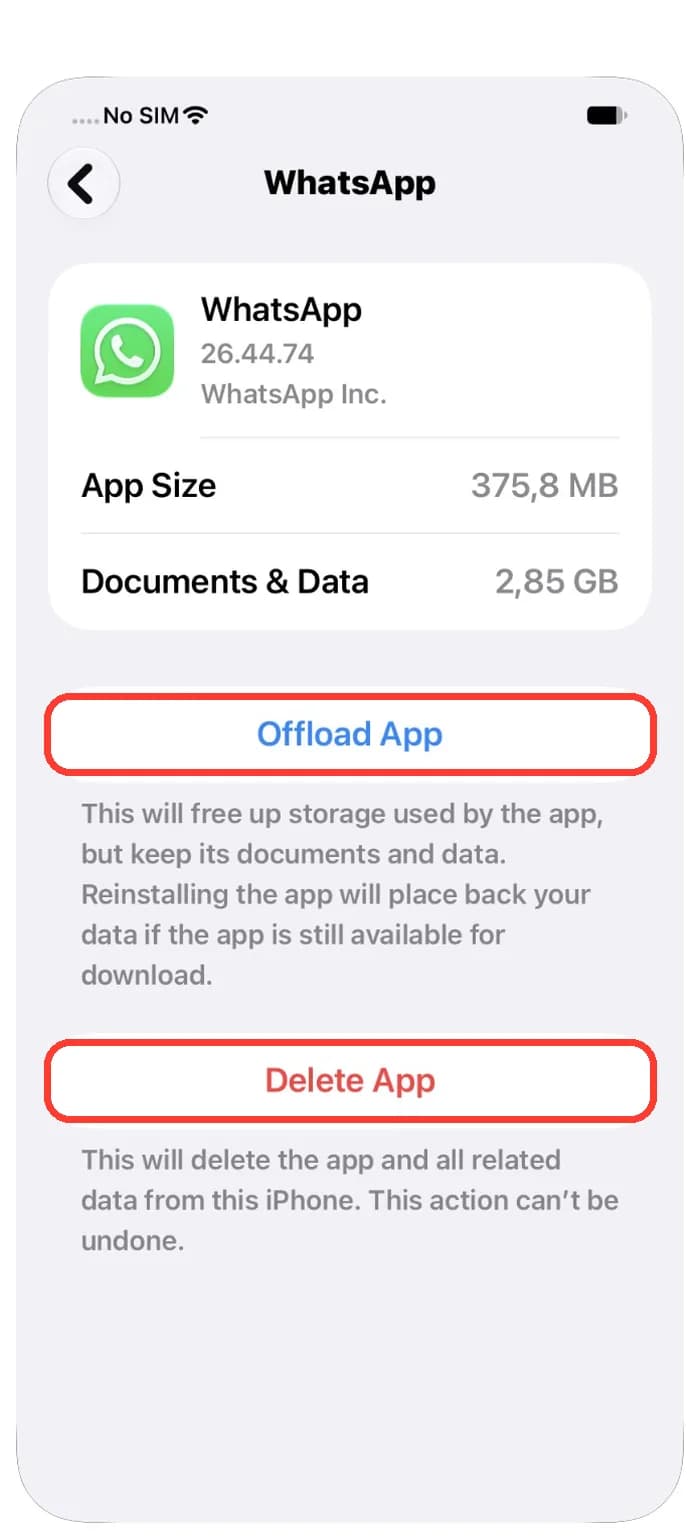
Offloading an app is like putting a toy back in the shop but keeping your saved game at home. The app itself leaves your iPhone, so you get space back. Your documents and data stay on the iPhone. When you want the app again, you download it and your data is still there.
This guide shows in five easy steps what offloading does, what stays on your iPhone, how to offload one app, how to let iPhone do it for you, and how to get an app back. The facts come from Apple's own support pages. We make Photos Cleaner - Cleanup Phone, an iPhone app that helps with photo clutter, and we say that openly.
1. Know what offloading an app does
When you offload an app, iPhone removes the app itself. Apple says this frees up the storage the app uses, but keeps its documents and data.
Delete App is different. It removes the app and all its data from your iPhone, and you cannot undo it. So offloading is the gentle choice and deleting is the final one.
If you are not sure, choose Offload App. You can still delete the app later.
2. See what stays on your iPhone
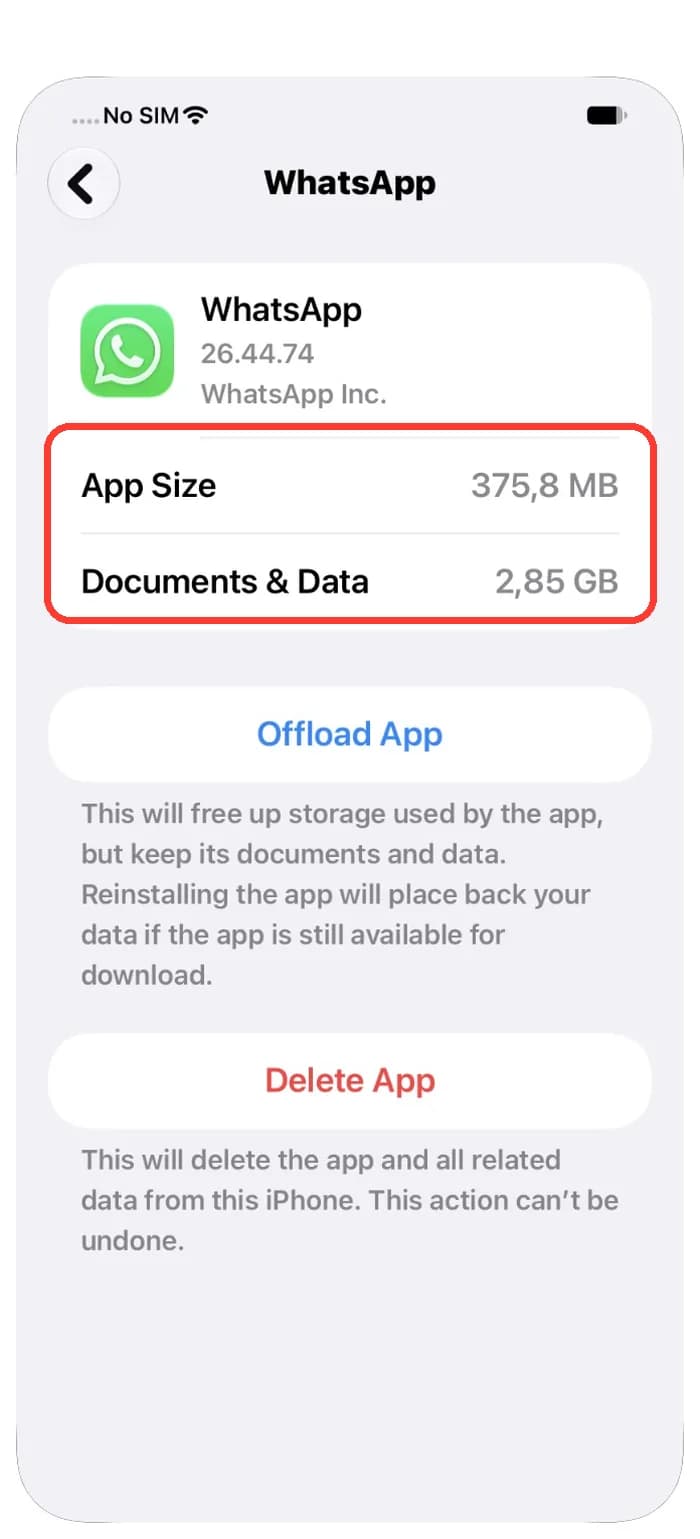
Every app has two parts in iPhone Storage. App Size is the app itself. Documents & Data is what the app saved for you, like chats, settings, downloads and saved games.
Offloading only frees the App Size part. In our picture, WhatsApp uses 375.8 MB for the app and 2.85 GB for Documents & Data. Offloading it would free about 375.8 MB, and the 2.85 GB would stay.
So offloading helps most with apps that are big themselves but keep little data, like games you no longer play.
3. Offload one app by hand
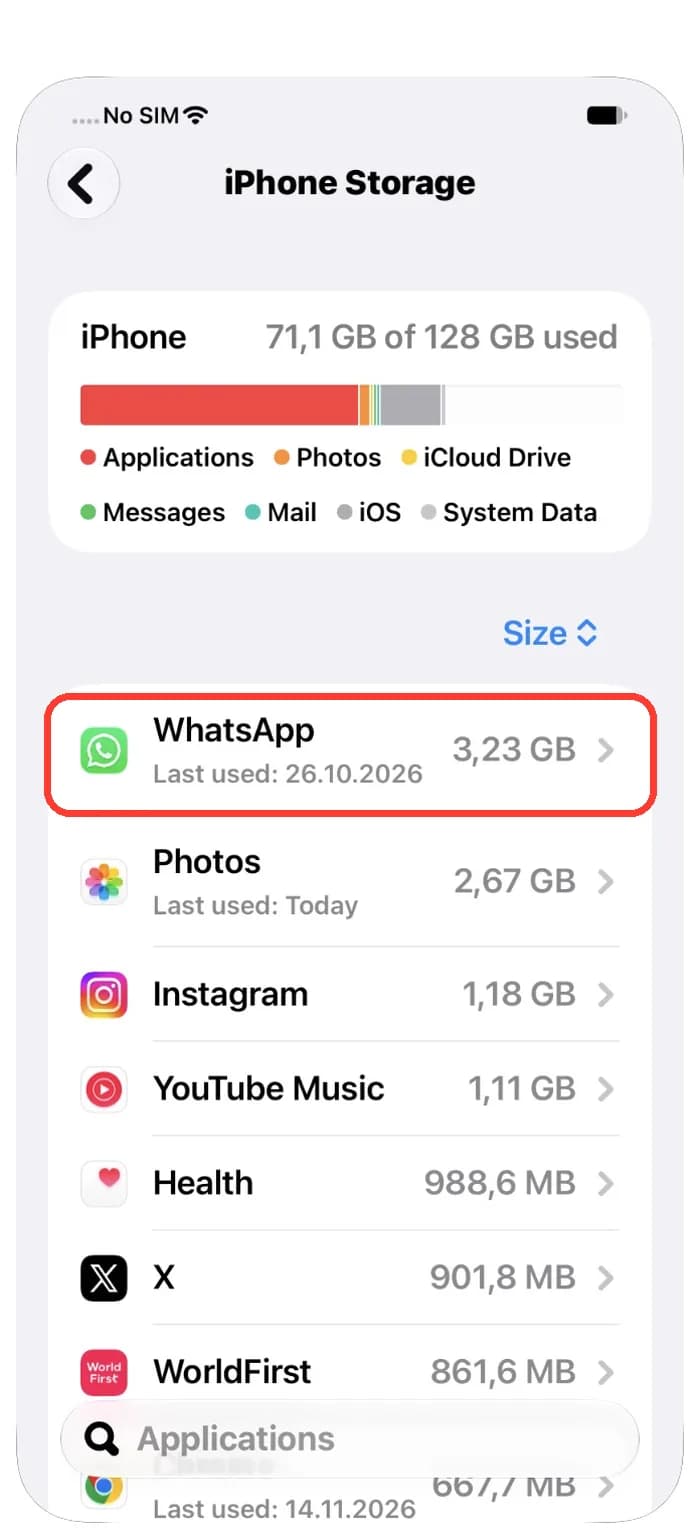
You choose which app goes. Start with a big app you have not used for a long time.
- Open Settings and tap General.
- Tap iPhone Storage and wait for the list to load.
- Tap the app you want to offload.
- Tap Offload App.
The list shows the biggest apps first, and under each name you see when you last used it. That helps you pick the right one.
4. Let iPhone offload unused apps for you
iPhone can also do this by itself. Apple says that when storage is low, iPhone can remove unused apps while keeping your data.
- Open Settings.
- Tap Apps, then tap App Store.
- Turn on Offload Unused Apps.
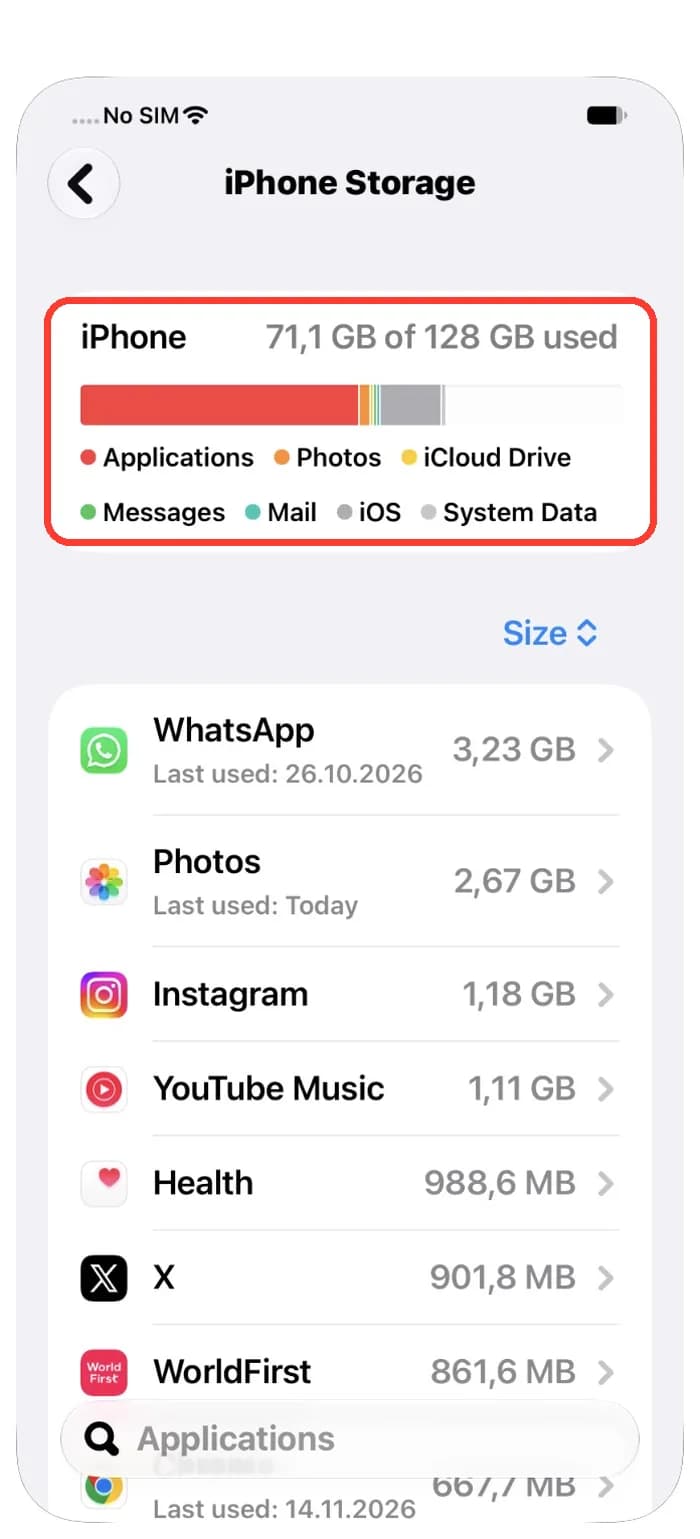
You may also see Offload Unused Apps as a tip in Settings, General, iPhone Storage. Tap Enable there to turn it on. The bar at the top shows how full your iPhone is.
5. Get an offloaded app back
An offloaded app keeps its icon on your Home Screen with a small cloud symbol. Tap the icon and the app downloads again. Apple says your data comes back with it if the app is still available in the App Store.
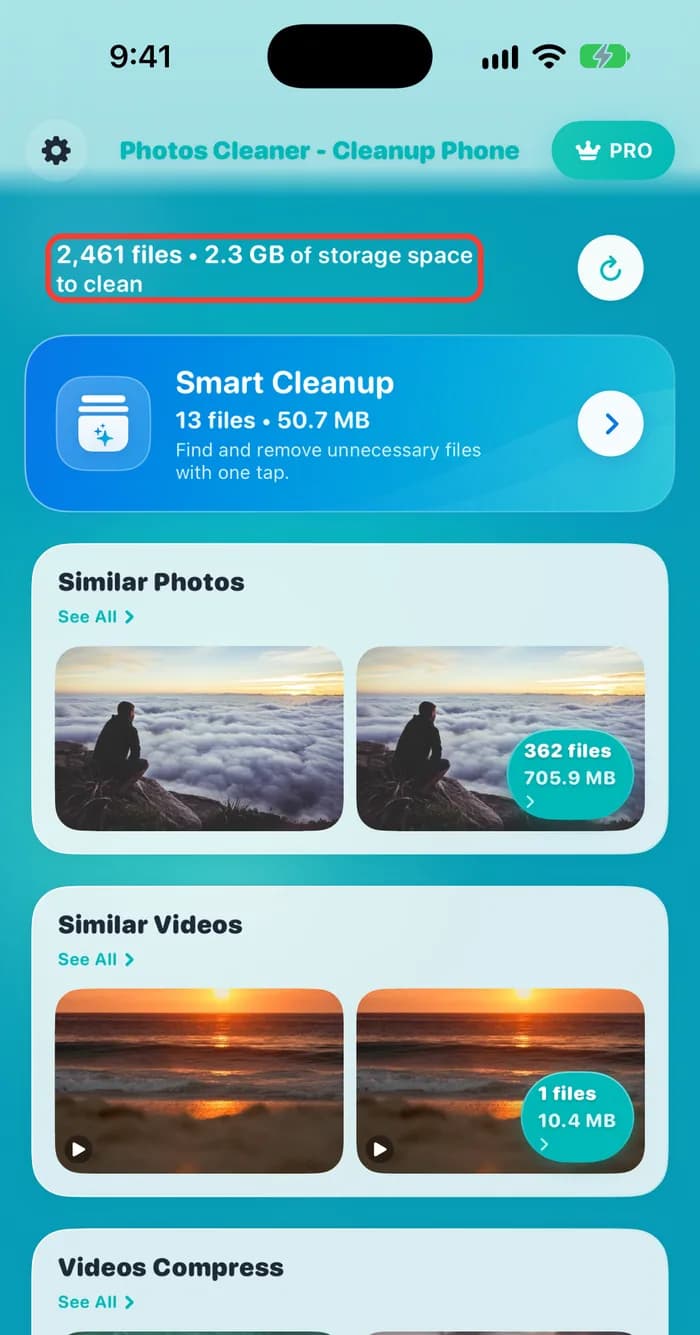
Offloading apps gives you space, but photos and videos are often the biggest part of a full iPhone. Photos Cleaner - Cleanup Phone finds copies, similar shots and big videos, and you decide what goes.
How to offload an app on iPhone
- 1
Open iPhone Storage
Open Settings, General, iPhone Storage.
- 2
Pick an app
Tap a big app you do not use often.
- 3
Offload it
Tap Offload App and confirm.
- 4
Turn on the helper
In Settings, Apps, App Store, turn on Offload Unused Apps.
- 5
Get it back
Tap the app icon with the cloud symbol to reinstall it.
Frequently asked questions
Does offloading an app delete my data?▼
No. Apple says offloading frees the storage the app uses but keeps its documents and data. Delete App is the one that removes the data.
What is the difference between Offload App and Delete App?▼
Offload App removes only the app and keeps your data. Delete App removes the app and all its data, and you cannot undo it.
Where is Offload Unused Apps on iPhone?▼
Open Settings, tap Apps, tap App Store and turn on Offload Unused Apps. iPhone can also suggest it in Settings, General, iPhone Storage.
How do I get an offloaded app back?▼
Tap its icon on the Home Screen. The icon has a small cloud symbol. The app downloads again, and your data comes back if the app is still in the App Store.
How much space does offloading free?▼
About the App Size shown in iPhone Storage. The Documents & Data part stays, so an app with lots of data frees less than you might think.

Free more space than offloading can
Photos Cleaner - Cleanup Phone finds copies, similar shots and big videos, and shows what you get back before you delete anything.

Sources
Related guides

· 9 min read
Not Enough Storage to Update iPhone or Mac? Fix It
Your iPhone or Mac needs free space to download an update. See what is full, let unused apps go, and make room for iOS 27 or macOS 27 in 5 steps.
· 9 min read
How to Clear Cache on iPhone and Free Up Space
iPhone has no single clear cache button. Clear Safari data, check what each app stores, offload or reinstall apps and let old messages delete themselves.
· 9 min read
Why Does My iPhone Storage Keep Filling Up?
Your iPhone storage fills up again because photos, messages and app data keep growing. Find what grows, then change a few settings so it stays free.
Ready when you are
Download Photos Cleaner - Cleanup Phone for iPhone
Remove duplicate photos, compress videos, and organize contacts with a privacy-first cleanup flow.
By using Photos Cleaner - Cleanup Phone, you agree to our Terms of Use and Privacy Policy.