How to Clear Cache on iPhone (There Is No Single Switch)
iOS has no single clear-cache button. Learn how to clear app and Safari caches, review Photos and Messages media, and use offloading to recover space.



How to Clear Cache on iPhone (There Is No Single Switch)
iOS does not have a universal clear-cache button because each app manages its own storage. Clear app caches through available in-app controls and Safari settings. Offloading apps and reviewing media in Photos and Messages can also recover space, but those are separate cleanup tasks.
Photos Cleaner - Cleanup Phone handles the media side of that, on your iPhone, for free on the App Store. Here is the full picture, including what a "cache cleaner" app can and cannot actually do on iOS.
Three ways to recover storage on iPhone
Why iOS Does Not Have a 'Clear All Cache' Button
Apple sandboxes every app, which means one app cannot reach into another app's storage, and neither can a system-wide cleaner. This is a security feature, not an oversight, and it is why any app promising to "clear all iPhone cache in one tap" is either exaggerating or only clearing what it is actually allowed to touch.
Instead, clear caches through individual apps or Safari settings where those controls are available. Offloading removes the app itself while keeping its documents and data; reviewing media in Photos and Messages tackles stored files rather than app caches.
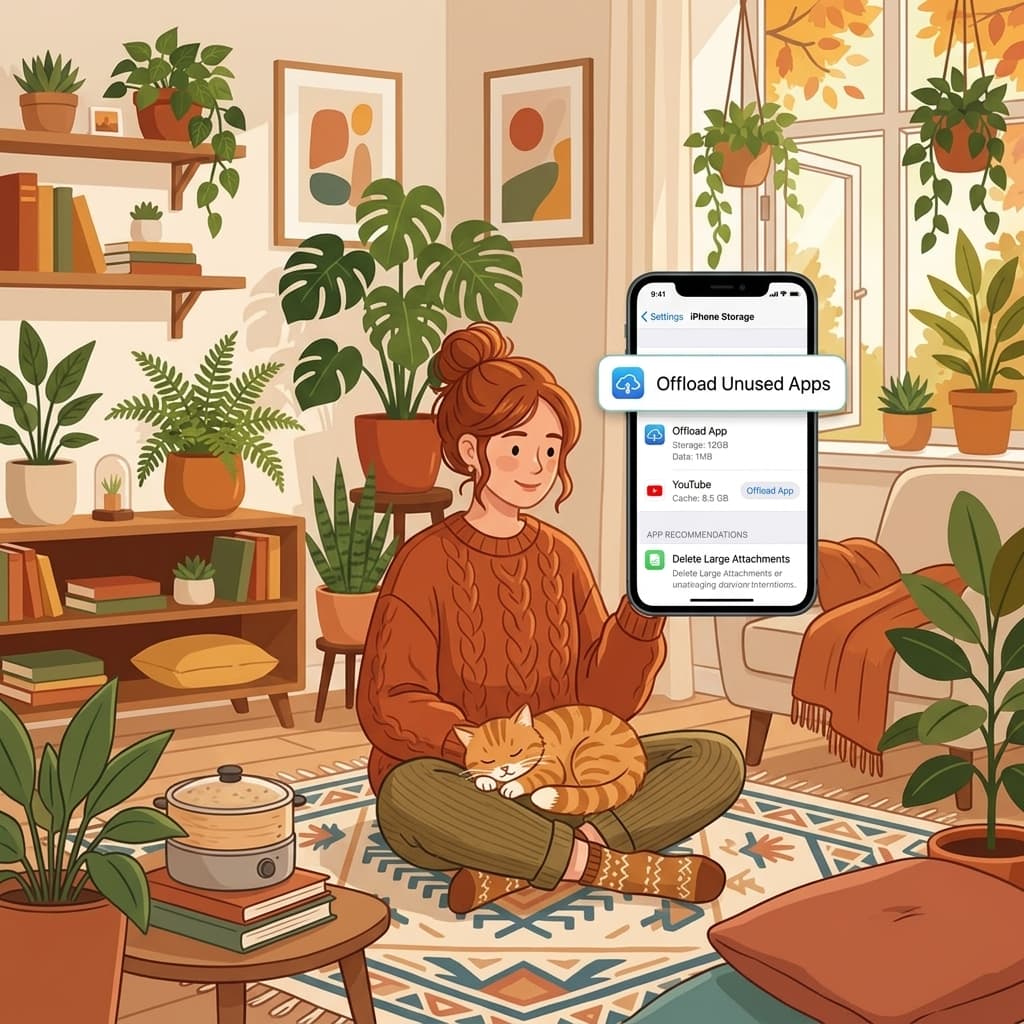
Offload Unused Apps: The Built-In Option
In Settings → General → iPhone Storage, offloading an app removes the app itself but keeps your documents and data, so reinstalling later restores where you left off. It is a good first step for apps you rarely open, and Apple can even do it automatically when storage runs low.

Media Clutter That Also Matters: Photos and Messages
Redundant photos and forgotten message attachments can take up substantial storage. Burst shots, near-duplicate photos, and years of videos sent in group chats are stored media rather than cache files, so review them before deleting anything.
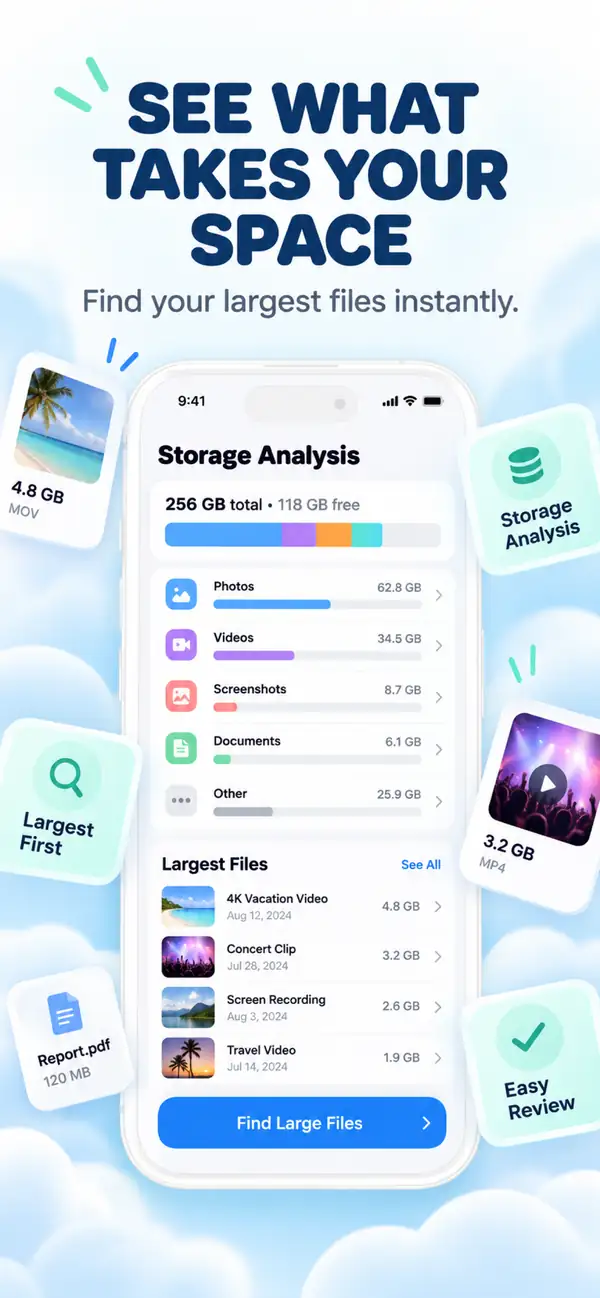
Photos Cleaner - Cleanup Phone handles the Photos side: it groups duplicate and similar shots, screenshots and large videos, and shows the exact space each group will recover before you confirm anything. Message attachments are cleared in Settings → General → iPhone Storage → Messages → Review Large Attachments.
Recover iPhone storage in three steps
Clear Safari data
Settings → Safari → Clear History and Website Data recovers space instantly.
Offload rarely used apps
iPhone Storage lists every app by size. Offload the ones you barely open; their documents and data will remain.
Clean Photos and Messages
Run Photos Cleaner - Cleanup Phone to remove duplicate photos and large videos, then use Review Large Attachments in iPhone Storage → Messages for chat media.
Frequently asked questions
Is there a real 'clear cache' button on iPhone?Show answer
Not a universal one. iOS sandboxes apps for security, so caches must be cleared through available per-app controls or Safari settings. Reviewing media in Photos and Messages is a separate way to recover storage.
Does restarting my iPhone clear cache?Show answer
It can clear some temporary files, which is why storage numbers sometimes look slightly different after a restart. It does not touch stored files like photos or message attachments.
Will offloading an app delete my data?Show answer
No, offloading removes the app binary but keeps its documents and data, so you pick up where you left off if you reinstall it.
Is Photos Cleaner - Cleanup Phone free?Show answer
Yes, it is free to download and scan on the App Store.
There is no single switch, but there is a real workflow
Safari settings and available in-app controls help clear caches. Offloading apps and reviewing photos and message attachments can recover additional storage without being cache-cleaning tools.
Download Photos Cleaner - Cleanup Phone on the App Store or see the product page.
Have questions? Support Center
Related guides

· 9 min read
Are iPhone Cleaner Apps Safe? A Privacy Checklist
Before you give a cleaner app access to your photos, check these 9 things: privacy labels, permissions, network activity, subscriptions and deletion safety.

· 9 min read
Why Is My iPhone Slow? Storage Problems and Safe Fixes
Low storage can slow an iPhone, but network conditions, battery health and unresponsive apps also matter. Diagnose the cause and recover space without deleting blindly.

· 9 min read
iCloud Storage Full but iPhone Has Space: What’s the Difference?
iCloud storage and iPhone storage are separate. Learn what each full-storage warning means, what stops syncing, and how to free the right space safely.
Ready when you are
Download Photos Cleaner - Cleanup Phone for iPhone
Remove duplicate photos, compress videos, and organize contacts with a privacy-first cleanup flow.
By using Photos Cleaner - Cleanup Phone, you agree to our Terms of Use and Privacy Policy.