iPhone Storage Not Going Down After Deleting Photos? 8 Fixes
iPhone storage still full after deleting photos? Check Recently Deleted, iCloud sync, Shared Library, and leftover media with eight practical fixes.


You deleted a lot of photos, but your iPhone still says the storage is almost full. That feels unfair, right? Don't worry. The space is usually hiding in one of a few places. This guide checks them one by one, with a picture for every step.
Think of your iPhone like a bedroom. When you delete a photo, it does not leave the room right away. It goes into a trash bin by the door first. The room only gets more space when you empty that bin. Some photos also live in a shared toy box or in the cloud, so you have to look there too.
Before you delete anything for good, save a copy of the photos and videos you love. Open a few of them from the copy to make sure they work. If you use iCloud Photos, deleting a photo on your iPhone also deletes it on your other Apple devices.
1. Empty the Recently Deleted album
Deleted photos are not gone yet. They wait in an album called Recently Deleted for up to 30 days, and while they wait they still use space. Here is how to empty it, one small step at a time.
Do this:
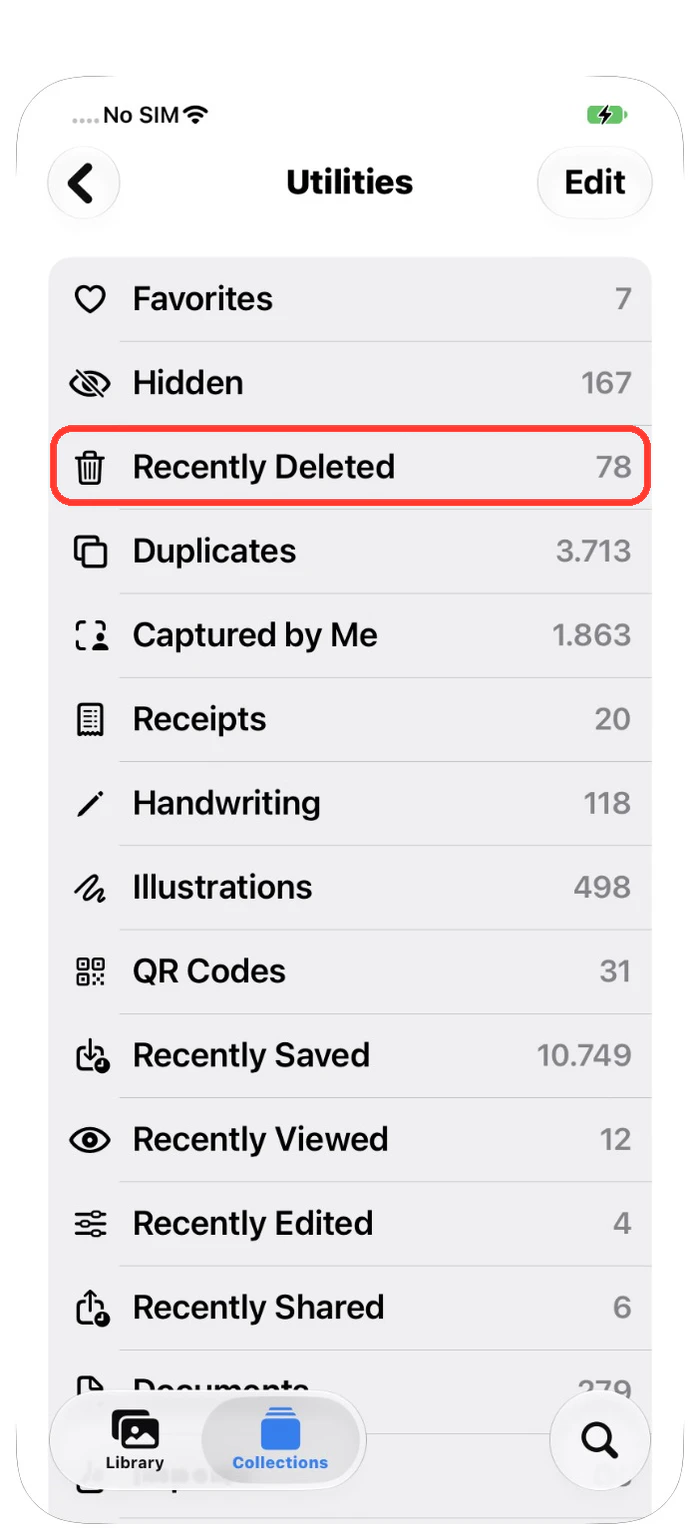
- Open the Photos app, tap Collections at the bottom, then tap Utilities.
- Tap Recently Deleted. If your iPhone asks, unlock it with Face ID or your passcode.
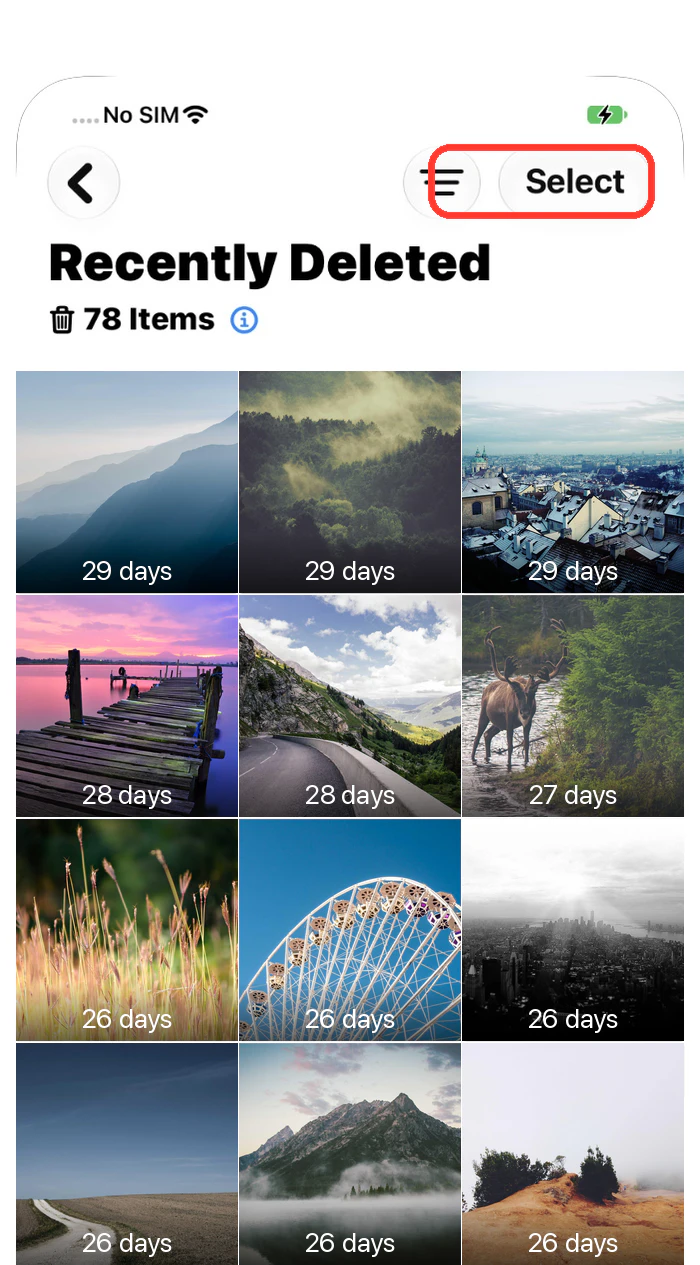
- Tap Select at the top. Then tap each photo you are sure you do not need. A blue check appears on every photo you pick.
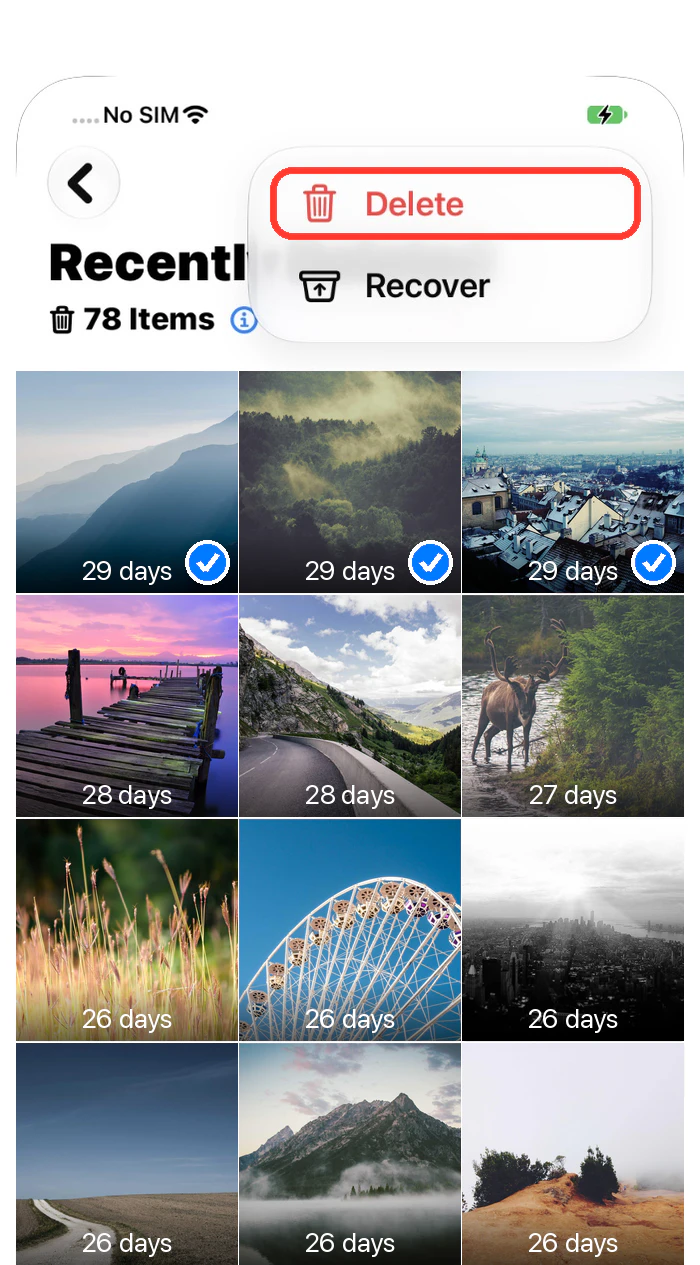
- Tap the round ••• button at the top and choose Delete.
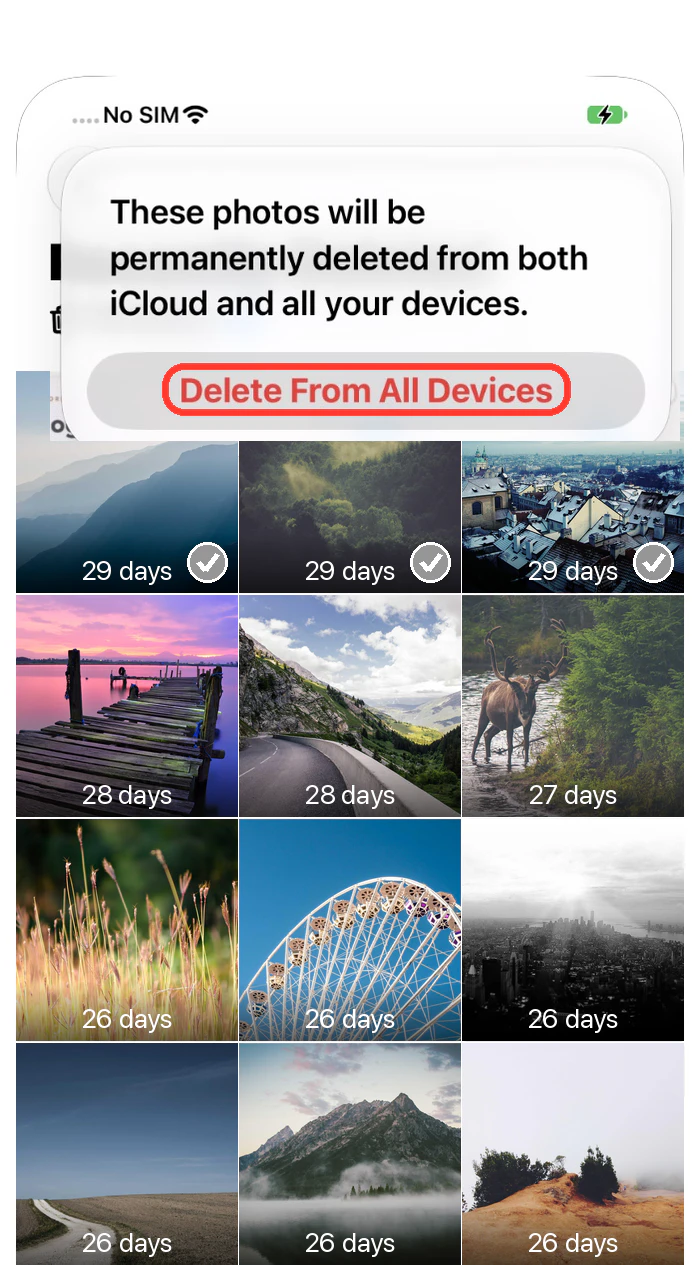
- A message tells you the photos will be gone for good. Tap Delete From All Devices (if iCloud Photos is off, the button says Delete From This iPhone). This cannot be undone, so pick carefully.
- Done! The space comes back. Open Settings → General → iPhone Storage to see the new number.
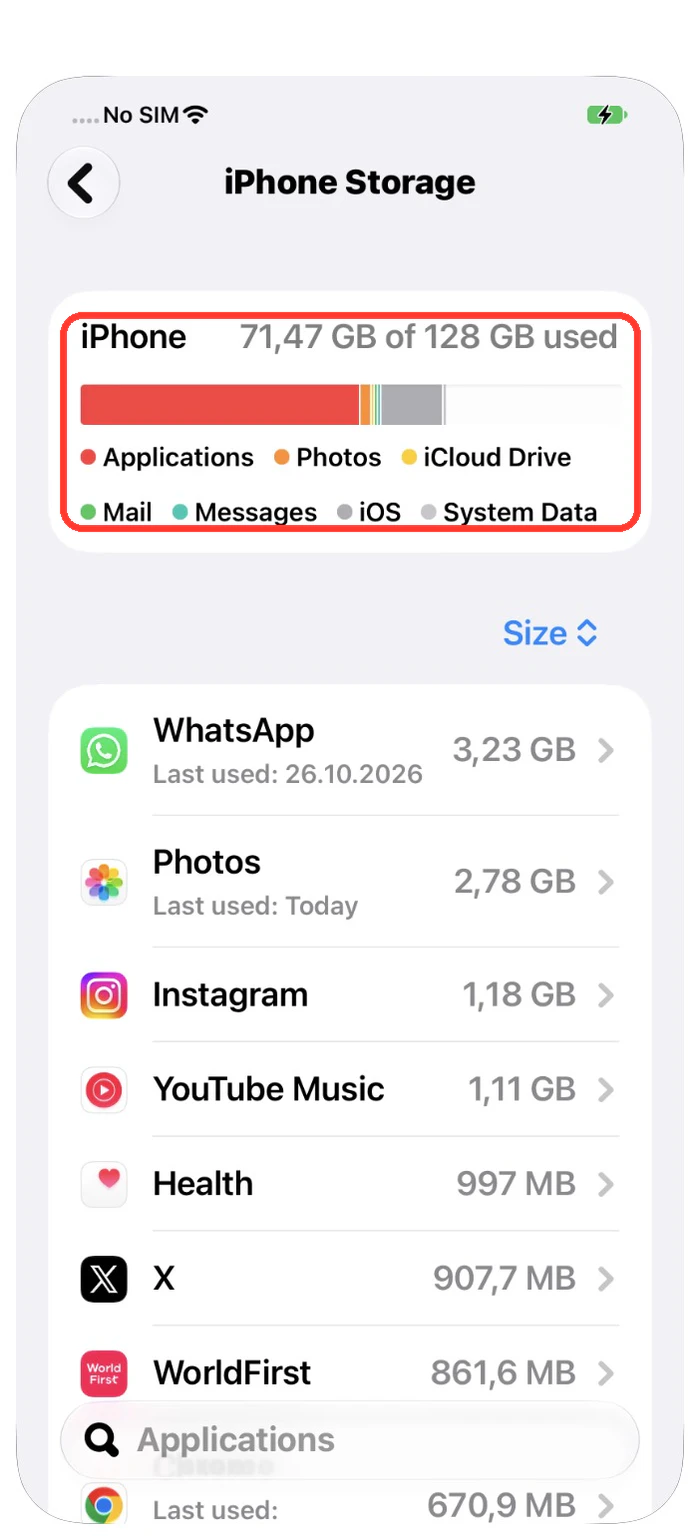
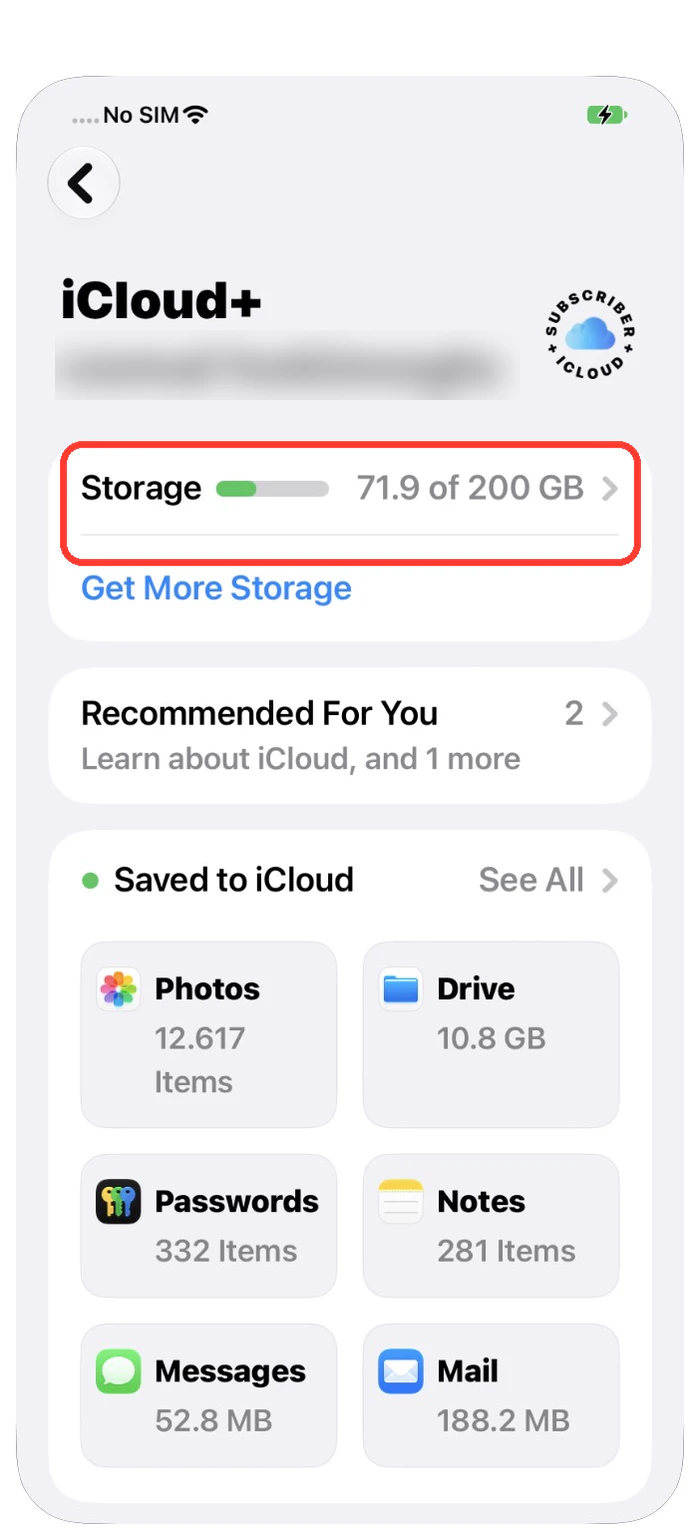
2. Look at iPhone storage and iCloud storage separately
Your iPhone and iCloud are two different boxes. Freeing space in one does not change the other. A full iCloud box can also stop your photos from syncing.
Do this:
- Open Settings, tap General, then tap iPhone Storage. Look at how much space Photos uses.
- Go back to Settings, tap your name, then tap iCloud. Look at the iCloud storage bar.
- If Photos is already small on the iPhone, the space is going somewhere else. The list on the same screen shows where.
3. Check that iCloud Photos is not paused
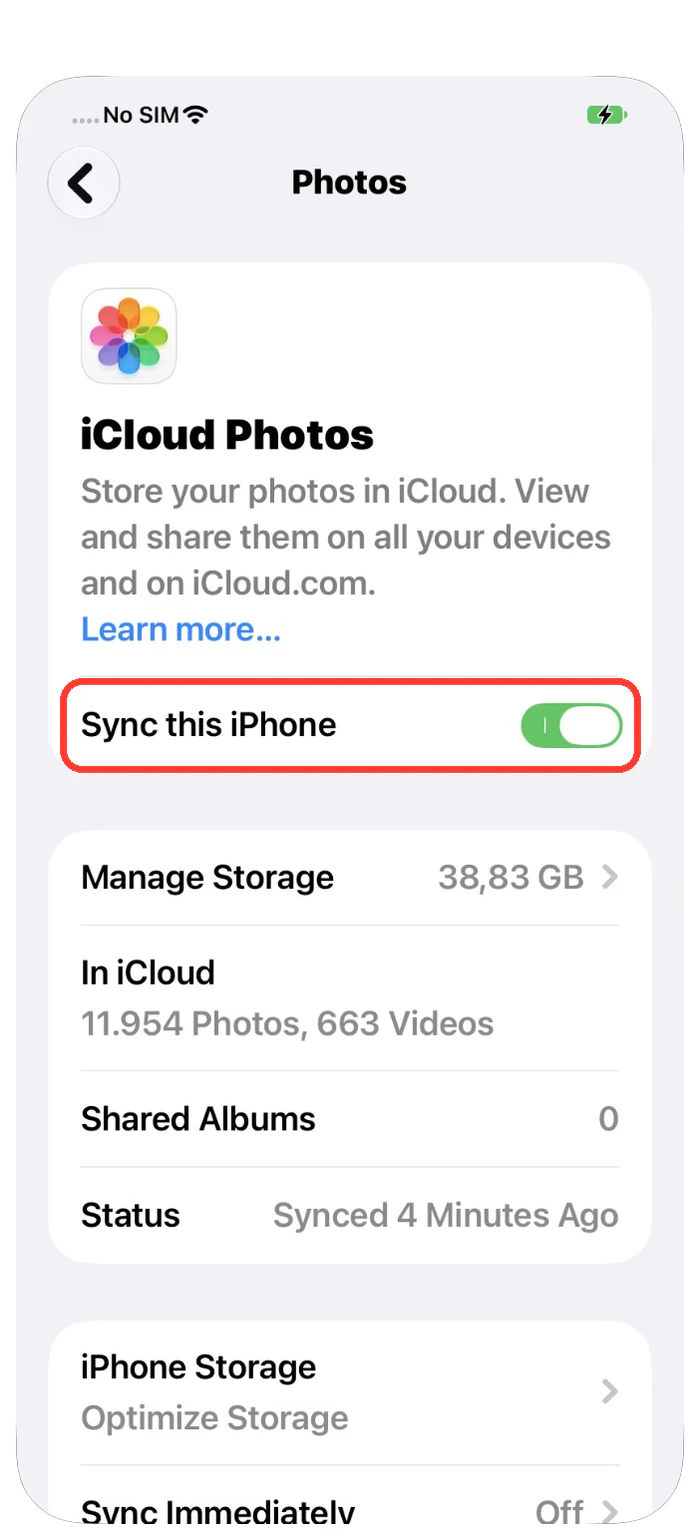
If iCloud Photos is paused, your iPhone may not finish removing what you deleted. Settings tells you exactly what it is doing.
Do this:
- Open Settings, tap your name, tap iCloud, then tap Photos.
- Make sure Sync this iPhone is turned on (green).
- Read the Status line. It says Synced, or how many items are still syncing, or that syncing is paused.
- If it is paused or slow, plug your iPhone into power and connect to Wi-Fi. Big libraries can need a whole night, so check again in the morning.
4. Turn on Optimize iPhone Storage
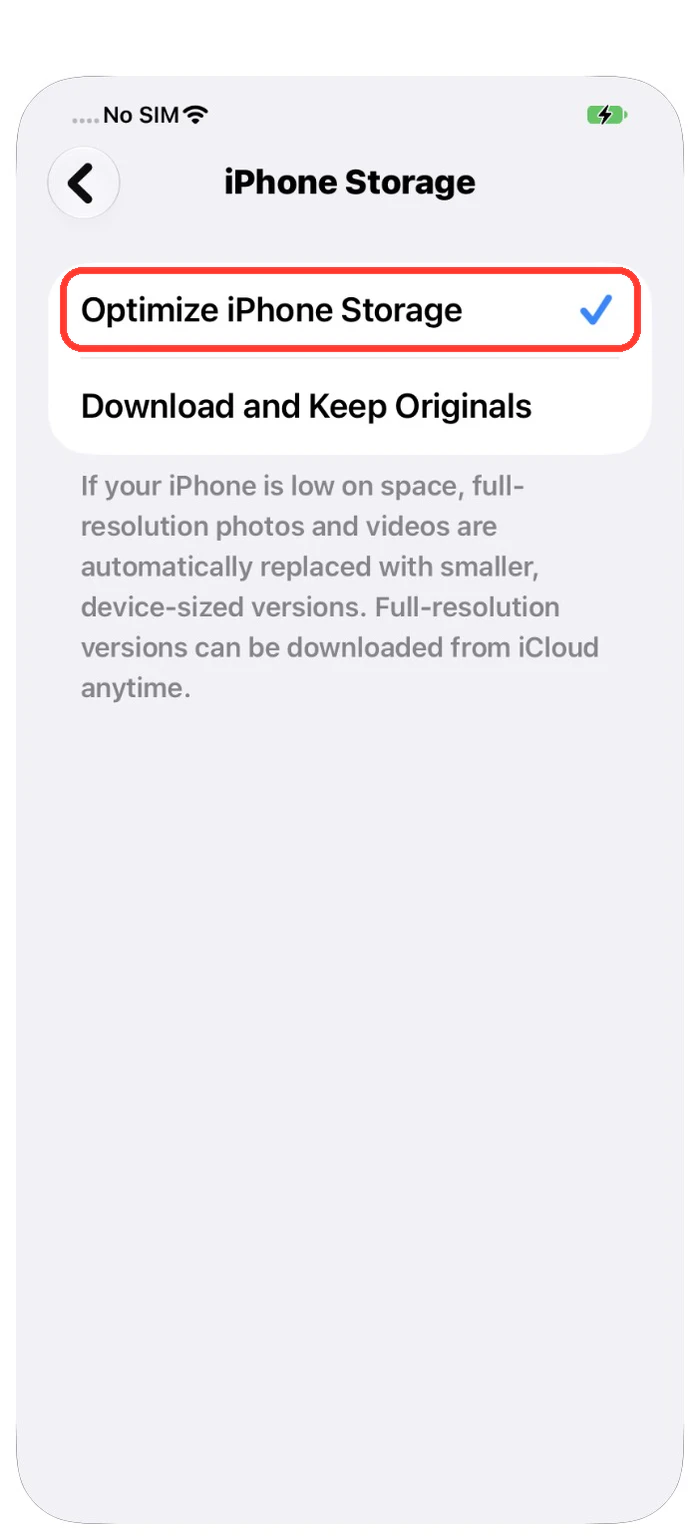
With this setting, the iPhone keeps small copies of your photos and iCloud keeps the big originals. It is like keeping small photo prints at home and the large posters in a storage unit.
Do this:
- Open Settings, tap your name, then tap iCloud and Photos.
- Make sure syncing is on.
- Choose Optimize iPhone Storage. On some iOS versions you first tap an iPhone Storage row on that screen.
- Good to know: if this was already on, the photos you deleted were already small on the phone. That is why deleting them freed only a little space.
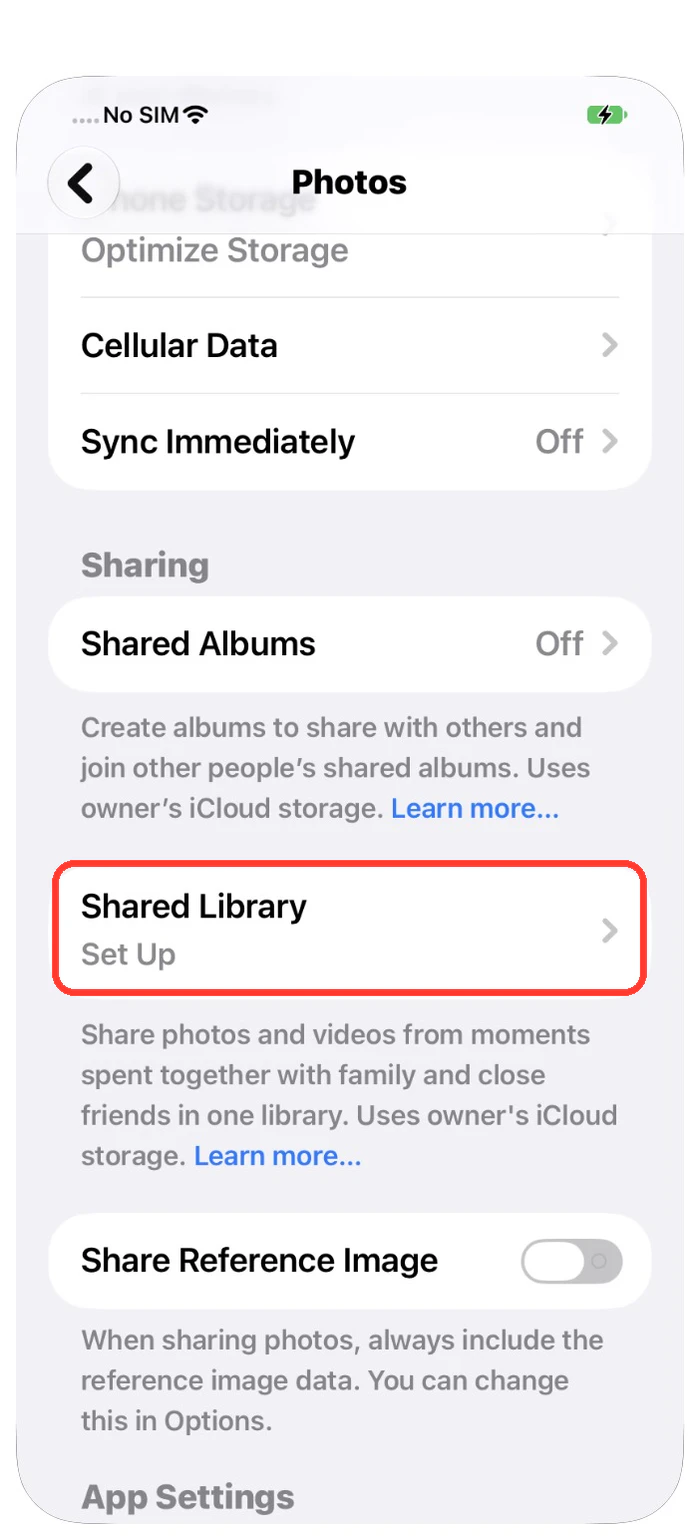
5. Check the Shared Library
If you share a photo library with your family, some photos live in a shared box. Moving a photo there can make it disappear from your own view, but it is not deleted. It still uses space.
Do this:
- Open Settings, tap Apps, then tap Photos.
- Look at Shared Library. If it says Set Up, you do not use one, and you can skip this step.
- If you do use one, open Photos and switch between Personal Library and Shared Library to see where your photos are.
- Remember: anyone in the Shared Library can delete shared photos, and that removes them for everyone. Shared photos count toward the iCloud storage of the person who created the library.
6. Give iPhone Storage time to update
The iPhone Storage screen does not always update right away. It is like a scoreboard that waits a moment before it changes the numbers.
Do this:
- Write down the free space and the Photos number in Settings → General → iPhone Storage.
- Wait until any Photos sync has finished.
- Open the same screen again and compare the two numbers.
- If Photos got smaller but free space barely moved, look at the other big categories in the list. Downloads and message attachments are not part of your photo library.
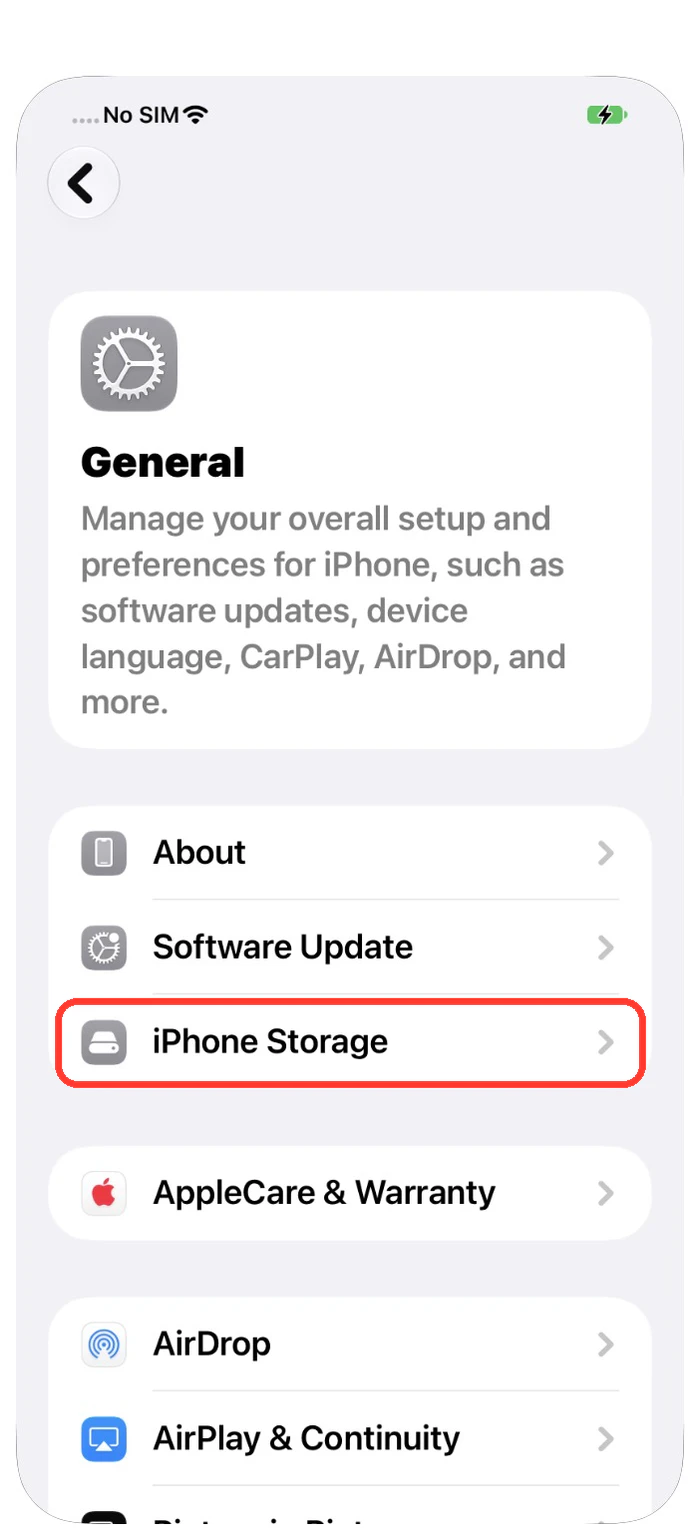
Apple's device storage guide · How to manage iPhone storage by category
7. Check videos, screen recordings, and screenshots
One long video can use more space than a hundred photos. Screenshots and screen recordings also pile up quietly.
Do this:
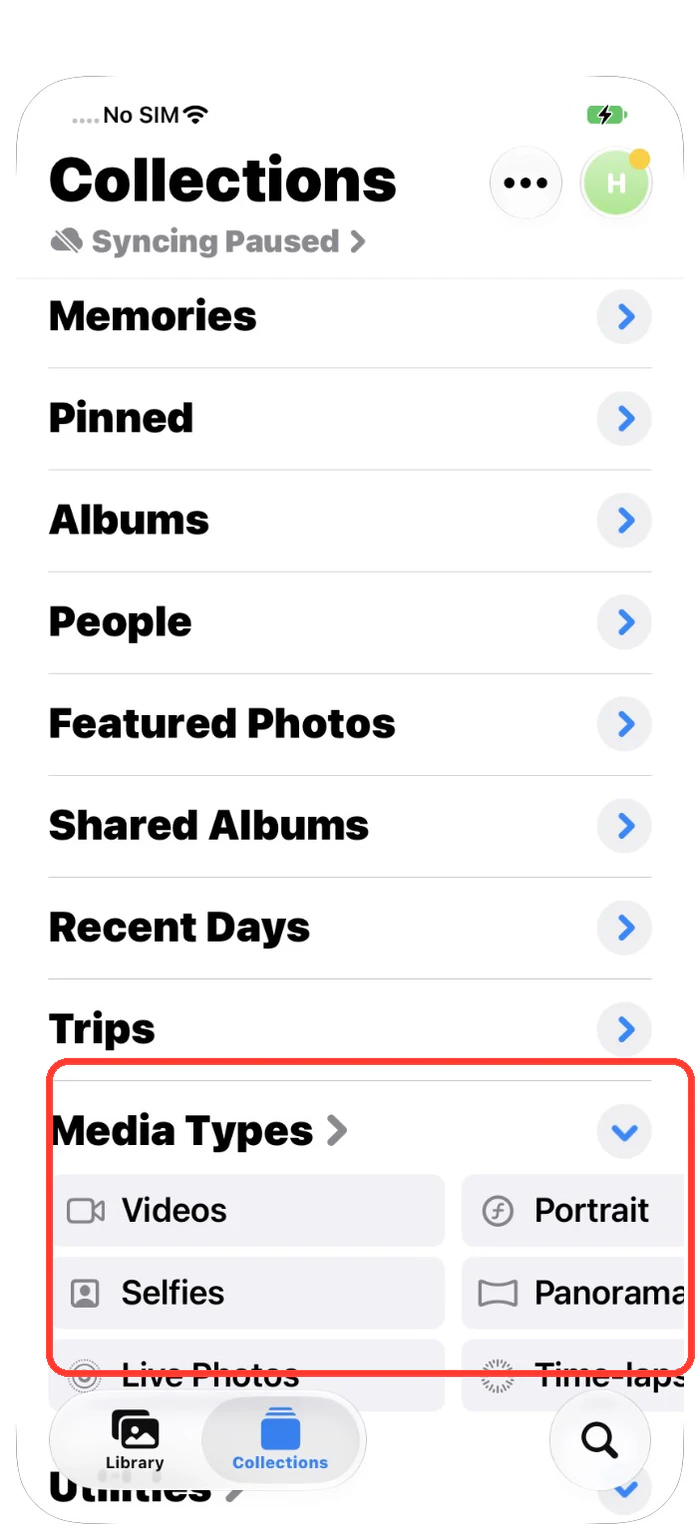
- In Photos, open Collections and find Media Types.
- Open Videos, then Screenshots, then Screen Recordings if you have them.
- Start with the long videos you know you saved somewhere else.
- Removing a photo from an album does not delete it. Use the trash button, then empty Recently Deleted.
8. Clean up duplicate photos with Photos Cleaner
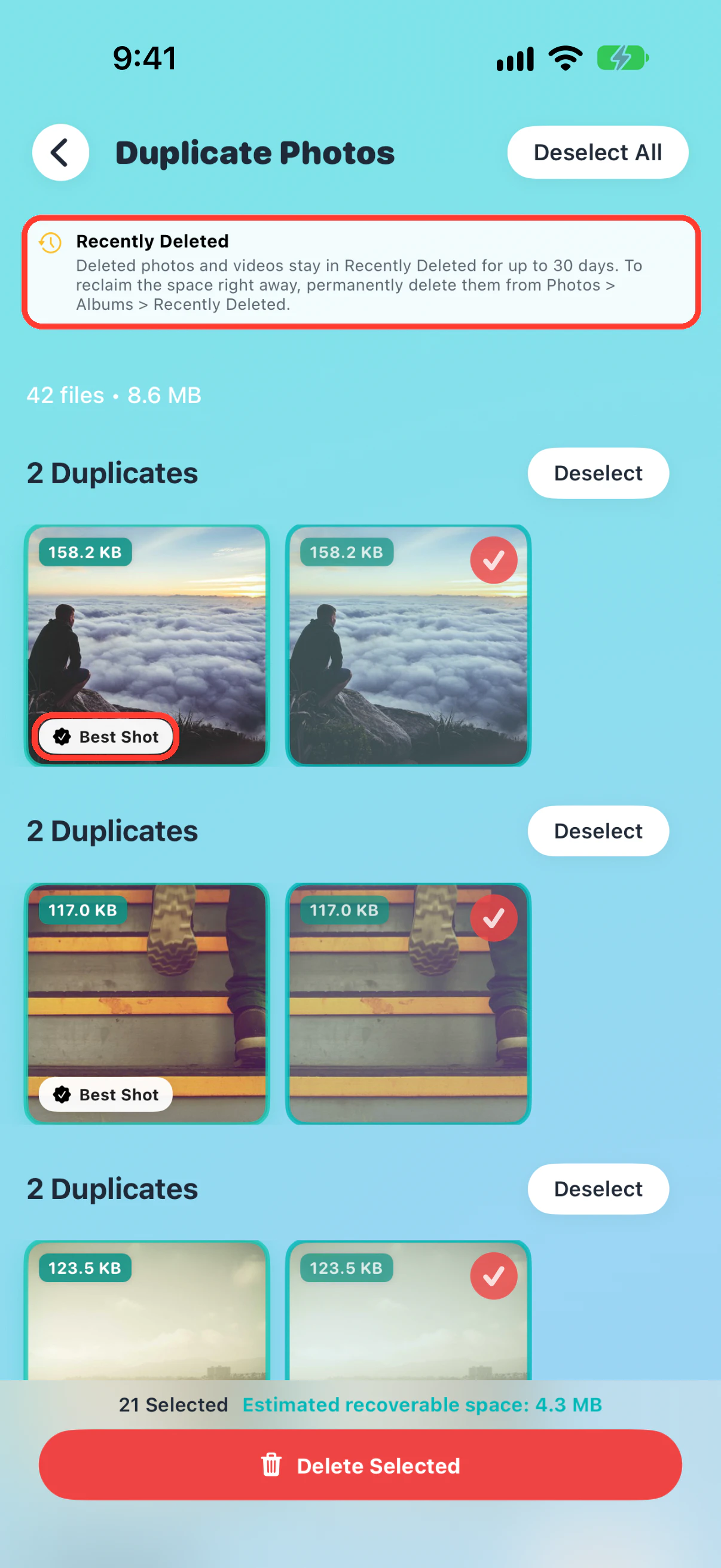
Many libraries have the same photo saved two or three times. Each copy uses space. Photos Cleaner, our iPhone app, finds these copies and puts them in groups so you can check them yourself.
Do this:
- Open Photos Cleaner and tap Duplicate Photos on the home screen.
- Look at each group. The app marks one photo as Best Shot and keeps it.
- Check the photos that are selected for removal. Tap Deselect if you want to keep one.
- Tap Delete Selected. The app reminds you that deleted photos wait in Recently Deleted, so empty it afterward to get the space back.
- Open iPhone Storage again to see the real change.
Dijital Worlds makes Photos Cleaner. The app is free to download. Removing selected duplicates in the app needs Premium.
Explore Photos Cleaner: Cleanup Phone · View on the App Store · How to delete duplicate photos on iPhone
Frequently asked questions
Why didn't my iPhone storage go down after I deleted photos?
Most of the time the photos are still in Recently Deleted, which keeps them for up to 30 days. Empty that album, then check Settings → General → iPhone Storage again.
How long does iPhone Storage take to update after I delete photos?
Apple does not give a fixed time. Wait until any iCloud Photos sync finishes, then open the iPhone Storage screen again and compare the Photos number and the free space.
Can I free iPhone storage without deleting photos from iCloud?
Yes. Turn on Optimize iPhone Storage in iCloud Photos settings. The iPhone keeps smaller copies and iCloud keeps the full-size originals.
Does deleting a photo on my iPhone delete it from iCloud too?
Yes, if iCloud Photos is on. The photo is removed from every device that uses the same library. Save a copy first if you want to keep it.
Related guides
· 9 min read
How to Check & Manage iPhone Storage (2026 Guide)
Learn how to check iPhone storage usage and free up gigabytes safely: trim Photos, large videos, Messages, App Data, and System Data step by step.

· 6 min read
How to Delete Duplicate Photos on iPhone (Fast & Safe)
Step-by-step guide to find and delete duplicate photos on iPhone, free up storage, and prevent duplicates from coming back.
· 9 min read
How to Organize Screenshots on iPhone by Category
Sort iPhone screenshots into groups like tickets and receipts, keep the important ones safe and find any screenshot fast. Easy steps with real screens.

Ready when you are
Download Photos Cleaner - Cleanup Phone for iPhone
Remove duplicate photos, compress videos, and organize contacts with a privacy-first cleanup flow.

By using Photos Cleaner - Cleanup Phone, you agree to our Terms of Use and Privacy Policy.