DaisyDisk Alternative for Mac: DaisyDisk vs Smart Cleaner AI
Looking for a DaisyDisk alternative for Mac? Compare DaisyDisk and Smart Cleaner AI: the disk map, finding copies, how files are deleted, price and macOS version.

Think of a big box of coloured tiles. You can lay them out as a round wheel, with ring after ring around the middle. Or you can sort them into a tray, with a big square for each big pile. Both pictures show the same tiles. They just look different.
DaisyDisk and Smart Cleaner AI both draw a picture of your Mac's disk like this. DaisyDisk draws a round wheel. Smart Cleaner AI draws bubbles and squares, and it also has pages that look for copies and leftovers. We make Smart Cleaner AI, so we say that openly. For DaisyDisk we read its own guide, its price page and the Mac App Store on November 18, 2026. We did not time the two apps, and we did not count how much space each one frees.
1. A round map or a bubble map
DaisyDisk draws your disk as a round wheel. Its guide calls it a sunburst. The middle is the disk. Each ring around it goes one folder deeper. A wide piece is a big folder. Click a piece and the wheel shows only that folder. This is very good when one folder is too big and you want to follow it down to the files inside.
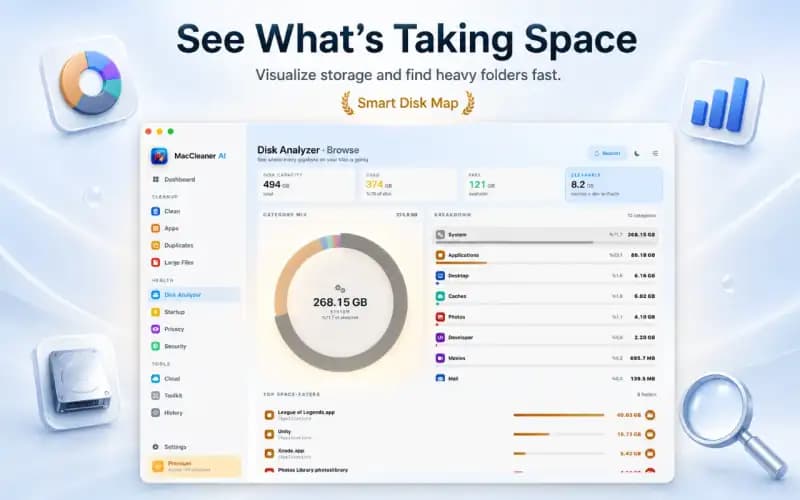
In Smart Cleaner AI the map is called Space Atlas. Each group is a bubble, and a bigger bubble takes more space. Click a group to open the folders inside it. Looking at the map is free in both apps.
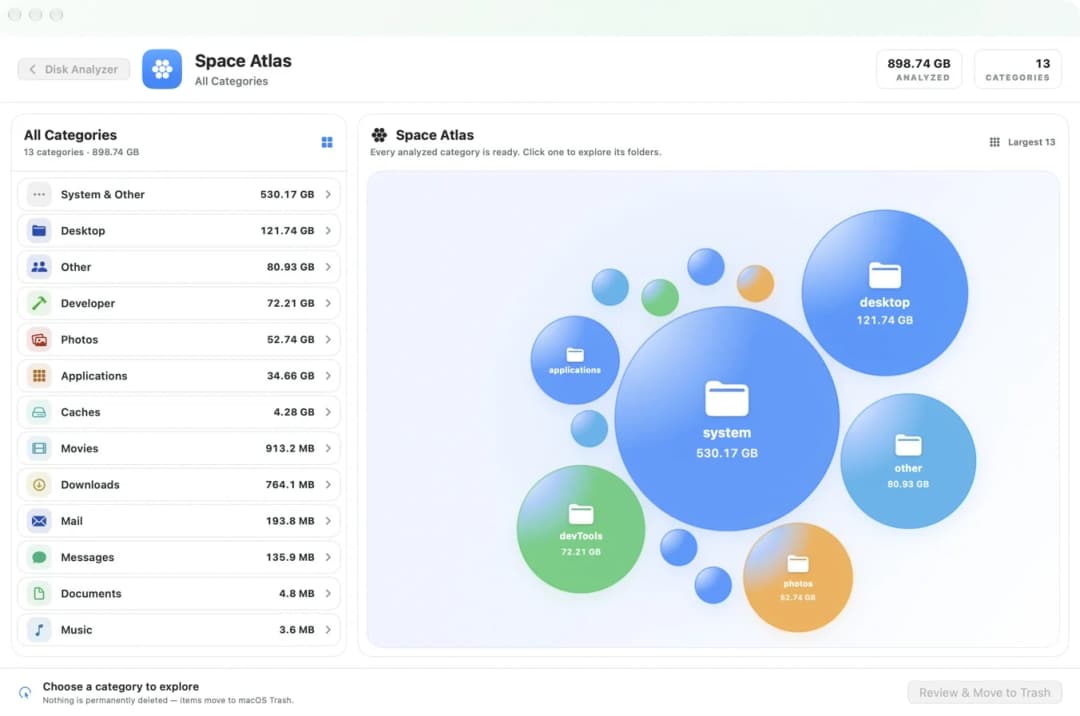
2. The same disk as squares
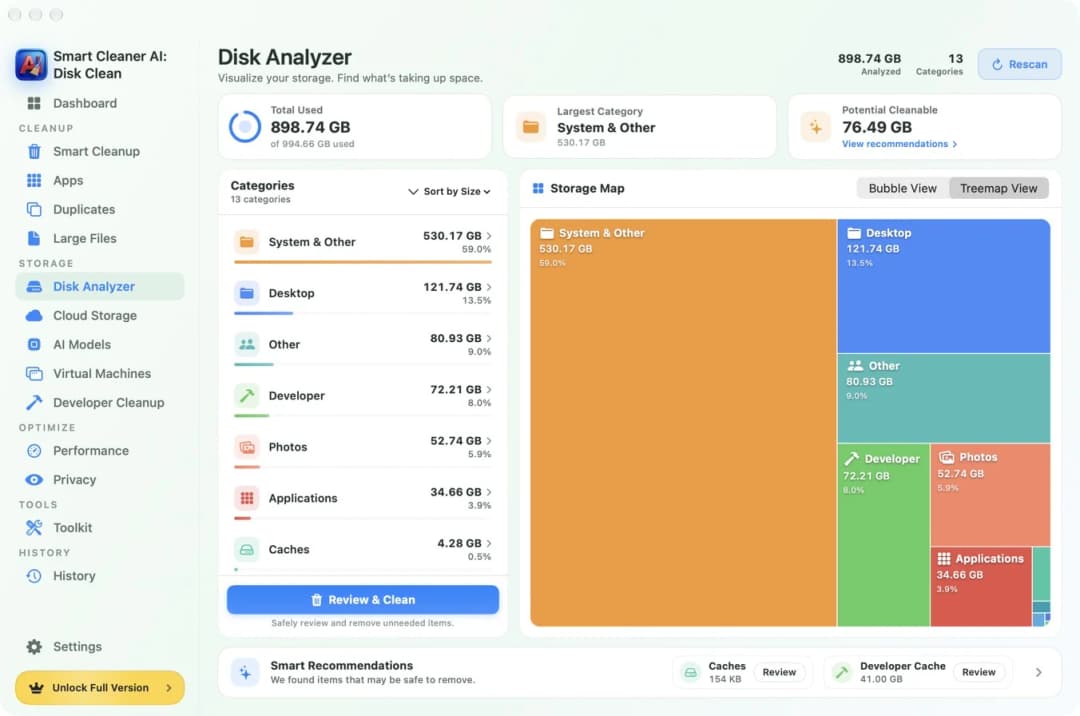
Some people read squares more easily than rings. Smart Cleaner AI has a second page called Disk Analyzer. Click Treemap View there, and the disk turns into rectangles. A bigger rectangle is a bigger group.
DaisyDisk stays with its wheel, and it does that one job very well. It also lets you preview a file before you decide. So if you love the wheel, DaisyDisk is a fine choice. If you want to switch between bubbles and squares, look at Smart Cleaner AI.
3. Finding copies
Copies are like two of the same tile. You only need one. DaisyDisk does not look for copies. Its own FAQ says that finding duplicate files would need a separate app.
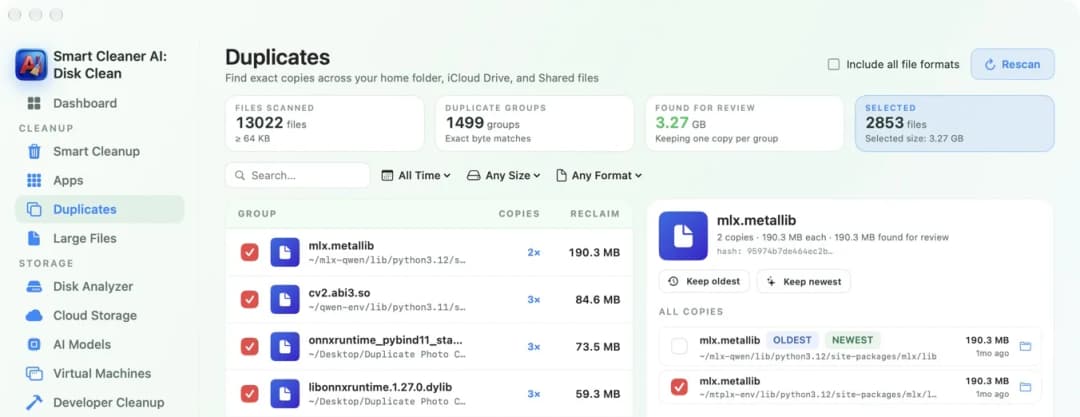
In Smart Cleaner AI, open Duplicates. It finds exact copies and puts them into groups. In each group one copy stays. Looking at the groups is free.
4. Caches and leftovers
A map shows you where the space went. It does not tell you what a folder is for. In DaisyDisk you find the big folder yourself and decide yourself.
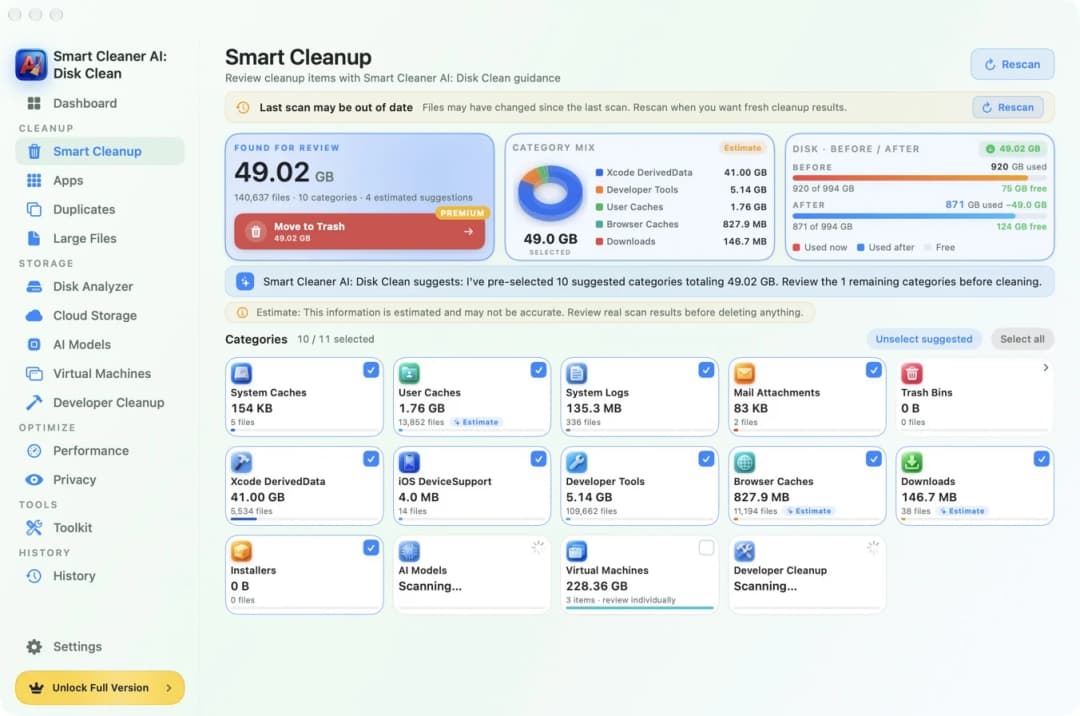
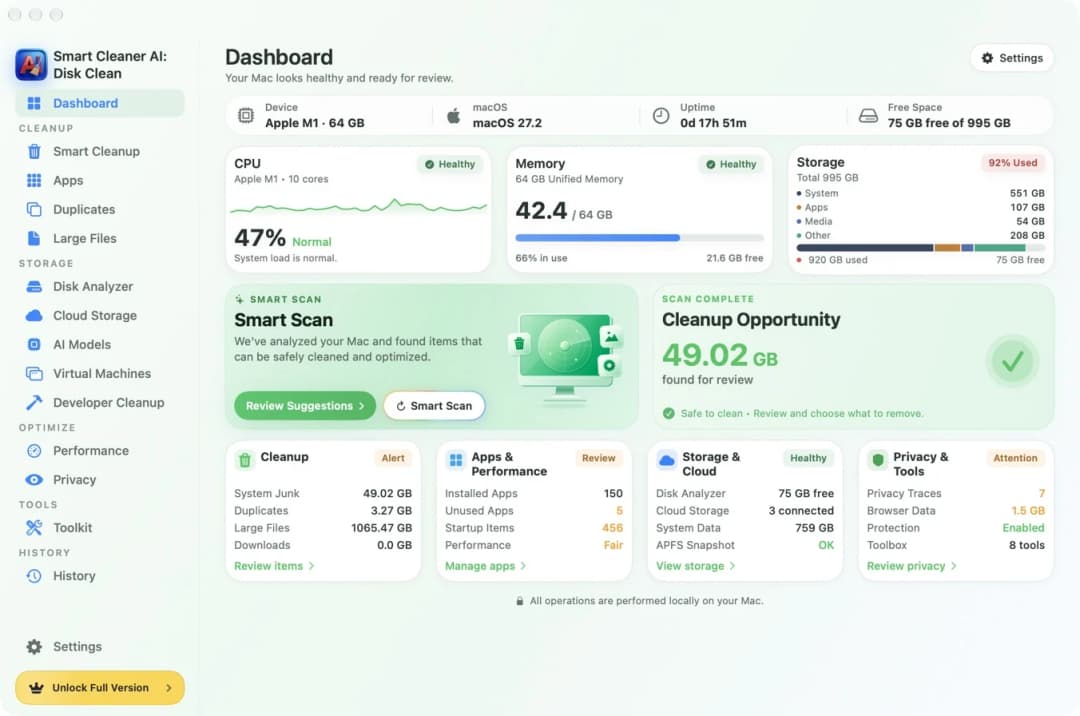
Smart Cleaner AI has a page called Smart Cleanup. It puts files into groups, each on its own card with a size and a tick box. You look at the cards and tick only what you want. Caches can come back, because apps build them again when they need them.
5. Trash or gone forever
This is the most important difference. In DaisyDisk you drag things to a place called the Collector. They stay on the disk until you click Delete. Then you have 5 seconds to click Cancel. After that DaisyDisk deletes the files for good. They do not go to the Trash. Its guide says these files cannot be undeleted. So look into the Collector before you click, and keep a backup of things you cannot get again.
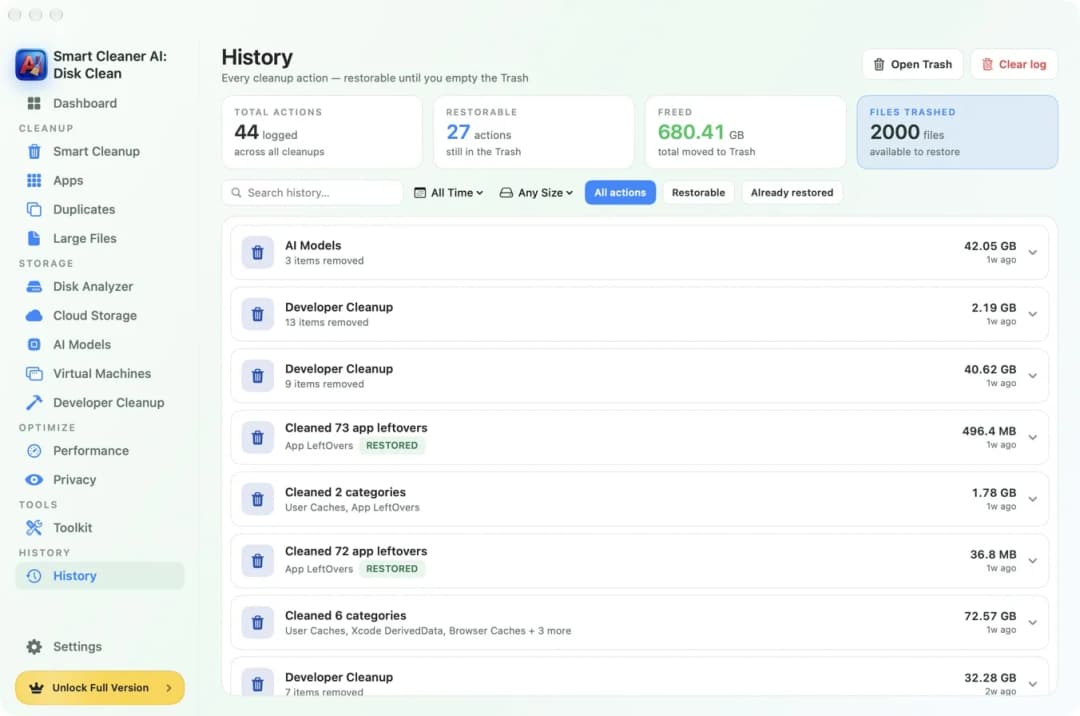
Smart Cleaner AI moves the things you picked to the Trash. That needs Pro. The History page lists each cleanup and shows how many are still restorable. The space only comes back when you empty the Trash.
6. Price, free part and your Mac
DaisyDisk costs $9.99 once on its website and in the US Mac App Store. That was the price on November 18, 2026. The version from the website needs macOS 10.13 or later. The Mac App Store version needs macOS 12 or later. The free trial can scan, show the map and preview files. Deleting files and scanning as administrator need the full version.
Smart Cleaner AI is free to download. Scanning and looking stay free. In the US Mac App Store, Pro cost $5.99 a month, $12.99 a year or $24.99 once in November 2026. It needs macOS 14.6 or later, so it does not run on older Macs. Prices can be different in your country and can change, so read the price on the purchase page before you pay.
How to choose between DaisyDisk and Smart Cleaner AI
- 1
Name your main job
Decide what you want most: following one big folder, finding copies or looking at caches and leftovers.
- 2
Check your macOS version
Open the Apple menu and choose About This Mac. Compare the version with what each app needs.
- 3
Try the free part
Scan with the free part of an app and see if the map shows what you were looking for.
- 4
Read how files are deleted
Before you remove anything, read if it goes to the Trash or is deleted for good. Then read the price on the purchase page.
Frequently asked questions
Is there a free DaisyDisk alternative for Mac?▼
In Smart Cleaner AI, scanning, the map and the groups of copies are free. Removing things inside the app needs Pro. Your Mac also has its own overview: open System Settings, then General, then Storage.
Does DaisyDisk find duplicate files?▼
No. The DaisyDisk FAQ says it does not detect duplicate files and that this would need a separate app. Smart Cleaner AI has a Duplicates page that puts exact copies into groups.
Can I get files back after DaisyDisk deletes them?▼
Not from the Trash. DaisyDisk deletes files for good and does not move them to the Trash. Before that, you can still take a file out of the Collector, and after you click Delete you have 5 seconds to cancel. After that you need your own backup.
What do the two apps say about privacy?▼
In the US Mac App Store, the listings of DaisyDisk and of Smart Cleaner AI both say Data Not Collected. We read these labels. We did not test DaisyDisk ourselves.
Which one runs on an older Mac?▼
DaisyDisk from its website needs macOS 10.13 or later, and the Mac App Store version needs macOS 12 or later. Smart Cleaner AI needs macOS 14.6 or later, so it is only for newer systems.

Look First, Then Decide
Smart Cleaner AI shows what fills your Mac as bubbles or squares and finds exact copies. Scanning and looking are free. You decide yourself what goes to the Trash.

Sources
We built a custom disk scan algorithm for Smart Cleaner AI so you can quickly see what’s taking up space and review what to clean.
Related guides

· 9 min read
Cleaner One Pro vs MacCleaner Pro vs Smart Cleaner AI
Cleaner One Pro, MacCleaner Pro or Smart Cleaner AI? Compare what each Mac cleaner shows for free, how it removes files, what it costs and which macOS it needs.
· 9 min read
What Is Taking Up Space on My Mac?
Your Mac is like a house with rooms you never open. See what fills each room with the macOS storage bar, Disk Analyzer and Space Atlas, and tidy up safely.

· 9 min read
How to Find Duplicate Files on Mac
The same file often lives on your Mac two or three times. See how to find duplicate files with Smart Cleaner AI, check each copy and keep just one.

Ready when you are
Download Smart Cleaner AI for Mac
Analyze Mac storage, safely clear system data caches, find large files, and remove app leftovers with on-device controls.
By using Smart Cleaner AI, you agree to our Terms of Use and Privacy Policy.