How Much Storage Does Apple Intelligence Use?
Apple Intelligence needs up to 14 GB on newer iPhones and Macs and up to 8 GB on others. See your free space and make room in 5 easy steps.
Apple Intelligence is the smart helper inside iOS 27 and macOS 27. It keeps its own files on your iPhone or Mac, and those files need room. If your phone is almost full, there may be no room left for it. This guide tells you how much space it needs, how to see your free space, and how to make room in five easy steps.
We make Photos Cleaner - Cleanup Phone, an iPhone cleanup app, and we say so openly. You can do the first four steps with the settings on your iPhone and Mac alone.
1. Know how much room it needs
Apple Intelligence works on your device, so it keeps its files there. Apple says how much room it needs, and the number depends on your device.
- Up to 14 GB on iPhone 17 Pro and later, iPhone Air and iPhone Duo.
- Up to 14 GB on Macs with M3 or later and at least 12 GB of memory.
- Up to 8 GB on the other iPhones and Macs that can use it.
So if your iPhone has only a few GB free, Apple Intelligence may not fit. Think of it like a big toy box: you need an empty shelf before you can bring it home.
2. See what takes the most room on your iPhone
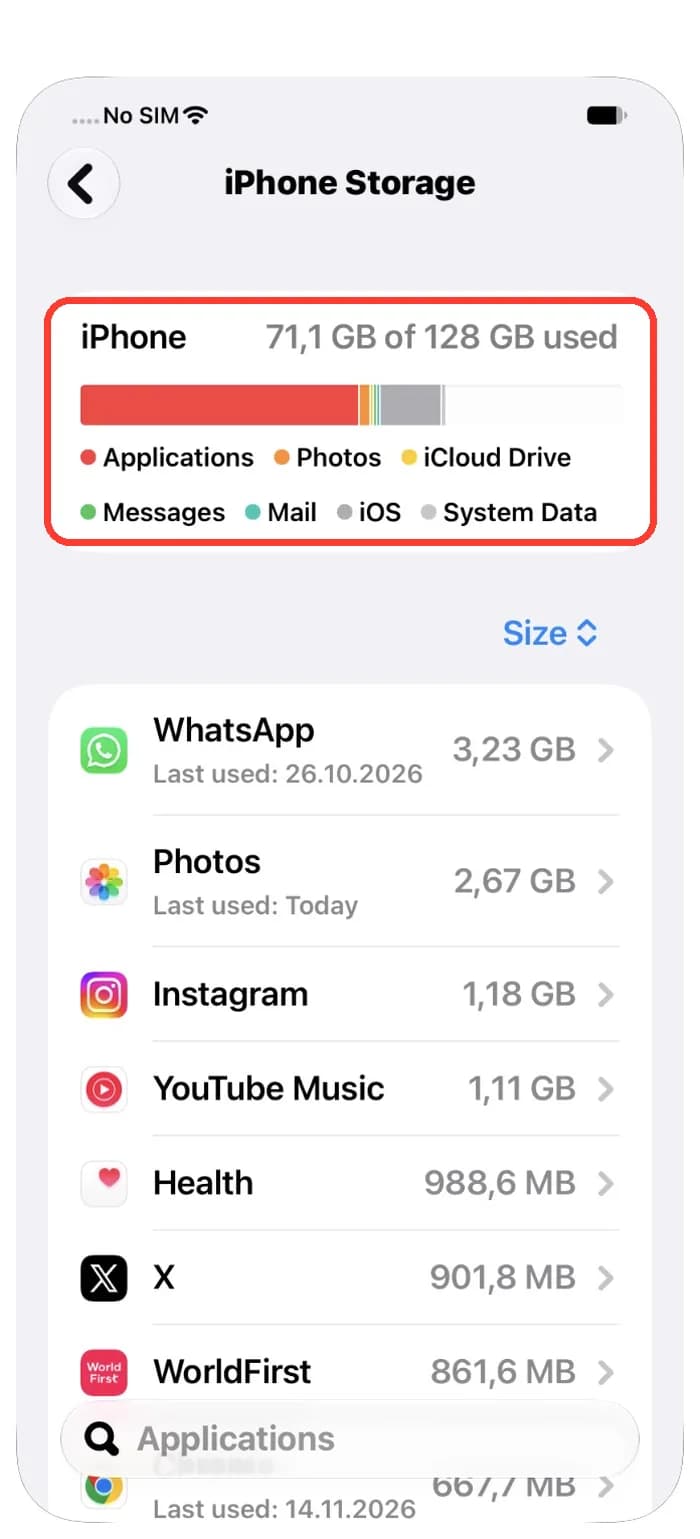
Now look at your iPhone. It has a page that lists every app and how much room it uses.
- Open Settings and tap General.
- Tap iPhone Storage and wait a moment while it counts.
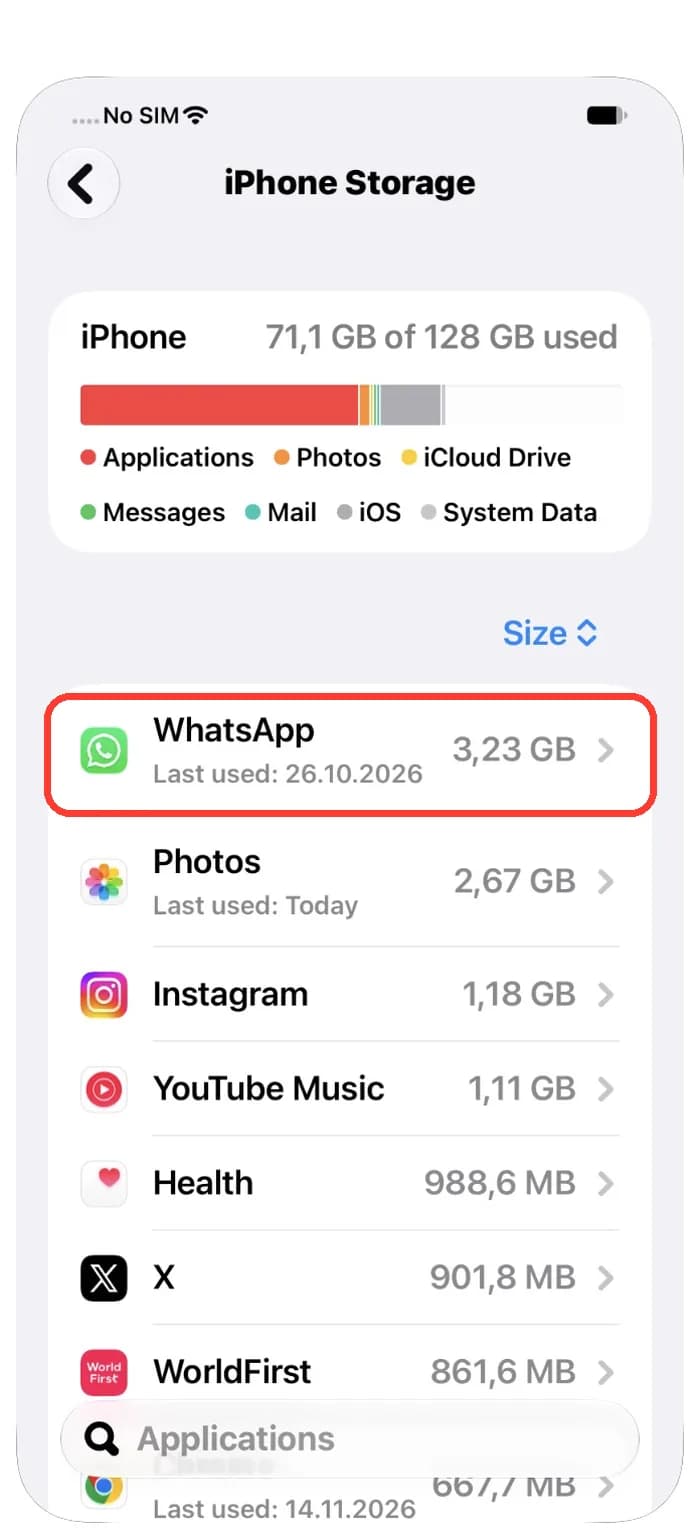
- Look at the list under the bar. The biggest apps are at the top.
Big apps are often chat apps, photos and music. You do not have to delete an app. Often you can clear its old videos or downloads inside the app.
3. Check your Mac too
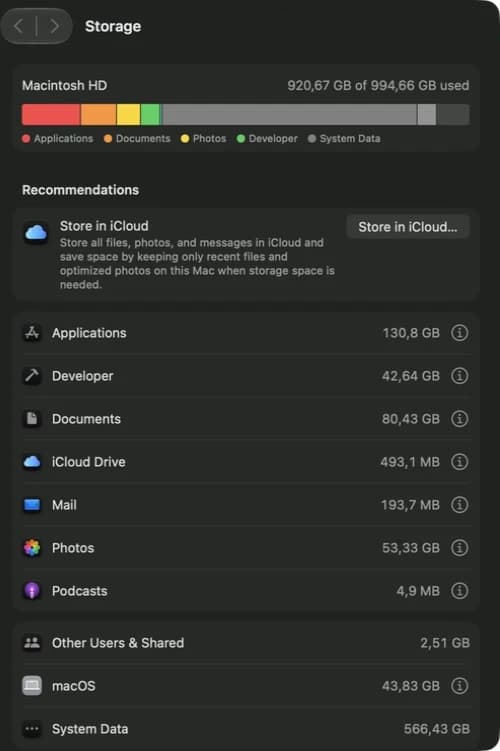
Your Mac has the same kind of page. It shows how full the disk is and what fills it.
- Click the Apple menu and choose System Settings.
- Click General, then click Storage.
- Wait while your Mac counts, then look at the bar and the list.
If the free space is smaller than what Apple Intelligence needs, start with the biggest line in the list. Storage settings also give tips, like storing files in iCloud.
4. Leave extra room for updates
When you update your iPhone or Mac, Apple Intelligence gets new files. Apple says it can use more space than usual during an update and shortly after, while new files come in and old ones go away.
- Keep some extra space free before you update.
- After the update, give your device a day.
- Check the free space again the next day.
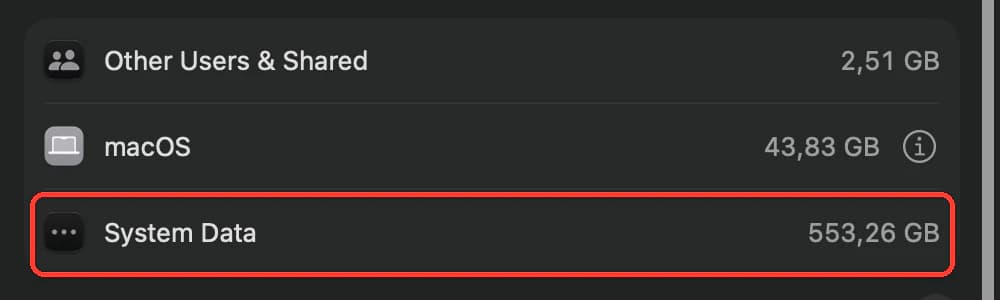
Do not try to delete system files to get this space back. Your device cleans up the old files by itself.
5. Make room in your photos and videos
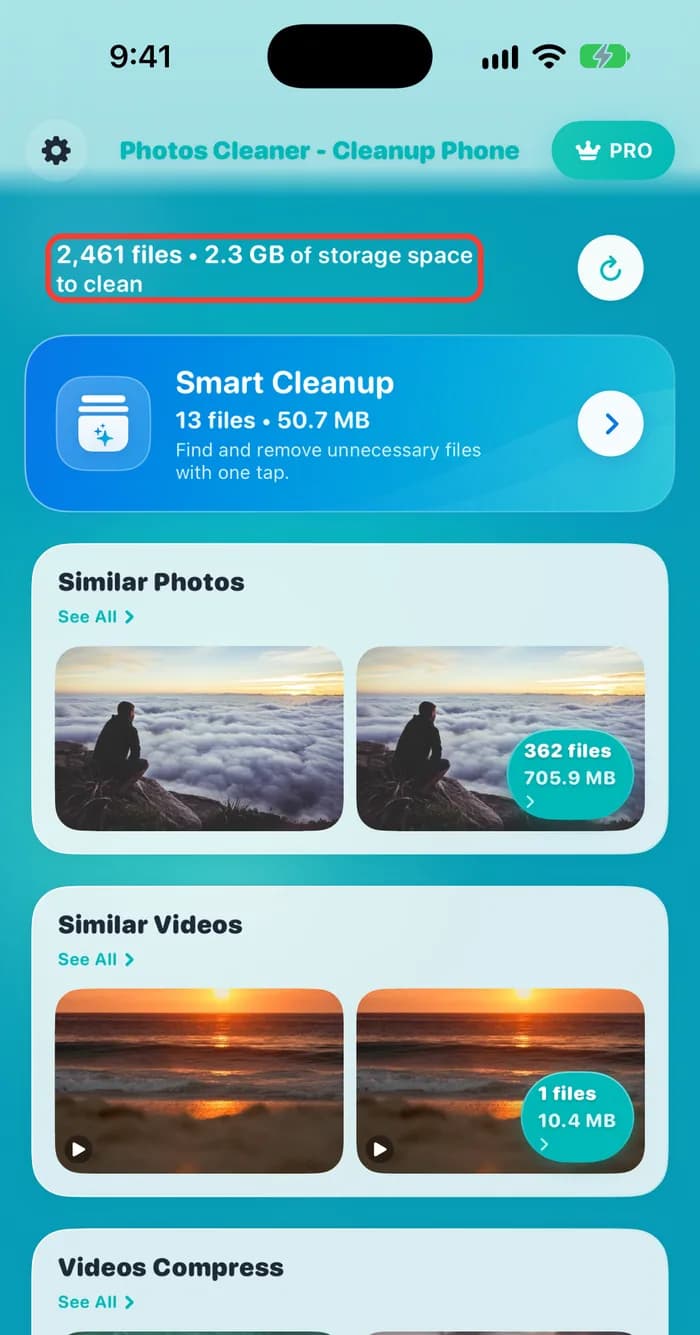
Photos and videos are often the biggest thing on an iPhone. Many of them are copies or almost the same picture. Photos Cleaner - Cleanup Phone, our app, finds them for you.
- Open Photos Cleaner and let it scan your photos.
- Look at the top. It shows how many files and how many GB you could clean.
- Open Similar Photos or Similar Videos and check each group.
- Delete only what you do not want, then empty Recently Deleted in Photos.
Deleted photos wait in Recently Deleted for up to 30 days and still use space while they wait. Empty it to get the room back now.
How to make room for Apple Intelligence
- 1
Know the number
Apple Intelligence needs up to 14 GB or up to 8 GB, based on your device.
- 2
Check your iPhone
Open Settings, General, iPhone Storage and look at the biggest apps.
- 3
Check your Mac
Open System Settings, General, Storage and look at the biggest lines.
- 4
Keep room for updates
Leave extra space free before an update and wait a day after it.
- 5
Clean photos and videos
Remove copies and similar shots, then empty Recently Deleted.
Frequently asked questions
How much storage does Apple Intelligence use?▼
Apple says up to 14 GB on iPhone 17 Pro and later, iPhone Air, iPhone Duo and Macs with M3 or later and at least 12 GB of memory. Other iPhones and Macs that support it need up to 8 GB.
Which iPhones and Macs can use Apple Intelligence?▼
Apple lists iPhone 15 Pro, iPhone 15 Pro Max, iPhone 16 and later, iPhone Air, iPhone Duo, and Macs with M1 or later. Your device also needs iOS 27 or macOS 27.
Why does it use more space right after an update?▼
During an update and shortly after, new Apple Intelligence files come in before the old ones are removed. Apple says it can go over the normal amount for a short time.
Why can I not turn on Apple Intelligence?▼
Your device has to be on the list, and the device language and the Siri language must be the same supported language. If you just changed the Siri language, wait until the new language finishes downloading.
Does Apple Intelligence need space on Apple Watch?▼
Yes. Apple says up to 1.5 GB on Apple Watch.
Can I delete Apple Intelligence files by hand?▼
No. They are system files, and your device manages them. Make room by removing your own things, like old videos, copies of photos and apps you do not use.

Make room for what matters
Photos Cleaner - Cleanup Phone finds copies, similar shots and big videos, and shows what you get back before you delete anything.

Sources
Related guides

· 9 min read
Why Does My iPhone Storage Keep Filling Up?
Your iPhone storage fills up again because photos, messages and app data keep growing. Find what grows, then change a few settings so it stays free.

· 9 min read
Mac Storage Full After the macOS 27 Update? Fix It
Your Mac storage got full after the macOS 27 update? See why: update files, snapshots and Apple Intelligence. Then free space safely in 5 steps.

· 9 min read
Why Is My Mac Storage Full? How to Find What Fills It
Mac storage full and you do not know why? See what fills the disk, why deleting files does not free space, and how to make room safely.
Ready when you are
Download Photos Cleaner - Cleanup Phone for iPhone
Remove duplicate photos, compress videos, and organize contacts with a privacy-first cleanup flow.

By using Photos Cleaner - Cleanup Phone, you agree to our Terms of Use and Privacy Policy.