iPhone Photos Taking Up Space Even With iCloud? Explained
Learn why Photos still uses iPhone storage with iCloud, what Optimize iPhone Storage changes, and how to check your local space and iCloud quota.


If Photos still takes up several gigabytes after you turn on iCloud Photos, your library may be working exactly as intended. iCloud Photos syncs your library. Even with Optimize iPhone Storage enabled, your iPhone keeps space-saving versions of photos and videos and can download originals when you open or edit them. Start by checking which storage number is actually causing the problem.
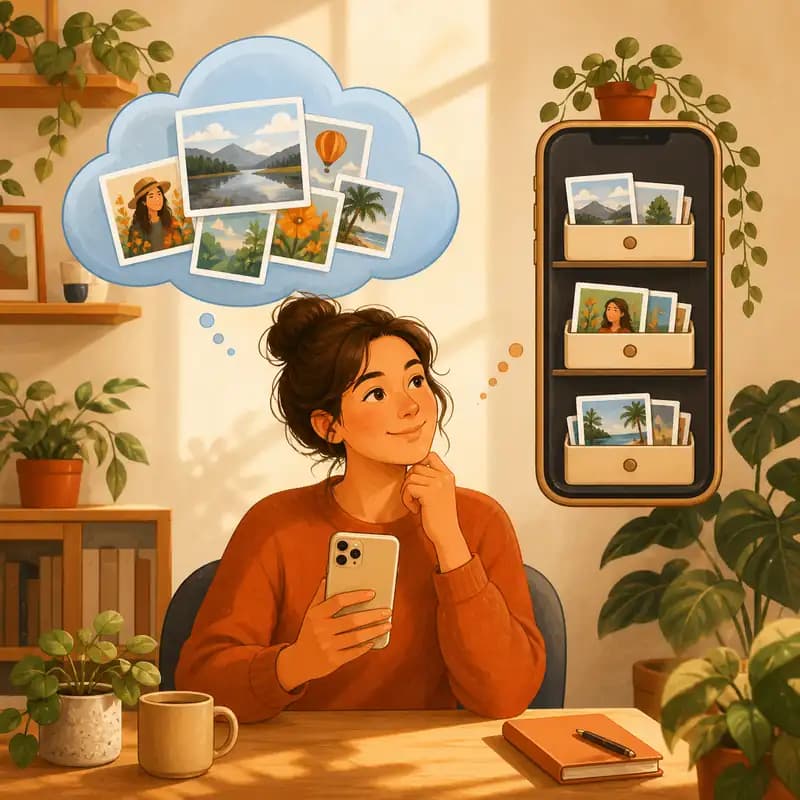
Think of iCloud Photos like a big photo album at a friend's house and your iPhone like a small pocket album. The big album keeps every original. Your pocket album keeps smaller copies so it stays light, and it can fetch the full photo when you open it.
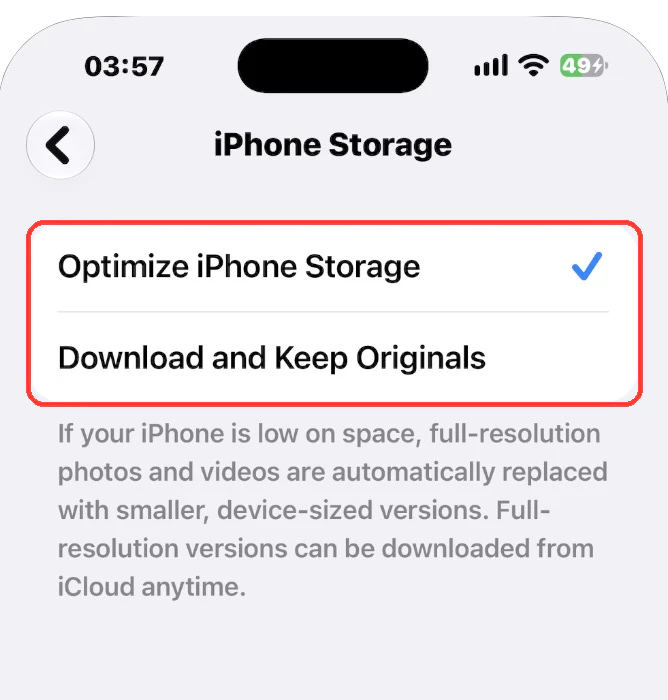
Optimize iPhone Storage vs. Download and Keep Originals
Optimize iPhone Storage keeps full-resolution originals in iCloud once they sync. Your iPhone can keep smaller versions and some originals on the device. Apple says optimization starts with the items you access least when the phone needs space. Switching modes does not set a target size or immediately remove every downloaded original.
Download and Keep Originals keeps full-resolution photos and videos in iCloud and downloads full-resolution copies to your iPhone, space permitting. Choose it if you need offline access to your originals and have room for the library. Buying more iCloud storage does not increase the capacity of your iPhone.
Why Photos does not shrink right away
Apple does not publish a fixed size for an optimized library. Optimization is gradual: iOS replaces full-resolution files with smaller versions mainly when your iPhone needs space, not the moment you turn the setting on. A large library can still use many gigabytes on the device, and the number can drop only after storage gets tight. Photos and videos you delete also stay in Recently Deleted for up to 30 days, so check that album before you judge the result. Why Recently Deleted still takes up space
What the Photos number in iPhone Storage tells you
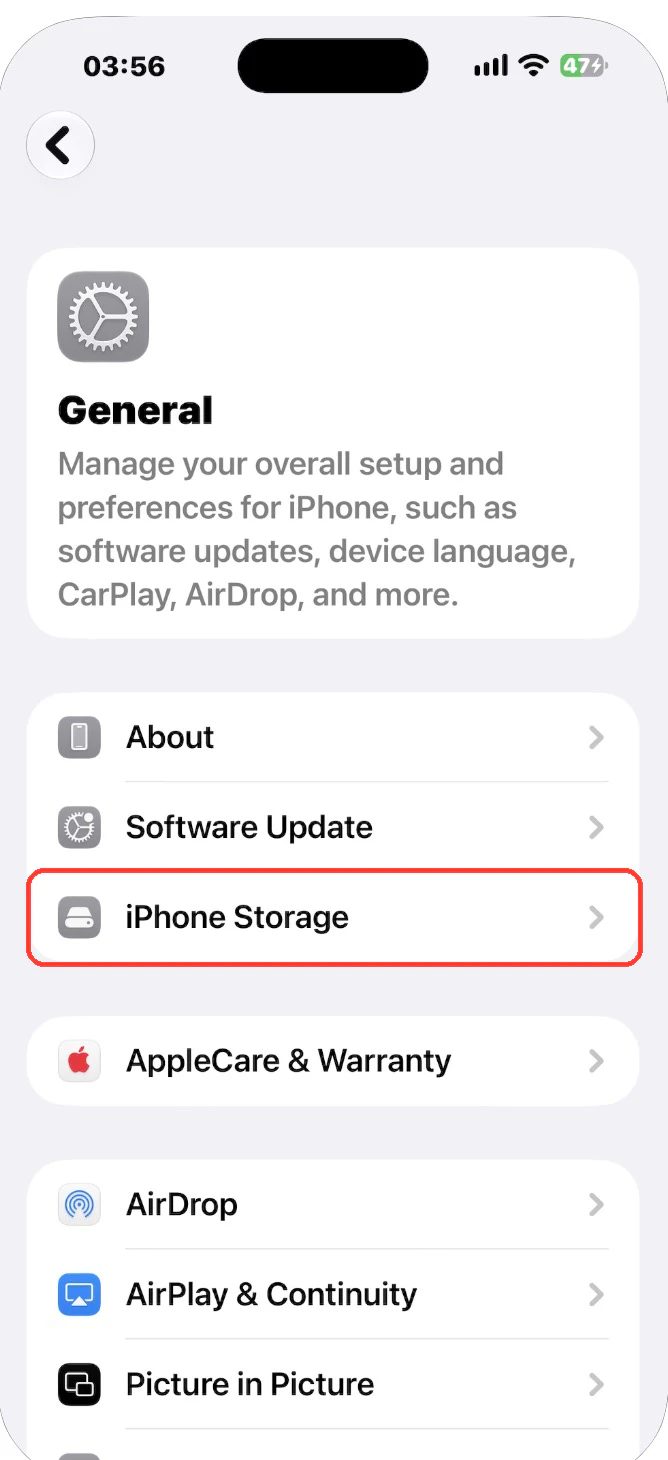
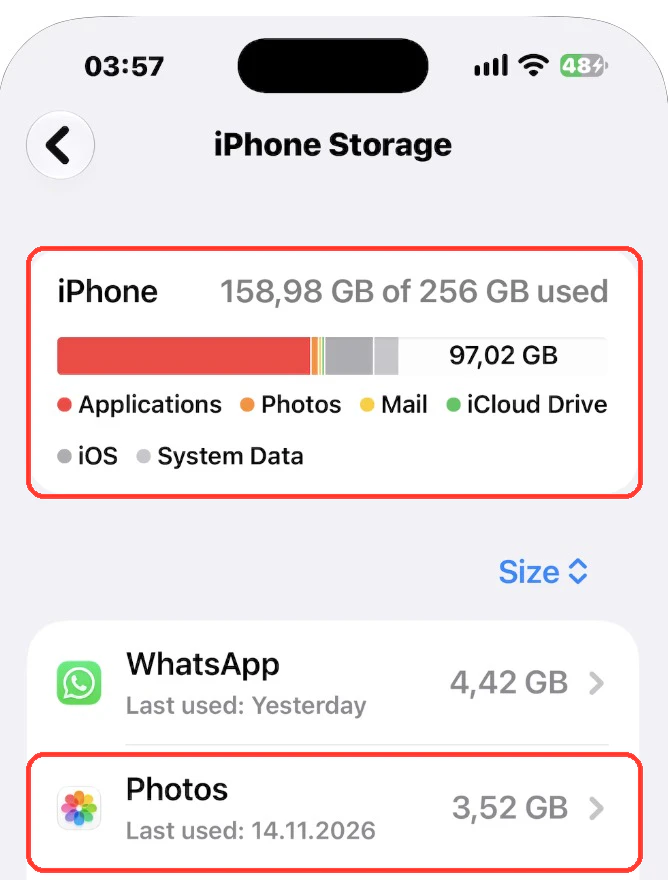
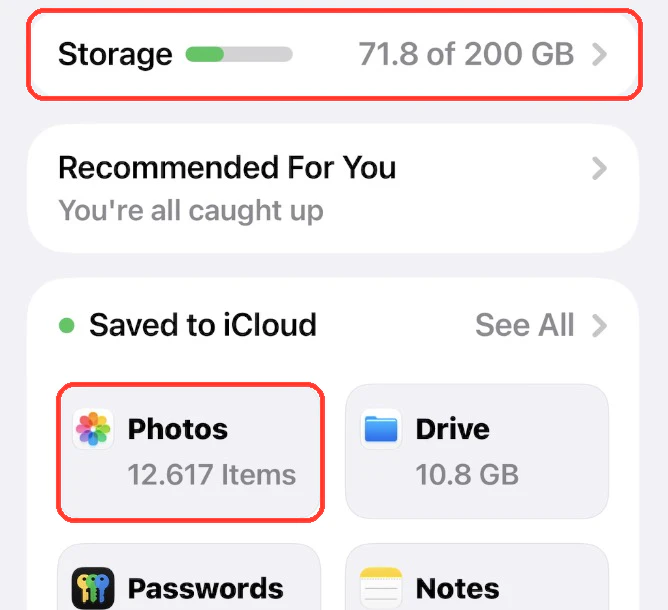
Go to Settings, then General, then iPhone Storage. The Photos entry shows device usage, while the iCloud screen under your Apple Account shows usage against your cloud plan. The Photos total does not show a file-by-file breakdown of thumbnails, previews, downloaded originals, or cache. Small local copies and thumbnails support library browsing. Temporary data can change as you view items, and iOS manages that data. A single total cannot tell you how much space a cache would free.
How Shared Albums affect storage
Shared Albums have their own rules. Legacy shared albums do not use your iCloud quota. Under Apple's newer Shared Albums rules for iOS 27 and later, new items generally count toward the album owner's quota, while existing items in an upgraded album remain exempt. Apple also exempts albums set to expire. When you save a shared photo or video to your personal library, that copy stays in your library and follows your own iCloud Photos and device storage settings. Shared Albums and iCloud Shared Photo Library are separate features.
How to check what is taking up space
- Compare the two meters. Open Settings, then General, then iPhone Storage to see whether Photos is the main local category. Open Settings, tap your name, then tap iCloud to check available cloud storage.
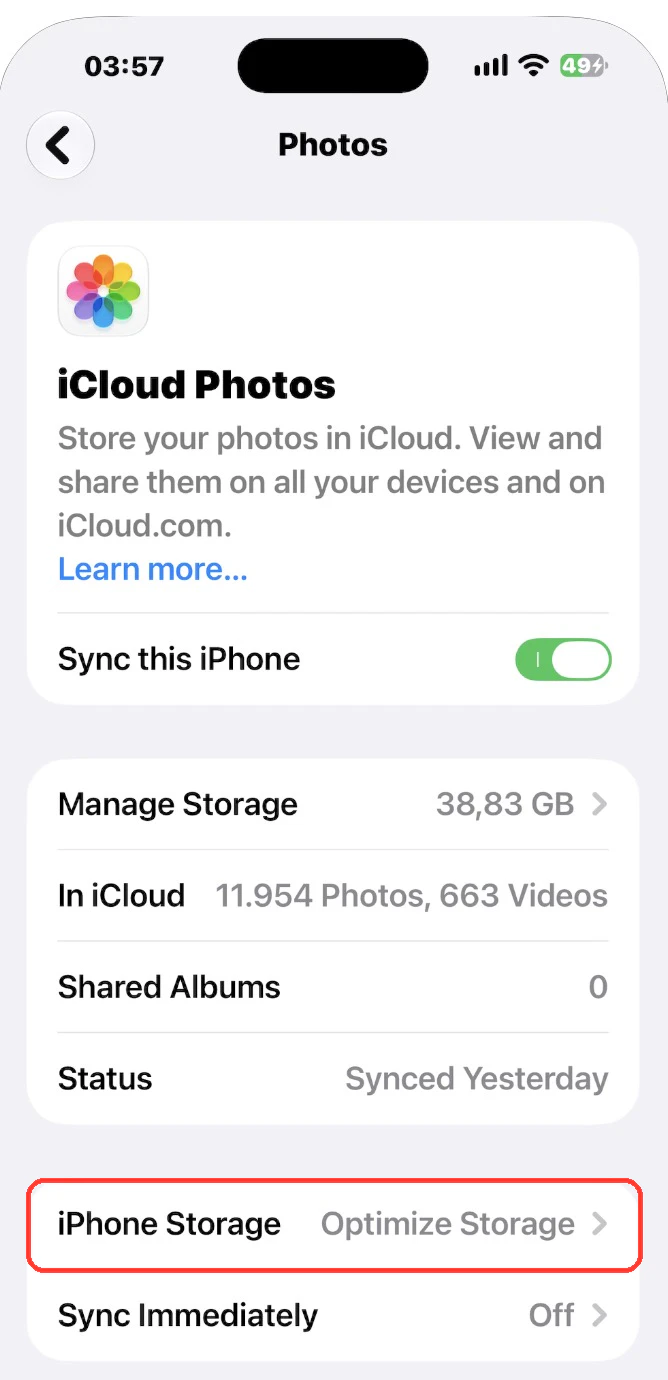
- Check the storage mode. In Settings, tap your name, then iCloud, then Photos. Make sure Sync this iPhone is on. Tap iPhone Storage and choose Optimize iPhone Storage if your goal is to reduce local usage. On older iOS versions, the two options appear directly on the Photos screen.
- Check whether Photos has finished syncing. Open Photos and look for the library status under your profile or at the bottom of the library on older iOS versions. Follow any status message. If iCloud is full, syncing can pause until you free cloud space or change plans. If the library is still uploading, give it time on Wi-Fi and power.
- Recheck iPhone Storage after sync progresses. If you need space sooner, review large videos and media you no longer want. With iCloud Photos enabled, deleting an item from your library also deletes it from other devices using that synced library. Export anything you want to keep before removing it.
- What to do if iCloud is full but your iPhone has space
- How to manage iPhone storage
- Why iPhone storage may stay high after deleting photos
| What you see | Likely cause | What to do |
|---|---|---|
| Photos still uses many GB after turning on iCloud Photos | Optimization only frees space when the iPhone needs it | Keep Optimize iPhone Storage on and recheck after a few days |
| Space did not change after deleting photos | Items are still in Recently Deleted | Empty Recently Deleted in Photos → Albums |
| iCloud is full and the library stops syncing | Uploads pause when the cloud quota is full | Free iCloud space or change plans, then let sync finish |
| Photos is small but iPhone storage is still full | Another category uses the space | Check the largest apps in iPhone Storage |
| Shared album uses your iCloud space | New items in an upgraded shared album count toward the owner | Review albums you own in Settings → your name → iCloud |
Review cleanup candidates in Photos Cleaner
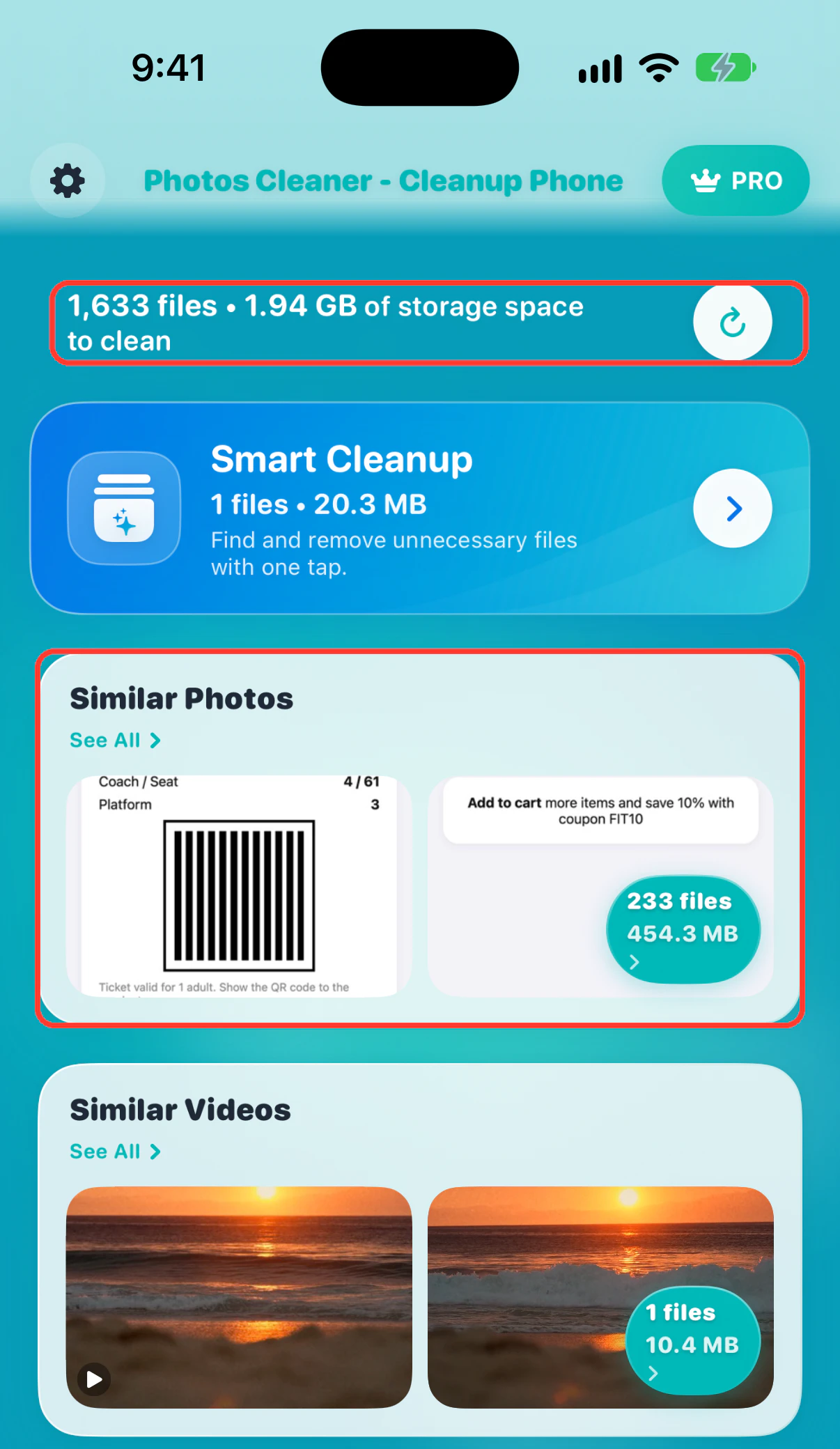
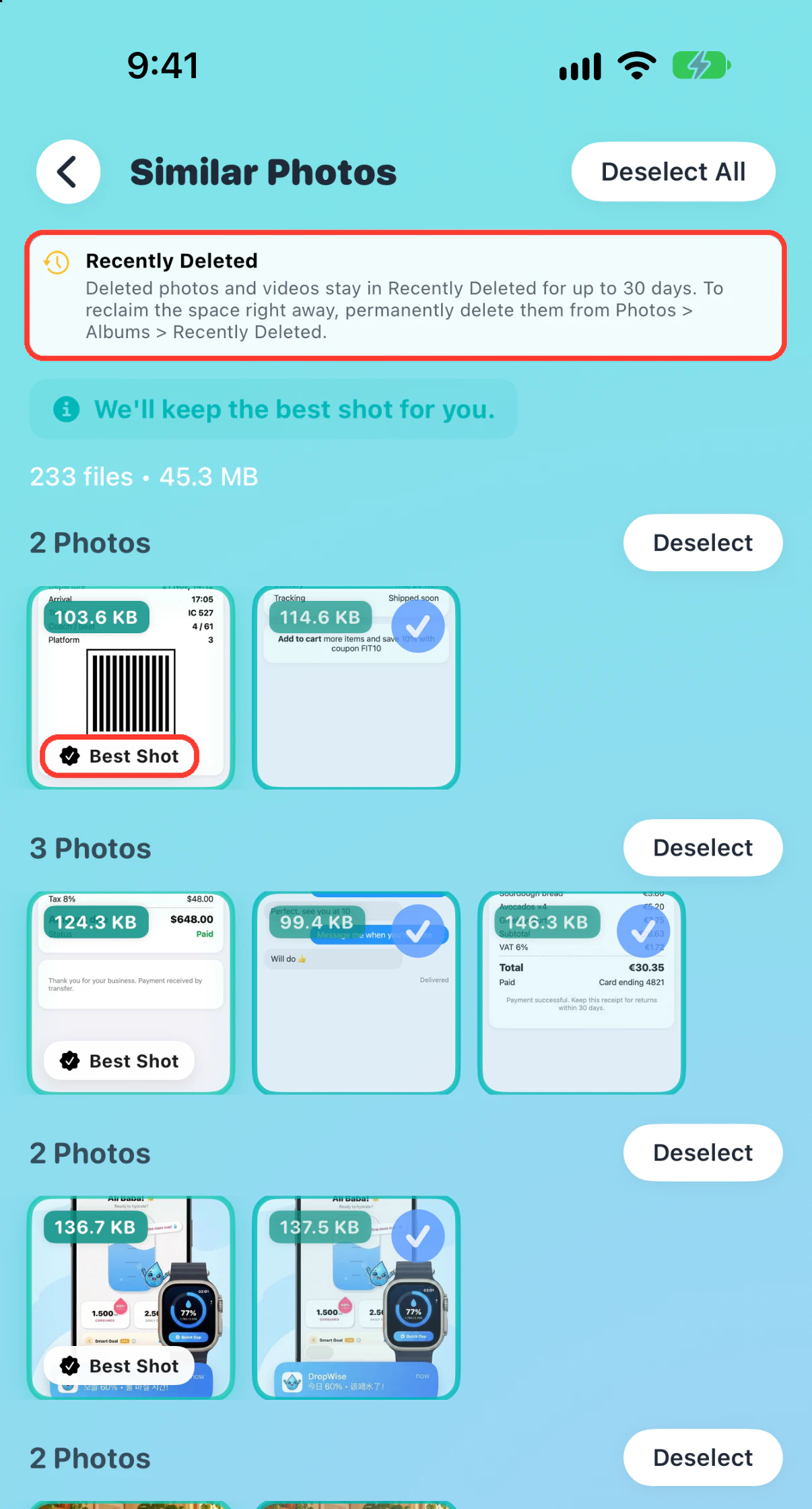
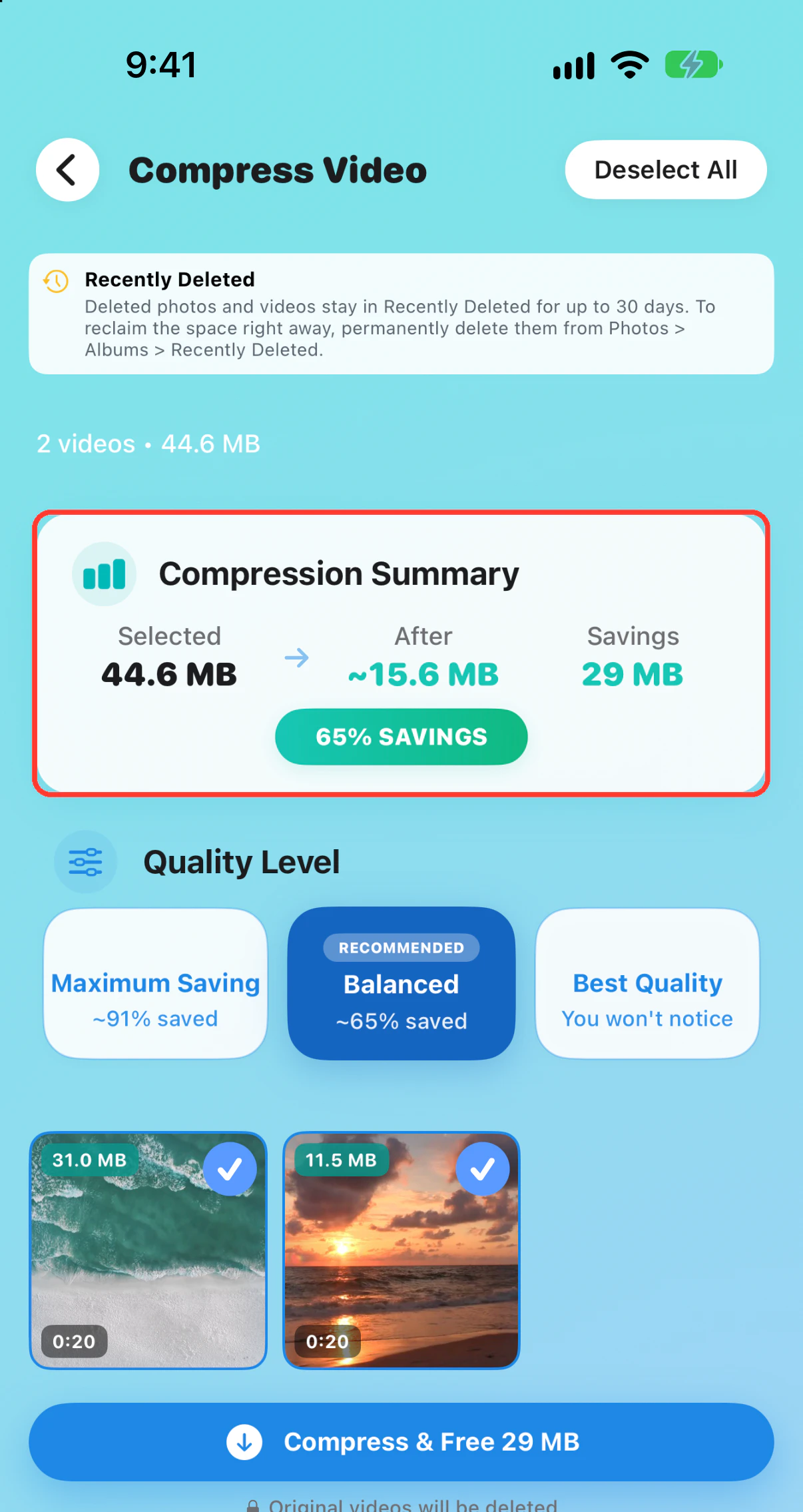
Open Photos Cleaner - Cleanup Phone and review the storage overview to see which media categories are worth checking first. Start with large videos or similar photos, inspect the candidates, and confirm only the items you want to remove. The app works with the media you allow it to access. Change iCloud sync and optimization in iPhone Settings. Use iPhone Storage to check the device total afterward, since an app's media estimate and the space your device recovers can differ.
The app is free to download. Deleting selections from Similar Photos or All Videos requires Premium.
Photos Cleaner - Cleanup Phone · View on the App Store
Frequently asked questions
Why do I still see all my photos after I turn on optimization?
Optimization leaves your synced library visible in Photos. Your iPhone can show smaller versions and fetch the full-resolution files when needed.
Can I clear just the Photos thumbnails or cache?
Apple does not document a separate clear-cache button for Photos. Check the storage mode and sync status first. Deleting an item from the Photos library is a synced deletion.
Will upgrading iCloud make Photos take up less iPhone storage?
An upgrade can help syncing resume if your cloud quota is full. Local usage still depends on your Photos settings, library, and how iOS optimizes the device.
How long does Optimize iPhone Storage take to free space?
There is no fixed time. iOS optimizes gradually and mainly when the iPhone runs low on space, so the Photos total can stay high for a while after you turn it on.
Does deleting photos from iCloud free space on my iPhone?
With iCloud Photos on, deleting removes the item from every synced device, but the space returns only after it leaves Recently Deleted, after up to 30 days or when you empty that album.
Apple documentation
Related guides
· 9 min read
iCloud Full but iPhone Has Space? How to Fix Either One
iCloud storage and iPhone storage are separate. See which one is full, why iCloud fills up, why the iPhone fills up even with iCloud, and how to free each safely.

· 9 min read
How to Check & Manage iPhone Storage (2026 Guide)
Learn how to check iPhone storage usage and free up gigabytes safely: trim Photos, large videos, Messages, App Data, and System Data step by step.

· 5 min read
iPhone Storage Not Going Down After Deleting Photos? 8 Fixes
iPhone storage still full after deleting photos? Check Recently Deleted, iCloud sync, Shared Library, and leftover media with eight practical fixes.

Ready when you are
Download Photos Cleaner - Cleanup Phone for iPhone
Remove duplicate photos, compress videos, and organize contacts with a privacy-first cleanup flow.
By using Photos Cleaner - Cleanup Phone, you agree to our Terms of Use and Privacy Policy.