What Is a RAW Photo? RAW Files on Mac and iPhone
A RAW photo keeps everything your camera saw, so it is big. Learn what RAW and ProRAW are, how to open RAW files on a Mac and how to save space.
A RAW photo is a picture that the camera saves almost untouched. Think of a cake. A JPEG is the finished cake: ready to eat and easy to share. A RAW file is the bowl with all the ingredients: you can still change the taste, but it takes much more room.
This guide explains in five easy steps what RAW means, why RAW files are so big, how RAW works on iPhone and Mac, and how to get space back. We make Vision AI: Photo Cleaner, a Mac app that also tidies up RAW files, and we say that openly. The facts come from Apple's own support pages, and our pictures use test files, not anybody's private photos.
1. Know what a RAW photo is
When you take a photo, the camera sensor catches the light. A JPEG photo is that light after the camera has already fixed the colors, the brightness and the sharpness, and then squeezed the picture small. A RAW photo keeps much more of what the sensor caught, before most of those changes.
That is why photographers like RAW. If a photo is too dark or the colors look wrong, a RAW file lets you fix it later with much better results. Each camera brand has its own RAW ending, for example CR2 or CR3 for Canon, NEF for Nikon and ARW for Sony. DNG is a common RAW format that many cameras and iPhone use.
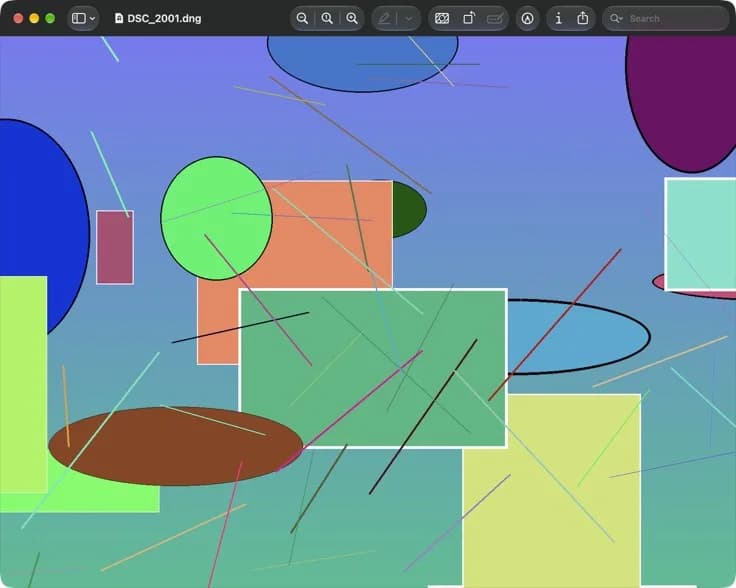
On a Mac you can open many RAW files just like other photos. Apple keeps a list of supported cameras, and in October 2026 it covered macOS 27 Golden Gate, iOS 27 and iPadOS 27. In our picture, Preview shows a DNG test file.
2. See why RAW files are so big
Because a RAW file keeps so much, it uses much more space than a JPEG. Apple says its ProRAW photos are 10 to 12 times larger than HEIF or JPEG files. A 12 MP ProRAW photo is about 25 MB, and a 48 MP one is about 75 MB.
Many cameras can save a RAW file and a JPEG file of the same photo. Then you have two files for every click.
- Open the folder with your camera photos in Finder.
- Choose View, then as List.
- Look at the Size column and compare a RAW file with its JPEG.
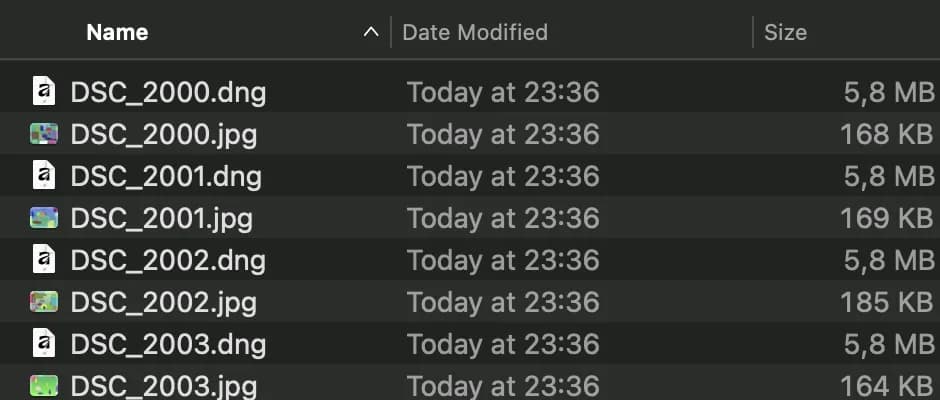
In our test folder, every DNG file uses 5.8 MB and its JPEG only about 170 KB. Your own photos will show different numbers, but the RAW file is almost always the big one.
3. Know how RAW works on iPhone
Some iPhone models can take RAW photos too. Apple calls this Apple ProRAW. It works on iPhone 12 Pro and later Pro models with iOS 14.3 or later. ProRAW mixes RAW data with iPhone's own picture processing and saves the photo as a DNG file.
- Open Settings and tap Camera.
- Tap Formats.
- Turn on Apple ProRAW & Resolution Control under Photo Capture.
- In the Camera app, tap RAW, then take your photo.
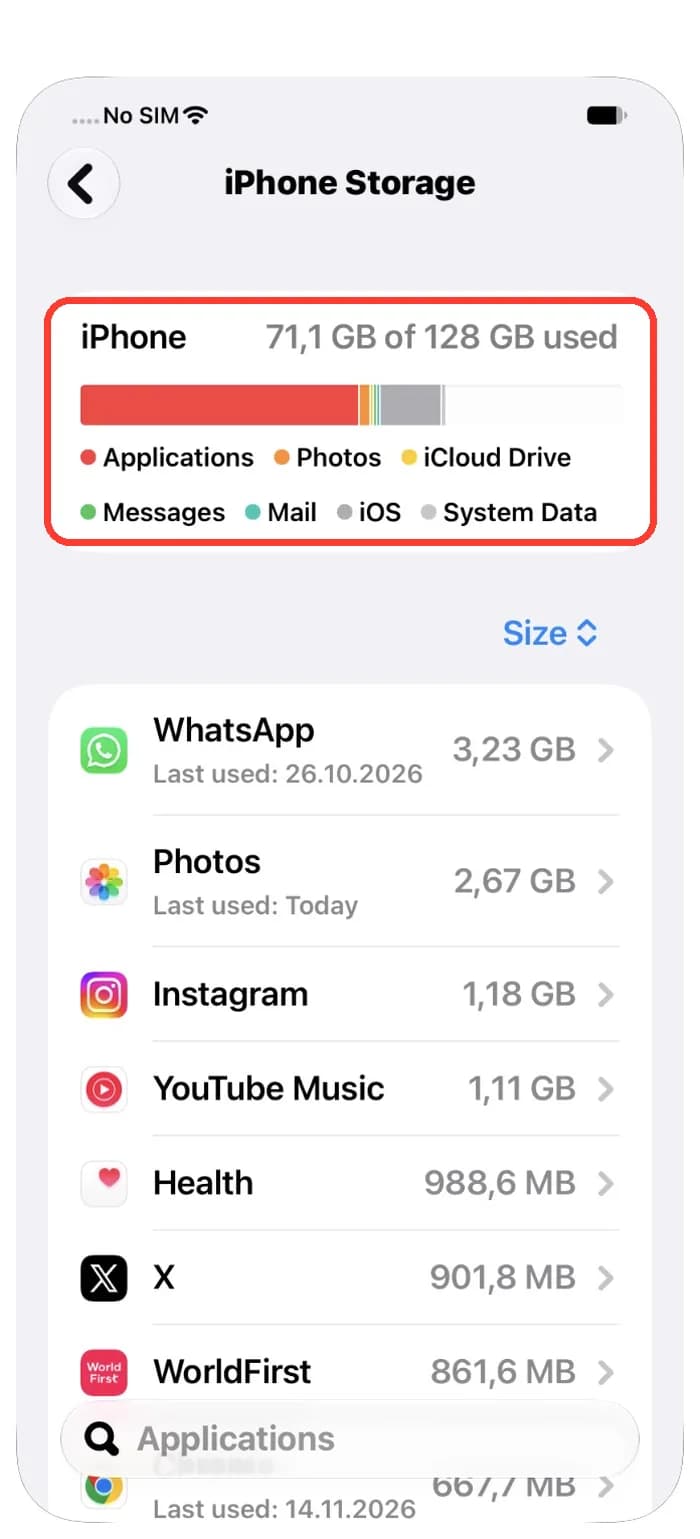
Because ProRAW photos are so big, Apple says you might run out of space more quickly than you expect. Check the bar in Settings, General, iPhone Storage now and then. If you turn RAW off, iPhone saves photos as HEIF or JPEG again.
4. Use RAW and JPEG pairs in Photos on Mac
If your camera saves RAW and JPEG together, both files get the same name and only the ending is different, like IMG_5021.CR2 and IMG_5021.JPG. When you import such photos, the Photos app on your Mac uses the JPEG file as the original. You can tell Photos to use the RAW file instead.
- Open the Photos app on your Mac.
- Double-click a photo to open it, then click Edit in the toolbar.
- Choose Image, then Use RAW as Original.
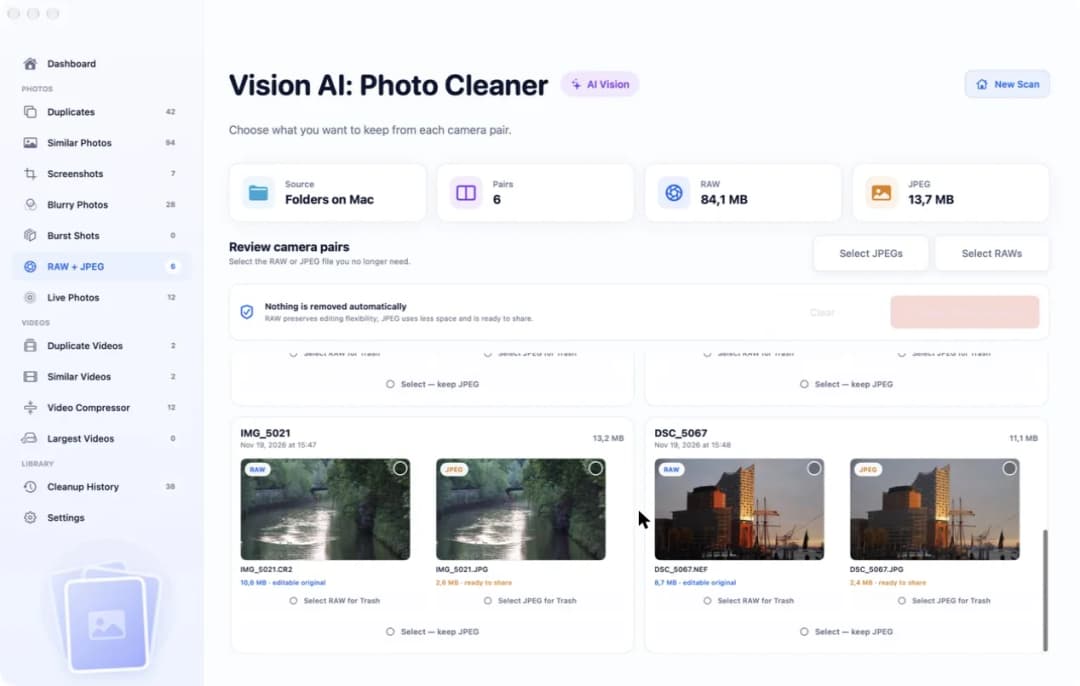
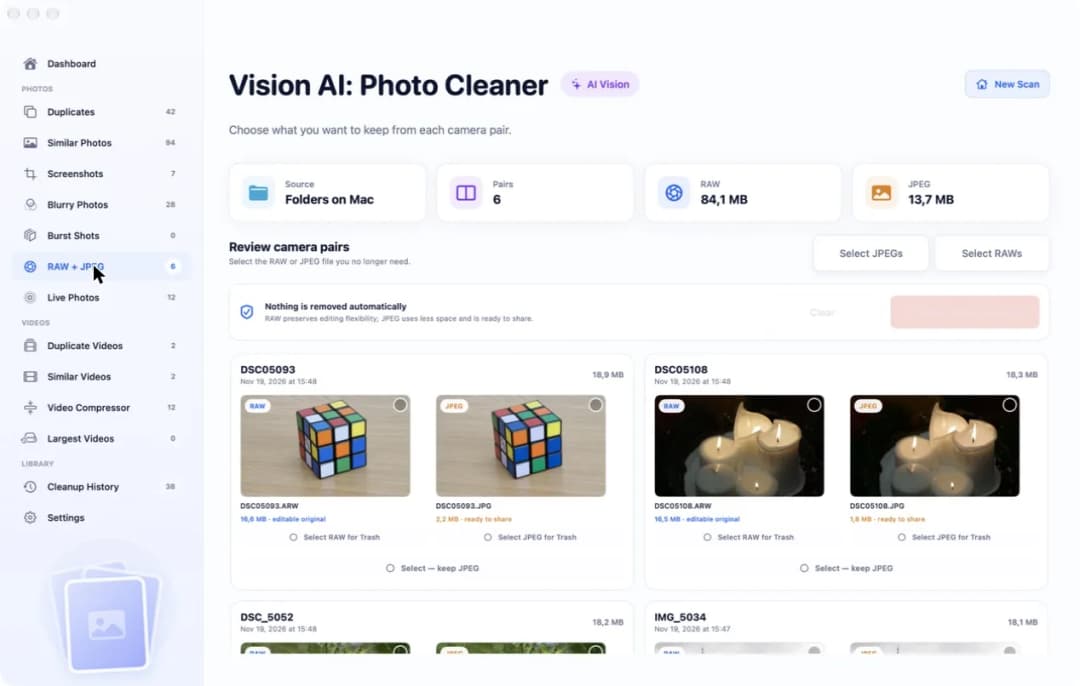
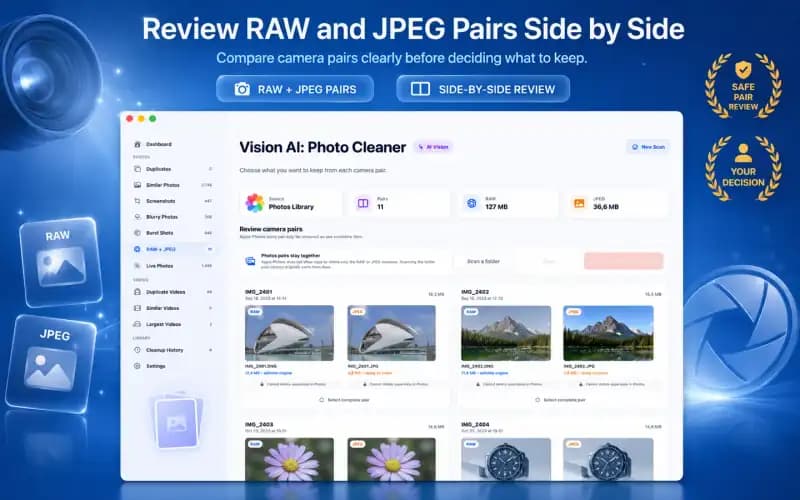
Pairs are handy right after a trip. Later, many people only need one of the two files. In our picture, Vision AI: Photo Cleaner shows two test pairs side by side with their sizes.
5. Keep only the file you need
If you edit your photos, keep the RAW file. If you only look at them and share them, the JPEG is usually enough. You do not have to decide the same way for every photo.
Our app Vision AI: Photo Cleaner finds RAW and JPEG pairs in a folder on your Mac or in your Photos library. It shows how much space all RAW files and all JPEG files use, and you choose which file stays. Files from a folder go to the Trash first, so you can put them back until you empty the Trash.
Scanning and marking are free. Removing files inside the app needs Premium, and the app shows the price before you pay. Make a backup, for example with Time Machine, before a big cleanup.
How to handle RAW photos on a Mac
- 1
Spot RAW files
Look for endings like CR2, CR3, NEF, ARW or DNG.
- 2
Check the size
In Finder, choose View, as List and compare RAW and JPEG sizes.
- 3
Watch iPhone space
If you shoot ProRAW, check Settings, General, iPhone Storage.
- 4
Pick the original
In Photos, choose Image, then Use RAW as Original if you want the RAW.
- 5
Keep one file
Remove the RAW or JPEG copy you do not need.
Frequently asked questions
What does RAW mean on a Mac?▼
RAW is a photo file that keeps the camera data almost untouched. Your Mac can open RAW files from many cameras in Preview and Photos. Endings like CR2, NEF, ARW and DNG are RAW files.
Is RAW better than JPEG?▼
RAW is better for editing, because you can fix light and color later with better results. JPEG is better for sharing, because it is small and ready to use.
How big is a RAW photo?▼
It depends on the camera. Apple says a 12 MP ProRAW photo is about 25 MB and a 48 MP one about 75 MB, which is 10 to 12 times more than HEIF or JPEG.
Which iPhone can take RAW photos?▼
Apple ProRAW works on iPhone 12 Pro and later Pro models with iOS 14.3 or later. You turn it on in Settings, Camera, Formats.
Can I delete the JPEG and keep the RAW?▼
Yes. Many people keep only one file of each pair. Keep the RAW if you edit, keep the JPEG if you only share. Files from a folder go to the Trash first, so you can still get them back.

Keep the ingredients or the cake
Vision AI: Photo Cleaner finds RAW and JPEG pairs on your Mac and lets you choose, pair by pair, which file stays.

Sources
Related guides
· 9 min read
How to Delete RAW + JPEG Pairs on Mac
Delete RAW + JPEG pairs on your Mac step by step: see how much space each pair uses, keep the RAW or the JPEG and move only the other file to the Trash.
· 9 min read
How to Free Up Mac Storage Used by Photos and Videos
Free up Mac storage taken by photos and videos: remove copies, look-alikes, screenshots, Live Photo clips and duplicate videos, then compress big videos.

· 9 min read
How to Delete Duplicate Photos on Mac
Delete duplicate photos on Mac: find copies in folders with the Finder, group exact and similar photos with Vision AI, and move extras to the Trash safely.
Ready when you are
Download Vision AI - Photo Cleaner for Mac
Find duplicate and similar photos, review large videos and compress videos locally on your Mac. Choose what to keep and confirm every cleanup.
By using Vision AI - Photo Cleaner, you agree to our Terms of Use and Privacy Policy.