RAW + JPEG Photos on Mac: What Should You Keep?
Master RAW + JPEG pair management on Mac. Learn how Apple Photos handles camera RAW files, how to avoid double-storage bloat, and when to keep RAW masters.

Many digital cameras and enthusiast smartphones allow shooting in RAW + JPEG mode simultaneously. RAW files preserve more camera image data and editing flexibility, while JPEG files are processed and compressed.
Saving both formats for every capture significantly increases storage requirements on your Mac and cloud backup services. Here is how to review RAW + JPEG pairs on Mac, understand how Apple Photos handles them, and choose the right format to keep for your workflow.
How Shooting RAW + JPEG Multiplies Storage Consumption
A RAW file keeps the full sensor data, so it is several times larger than the JPEG made from the same shot.
When both formats are saved, every shutter release generates two files. For example, if a camera generates a 40 MB RAW file and an 8 MB JPEG, keeping both for thousands of shots requires substantially more storage. If you only need a quick shareable copy, keeping RAW files for routine snapshots may be unnecessary.
How Apple Photos Handles RAW + JPEG Pairs (The 'J' and 'R' Badges)
Some cameras can capture RAW and JPEG simultaneously. Photos initially uses the JPEG as the original, and the user can choose Image > Use RAW as Original.
When viewing paired photos, Apple Photos indicates the pair on the thumbnail. However, Apple Photos does not provide a native one-click utility to separate pairs and batch-delete only the RAW files while preserving the JPEGs across an entire library.
Review Criteria: Keep RAW, Keep JPEG, or Keep Both?
To review RAW + JPEG pairs efficiently, establish clear keeper guidelines based on intended use:
• Portfolio & Critical Edits: Keep the RAW file (or both) when you plan to adjust exposure, white balance, or color grading in detail. • Everyday Social & Family Snapshots: Keep the processed JPEG and delete the RAW file if you only need a standard photo for albums and quick viewing. • Flawed Takes: If framing is poor or focus is missed, remove both files to keep your library uncluttered.
Using Vision AI - Photo Cleaner to Detect and Separate RAW + JPEG Pairs
Vision AI - Photo Cleaner includes a dedicated RAW + JPEG pair review module designed for Mac photographers. It scans your library and local folders to identify paired captures by correlating matching filenames, timestamps, and metadata.
In the RAW + JPEG module, Vision AI displays side-by-side format previews with file sizes and dimensions. It allows you to select which format you prefer to retain across reviewed pairs, recovering space without tedious manual searching.
Preserving Metadata and Safety Precautions During RAW Cleanup
Before discarding RAW files, ensure that the companion JPEG contains all necessary metadata and satisfies your visual requirements.
When reviewing in Vision AI, files removed from Apple Photos move to the Recently Deleted album for up to 30 days of recovery. If you wish to preserve RAW masters long term, export them to an external archive drive before removing them from your primary library.
How to Clean Redundant RAW + JPEG Pairs on Mac in 4 Steps
- 1
Scan for RAW + JPEG pairs
Open Vision AI - Photo Cleaner on Mac and run the RAW & JPEG Pairs scan on your Photos library or external photo drives.
- 2
Inspect pair stacks and file sizes
Review matched pairs side-by-side, noting the storage difference between the large RAW master and the companion JPEG/HEIC.
- 3
Select format keeper preference
Choose your rule: keep lightweight JPEGs for everyday photos to save space, or preserve RAW masters for top portfolio edits.
- 4
Safely clean redundant formats
Confirm deletion of unwanted file formats. In Apple Photos, files move to Recently Deleted while the chosen format remains in your albums.

Review RAW + JPEG Pairs with Vision AI
Vision AI - Photo Cleaner identifies matched RAW + JPEG pairs across your Mac, helping you review formats and declutter your library with confidence.

Frequently asked questions
Does Apple Photos let me delete only the RAW file from a RAW+JPEG pair?▼
No, Apple Photos does not have a built-in bulk option to separate and delete only the RAW version while retaining the JPEG in your library without manual export workflows.
How does a JPEG compare in size to a RAW photo?▼
Because RAW files preserve unprocessed sensor data while JPEGs are compressed, RAW files are substantially larger, often several times the size of companion JPEGs depending on camera settings.
Will deleting the RAW file lower the quality of my photo for casual viewing?▼
No. The JPEG version contains full resolution, processed colors, and sharp details ready for screen viewing, social sharing, and standard photo albums.
Can Vision AI identify RAW and JPEG pairs stored on external hard drives?▼
Yes. In addition to the native macOS Photos Library, Vision AI can scan custom directory trees on internal drives, external SSDs, and SD cards.
What happens if I accidentally delete a RAW file I wanted to keep?▼
When cleaning within Apple Photos, deleted files reside in the Recently Deleted album for up to 30 days, allowing easy restoration.
Sources
Related guides
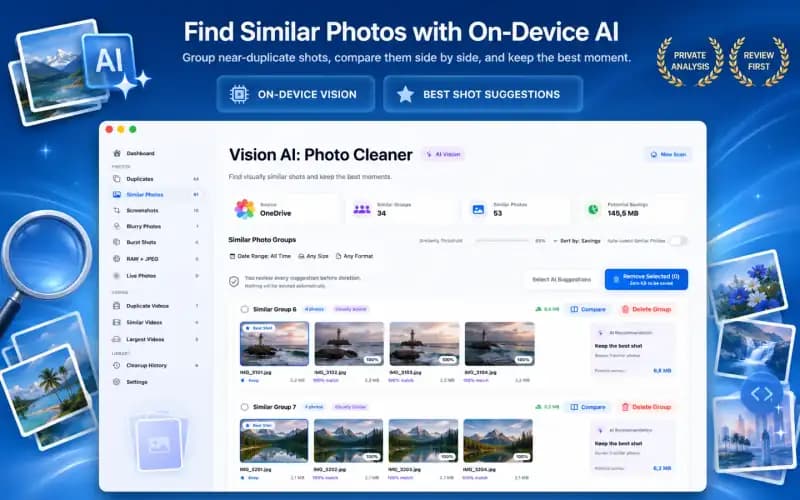
· 9 min read
How to Compare Similar Photos on Mac and Pick the Best Keeper (2026)
Learn how to compare similar photos side-by-side on Mac. Evaluate focus, facial expressions, and composition to safely declutter collections of near-identical shots.
· 10 min read
How to Free Up Mac Storage: Clean Duplicate Photos & Videos with On-Device AI
Complete guide to free up Mac and MacBook Pro storage: clean duplicate photos, similar shots, blurry photos, Retina screenshots, Live Photos, and large videos.
· 9 min read
How to Remove Duplicate Photos from iCloud Safely (2026)
Learn how to remove duplicate photos from iCloud, Mac, and iPhone. Clean synced duplicate libraries safely without losing high-resolution originals.
Ready when you are
Download Vision AI - Photo Cleaner for Mac
Find duplicate and similar photos, review large videos and compress videos locally on your Mac. Choose what to keep and confirm every cleanup.
By using Vision AI - Photo Cleaner, you agree to our Terms of Use and Privacy Policy.