Water Reminder Notifications Not Working on iPhone?
Fix missing, late, or silent water reminders on iPhone. Check notification permissions, Focus, Scheduled Summary, and your DropWise reminder schedule.

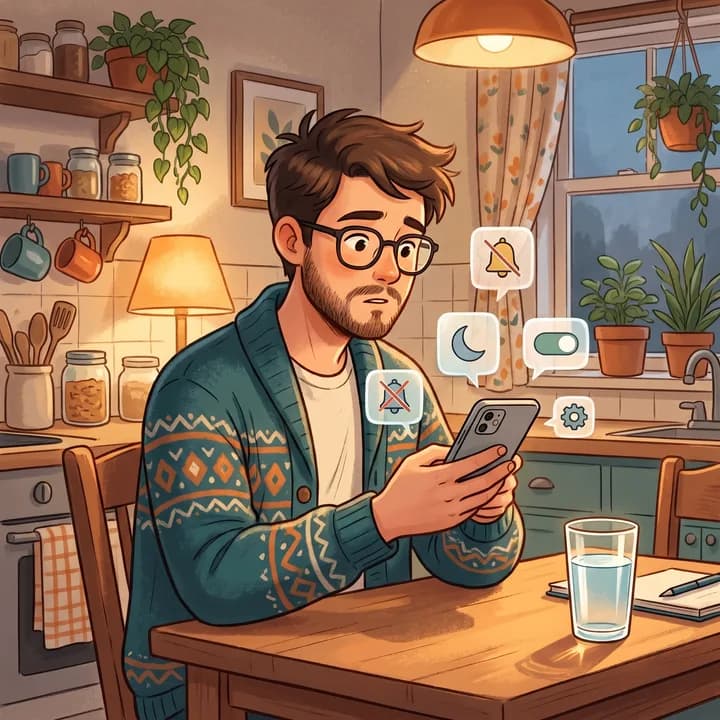
Fix it in 6 steps
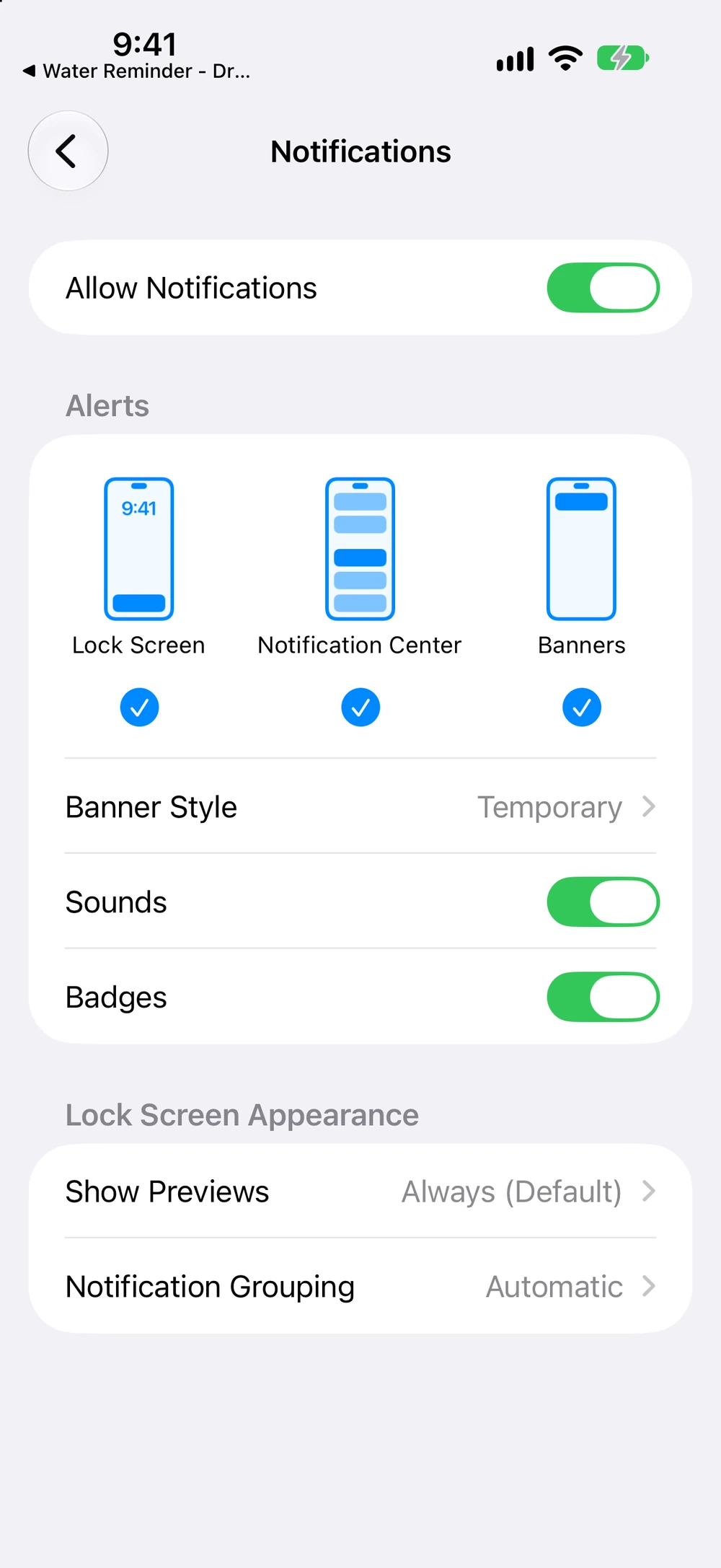
- Open Settings → Notifications → DropWise and turn on Allow Notifications, Lock Screen, Notification Center and Banners.
- In the same screen, turn on Sounds and make sure the app is not in Scheduled Summary.
- Turn off any Focus in Control Center for one test reminder.
- Open DropWise → Settings → Notifications, check Active Hours and Frequency, and tap Save Notifications.
- Lock the iPhone and wait for the next reminder inside the active hours.
- Still nothing? Check Date & Time, Low Power Mode and updates, then restart the iPhone.
Start with what you actually see
If the reminder is in Notification Center but made no sound, start with sound settings. If it arrives in a batch, check Scheduled Summary and Focus. If it never appears, check both iOS permissions and the schedule inside your reminder app.
Check iPhone notification delivery
- Open Settings → Notifications → your water reminder app. Turn on Allow Notifications. Enable Lock Screen, Notification Center, or Banners where you want the alert to appear.
- Open Settings → Notifications → Scheduled Summary. Remove the reminder app from the summary or select Immediate Delivery in its notification settings if that option appears.
- Temporarily turn off the active Focus in Control Center and test one reminder. If it works, go to Settings → Focus → the affected Focus → Apps and allow the app if you want reminders during that Focus. Check Sleep and Work schedules if the issue happens at the same time each day.
- If you can see the notification but can't hear it, check Sounds in the app's iOS notification settings, turn off Silent mode for the test, and check the Ringtone and Alerts volume under Settings → Sounds & Haptics.
See Apple's notification settings guide and Apple's Focus guide.
Check the schedule in DropWise
Open Water Reminder - DropWise on your iPhone. Open the app's notification settings. In the version shown below, the screen is called Hydration Notifications. Turn on Notifications, check the Active Hours start and end, choose a Frequency, then tap Save Notifications. The app's Sound Effects and In-App Haptics controls are separate from iOS alert delivery.
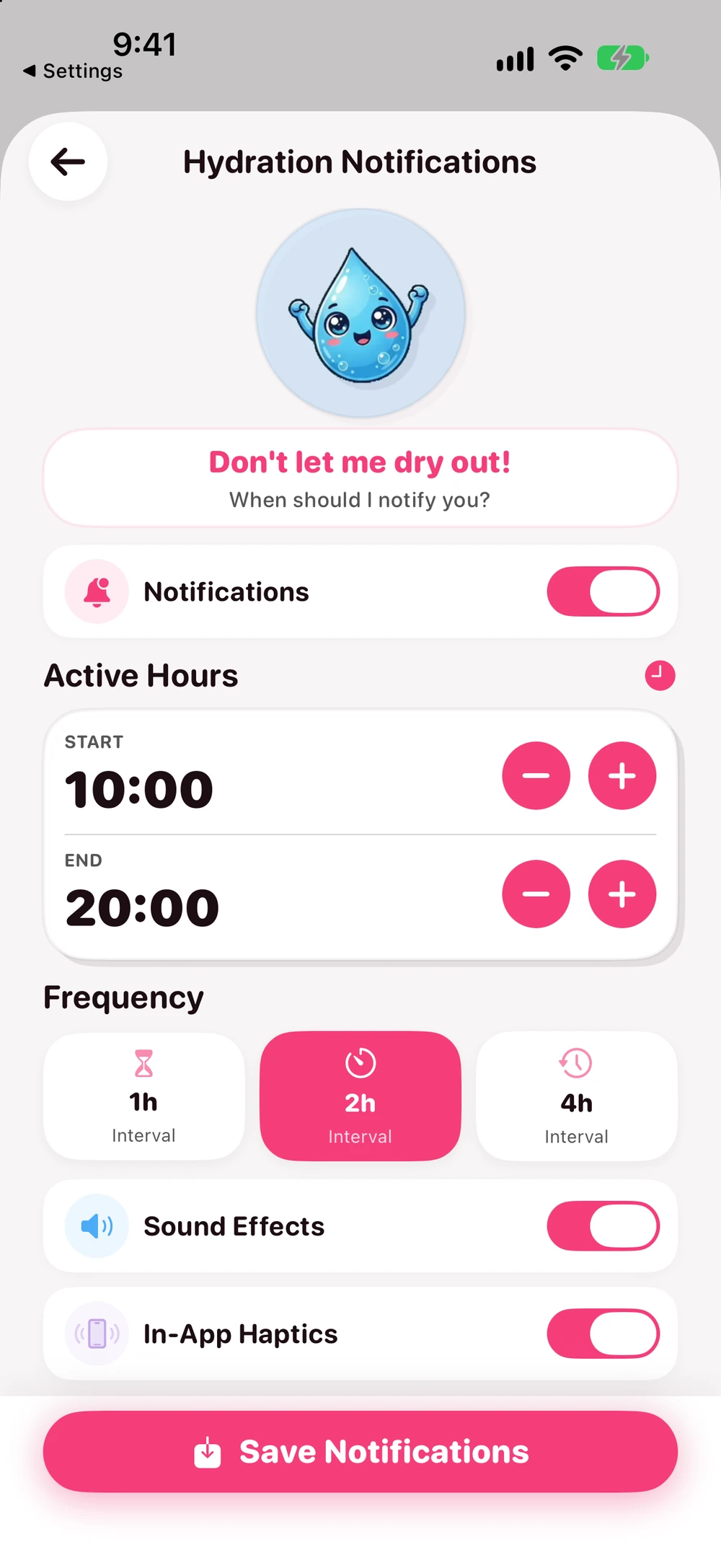
Choose a schedule with an upcoming reminder inside the active hours, save it, return to the Home Screen, and lock the iPhone. After the expected time, check Notification Center even if you heard nothing. Change one setting at a time so you can tell what helped. The US App Store listing lists the app as free to download with in-app purchases. The schedule was documented without Premium in version 4.1.2; current entitlement details may differ.
If alerts are still late or missing
- After travel or a clock change, check Settings → General → Date & Time. Use Set Automatically when available, confirm the displayed time zone, then reopen DropWise, save the schedule again, and test one reminder.
- Low Power Mode disables Background App Refresh. Try one reminder with Low Power Mode off if failures coincide with it. That setting alone does not show that an already scheduled local notification was blocked.
- Check for an app update in the App Store and an iOS update in Settings → General → Software Update. If the issue persists, restart the iPhone normally, reopen the app, verify the schedule, and test again. A restart or update doesn't guarantee delivery.
- If only later reminders are missing, try a simpler schedule. Apple documents a 64-request limit for the deprecated UILocalNotification API; that figure does not establish a current DropWise limit. If the problem continues, record your iOS and app versions, time zone, expected alert time, and whether it appeared in Notification Center before contacting support.
See Apple's guides on date and time, Low Power Mode, local notification scheduling, restart, and iOS updates.
| What you see | Likely cause | What to do |
|---|---|---|
| Reminder in Notification Center, no sound | Silent Mode is on or Sounds is off for the app | Turn off Silent Mode and enable Sounds in the app's notification settings |
| Several reminders arrive at once | The app is in Scheduled Summary | Remove it from Scheduled Summary or choose Immediate Delivery |
| Missing at night or during work | Sleep or Work Focus is active | Allow DropWise in that Focus or test outside its schedule |
| No reminders at all | Notifications are off or the schedule was not saved | Allow Notifications in Settings and tap Save Notifications in DropWise |
| Reminders at the wrong time after travel | The time zone changed | Turn on Set Automatically in Date & Time and save the schedule again |
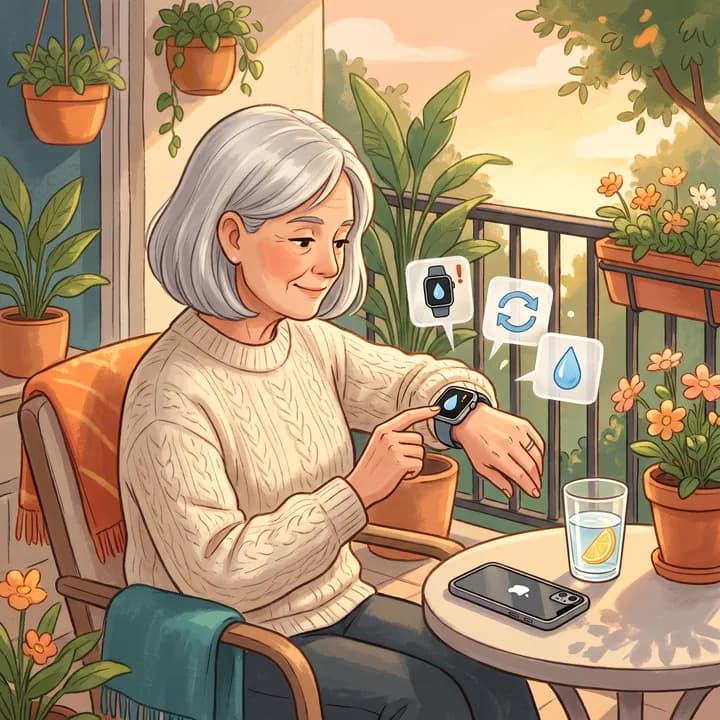
| Reminder shows on Apple Watch instead | iOS routes the alert to the watch while the iPhone is locked | This is normal; see the Apple Watch guide for wrist checks |
Before you contact support
- Change one setting at a time and test one reminder, so you know what fixed it.
- Note your iOS version, DropWise version, time zone and the expected reminder time.
- Check Notification Center even if you heard nothing; a silent alert is a sound problem, not a delivery problem.
- Low Power Mode alone does not stop reminders that are already scheduled.
Frequently asked questions
Does the app need to stay open?
No. iOS delivers reminders that DropWise has already scheduled even when the app is closed. If no reminder was scheduled, open the app and save the schedule.
What if the reminder appears on Apple Watch instead?
While the iPhone is locked and the watch is on your wrist, iOS usually shows the alert on the watch. For missing wrist alerts, see the Apple Watch water reminders guide.
Why are my water reminders silent?
The alert arrived but sound is off. Check Silent Mode, the Sounds switch in Settings → Notifications → DropWise and the Ringtone and Alerts volume in Sounds & Haptics.
Why do my reminders come late or all at once?
Scheduled Summary groups notifications and delivers them at set times. Remove DropWise from the summary or choose Immediate Delivery.
Do I need Premium for water reminders?
No. In DropWise 4.1.2 the basic reminder schedule works without Premium. The app is free to download with optional in-app purchases.
How much water do you need?
Enter your weight, exercise and weather for a quick daily estimate.
(155 lb)
Your estimated daily water needs
2.65 L
(89.6 US fl oz)
About 10.5 (250 mL (8.5 fl oz) per glass)
A flexible estimate, not a drinking requirement. Avoid excessive water intake, especially over short periods. Adjust according to thirst, activity, health and medical advice.
Open the full water intake calculator →Related guides
· 4 min read
Apple Watch Water Reminders Not Working? How to Fix Them
Find out why water reminders are missing on Apple Watch. Check the DropWise schedule, iPhone permissions, Watch mirroring, Focus, and wrist alerts.
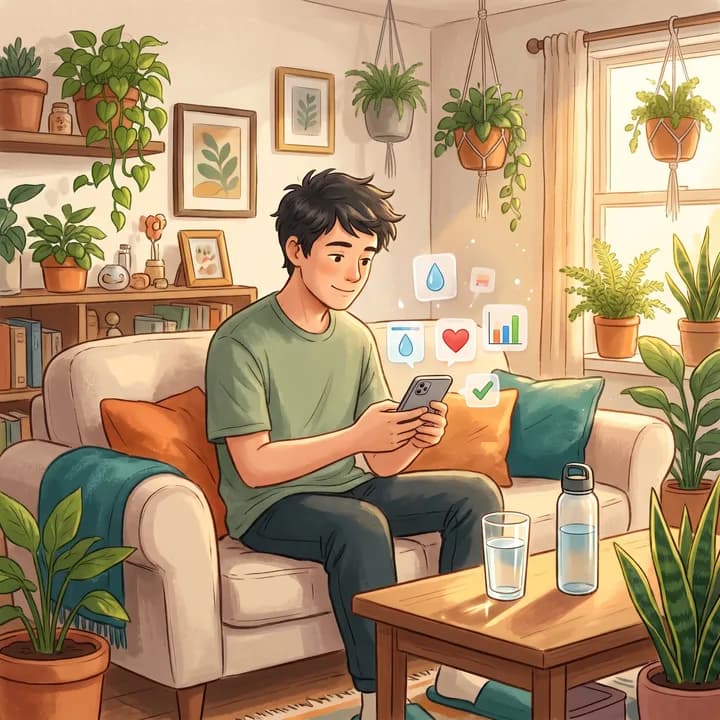
· 4 min read
How to Track Water Intake in Apple Health on iPhone
Log water in Apple Health, change units, review data sources, and connect DropWise without recording the same drink twice.

· 4 min read
Water Tracking App Not Syncing With Apple Health?
Find out why DropWise water logs are missing, late, or duplicated in Apple Health. Check Water permissions, data sources, and iCloud sync.
Ready when you are
Download DropWise for iPhone
Track hydration more easily with reminders, Apple Health sync, and a privacy-first flow.
By using DropWise, you agree to our Terms of Use and Privacy Policy.