Are Mac Photo Cleaner Apps Safe? 8 Privacy Checks Before You Scan Your Photo Library
Before a duplicate photo finder scans your Mac, check these 8 things: privacy labels, Photos and folder access, cloud drives, network activity and safe deletion.
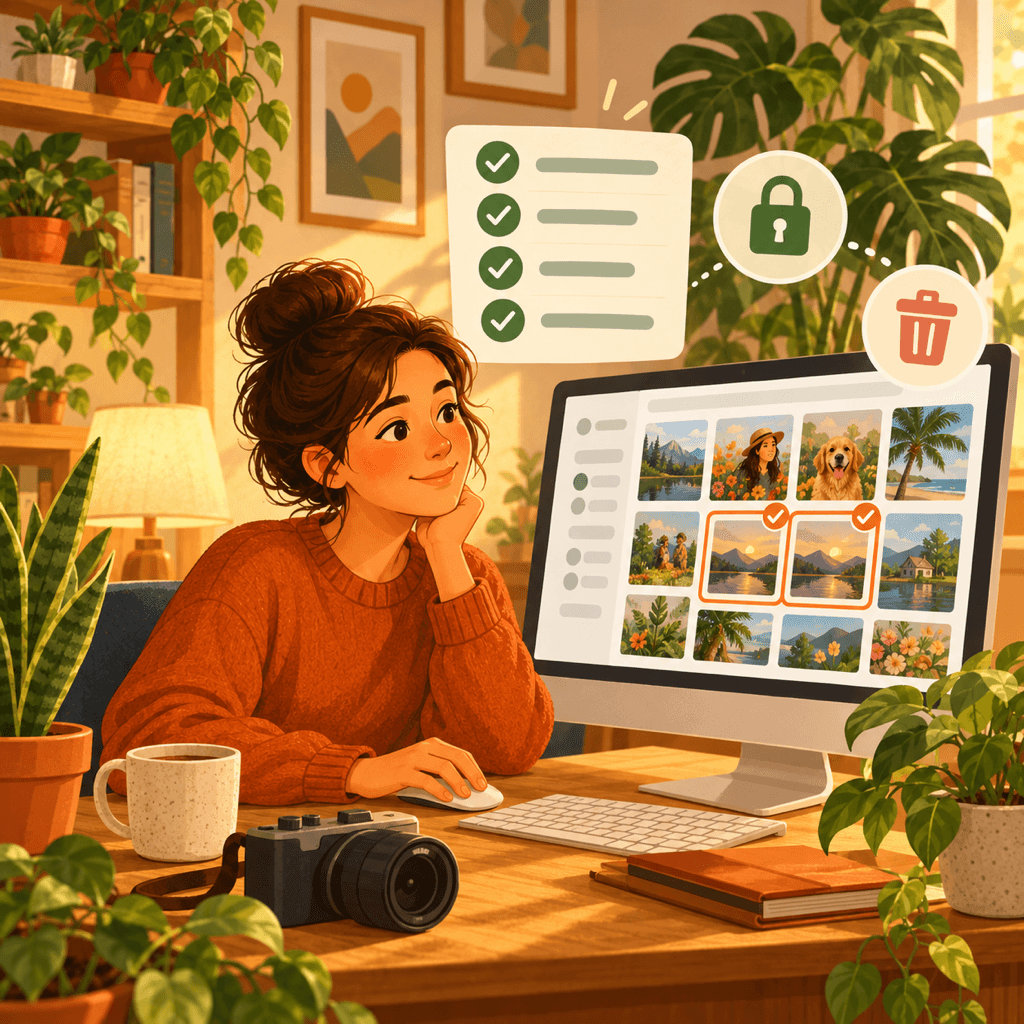
A duplicate photo cleaner asks to read your whole Photos library or the folders where you keep years of images, often including scans of documents, screenshots and pictures of family. To find similar shots it has to look at every one of them. Whether that is safe depends on where the analysis happens, what else the app can reach and how it removes files.
macOS gives you strong tools to keep that access in check. This guide walks through eight checks you can run on the Mac App Store listing and in System Settings before and after you install a photo cleaner. None of them require Terminal or technical knowledge.
Why Photo Cleaners Deserve a Closer Look
Photos are some of the most personal files on a Mac. Face groupings, location metadata, receipts, ID cards and private moments all sit in the same library. A cleaner that uploads images for cloud analysis, or shares them with a third party, creates a privacy risk far larger than the gigabytes it frees.
There is also a data-loss risk. A careless cleaner that deletes automatically can remove the one sharp shot in a burst or an original you kept on purpose. The checks below cover both privacy and safety.
1. Read the App Privacy Label on the Mac App Store
Every Mac App Store listing has an App Privacy section completed by the developer, with the groups Data Used to Track You, Data Linked to You and Data Not Linked to You. The best case is Data Not Collected.
For a photo cleaner, Photos or Videos listed under any collected category is a reason to stop and read the privacy policy. The label is self-reported, so use it as a starting point and confirm it with the checks below.
2. Confirm the Analysis Runs on Your Mac
Modern Macs can compare images locally with Apple frameworks such as Vision and Core ML. Exact duplicates, similar shots and blurry photos can all be detected without any image leaving the computer.
Look for a clear statement in the description or privacy policy that photos are analyzed on the device and are not uploaded or used to train AI models. Vague wording such as "we may process your content to improve our services" is a reason to look elsewhere.
3. Grant Only the Access the Scan Needs
To scan your Photos library, an app must ask for Photos access, which you can review in System Settings → Privacy & Security → Photos. To scan folders, a well-designed app asks you to pick them in the standard macOS file picker, so it can only read what you selected.
Be cautious if a photo cleaner insists on Full Disk Access just to find duplicate images. Full Disk Access opens far more than photos, including mail and other apps' data, and a photo tool rarely needs it.
4. Check How It Handles Cloud Drives
Folders from iCloud Drive, Google Drive, Dropbox or OneDrive appear in Finder through each provider's own macOS software. A privacy-friendly cleaner scans those folders like any local folder and does not ask you to sign in to your cloud accounts.
If an app requests your Google, Dropbox or Microsoft password or account authorization to find duplicates, it is reaching your cloud data directly. Understand why before you agree, and remember that files marked online-only may be downloaded to your Mac so they can be compared.
5. Watch Its Network Activity
macOS does not show an App Privacy Report like iPhone, but Activity Monitor can help. Open it, choose the Network tab and watch Sent Bytes for the cleaner while it scans a large folder.
A local cleaner sends little or nothing during a scan, apart from small checks such as purchases. Steady uploads that grow with your library are worth investigating, although Activity Monitor shows only how much data was sent, not what it was.
6. Make Sure Nothing Is Deleted Without Review
A safe cleaner groups results and waits for you to confirm each removal. Prefer apps that show similar photos side by side with zoom, so you can keep the sharpest version instead of trusting an automatic pick.
Check how files are removed. Files in Finder folders should go to the Trash, where they stay until you empty it. Items in the Photos library should go to Recently Deleted, where they can usually be recovered for about 30 days. An app that erases files immediately leaves you no way back.
7. Remember That Cloud Sync Spreads Deletions
If iCloud Photos is on, removing a photo from the library on your Mac also removes it on your iPhone and iPad. Deleting a file from a synced cloud folder usually removes it on your other devices as well, and the provider decides how long its own trash keeps it.
Before a large cleanup, make sure you have a current backup, for example with Time Machine, and start with a small batch to confirm the results match what you expect.
8. Check the Developer, Updates and Distribution
Apps from the Mac App Store are reviewed by Apple and run in a sandbox. Apps downloaded from the web should at least be notarized, which macOS checks when you open them. Avoid installers from unknown download sites.
Open the developer's page, read the privacy policy and look for recent updates and a real support page. Reviews that mention lost photos or surprise charges matter more than a high star average.
Run the Privacy Check in Five Minutes
- 1
Read the App Privacy section
On the Mac App Store listing, look for photos or videos under Data Used to Track You or Data Linked to You.
- 2
Grant Photos or folder access only
Review it in System Settings → Privacy & Security → Photos and avoid giving a photo cleaner Full Disk Access.
- 3
Watch Sent Bytes in Activity Monitor
Open the Network tab while the app scans and look for uploads that grow with your library.
- 4
Confirm Trash or Recently Deleted
Delete a small test batch and check that files land in the Trash or Recently Deleted, not erased.

A Photo Cleaner Built Around This Checklist
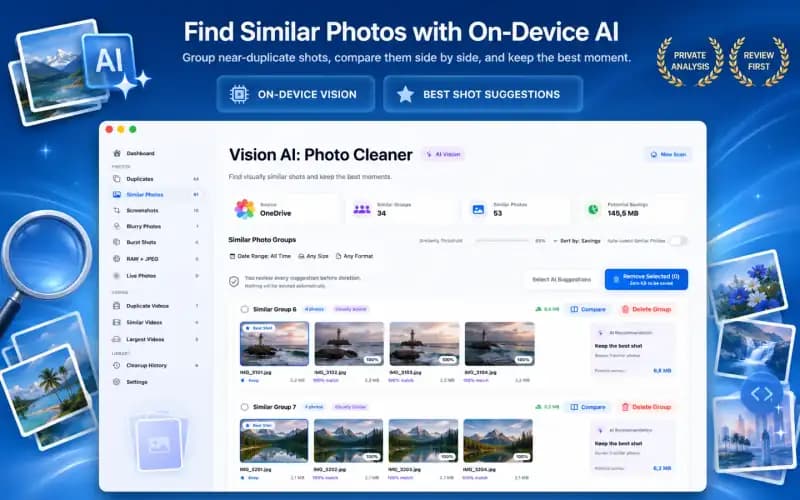
Vision AI: Photo Cleaner groups duplicate, similar and blurry photos on your Mac. Analysis runs locally with Apple's Vision framework, cloud folders are scanned through Finder without account sign-in, and removals go to the Trash or Recently Deleted after you review them.

Frequently asked questions
Are duplicate photo cleaners for Mac safe?▼
They can be. A safe cleaner analyzes photos on your Mac, asks only for Photos or selected folders, does not track you and never deletes without your review. Use the App Privacy label, System Settings and Activity Monitor to check.
Do photo cleaner apps upload my pictures?▼
They do not need to. Apple's Vision framework lets apps compare images locally. Look for an explicit on-device statement in the privacy policy and watch Sent Bytes in Activity Monitor during a scan.
Does a photo cleaner need Full Disk Access?▼
Usually not. Photos access covers the Photos library, and the macOS file picker covers folders you choose. Full Disk Access reaches much more data than a photo tool needs.
Can I recover photos a cleaner deleted?▼
If the app moved them to the Trash, restore them from the Trash until you empty it. Photos library items go to Recently Deleted, usually for about 30 days. With iCloud Photos on, deletions also sync to your other devices.
Is Apple's built-in Duplicates album enough?▼
The Duplicates album in Photos finds duplicates inside the Photos library. It does not group similar shots or scan Finder folders and external drives, which is where a dedicated cleaner helps.
Sources
Related guides

· 8 min read
How to Delete Duplicate Photos on Mac & MacBook (2026 Guide)
Learn how to delete duplicate photos on Mac, MacBook Pro, and Photos app. Remove duplicates from Photos library, Finder, and iCloud with safe on-device AI.
· 9 min read
How to Compare Similar Photos on Mac and Pick the Best Keeper (2026)
Learn how to compare similar photos side-by-side on Mac. Evaluate focus, facial expressions, and composition to safely declutter collections of near-identical shots.

· 7 min read
How to Remove Duplicates from Photos Library on Mac & iCloud (2026)
Step-by-step guide to remove duplicates from Apple Photos library on Mac and iCloud. Clean exact duplicates and near-duplicate burst shots safely.
Ready when you are
Download Vision AI: Photo Cleaner for Mac
Find duplicate and similar photos, review large videos and compress videos locally on your Mac. Choose what to keep and confirm every cleanup.
By using Vision AI: Photo Cleaner, you agree to our Terms of Use and Privacy Policy.