Best Mac Cleaner Software in 2027: Free and Paid Apps
Which Mac cleaner software is best in 2027? It depends on the job. See free and paid apps for disk maps, uninstalling, duplicates and full cleanup, side by side.

Open the cleaning cupboard at home. There is a broom, a cloth, a bucket and a vacuum cleaner. Nobody asks which one is the best. The broom is best for the floor. The cloth is best for the window. You pick the tool by the job.
Mac cleaner apps are the same. Some draw a map of your disk. Some remove apps. Some find copies of files. Some try to do everything. We make Smart Cleaner AI, so we say that openly. We looked at the other apps on their own websites and in the Mac App Store in November 2026. This guide tells you which tool fits which job.
1. First find out which job you have
Before you open the cupboard, look at the room. Is the floor dirty or is it the window? On a Mac, open System Settings, then General, then Storage. This page is from Apple and it is free. It shows how full your disk is and which groups are the biggest.
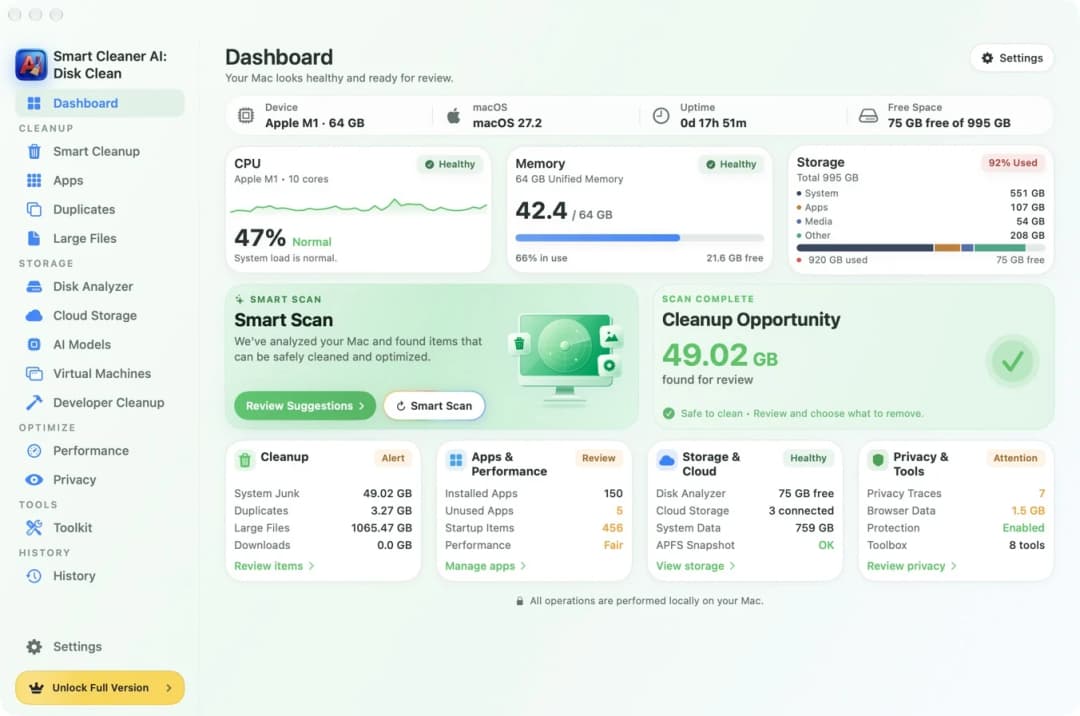
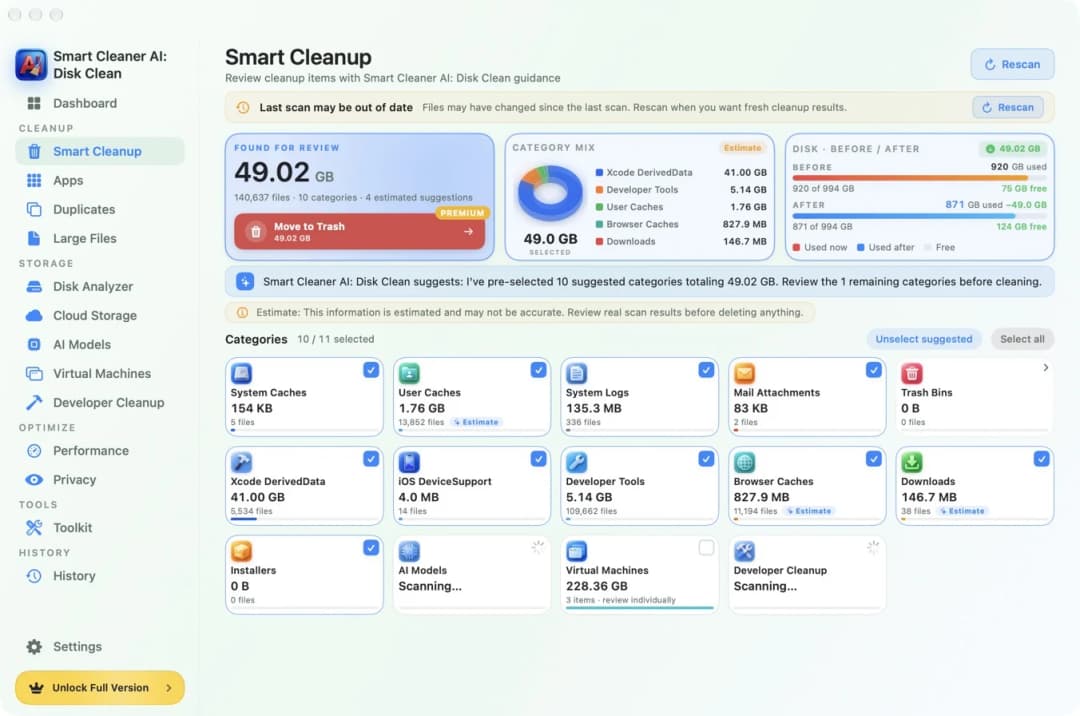
A cleaner app shows the same thing in more detail. The Dashboard in Smart Cleaner AI shows how full the disk is and how much it found for review. Now you know your job. Is the disk full and you do not know why? Do you have old apps? Do you have many copies of the same files? Each job has its own tool.
2. To see what fills the disk: a map
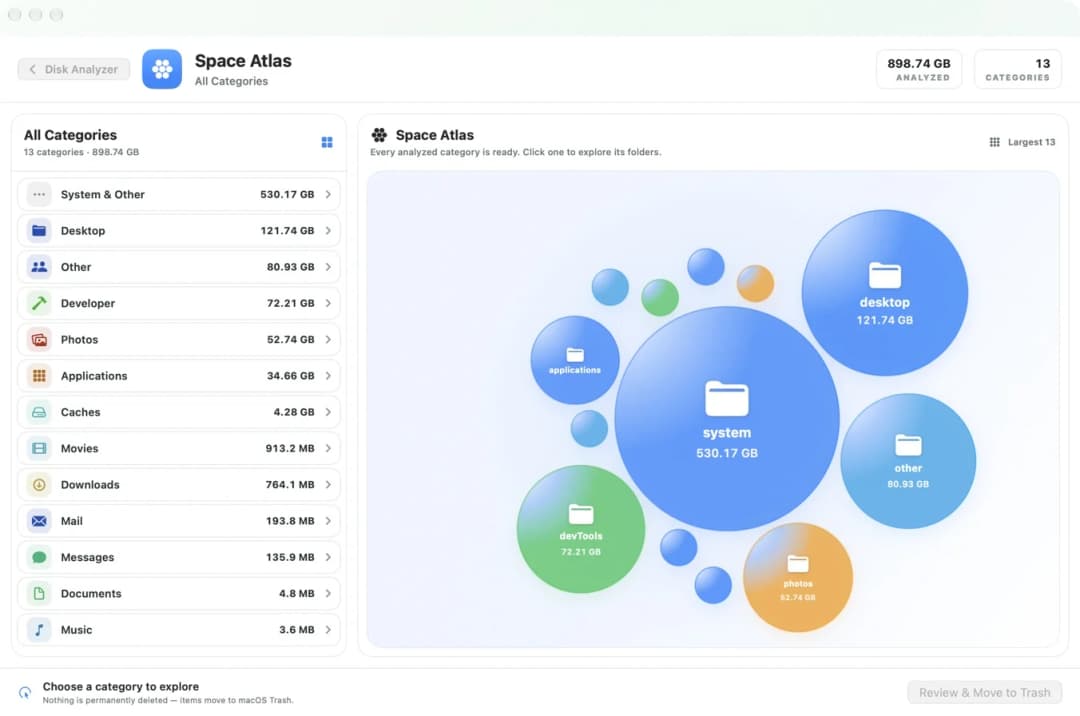
If you do not know where your space went, you need a map. A map tool draws your folders as shapes. A big folder is a big shape, so you see the heavy ones at once. DaisyDisk is a well-known map tool. It draws the disk as a colored wheel. You can try it for free, and it cost $9.99 on its website in November 2026.
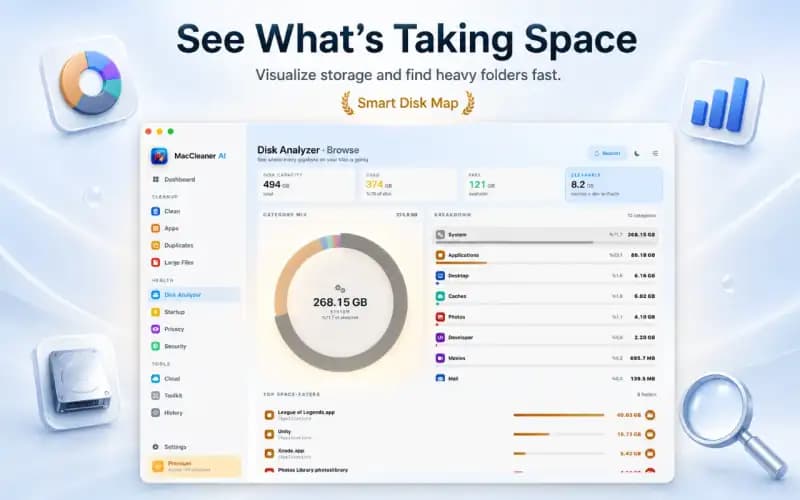
Smart Cleaner AI has a map too. It is called Space Atlas and it draws each group as a bubble. Looking at the map is free. A map only shows you where things are. It does not tell you what is safe to remove, so read the folder name before you touch anything.
3. To remove an app with its leftovers: an uninstaller
When you drag an app to the Trash, it often leaves small things behind, like crumbs under the table. An uninstaller looks for these crumbs. AppCleaner from FreeMacSoft is a small free tool for this. You drop an app on it, and it lists the files that belong to the app.
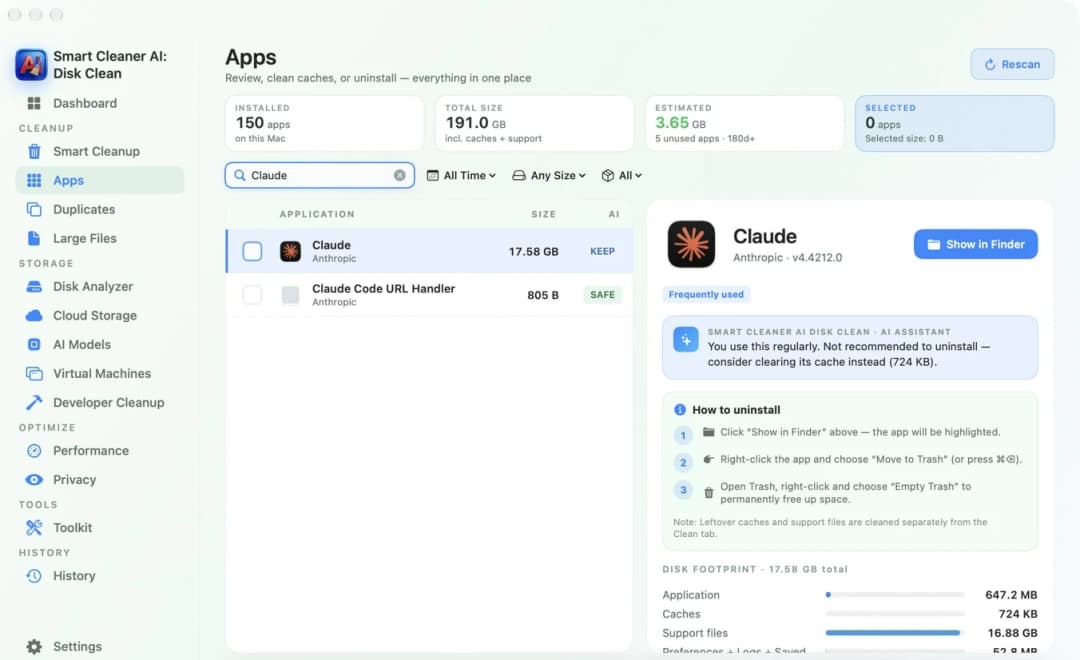
Smart Cleaner AI has a page called Apps. It lists every app with its size, and a click shows how much is the app itself and how much are caches and support files. It also tells you if you still use the app often. Do not remove an app you use just because it is big.
4. To find copies of files: a duplicate finder
Copies are like two of the same sock. You only need one. A duplicate finder compares your files and puts the same ones side by side. Gemini 2 from MacPaw is an app only for this. It also looks for photos that are similar, not just the same. On MacPaw's website it started at $1.95 a month in November 2026.
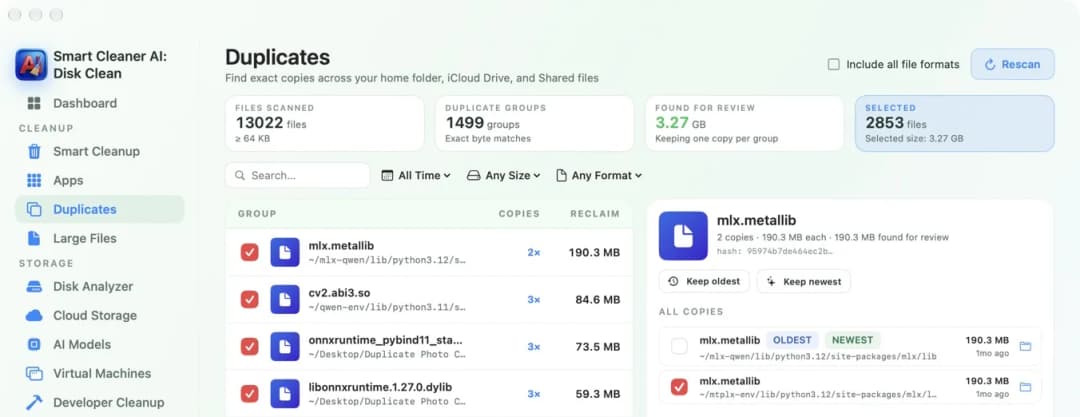
In Smart Cleaner AI, open Duplicates. It looks for exact copies and puts them into groups. In each group it keeps one copy and marks the rest. Looking at the groups is free. Check a group before you remove anything, because sometimes two copies sit in two folders for a good reason.
5. One big toolbox or small free helpers
Some people want one box with everything in it. CleanMyMac from MacPaw is such a box. It cleans, draws a map, updates apps and scans for malware. In the US Mac App Store it cost $9.99 a month or $39.99 a year in November 2026. If you only want small free helpers, OnyX from Titanium Software is free. It is a maintenance tool with many switches, so it is better for people who know their Mac well. There is a separate OnyX for each macOS version.
Smart Cleaner AI sits in between. It has no malware scanner and no VPN. It stays with storage: Smart Cleanup, Apps, Duplicates, Large Files, a map and pages for developer files and local AI models. Scanning and looking are free. Pro moves the things you picked to the Trash for you. In the US Mac App Store, Pro cost $5.99 a month, $12.99 a year or $24.99 once in November 2026.
6. Three things to check in any cleaner
Whatever tool you take from the cupboard, check three things. One: does it show a list before it removes anything? Two: does it put things in the Trash, so you can take them back? Three: what does its App Privacy box in the Mac App Store say? For Smart Cleaner AI that box says Data Not Collected.
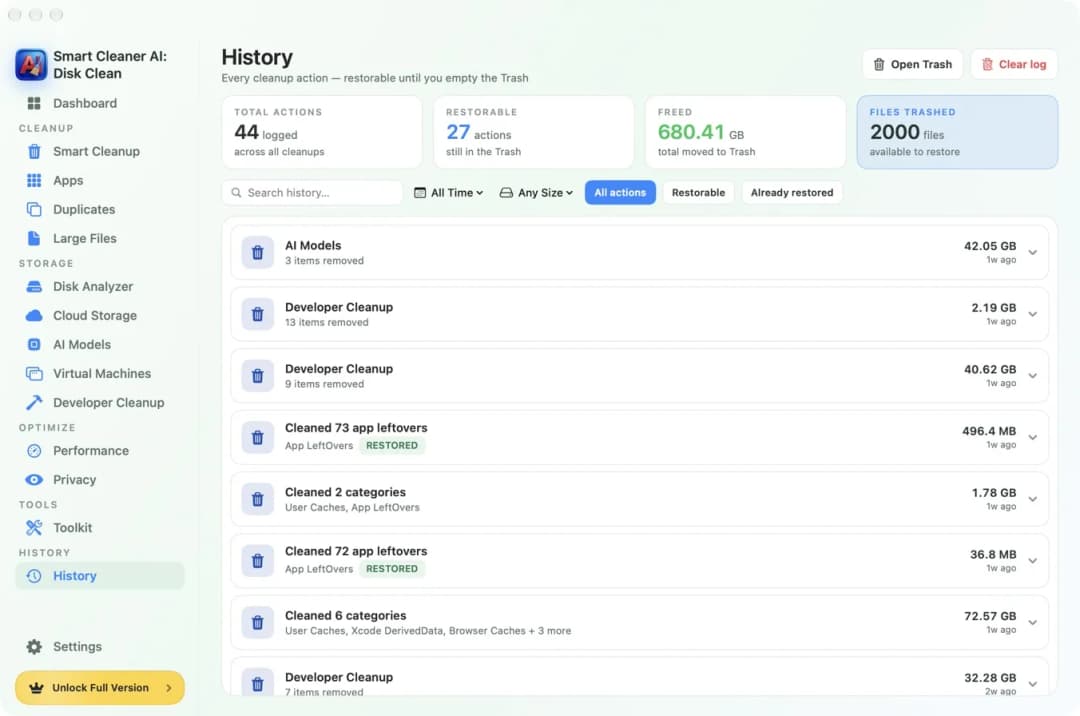
In Smart Cleaner AI, the History page lists each cleanup and shows how many are still restorable from the Trash. One more thing. We did not measure how fast each app scans or how well it finds malware, so you will not find a score table here. Prices can be different in your country and can change, so read the price on the purchase page before you pay.
How to choose a Mac cleaner
- 1
Look at your storage
Open System Settings, then General, then Storage and see how full the disk is and which groups are biggest.
- 2
Name your job
Decide what you need: a map of the disk, an uninstaller, a duplicate finder or one app for several jobs.
- 3
Try the free part first
Use the free tools or the free scan of an app and see if it shows you what you were looking for.
- 4
Check before you pay
Make sure the app shows a list first, uses the Trash and has a clear App Privacy box, then read the price on the purchase page.
Frequently asked questions
What is the best Mac cleaner software in 2027?▼
It depends on the job. For a disk map, DaisyDisk and Space Atlas in Smart Cleaner AI are made for that. For removing apps, AppCleaner is free. For many jobs in one app with malware scanning, CleanMyMac is the big toolbox. For storage, duplicates and developer files with a free scan, look at Smart Cleaner AI.
What is the best free Mac cleaner?▼
Start with the Storage page in System Settings. AppCleaner removes apps with their leftovers and OnyX is a free maintenance tool for people who know their Mac well. In Smart Cleaner AI, scanning, the map and looking at duplicates are free.
Is Smart Cleaner AI free?▼
It is free to download, and scanning and looking are free. Moving the things you picked to the Trash inside the app needs Pro. In the US Mac App Store, Pro cost $5.99 a month, $12.99 a year or $24.99 once in November 2026.
Does a Mac cleaner make my Mac faster?▼
A cleaner frees space. It does not make the chip faster. If your disk is almost full, free space can help the Mac work normally again. Do not expect more than that.
Do I need a Mac cleaner at all?▼
No. You can tidy a Mac with the Storage page in System Settings and Finder. A cleaner app saves time, because it finds the big things, the copies and the leftovers for you and shows them in one place.

Start With a Free Look at Your Disk
Smart Cleaner AI shows what fills your Mac, finds exact copies and lists what your apps leave behind. Scanning and looking are free. You decide yourself what goes to the Trash.

Sources
We built a custom disk scan algorithm for Smart Cleaner AI so you can quickly see what’s taking up space and review what to clean.
Related guides

· 9 min read
CleanMyMac Alternative: Smart Cleaner AI Compared
Looking for a CleanMyMac alternative? See what Smart Cleaner AI and CleanMyMac each do, what is free, what runs in the background and what both cost.
· 9 min read
What Is Taking Up Space on My Mac?
Your Mac is like a house with rooms you never open. See what fills each room with the macOS storage bar, Disk Analyzer and Space Atlas, and tidy up safely.

· 9 min read
Are Mac Cleaner Apps Safe? 5 Things to Check
Some Mac cleaner apps are safe and some are not. Check five simple things first: what it shows you, the Trash, file paths, where it works and what it asks for.

Ready when you are
Download Smart Cleaner AI for Mac
Analyze Mac storage, safely clear system data caches, find large files, and remove app leftovers with on-device controls.
By using Smart Cleaner AI, you agree to our Terms of Use and Privacy Policy.