Are Mac Cleaner Apps Safe? 8 Checks Before You Grant Full Disk Access
A Mac cleaner with Full Disk Access can reach nearly every file on your Mac. Check these 8 things first: distribution, privacy label, permissions, deletion and claims.

A disk cleaner promises free space, but to find caches, leftovers and large files it may ask for Full Disk Access, which lets it read protected data such as Mail, Messages, Safari data and many other files that macOS normally keeps from apps. Some cleaners also ask for your administrator password to install helpers. That is a lot of trust to give a utility.
You can make that decision with evidence instead of marketing. This guide walks through eight checks you can run on the listing, in System Settings and during a first scan, so you know what a Mac cleaner can reach and how it removes files.
Why Mac Cleaners Need Extra Scrutiny
macOS already manages much of its own housekeeping. It clears many temporary files, offers storage recommendations in System Settings → General → Storage and can store files in iCloud. A cleaner is useful when it helps you find large, old or duplicate files and app leftovers you would not spot yourself.
The category also has a long history of scareware: fake warnings about infections, exaggerated junk totals and pressure to pay before you can fix anything. Because cleaners ask for broad access, the checks below matter more here than for most apps.
1. Check How the App Is Distributed
Apps from the Mac App Store are reviewed by Apple and run in an App Sandbox, which limits what they can touch unless you grant more. Apps downloaded from the web can be legitimate too, but they should be notarized by Apple, and macOS checks this through Gatekeeper when you first open them.
Avoid cleaners offered through pop-ups, bundled installers or download sites you do not recognize. If macOS warns that it cannot verify an app, do not override the warning for a cleaner.
2. Read the App Privacy Label and Policy
Mac App Store listings show an App Privacy section with Data Used to Track You, Data Linked to You and Data Not Linked to You, or Data Not Collected. For a tool that can read your files, any tracking is a red flag.
Then read the privacy policy for three things: whether scans happen on your Mac, whether file names or paths are sent anywhere, and whether the app includes analytics or advertising SDKs. Clear, specific answers are a good sign.
3. Understand What Full Disk Access Unlocks
Full Disk Access lets an app read protected locations such as Mail, Messages, Safari data, Time Machine settings and other apps' containers. Some cleanup and uninstall features need it to find leftovers, but basic scans of your Downloads or Documents usually do not.
Grant it only if you want those features, and only to an app you trust. You can review or remove it at any time in System Settings → Privacy & Security → Full Disk Access. Turning it off does not delete the app; it simply narrows what the app can see.
4. Be Careful With Administrator Passwords and Helpers
Some cleaners install a privileged helper or ask for your administrator password to delete files in system locations. That gives the app power beyond your user account, and a helper may keep running in the background after you close the app.
Prefer cleaners that work within your user account and explain each request. You can see background items in System Settings → General → Login Items & Extensions and switch off ones you do not recognize.
5. Watch Network Activity During a Scan
Open Activity Monitor, choose the Network tab and watch Sent Bytes while the cleaner scans. A local scanner sends little or nothing apart from small checks such as purchases or updates.
Large or steady uploads during a scan are a reason to investigate, because local processing should not need them. Activity Monitor shows how much data was sent, not what it was, so ask the developer if the numbers look wrong.
6. Make Sure Everything Goes to the Trash First
A safe cleaner shows you exactly what it found, with paths and sizes, and waits for your confirmation. Removed items should go to the Trash, where you can restore them until you empty it.
Be wary of one-click options that permanently erase files or clean system folders you cannot inspect. Caches are usually rebuilt by apps, but documents, photos and project files are not.
7. Be Skeptical of Claims macOS Does Not Need
Claims to "speed up" a Mac by freeing RAM, to remove viruses you never had, or to find gigabytes of junk on a new Mac are signs of scareware. RAM-cleaning claims are usually misleading because macOS manages memory automatically, and real malware protection comes from Gatekeeper, XProtect and keeping macOS up to date.
Honest cleaners describe concrete tasks: finding large and duplicate files, removing app leftovers, reviewing login items and showing which folders use space. They also explain that some items, such as developer caches, will be rebuilt.
8. Check the Price, the Developer and Your Backup
Read the price and renewal terms before a trial ends, and check that core features such as scanning and previews are usable before you pay. Look up the developer's other apps, support page and recent updates.
Before any large cleanup, make sure Time Machine or another backup is current. A good cleaner is a convenience, not a replacement for a backup.
Run the Safety Check in Five Minutes
- 1
Check distribution and the privacy label
Prefer the Mac App Store, or make sure a downloaded app is notarized, then read its App Privacy section.
- 2
Grant Full Disk Access only if needed
Turn it on or off in System Settings → Privacy & Security → Full Disk Access.
- 3
Watch Sent Bytes in Activity Monitor
Open the Network tab during a scan and look for large or steady uploads.
- 4
Delete a small batch to the Trash
Confirm that removed items land in the Trash and can be restored before cleaning more.

A Mac Cleaner Built Around This Checklist
Smart Cleaner AI: Disk Clean is distributed through the Mac App Store, scans locally, includes no third-party analytics, advertising or tracking SDKs, and moves items to the Trash only after you review them. Its App Store privacy label is Data Not Collected.

Frequently asked questions
Are Mac cleaner apps safe to use?▼
Some are and some are not. A safe cleaner is distributed through the Mac App Store or notarized, scans locally, asks only for the access each feature needs, does not track you and moves items to the Trash after your review.
Does a Mac cleaner need Full Disk Access?▼
Only for some features, such as finding leftovers in protected locations. Basic scans of your own folders usually work without it. You can grant or remove it any time in System Settings → Privacy & Security → Full Disk Access.
Do I need a cleaner app on a Mac at all?▼
Not always. macOS manages memory and many temporary files itself, and System Settings → General → Storage offers recommendations. A cleaner helps when you want to find large, duplicate or leftover files faster.
Can a Mac cleaner remove viruses or speed up my Mac?▼
Be skeptical. macOS includes Gatekeeper and XProtect for malware, and RAM-cleaning claims are usually misleading because macOS manages memory automatically. Removing large unneeded files can help when your disk is nearly full.
Can I undo what a Mac cleaner deleted?▼
If the app moved items to the Trash, you can restore them until the Trash is emptied. Anything erased permanently can only come back from a backup such as Time Machine.
Sources
Related guides
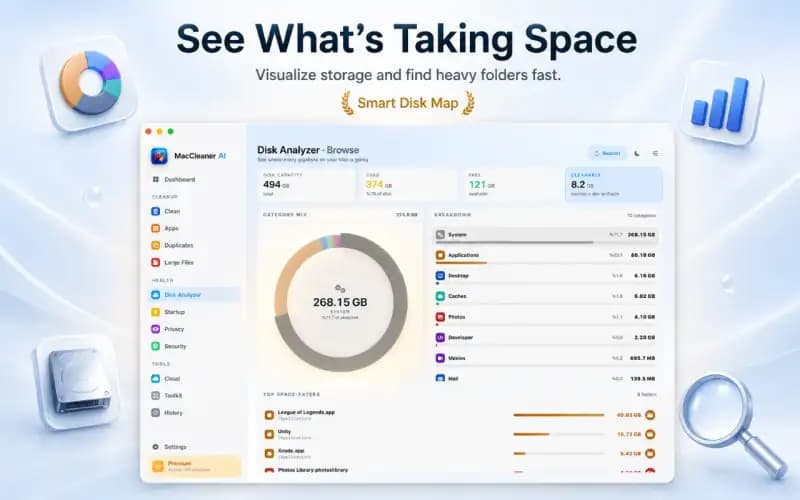
· 9 min read
What Is Taking Up Space on My Mac? Breakdown & Safe Fixes (2026)
Discover what is taking up space on your Mac. Learn how to inspect System Data, user caches, hidden local snapshots, and app leftovers safely.

· 9 min read
How to Clear System Data on Mac Safely: Step-by-Step (2026)
Learn how to clear System Data on Mac and MacBook safely. Reduce caches, logs, old backups, and app leftovers to free up space without risking system folders.

· 9 min read
How to Uninstall Apps Completely on Mac & Remove Leftovers (2026)
Step-by-step guide to uninstall apps completely on Mac and delete hidden leftover caches, preferences, and helpers with an on-device app uninstaller for Mac.
Ready when you are
Download Smart Cleaner AI for Mac
Analyze Mac storage, safely clear system data caches, find large files, and remove app leftovers with on-device controls.
By using Smart Cleaner AI, you agree to our Terms of Use and Privacy Policy.