Are iPhone Cleaner Apps Safe? A 9-Point Privacy Checklist Before You Install One
Before you give a cleaner app access to your photos, check these 9 things: privacy labels, permissions, network activity, subscriptions and deletion safety.
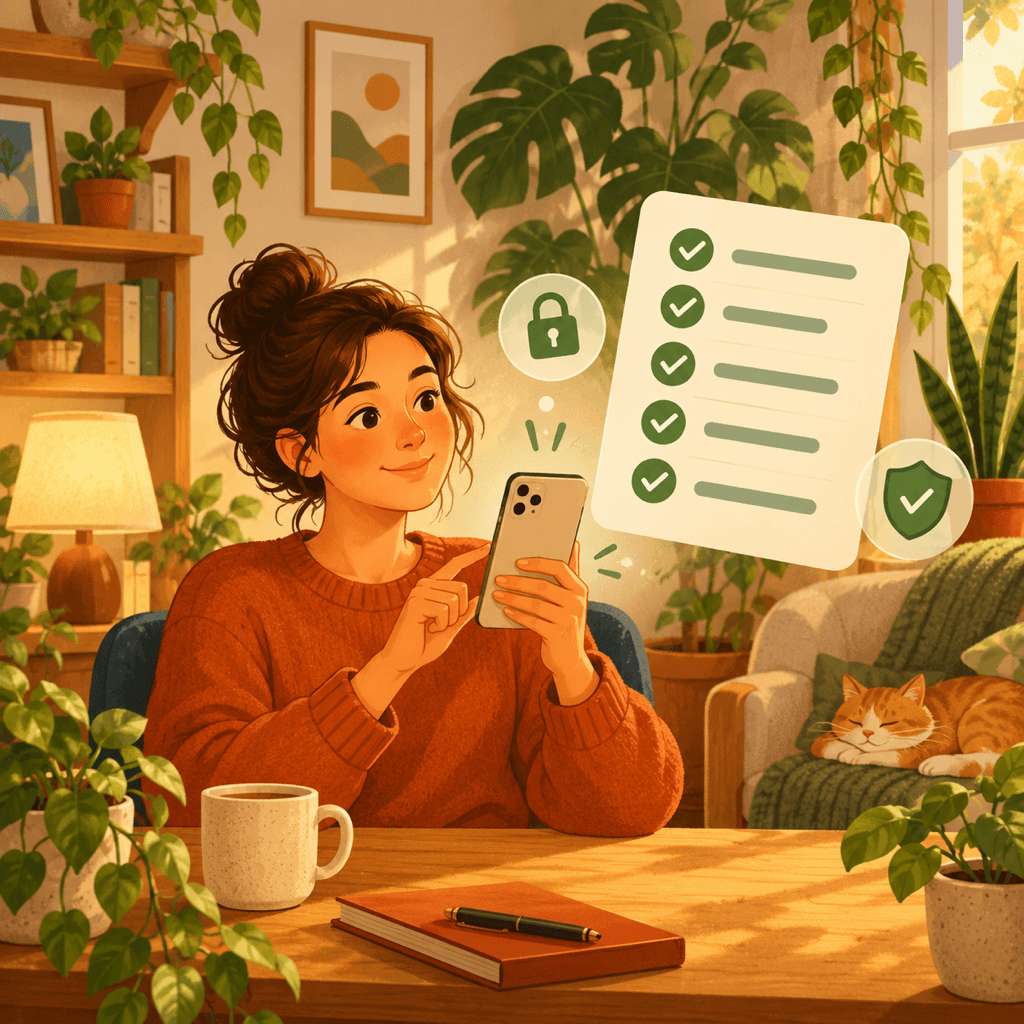
A storage cleaner asks for something most apps never need: access to your entire photo library, sometimes your contacts too. That library holds faces, documents, screenshots of bank details, locations and years of private moments. Whether a cleaner app is safe depends less on its marketing and more on what it does with that access.
The good news is that iOS gives you the tools to check. This guide walks through nine concrete checks you can run in a few minutes, using the App Store listing and the Settings app, before and after you install any cleaner. None of them require technical knowledge.
Why Cleaner Apps Deserve Extra Scrutiny
Most apps touch a narrow slice of your data. A photo cleaner needs to read every image and video to find duplicates, similar shots and large files, and a contact cleaner needs your whole address book. If that data is uploaded for processing or shared with advertising partners, the privacy cost can outweigh the gigabytes you get back.
The category also has a history of aggressive tactics: alarming “your phone is full” warnings, hard-to-close paywalls and expensive weekly subscriptions. A good cleaner can be genuinely useful. The checks below help you separate the useful ones from the risky ones.
1. Read the App Privacy Label on the App Store
Every App Store listing has an App Privacy section completed by the developer. It groups data into Data Used to Track You, Data Linked to You and Data Not Linked to You, or states Data Not Collected.
For a cleaner, Data Used to Track You is the biggest red flag: it means data may be combined with other companies’ data for advertising. Photos or Videos listed under Data Linked to You should also make you pause. Remember that the label is self-reported, so treat it as a starting point and use the later checks to confirm it.
2. Check Whether Scanning Happens On-Device
Modern iPhones can compare photos locally using Apple frameworks such as Vision and Core ML. An app that scans on the device never needs to send your library to a server to find duplicates.
Look for a clear statement in the app description or privacy policy that photos are processed on the device and not uploaded. Vague wording such as “we may process your content to improve our services” is a reason to look elsewhere.
3. Grant the Smallest Photo Access That Works
When an app asks for photo access, iOS lets you choose limited access and pick specific photos instead of granting the whole library. You can change this at any time in Settings → Privacy & Security → Photos, then select the app.
To find duplicates across your library a cleaner does need full access, so a reasonable approach is to grant it while you run a cleanup session and reduce it afterwards. Be wary of an app that refuses to open at all unless it gets full access to photos, contacts and location at once.
4. Watch Which Other Permissions It Requests
A photo cleaner has no obvious reason to need your location, microphone, Bluetooth or the ability to track you across other companies’ apps and websites. Each extra permission prompt is worth questioning.
If you see the App Tracking Transparency prompt asking to track your activity, you can tap Ask App Not to Track. The app should keep working normally; if features suddenly stop, that tells you something about its business model.
5. Verify Network Activity with App Privacy Report
iOS includes App Privacy Report in Settings → Privacy & Security. Turn it on, use the cleaner for a scan, then come back. The report lists how often the app accessed your photos and which internet domains it contacted.
An on-device cleaner may still contact a few domains, for example for in-app purchases or crash reporting. What you are looking for is a long list of advertising or analytics domains, or heavy network activity while it scans your library. That would contradict an “everything stays on your iPhone” claim.
6. Be Skeptical of Claims iOS Does Not Allow
iOS runs every app in its own sandbox. A third-party app cannot clear other apps’ caches, “boost” RAM, remove viruses from your iPhone or speed up the system by cleaning hidden files. Apps that promise these things are describing features iOS does not let them have.
What a cleaner can legitimately do is help you review and remove items you have given it access to: duplicate and similar photos, screenshots, large videos, Live Photos and duplicate contacts. Honest apps describe exactly that.
7. Understand the Subscription Before the Trial Ends
Many cleaners use a free trial that converts to a paid subscription, sometimes billed weekly. Before you start a trial, read the price, billing period and renewal date on the purchase sheet. You can review or cancel any subscription in Settings → your name → Subscriptions.
A trustworthy app makes the price and the close button easy to find, and lets you use at least some core features or a scan preview before paying.
8. Make Sure Nothing Is Deleted Without Your Review
A safe cleaner shows you what it found and waits for your approval. Automatic “one tap clean everything” behaviour risks removing the one sharp shot in a burst or a photo you kept on purpose.
Photos you delete on iPhone go to the Recently Deleted album, where you can recover them for about 30 days. If iCloud Photos is turned on, the deletion also applies to your other devices, so review carefully and keep a backup of anything irreplaceable.
9. Check the Developer and the Support Behind the App
Open the developer’s name on the App Store to see their other apps, then visit their website. Look for a readable privacy policy, a support or contact page, and recent updates that show the app is maintained for current iOS versions.
Reviews help too, especially recent ones that mention billing, deletion problems or privacy. A pattern of complaints about surprise charges is more informative than a high star average.
Run the Privacy Check in Five Minutes
- 1
Open the App Privacy section
On the App Store listing, scroll to App Privacy and check for Data Used to Track You or photos linked to your identity.
- 2
Grant photo access deliberately
Choose full access only while you clean, then adjust it in Settings → Privacy & Security → Photos.
- 3
Turn on App Privacy Report
Enable it in Settings → Privacy & Security, run a scan, and review which domains the app contacted.
- 4
Review before deleting
Check every suggested group yourself, and remember Recently Deleted keeps photos for about 30 days.

A Cleaner Built Around This Checklist
Clean Up Storage - Photo Clean scans duplicate and similar photos, screenshots, large videos and contacts on your iPhone. Scanning stays on-device, and nothing is removed until you review and approve it.

Frequently asked questions
Are iPhone cleaner apps safe to use?▼
Some are and some are not. A safe cleaner scans on the device, does not track you, asks only for the permissions it needs, and never deletes anything without your review. Use the App Privacy label and App Privacy Report to check.
Do cleaner apps upload my photos?▼
They do not have to. Duplicate and similar-photo detection can run entirely on the iPhone with Apple’s own frameworks. Check the privacy policy for an explicit on-device statement and verify network activity with App Privacy Report.
Can a cleaner app speed up my iPhone or clear other apps’ caches?▼
No. iOS sandboxes every app, so a third-party cleaner cannot clear other apps’ data, free RAM or remove viruses. It can help you remove photos, videos and contacts you choose.
What happens if a cleaner deletes the wrong photo?▼
Deleted photos stay in the Recently Deleted album for about 30 days, so you can recover them there. With iCloud Photos on, deletions sync to your other devices, so review before confirming.
How do I stop a cleaner app subscription?▼
Open Settings, tap your name, then Subscriptions, choose the app and tap Cancel Subscription. Cancel at least a day before the renewal date to avoid the next charge.
Sources
Related guides
· 7 min read
How to Manage iPhone Storage the Right Way (2026)
Settings shows you what is using storage. Here is the full workflow for actually managing and recovering iPhone storage, from Documents & Data to duplicate photos and large videos.

· 6 min read
How to Delete Duplicate Photos on iPhone (Fast & Safe)
Step-by-step guide to find and delete duplicate photos on iPhone, free up storage, and prevent duplicates from coming back.
· 9 min read
Why Is My iPhone Slow? Storage Problems and Safe Fixes
Low storage can slow an iPhone, but network conditions, battery health and unresponsive apps also matter. Diagnose the cause and recover space without deleting blindly.
Ready when you are
Download Clean Up Storage - Photo Clean for iPhone
Remove duplicate photos, compress videos, and organize contacts with a privacy-first cleanup flow.
By using Clean Up Storage - Photo Clean, you agree to our Terms of Use and Privacy Policy.