On-Device Processing Explained: How Photo Apps Can Work Without Uploading Your Library
What on-device processing means, how photo apps find duplicates without uploading your library, and what still uses the network. Plain-English guide.

“On-device processing” appears on a lot of app listings, including ours. It is a meaningful privacy promise, but only if you know what it covers. In short, it means the work of analysing your data happens on your own iPhone or Mac instead of on a company’s server.
This guide explains how that works for photo and storage apps, why it matters, what it does not cover, and how you can check an app’s claim yourself. We also spell out exactly where our own apps still use the network, so you can judge the promise against the details.
What On-Device Processing Means
Every app that finds duplicate photos has to look at the photos. The question is where that looking happens. With cloud processing, images or data derived from them are sent to a server, analysed there and the results are sent back. With on-device processing, the app reads the photos from your library and compares them using your device’s own CPU, GPU and, on recent Apple hardware, the Neural Engine.
When processing stays on the device, your photos do not need to leave it for the feature to work. There is no copy on a third-party server that could be breached, retained longer than you expect or used for purposes you did not agree to.
How Duplicate and Similar Photo Detection Works Locally
Finding exact duplicates is relatively simple: the app compares file data or a fingerprint calculated from it. Finding similar photos, such as a burst of near-identical shots, takes more work. The app turns each image into a compact numeric description of what it looks like, then groups images whose descriptions are close together.
Apple provides frameworks for this kind of analysis, including Vision for image analysis and Core ML for running machine-learning models on the device. Because these run locally and are optimised for Apple silicon, a modern iPhone or Mac can scan thousands of photos without sending them anywhere.
Why It Matters for Privacy
A photo library is one of the most sensitive collections of data you own. It contains faces, children, home interiors, documents, screenshots of messages and often location data in photo metadata. Keeping analysis local removes a whole category of risk: what happens to that data after it leaves your device.
It also tends to be faster for large libraries, since nothing has to be uploaded first, and the core feature can keep working on a poor connection.
What On-Device Processing Does Not Mean
On-device processing is not the same as “the app never uses the internet.” An app can analyse photos locally and still connect to the network for other reasons: in-app purchases and subscription checks through the App Store, crash and diagnostic reports, downloading updated content, or syncing settings.
It also does not, on its own, tell you whether the app collects analytics about how you use it, or shares data with advertisers. That is why the App Store privacy label and the app’s privacy policy are still worth reading, even when processing is local.
Exactly Where Our Apps Use the Network
Clean Up Storage - Photo Clean analyses photos, videos and contacts on your iPhone, and media files are not uploaded to our servers. It uses Google Firebase for diagnostic telemetry and crash reporting, which does not include access to your photos.
Vision AI: Photo Cleaner and Smart Cleaner AI: Disk Clean scan and compare files on your Mac. We do not operate scanning servers and do not receive your photos or files. If you scan a folder that belongs to a cloud storage service, that service’s own app may download files to your Mac so they can be compared.
Water Reminder DropWise is listed on the App Store as Data Not Collected by the developer. Its optional sync uses your own private iCloud account and the Apple Health permissions you grant, and its weather-based goals rely on weather data.
Across all four apps, purchases and subscriptions are handled by Apple through the App Store.
How to Verify an App’s On-Device Claim
Start with the App Privacy section on the App Store listing. Photos or Videos listed as collected, especially under Data Used to Track You or Data Linked to You, do not fit a strict on-device claim.
Then turn on App Privacy Report in Settings → Privacy & Security on iPhone, use the app for a scan and check which domains it contacted. A few domains for purchases or crash reporting are normal. Steady network activity while it scans a large library deserves a closer look.
Finally, read the privacy policy for an explicit sentence about where media is processed. Clear wording such as “photos are analysed on your device and not uploaded” is easier to hold a developer to than broad statements about improving services.
Check Where an App Processes Your Photos
- 1
Read the privacy label
On the App Store listing, open App Privacy and check whether Photos or Videos are collected.
- 2
Read the policy wording
Look for an explicit statement that media is processed on the device and not uploaded.
- 3
Turn on App Privacy Report
On iPhone, enable it in Settings → Privacy & Security, then run a scan in the app.
- 4
Review network activity
Check which domains the app contacted and how often during the scan.
Find Duplicate Photos Without Uploading Them
Vision AI: Photo Cleaner compares photos in your Mac’s Photos library and folders on the device, groups exact duplicates and similar shots, and removes nothing until you review it.

Frequently asked questions
What does on-device processing mean?▼
It means the app analyses your data, such as photos, using your own iPhone or Mac’s processor instead of sending it to a server for analysis.
Does on-device mean the app works fully offline?▼
Not necessarily. The core analysis can run offline, but purchases, crash reports, sync or weather data may still use the network.
Can an app find similar photos without uploading them?▼
Yes. Apple’s Vision and Core ML frameworks let apps compare images locally, so duplicate and similar-photo detection does not require a server.
Do DijitalWorlds apps upload my photos?▼
No. Our photo and storage apps analyse media on your device, and your photos and files are not uploaded to DijitalWorlds servers. Clean Up Storage - Photo Clean uses Firebase only for diagnostics and crash reporting.
How can I check an app’s privacy claim myself?▼
Compare the App Store privacy label with the privacy policy, then use App Privacy Report on iPhone to see which domains the app contacts while you use it.
Sources
Related guides

· 9 min read
Are iPhone Cleaner Apps Safe? A Privacy Checklist
Before you give a cleaner app access to your photos, check these 9 things: privacy labels, permissions, network activity, subscriptions and deletion safety.
· 9 min read
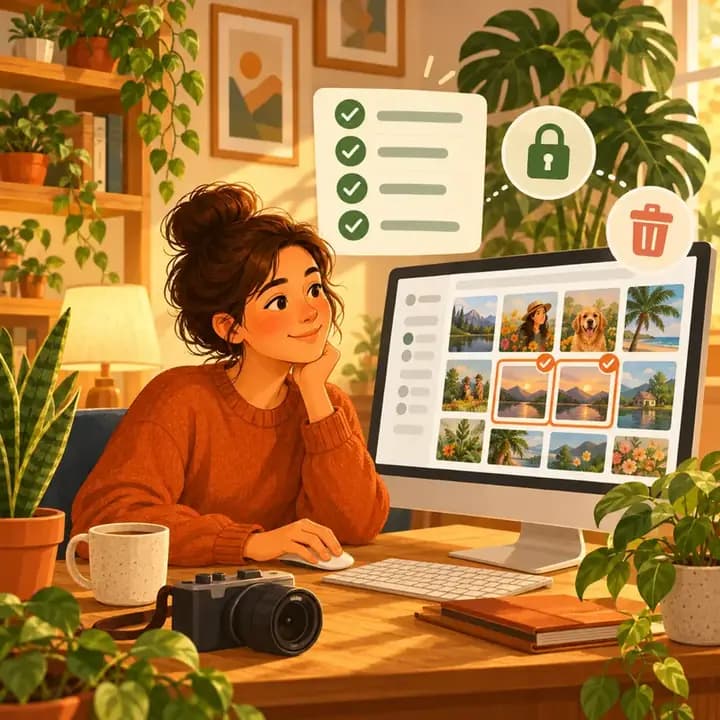
Are Mac Photo Cleaner Apps Safe? A Privacy Checklist
Before a duplicate photo finder scans your Mac, check these 8 things: privacy labels, Photos and folder access, cloud drives, network activity and safe deletion.
· 9 min read
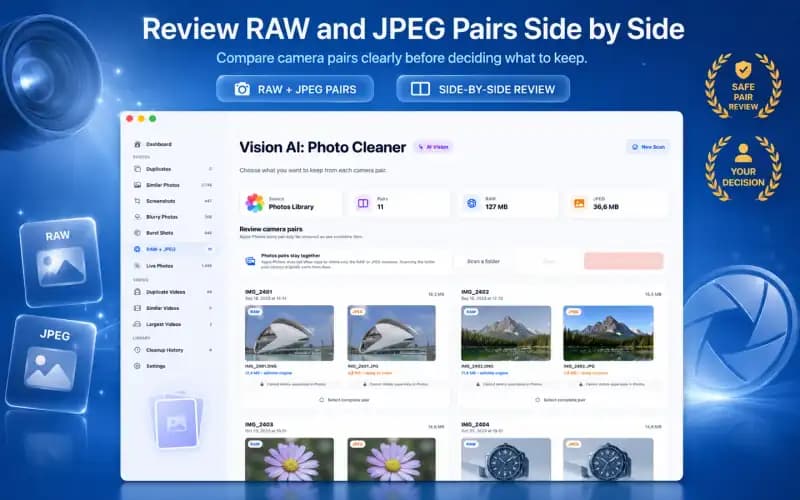
RAW + JPEG Photos on Mac: What Should You Keep? (2026 Guide)
Master RAW + JPEG pair management on Mac. Learn how Apple Photos handles camera RAW files, how to avoid double-storage bloat, and when to keep RAW masters.
Ready when you are
Download Vision AI: Photo Cleaner for Mac
Find duplicate and similar photos, review large videos and compress videos locally on your Mac. Choose what to keep and confirm every cleanup.
By using Vision AI: Photo Cleaner, you agree to our Terms of Use and Privacy Policy.