What Is "System Data" on Mac, and How Do You Safely Delete It?
Learn what System Data on Mac includes, why it grows, and how to review likely contributors safely. Follow practical cleanup steps on your Mac today.

System Data can be one of the least transparent parts of your Mac storage chart. It may look unexpectedly large, change after a restart, or seem to resist ordinary cleanup. That uncertainty often leads people toward system folders, where deleting the wrong item can damage an app or macOS itself.
The safer approach is to understand what the category represents, identify likely contributors, and remove only files you recognize and no longer need. This guide explains how to check System Data on different macOS versions, which cleanup actions are sensible, and where Smart Cleaner AI: Disk Clean can make the review easier. Keep a current backup before making substantial storage changes.
What System Data on Mac Actually Means
Apple describes System Data as storage used by all Apple and third-party files that do not belong to a more specific category. Earlier versions of macOS called the broader category Other. It acts as a catch-all for material that the storage calculation cannot label as Applications, Documents, Photos, Music, or another named group.
System Data is a category, not a folder that you can open and empty. Its contents may be spread across your user account, app support locations, temporary storage, and areas managed by macOS. The total can also move as the system indexes files, finishes an update, clears temporary material, or assigns an item to a different category.
A high number does not prove that every included file is junk. Some data supports apps you actively use, preserves settings, or helps macOS operate normally. Treat the chart as a clue about where space may be going, then investigate recognizable contributors instead of trying to erase the category itself.
Why System Data Can Grow
Possible contributors include app and system caches, diagnostic logs, local Time Machine snapshots, old iPhone or iPad backups, and files left after macOS updates. Downloaded macOS installers or update leftovers may also occupy space. These items do not always appear as separate categories, and macOS may retain some of them because they are still useful.
Third-party apps can add support files, plug-ins, indexes, and temporary working data. Virtual machines and developer tools may create large disk images, simulator data, build files, or caches. Browsers retain website data and caches, while communication and creative apps can accumulate previews, attachments, and rendered media.
What counts as System Data can vary by macOS version, app behavior, and the state of the storage calculation. The examples above are possible contributors, not guarantees that a particular item is responsible on your Mac. Measure first, check the folders or apps you understand, and avoid assuming that one generic cleanup will produce the same result for everyone.
How to Check System Data on Your Mac
On macOS Ventura 13 or later, open Apple menu > System Settings > General > Storage. The storage page shows available capacity and divides used space into categories. Select the available information beside categories such as Applications, Documents, or iOS Files when you want to review items that macOS exposes for management.
On earlier macOS versions, open Apple menu > About This Mac > Storage. Depending on the version, you may be able to choose Manage for more detail. The labels and controls can differ, but the purpose is the same: find the largest understandable categories before deciding what to remove.
Wait for the calculation to finish before treating the number as final. The chart can update while macOS scans, indexes, or reclassifies files, and System Data may rise or fall during that process. If the result looks implausible, restart the Mac, reopen the storage view, and give it time to settle rather than deleting files in response to a momentary reading.
How to Reduce Likely Contributors Safely
Start with low-risk housekeeping. Restart the Mac to let pending maintenance complete, then inspect and empty the Trash only after confirming that its contents are disposable. Review Downloads for old disk images, installers, archives, and exports. Keep macOS updated, since current updates can include storage-management fixes and may replace or remove older update material.
Remove unused apps with their own uninstaller when the developer provides one, especially for software that installs extensions or background components. Clear browser caches through the browser's own settings instead of hunting through Library folders. Cache removal may sign you out of sites or make pages load their resources again, so review the browser's options and avoid clearing saved passwords or essential website data unintentionally.
Old device backups can be large, but delete them only after confirming that you will not need them to restore an iPhone or iPad. When a device is connected, Finder lists device backups under Manage Backups. Check the device and backup date carefully, preserve any recovery copy you still rely on, and do not confuse a backup with ordinary files that can be downloaded again.
Let Time Machine finish a backup if local snapshots seem to be involved. macOS normally removes local snapshots when it needs space, so manual intervention is rarely the first step. Never delete files from /System, /Library, or inside other apps' containers by hand, and never paste random Terminal commands from a forum into your Mac. Maintain a current backup before cleanup, because an unfamiliar file may be essential even when its name looks temporary.
A Safer, Faster Review With Smart Cleaner AI
Smart Cleaner AI: Disk Clean helps you review the caches, large files, duplicates, and leftovers that may contribute to storage use. Its smart disk cleanup and cache review, storage analyzer, visual disk analyzer, and large file finder bring several checks into one Mac app. It does not promise to delete or shrink the System Data category directly, because that category includes files managed by macOS as well as data that may be necessary.
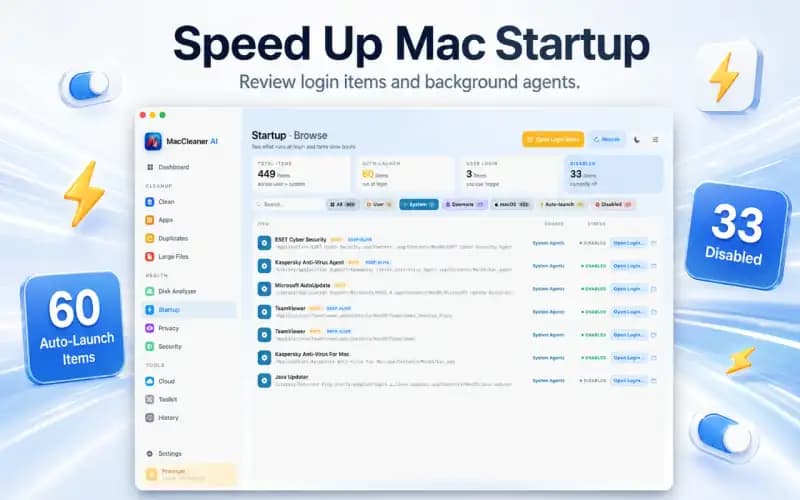
AI-guided cleanup suggestions can help organize the review, while the duplicate files and photos cleaner and app review and uninstaller provide additional places to look. The app also includes startup items and login management, browser privacy and cache review, a security settings checklist, and cloud storage review. Each feature is a way to inspect relevant material, not a reason to remove everything that appears.
The scan runs locally on the Mac, and the app has no third-party analytics, advertising, or tracking SDKs. Nothing is removed automatically. Items move to the Trash only after you review them, which leaves you in control and provides a chance to restore a selection before emptying the Trash.
Smart Cleaner AI requires macOS 14.6 or later and is free to download from the App Store. It can shorten the process of locating review candidates, but the same safety rules still apply: understand the item, keep needed files, and maintain a backup. Use the results to make deliberate decisions rather than chasing a particular System Data number.
Focus on Useful Free Space, Not a Perfect Number
System Data is designed to collect files that do not fit more specific storage categories, so it is unlikely to remain at one fixed size. After a careful cleanup, restart the Mac and allow the storage calculation to refresh. A changing total is normal, and macOS may reclaim temporary space later when another task needs it.
The practical goal is enough free space for updates, applications, and your work, not a zero beside System Data. Begin with files you own and recognize, use built-in or app-specific controls, and leave protected locations alone. If storage remains unusually constrained after those steps, a focused review with a trusted tool or qualified technician is safer than experimenting inside system folders.
Where to go next: this guide explains what the category is and how to review it. For the full step-by-step cleanup, continue with "How to Clear System Data on Mac Safely (Without Breaking macOS)". If your whole disk is nearly full and System Data is only one suspect, read "Why Is My Mac Storage Full? How to Find and Delete What's Eating Your Disk".
Review System Data on Mac in Four Safe Steps
- 1
Check the storage calculation
Open Apple menu > System Settings > General > Storage on macOS Ventura 13 or later. On an earlier version, open Apple menu > About This Mac > Storage. Wait for macOS to finish calculating before comparing System Data with the other categories.
- 2
Remove obvious, replaceable clutter
Restart the Mac, review the Trash, and inspect Downloads for installers, disk images, archives, and exports you no longer need. Empty the Trash only after checking every item and confirming that important work is backed up.
- 3
Use the proper cleanup controls
Clear browser caches in the browser's settings, uninstall unused apps with their supplied uninstallers, and review old device backups under Finder's Manage Backups when a device is connected. Let Time Machine complete a backup rather than manually forcing snapshot deletion.
- 4
Review again without touching system folders
Reopen the storage view after macOS has recalculated it. If you need more insight, use a local storage analyzer to inspect recognized caches, large files, duplicates, and leftovers. Do not delete from /System, /Library, or app containers, and do not run unverified Terminal commands.

Review What Is Using Your Mac Storage
Download Smart Cleaner AI: Disk Clean free from the App Store to review caches, large files, duplicates, unused apps, and other possible storage contributors. It scans locally, and nothing is removed automatically. Requires macOS 14.6 or later.

Frequently asked questions
Can I delete System Data on Mac?▼
You cannot safely delete System Data as one unit because it is a category, not a folder. You can reduce some likely contributors by reviewing old installers, browser caches, unused apps, device backups, and other files you recognize. macOS also manages temporary data and local snapshots itself. Never remove unfamiliar files from protected system locations just to make the chart smaller.
Why is System Data so large on my Mac?▼
Caches, logs, local Time Machine snapshots, old device backups, update files, app support data, virtual machines, developer files, and browser data are possible contributors. The exact classification varies by macOS version and can change while storage is calculated. A large total does not identify one cause, so inspect recognized categories and files before deleting anything.
Will restarting my Mac reduce System Data?▼
A restart can allow temporary work and pending maintenance to finish, and it can prompt the storage chart to recalculate. It may change the reported number, but it is not guaranteed to remove a substantial amount of data. Restart first because it is low risk, then wait for the storage calculation before judging the result.
Should I manually delete Time Machine local snapshots?▼
Usually not. macOS manages local snapshots and removes them when space is needed. Connect the backup disk and let Time Machine finish a backup if snapshots appear to be a factor. Avoid random Terminal commands, especially without a current backup, because a mistaken command can affect data beyond the storage category you intended to address.
Can Smart Cleaner AI clear System Data automatically?▼
No. Smart Cleaner AI does not claim to delete the System Data category directly, and it removes nothing automatically. It helps you review caches, large files, duplicates, app leftovers, and other possible contributors. Scans stay local, and items move to the Trash only after you review and approve them. The app requires macOS 14.6 or later.
Sources
Related guides

· 9 min read
How to Clear System Data on Mac Safely: Step-by-Step (2026)
Learn how to clear System Data on Mac and MacBook safely. Reduce caches, logs, old backups, and app leftovers to free up space without risking system folders.

· 9 min read
Mac Storage Full? Find What Fills Your Disk
See why your Mac storage is full, find large files and System Data, and clean up safely with practical steps. Start reclaiming disk space today.
· 9 min read
How to Clear Purgeable Space on Mac Safely: Complete Guide (2026)
Understand what purgeable space is on Mac and how to clear it. Reclaim storage from APFS local snapshots, system caches, and cached cloud files safely.
Ready when you are
Download Smart Cleaner AI for Mac
Analyze Mac storage, safely clear system data caches, find large files, and remove app leftovers with on-device controls.
By using Smart Cleaner AI, you agree to our Terms of Use and Privacy Policy.