Så tar du bort dubbletter från ditt Fotobibliotek på Mac
Apples inbyggda Dubbletter-album hittar bara exakta matchningar. Så rensar du även nästan-dubbletter från ditt Fotobibliotek på Mac utan att förstöra iCloud-synken.


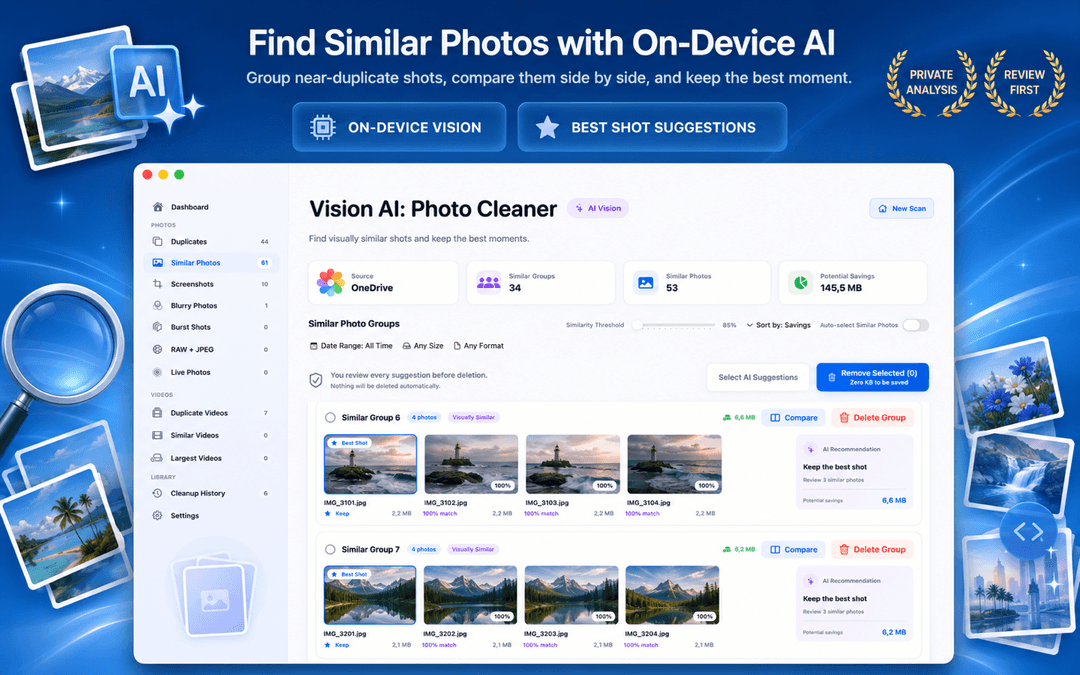
Hur man tar bort dubbletter från Bilder-biblioteket på Mac och iCloud (2026)
Undrar du hur man tar bort dubbletter från Bilder-biblioteket på din Mac? Även om Apple inkluderar ett inbyggt Dubbletter-album i macOS Ventura, Sonoma och Sequoia, identifierar det endast filer som är bit för bit identiska. Det missar den mycket större mängden dubblettfoton i appen Bilder: serietagningar, komprimerade bilder från WhatsApp och AirDrop, skalade exporter och snarlika foton.
Vision AI - Photo Cleaner är ett intelligent rensningsverktyg för dubblettfoton på Mac som skannar ditt Apple Bilder-bibliotek direkt. Det hittar både exakta dubbletter och visuellt snarlika bilder, så att du kan radera dubbletter i appen Bilder på Mac och ta bort dubblettfoton från iCloud på ett säkert sätt. Ladda ner det gratis på Mac App Store.
Vad borttagning av dubbletter från ditt bildbibliotek faktiskt innebär
Vad Apples inbyggda Dubbletter-vy hittar (och vad den missar)
I Apple Bilder på macOS visar Verktyg → Dubbletter bilder med identiskt innehåll och matchande metadata. Det fungerar bra för dubbla importer, men Apples detektering är medvetet mycket återhållsam.
Den ignorerar helt snarlika bilder, olika beskärningar, serietagningar och smärre exponeringsskillnader. Om du vill veta hur du hittar dubbletter i Bilder på Mac som ser likadana ut men har olika filstorlek, behöver du en AI-skanner som körs lokalt på enheten.
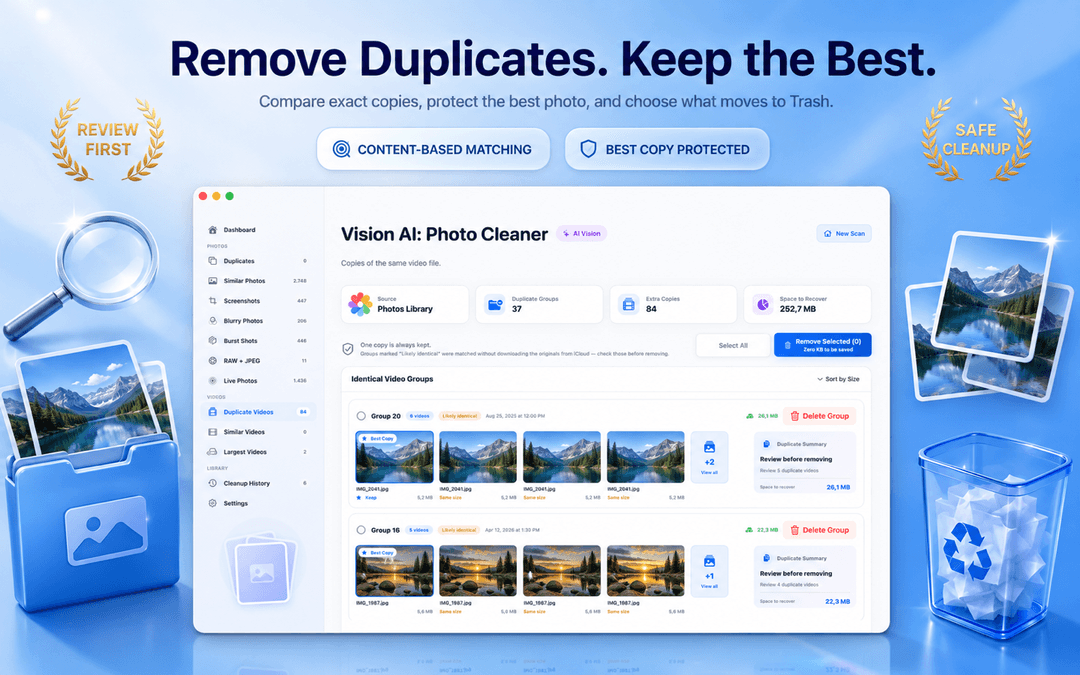
Snarlika bilder: Den verkliga lagringsslukaren i ditt bildbibliotek
Serietagningar, Live Photos och upprepade porträttbilder genererar hundratals liknande bilder som fyller ditt galleri. Inga av dessa aktiverar Apples Dubbletter-album, trots att de utgör merparten av det slösade utrymmet.
Vision AI - Photo Cleaner analyserar ditt bibliotek med justerbar visuell likhetströskel, och grupperar snarlika foton sida vid sida så att du kan behålla det skarpaste och radera dubbletter i Mac Bilder med full trygghet.
Hur man tar bort dubblettfoton från iCloud utan att störa synkroniseringen
När du raderar dubblettbilder i appen Apple Bilder på Mac, synkroniserar macOS automatiskt borttagningen via iCloud-bilder. Raderade objekt flyttas till albumet Senast raderade i 30 dagar, så att du enkelt kan återställa en bild vid behov.
Vision AI markerar automatiskt bilden med högst upplösning och skärpa som bevarandeval i varje grupp, vilket förhindrar att du råkar radera en hel fotoserie.
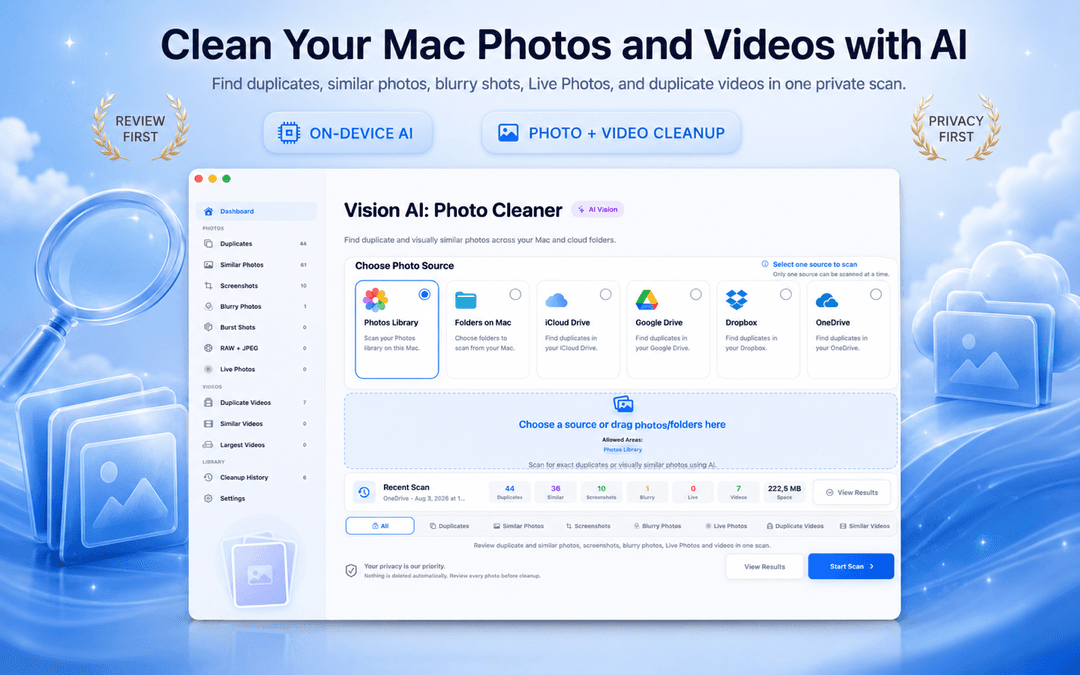
Hur man tar bort dubbletter från Bilder-biblioteket i 3 steg
Ge åtkomst till Bilder-biblioteket
Öppna Vision AI - Photo Cleaner och ge läsbehörighet till ditt Apple Bilder-bibliotek.
Granska exakta dubbletter och snarlika foton
Kontrollera exakta träffar först och använd likhetsreglaget för att gruppera serietagningar och snarlika bilder.
Bekräfta och flytta till Senast raderade
Behåll den föreslagna bästa bilden, markera oönskade dubbletter och radera. Rensningen synkroniseras automatiskt till iCloud.
Vanliga frågor
Är Vision AI verkligen en gratis dubblettsökare för Mac?Visa svar
Ja. Skanning, visuell likhetsgruppering, sida-vid-sida-jämförelse och radering av dubblettfoton på Mac är helt gratis på Mac App Store.
Kan jag ta bort dubbletter från Bilder-biblioteket gratis?Visa svar
Ja. Vision AI kommer direkt åt ditt Apple Bilder-bibliotek, grupperar identiska kopior samt liknande serietagningar och låter dig rensa säkert.
Måste jag skapa ett konto eller logga in?Visa svar
Nej. Appen kräver varken e-post eller kontoskapande. Du kan öppna den och börja skanna direkt.
Laddas mina foton upp till någon extern server?Visa svar
Nej. Alla beräkningar och jämförelser körs uteslutande lokalt på din Mac via Apples Neural Engine.
Rensa dina bilder utan kompromisser och dolda avgifter
En riktigt bra gratis dubblettrensare för Mac ska erbjuda både kraftfull lokal analys och obegränsad, säker borttagning.
Ladda ner Vision AI - Photo Cleaner på Mac App Store eller läs mer på produktsidan.
Har du frågor? Supportcenter
Relaterade guider
· 9 min läsning
Är bildrensningsappar för Mac säkra? En integritetschecklista
Kontrollera dessa 8 saker innan en dubblettfinnare skannar din Mac: integritetsetiketter, åtkomst till Bilder och mappar, molnenheter, nätverksaktivitet och säker radering.
· 9 min läsning
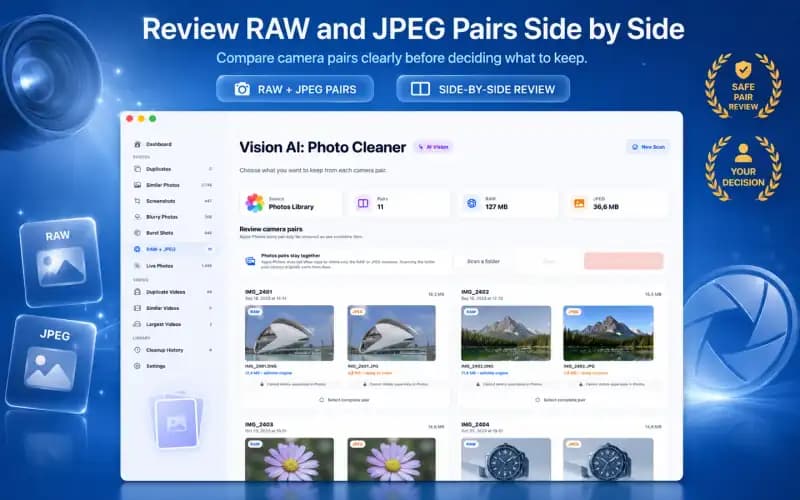
RAW + JPEG-foton på Mac: vilket ska du behålla? (Guide 2026)
Hantera RAW + JPEG-par på Mac. Lär dig hur Foton hanterar RAW-filer, hur du undviker att lagringen fördubblas och när du bör behålla RAW-original.
· 9 min läsning
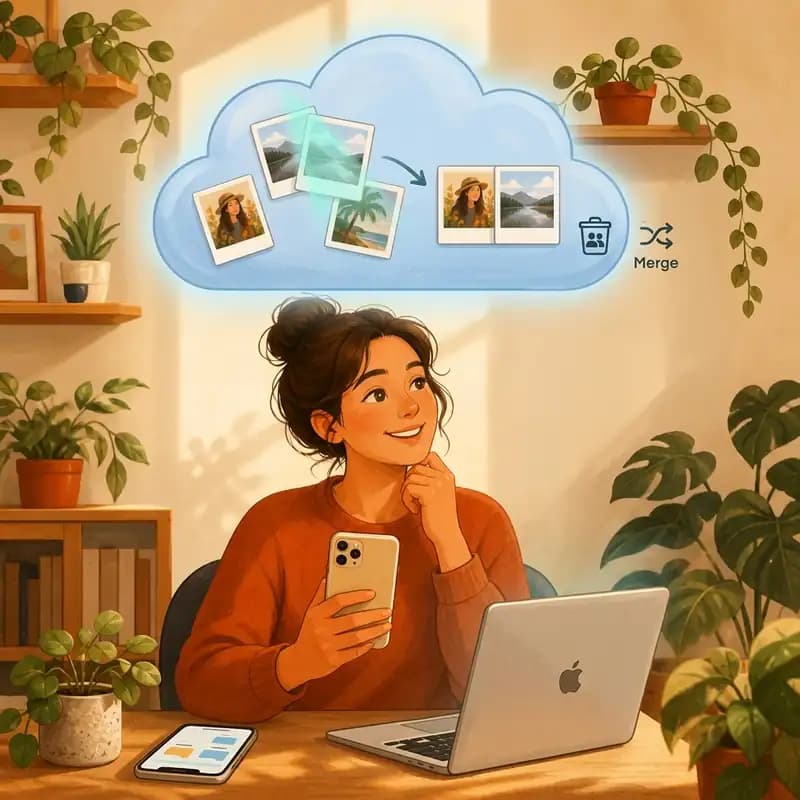
Så tar du bort dubblettfoton från iCloud på ett säkert sätt (2026)
Lär dig ta bort dubblettfoton från iCloud, Mac och iPhone. Rensa synkroniserade dubbletter på ett säkert sätt utan att förlora originalen i hög upplösning.
När du är redo
Ladda ner Vision AI - Photo Cleaner för Mac
Hitta dubbla och liknande foton, granska stora videor och komprimera dem lokalt på din Mac. Välj vad du vill behålla och bekräfta varje rensning.
Genom att använda Vision AI - Photo Cleaner godkänner du våra Användarvillkor och Integritetspolicy.