Why 'Documents & Data' or 'System Data' Gets So Huge on iPhone
System Data has no delete button in Settings. Here is what actually fills it up and how to shrink the part you control: message attachments, app caches, and duplicate photos.


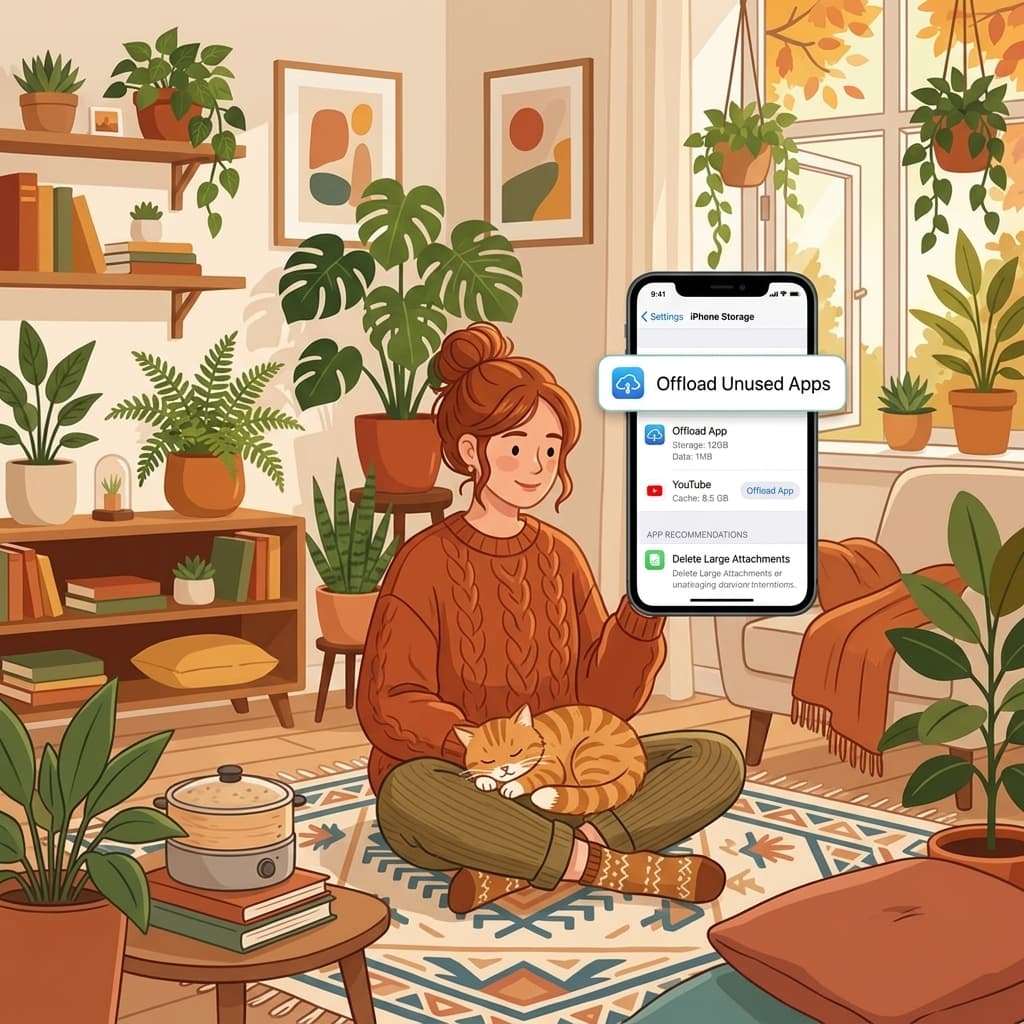
Why 'Documents & Data' or 'System Data' Gets So Huge on iPhone
You check iPhone Storage. Photos and apps look reasonable, and then you see it: "System Data" or an app's "Documents & Data" sitting at 15, 20, sometimes 40GB. There is no single button in Settings that empties it, which is exactly why the number keeps climbing.
That bucket is mostly caches, message attachments, offline map tiles, downloaded podcasts, and app data that was never meant to stick around this long. Photos Cleaner - Cleanup Phone targets the parts of it you actually control, on your iPhone, and shows you what it is before removing anything. It is free on the App Store.
What is usually hiding inside that number
There Is No 'Delete System Data' Button, and That Is the Point
Apple keeps System Data intentionally vague because it covers many small things: Siri's voice data, Spotlight's search index, crash logs, Safari's offline reading list, and every app's local cache. Most of it is harmless and regenerates automatically, which is exactly why deleting it wholesale is not something iOS offers.
The practical move is to attack the pieces you can see and control instead of the abstract total: message attachments, downloaded media, and your Photos library's hidden duplicates.
Message Attachments Are Usually the Biggest Single Piece
Every photo, video, and voice memo sent in Messages over the years sits on your device unless you delete the conversation. A single active group chat can quietly hold several gigabytes of videos nobody has opened since the day they were sent.
iOS already has a tool for this: Settings → General → iPhone Storage → Messages → Review Large Attachments sorts them by size, so the largest offenders surface first instead of you scrolling through years of threads one by one.

The Photos Library Is Part of That Number Too
Depending on how iOS reports it, part of what shows as system-level usage traces back to Photos: cached thumbnails, iCloud sync data, and the sheer number of near-identical shots your camera keeps producing. Clearing duplicates and blurry shots from the library reduces both the visible Photos number and some of what hides behind it.

Shrink the hidden storage in three steps
Check Documents & Data per app
In iPhone Storage, tap into apps like Messages, Safari, and Photos to see how much each one holds.
Clean Messages attachments
Open Review Large Attachments under iPhone Storage → Messages to find the largest photos and videos in your conversations, then use Photos Cleaner - Cleanup Phone for duplicates and large videos in your Photos library.
Restart after a big cleanup
A restart can clear some temporary files and helps Settings show the updated, reduced number.
Frequently asked questions
Is it safe to delete System Data?Show answer
You cannot delete it directly, and you should not try to force it through unofficial means. The safe approach is to clean the specific things that feed it: message attachments, app caches, and duplicate photos.
Why does System Data keep growing even after I clean up?Show answer
Caches rebuild as you use apps normally. It is expected to grow again, just more slowly if you clean up periodically instead of letting it run for months.
Does Safari contribute to this number?Show answer
Yes, offline reading list items and cached page data count toward it. Clearing Safari's history and website data in Settings helps.
Will cleaning affect my iCloud photos?Show answer
It depends on iCloud Photos. If iCloud Photos is on, deleting a photo from your iPhone library also deletes it from iCloud and your other devices (it stays in Recently Deleted for 30 days). Photos Cleaner - Cleanup Phone works only on your Photos library and always asks before deleting.
You cannot delete the label, but you can shrink what fills it
The number is vague on purpose. The message attachments and duplicate photos behind it are not, and those you can actually clean up.
Download Photos Cleaner - Cleanup Phone on the App Store or see the product page.
Have questions? Support Center
Related guides

· 9 min read
Are iPhone Cleaner Apps Safe? A Privacy Checklist
Before you give a cleaner app access to your photos, check these 9 things: privacy labels, permissions, network activity, subscriptions and deletion safety.

· 9 min read
Why Is My iPhone Slow? Storage Problems and Safe Fixes
Low storage can slow an iPhone, but network conditions, battery health and unresponsive apps also matter. Diagnose the cause and recover space without deleting blindly.

· 9 min read
iCloud Storage Full but iPhone Has Space: What’s the Difference?
iCloud storage and iPhone storage are separate. Learn what each full-storage warning means, what stops syncing, and how to free the right space safely.
Ready when you are
Download Photos Cleaner - Cleanup Phone for iPhone
Remove duplicate photos, compress videos, and organize contacts with a privacy-first cleanup flow.
By using Photos Cleaner - Cleanup Phone, you agree to our Terms of Use and Privacy Policy.