如何正确管理 iPhone 存储空间(2026)
设置只会告诉你什么占用了空间。这是真正管理和回收 iPhone 存储空间的完整流程,从「文稿与数据」到重复照片和大视频。

How to Actually Manage iPhone Storage (Not Just Check It)
Settings tells you what is eating your storage. It does not clean any of it. Between iOS 26's built-in storage screen and an actual cleanup, there is a gap: you can see that Photos take 40GB, but Settings will not tell you which of those photos are duplicates, which screenshots you kept by accident, or which videos are safe to delete.
iCleaner Panda closes that gap. It scans your Photos library, Messages attachments, and files, finds what is actually safe to remove, and lets you confirm before anything is deleted. It is free on the App Store.
This is the full workflow, from checking what Settings shows you to actually getting the space back.
Where iPhone storage management actually happens
Start With What Settings Already Tells You
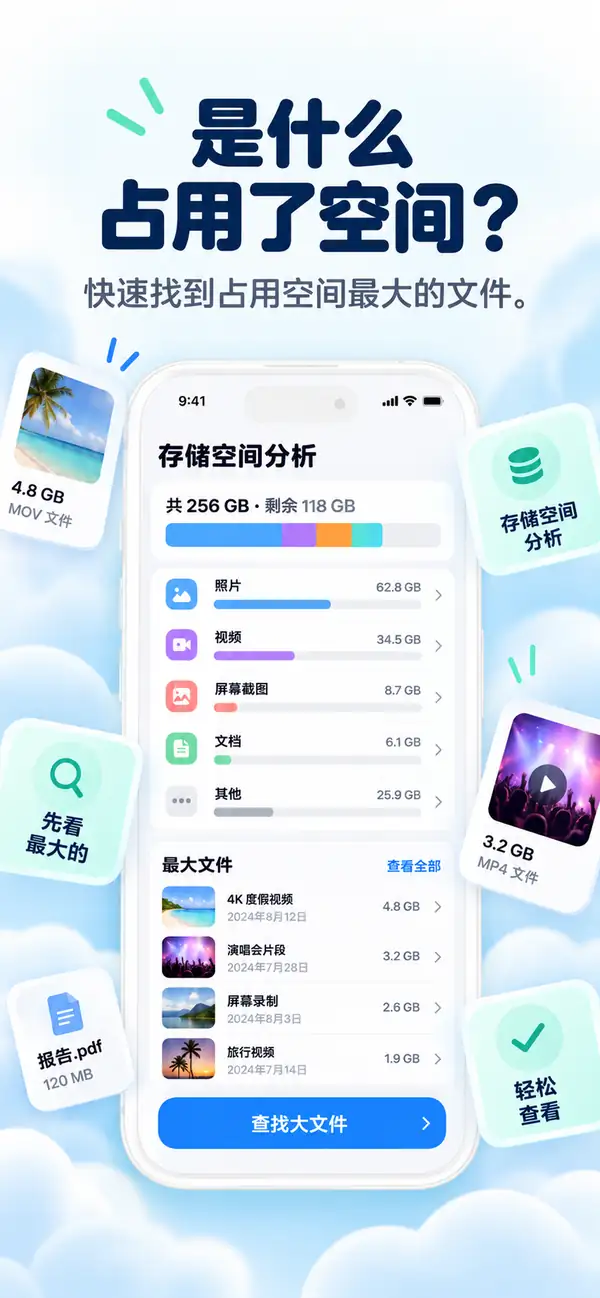
Open Settings → General → iPhone Storage. This screen ranks every app and category by how much space it uses, and it is worth reading properly before you touch anything. Two numbers matter most: the size next to Photos, and the size next to "System Data" or "Other," which usually means caches, temporary files, and message attachments that build up quietly.
Apple also lists offloading suggestions here, like "Offload Unused Apps." Those are safe and worth turning on, but they recover a modest amount of space compared to a proper photo and cache cleanup.

The Part Settings Cannot Do: Finding What to Delete
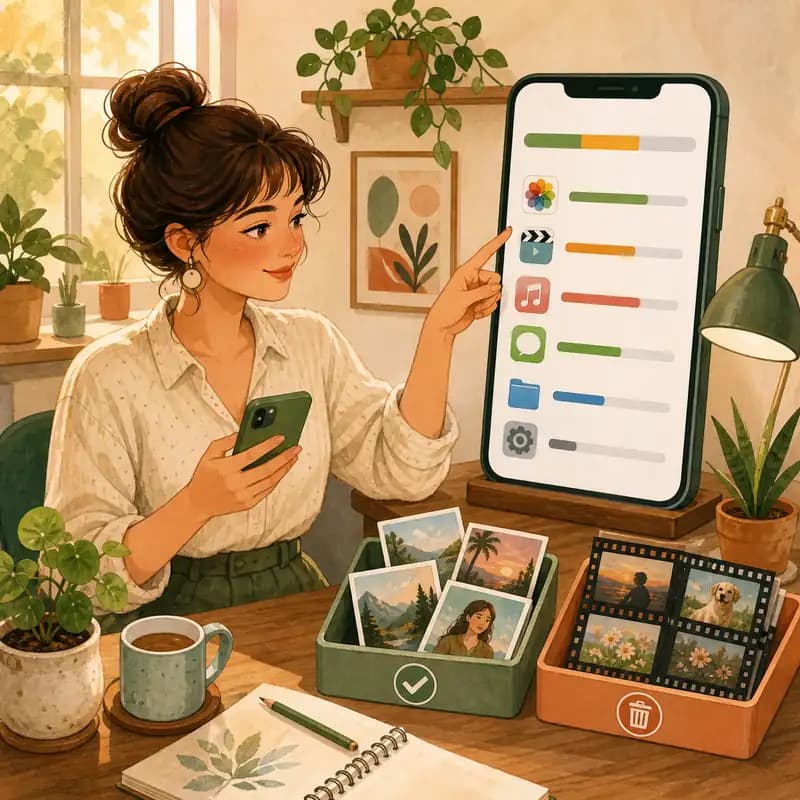
Settings tells you Photos uses 40GB. It cannot tell you that 8GB of that is duplicate shots, 3GB is Live Photo motion clips you never watch, and 2GB is screenshots from six months ago. That is the actual work of storage management, and it needs to look inside the content, not just measure the folder.
iCleaner Panda scans your Photos library and groups duplicates, similar shots, blurry photos, and screenshots automatically, entirely on your iPhone. Each group shows you exactly how much space it will recover, and one copy is always kept so a group can never be wiped by accident.

Message Attachments and Large Videos Are the Silent Killers
Years of group chats leave behind thousands of photos and videos inside Messages, most of which you never open again. Sorting attachments by size surfaces the handful of large videos responsible for gigabytes, without you scrolling through every conversation.
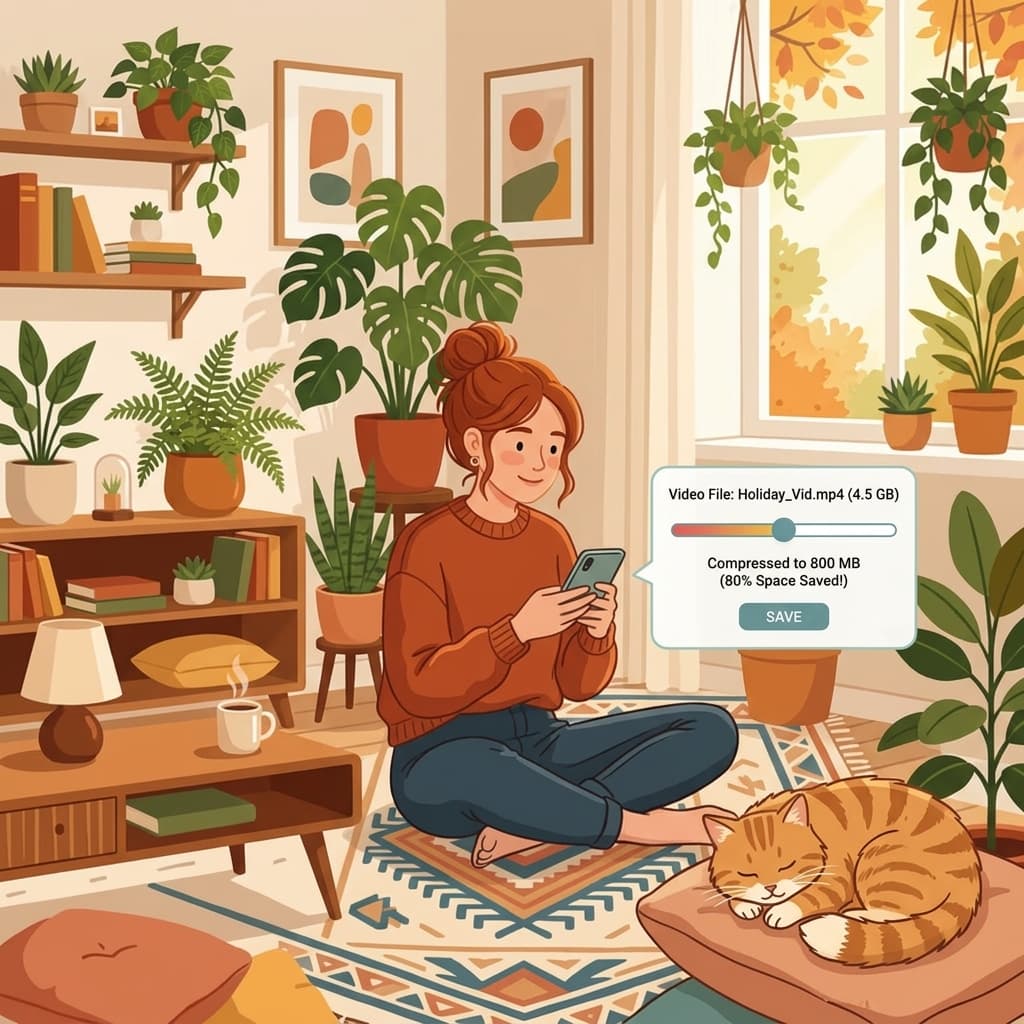
Compressing large videos in place, instead of deleting them outright, is usually the better trade: you keep the memory at a fraction of the size.

Manage your iPhone storage in three steps
Check Settings first
Open iPhone Storage to see which categories are actually large before deciding where to focus.
Scan with iCleaner Panda
Let it group duplicates, similar photos, large videos, and message attachments on your device.
Review and confirm
Check what it found, keep what you want, and confirm the cleanup. Nothing is removed automatically.
Frequently asked questions
Why does my iPhone storage fill up again after I delete things?Show answer
Deleted photos and messages stay in Recently Deleted for 30 days by default, and cache files rebuild as you use apps. Emptying Recently Deleted and running a fresh scan periodically keeps storage under control.
What is System Data or Other on my iPhone?Show answer
It is mostly caches, temporary files, Siri data, and logs that apps generate. It shrinks on its own over time but a restart and a cache cleanup can speed that up.
Is iCleaner Panda free?Show answer
Yes, it is free to download and scan on the App Store.
Does it delete anything without asking?Show answer
No. Every group is shown to you first, one copy is always kept in duplicate groups, and deletion only happens after you confirm.
Checking storage and managing it are two different jobs
Settings is the dashboard. The actual cleanup is a separate step, and it is the one that gets space back.
Download iCleaner Panda on the App Store or see the product page.
有问题吗? 支持中心
当你准备好时
下载 iPhone 版 iCleaner Panda
通过隐私优先的清理流程删除重复的照片、压缩视频并整理联系人。