Macで重複写真を削除する方法(2026年版)
Finderフォルダ、写真ライブラリ、クラウドフォルダにある重複写真や類似写真を、元の写真を失わずにmacOSで見つけて削除する方法を解説します。


Your 60-second decision
The Short Answer
To delete duplicate photos on a Mac you have three realistic options: use the built-in Duplicates album in the Photos app (macOS Ventura and later), sort files manually in Finder, or run a dedicated duplicate photo finder that scans folders and cloud drives and groups visually similar images, not just byte-identical files.
Which one you should use depends entirely on where your duplicates actually live. The Photos app only cleans inside the Photos library. It will never see the 900 images sitting in your Downloads folder, your old Desktop/photos-backup-FINAL-2 folder, or the Google Drive folder you synced in 2023 and forgot about.
This guide covers all three methods, explains the difference between exact duplicates and similar photos, and shows how to clean without ever putting an original at risk.
Where do your duplicates live?
Why Duplicate Photos Pile Up on a Mac in the First Place
Macs are unusually good at quietly creating copies of the same image. A few of the usual suspects:
- Repeated imports. You plug in a phone or an SD card, import "everything," and half of it was already imported last month.
- Cloud sync overlap. The same photo arrives once through iCloud, once through a Google Drive folder, and once more because someone AirDropped it to you.
- Edits and exports. One original becomes photo.jpg, photo-edited.jpg, photo-final.jpg, and photo-final-2.jpg. All four survive.
- Burst shots and near-identical frames. You took eleven photos of the same plate of food. You needed one.
- Old backups. A folder you copied "just in case" before a migration, then never deleted.
The result is a photo archive where the same moment exists in four places and you no longer trust any of them. That is the real cost of duplicates: not just the gigabytes, but the fact that searching your own library stops working.

Exact Duplicates vs. Similar Photos: The Distinction That Decides Everything
Before you delete anything, it helps to know that "duplicate" means two very different things.
An exact duplicate is the same file content stored twice. Same pixels, usually same size. These are completely safe to remove down to one copy. You are not losing any image data, just a redundant file.
A visually similar photo is a different file that looks almost the same: the next frame in a burst, a re-compressed copy sent through WhatsApp, a screenshot of a photo, or the same shot with slightly different exposure. These are not automatically safe to delete, because one of them is usually meaningfully better than the others.
This matters because most simple duplicate finders only match file hashes, so they catch the first category and completely miss the second. Yet the second category is usually where the bulk of your wasted space lives. A photo library rarely has 4,000 byte-identical files; it has 4,000 nearly-identical ones.
The practical rule: delete exact duplicates in bulk, review similar photos in groups.
Method 1
Method 1: The Built-In Duplicates Album in the Photos App
If you are on macOS Ventura or newer, the Photos app has a built-in duplicate detector. Open Photos → Utilities → Duplicates in the sidebar. macOS will show duplicate sets it has found and offer a Merge button, which keeps the highest-quality version and combines the metadata.
What it does well: it is free, it is built in, and merging is safe and non-destructive in the sense that it preserves the best copy.
Where it stops:
- It only looks inside your Photos library. Loose files in Finder folders are invisible to it.
- It is conservative. It targets true duplicates, not the broader category of visually similar shots.
- It does not scan external drives, Google Drive folders, Dropbox folders, or OneDrive folders.
- The Duplicates album can take a long time to populate on large libraries, and it does not appear at all if macOS has not finished analyzing.
Start here. It costs nothing and it handles the easiest cases. Just do not assume an empty Duplicates album means your Mac is clean. It usually means your duplicates are somewhere Photos cannot see.
Method 2
Method 2: Manual Cleanup in Finder
For a single messy folder, Finder is genuinely fine. Open the folder, switch to list view, and sort by Size, and identical files cluster together immediately. Sorting by Name also surfaces the classic IMG_4021.jpg / IMG_4021 copy.jpg pattern.
You can also use Finder's search with a size filter to find the largest images first, since deleting fifty 8 MB duplicates frees more space than deleting five hundred thumbnails.
The honest limitation: this does not scale, and it cannot detect similarity. Two identical photos with different filenames and slightly different compression will sit in completely different places in the sort order, and your eyes will never connect them. Manual cleanup works for a folder. It does not work for a decade of photos.
Method 3
Method 3: A Dedicated Duplicate Photo Finder
This is the option that covers what the other two miss: everything outside the Photos library, and everything that is similar rather than identical.
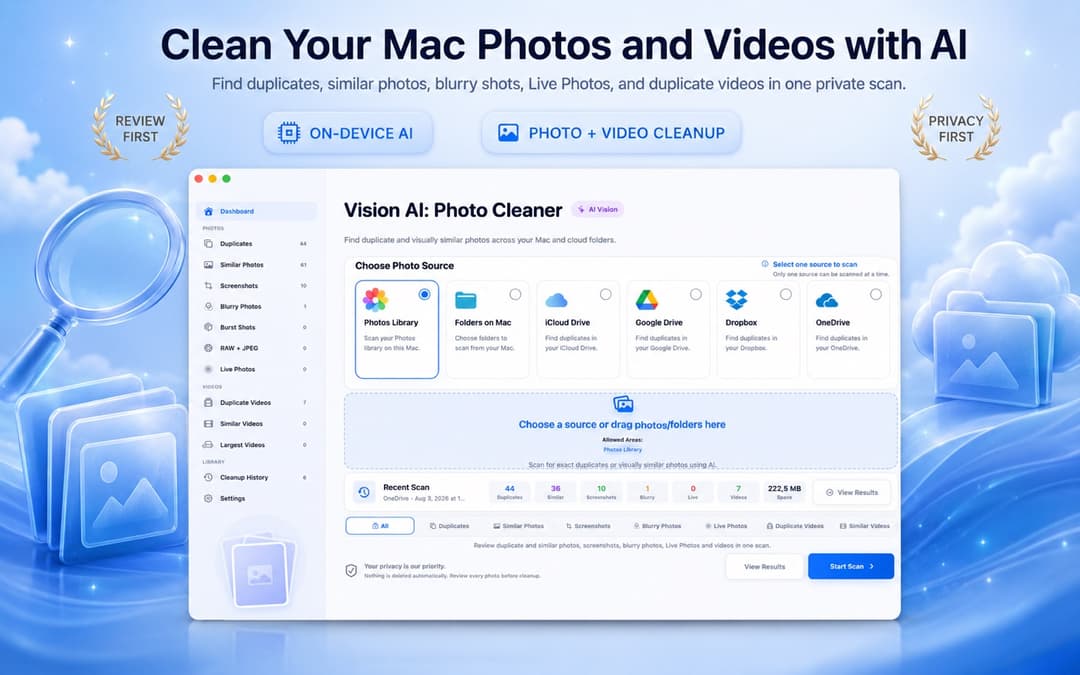
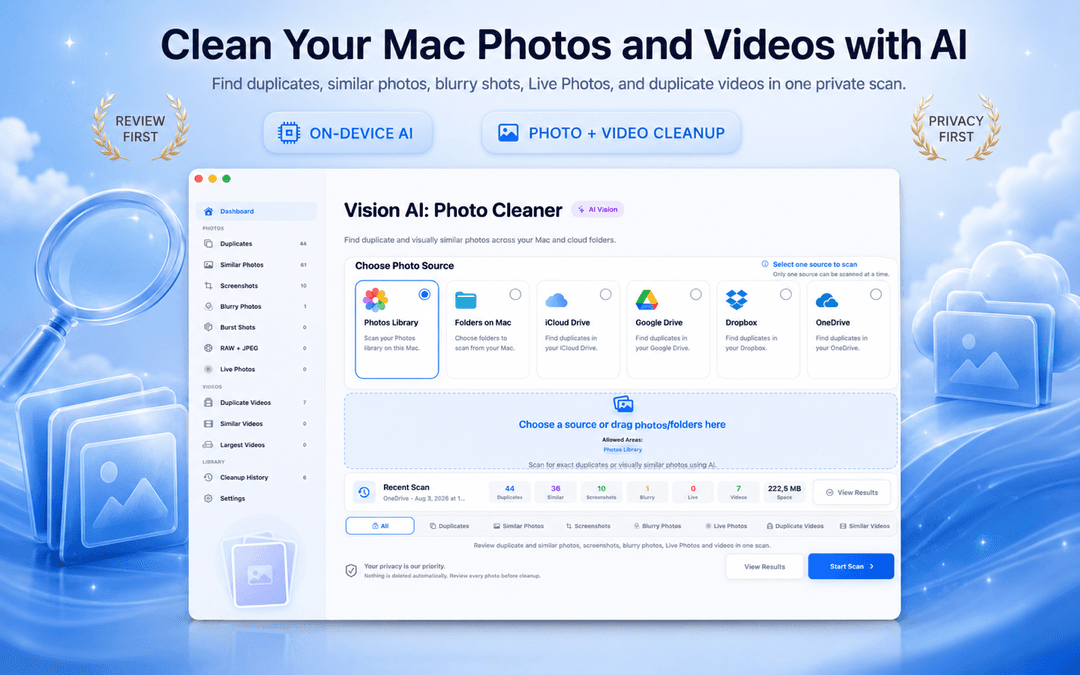
Vision AI: Photo Cleaner is a macOS app built specifically for this. You pick a source (a Finder folder, your Photos library, or a connected drive) and it analyzes the images on your Mac using on-device Vision AI, then groups the results into separate views for duplicates, similar photos, and screenshots.
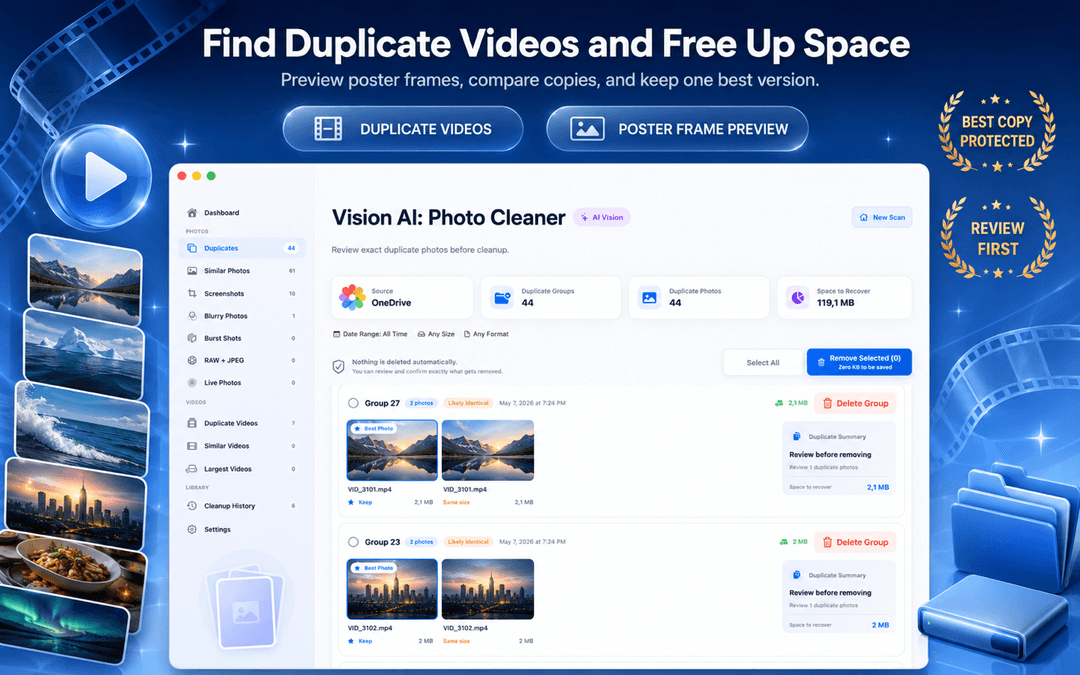
The part that matters most is what happens after the scan: nothing is deleted automatically. You get grouped candidates with previews, file sizes, and dates side by side, so you can keep the best version of each group and send only the rest to Trash, when you decide.

Reviewing Duplicate Groups Before You Delete
A good duplicate view answers one question fast: which copy do I keep? That means showing you the previews next to each other along with the details that actually decide it: file size, dimensions, and date.
The rule of thumb for exact duplicate groups is simple: keep the one in the location you actually use, and delete the rest. If a photo exists in both your Photos library and a stray Downloads folder, keep the library copy.

Similar Photos: Where the Real Space Hides
Burst shots, retries, and re-sent images are where most people recover the most storage, and where automated deletion would be a genuinely bad idea.
When you review a group of similar shots, pick using a short checklist: is it in focus, are the eyes open, is it the full framing rather than a crop, and is it the original resolution rather than a messaging-app re-compression? Keep that one. Let the other six go.
Work in groups rather than one image at a time. Reviewing eight versions of one moment together takes about four seconds; finding those same eight images scattered across a 40,000-photo library takes forever.

Do Not Forget Your Cloud Drives
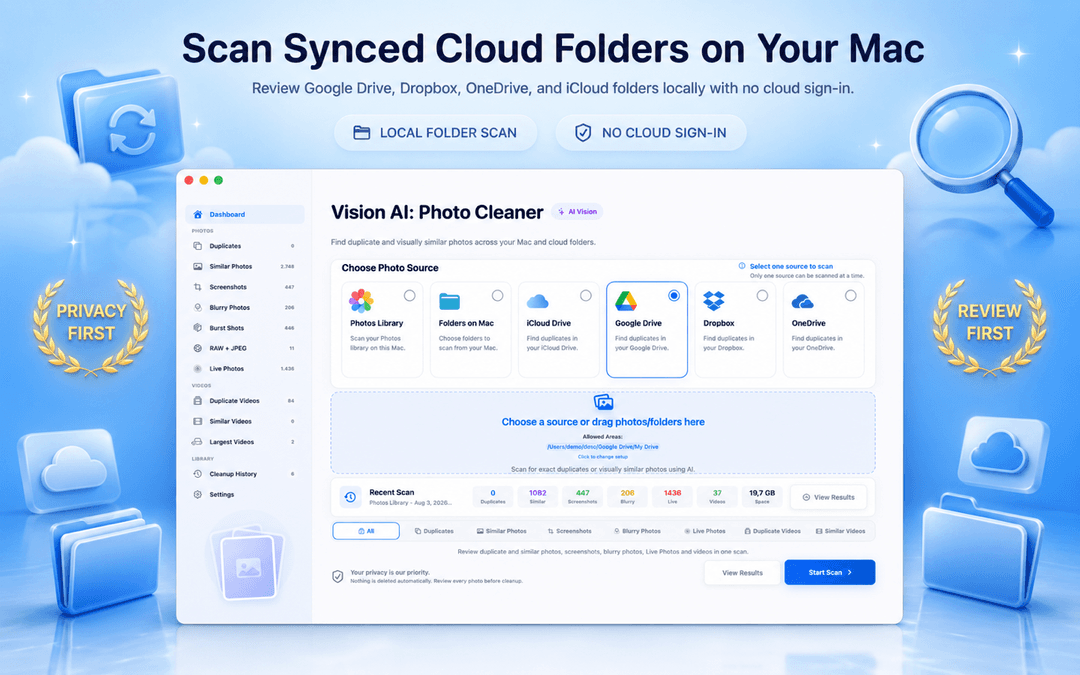
This is the step almost everyone skips. If you use iCloud Drive, Google Drive, Dropbox, or OneDrive, a large share of your duplicates are sitting in synced folders, often as a second copy of something already in your Photos library.
Two warnings worth taking seriously:
- Deleting a synced file deletes it everywhere. Removing a duplicate from a Dropbox folder on your Mac removes it from Dropbox for every device on that account. Make sure the copy you keep is the one you actually want.
- Watch out for placeholder files. Cloud services often keep files "online-only" to save disk space. Scan a source you have actually downloaded locally, or you may be comparing stubs rather than real images.
Scanning one source at a time, Photos library first and then each cloud folder, keeps the decisions clear and makes it obvious which copy is the keeper.

Screenshots: The Duplicate Category Nobody Counts
Screenshots deserve their own pass. They are reference material with an expiry date: a receipt, a confirmation code, a map, a page you meant to read. They pile up faster than photos because they never feel like they take up space.
On a Mac they are also physically large: a Retina screenshot can easily be several megabytes of PNG. A few years of them is a real chunk of your disk.
Because they carry almost no sentimental weight, screenshots are the safest place to start if you want a fast, low-risk win before touching actual photos.

How to Delete Safely Without Losing an Original
A short set of rules that prevents essentially every regret:
- Back up first. Time Machine or any current backup. Non-negotiable before a large cleanup.
- Delete to Trash, not permanently. A trash-first workflow gives you a recovery window if you change your mind.
- Never bulk-delete similar photos unreviewed. Exact duplicates, yes. Similar shots, no.
- Check "Recently Deleted" in Photos. Items deleted from the Photos library sit there for 30 days and still occupy space until you empty it.
- Do one source at a time and empty Trash only once you have confirmed nothing is missing.
Choose tools that keep this control in your hands. Any cleaner that deletes automatically without a review step is trading your safety for a marginally faster cleanup.
How to Stop Duplicates From Coming Back
Cleanup is easier to keep than to redo. Four habits do most of the work:
- Pick one primary library. Decide whether Photos or a folder structure is your source of truth, and stop maintaining both.
- Do not sync the same folder through two services. The fastest way to duplicate a photo archive is to put it in both iCloud Drive and Google Drive.
- Empty Downloads regularly. It is where most stray image copies come to live.
- Cull bursts on the day you take them. Ten seconds at capture saves ten minutes later.
A short quarterly scan after that is usually enough to keep a library permanently clean.
How to Delete Duplicate Photos on Mac in 3 Steps
Choose one source
Start with a single Finder folder, your Photos library, or one connected cloud drive so every decision stays traceable instead of scattered across your whole Mac.
Scan and let the groups form
Let the scan finish and separate results into exact duplicates, visually similar photos, and screenshots. On-device analysis means your images never need to leave your Mac.
Review, keep the best, then delete to Trash
Bulk-remove exact duplicates, review similar groups one at a time and keep the sharpest full-resolution version, then send the rest to Trash and empty it once you have confirmed nothing is missing.
Duplicate Photos on Mac: FAQ
Does macOS have a built-in duplicate photo finder?Show answer
Yes. macOS Ventura and later include a Duplicates album in the Photos app under Utilities, with a Merge option that keeps the highest-quality copy. It only works inside the Photos library and does not scan Finder folders, external drives, or cloud storage.
What is the difference between duplicate and similar photos?Show answer
A duplicate is the same file content stored more than once, so removing extras is completely safe. A similar photo is a different file that looks nearly the same, such as a burst frame, a re-compressed copy, or a slightly different exposure, and those should be reviewed individually because one version is usually better than the rest.
Is it safe to delete duplicate photos automatically?Show answer
Exact duplicates are safe to remove in bulk. Visually similar photos are not, because automatic selection can discard the sharpest or highest-resolution version. Use a tool with a review-before-delete step, back up with Time Machine first, and delete to Trash rather than permanently.
Will deleting a duplicate from a cloud folder delete it everywhere?Show answer
Yes. Files inside synced iCloud Drive, Google Drive, Dropbox, or OneDrive folders are removed from every device on that account. Confirm which copy you are keeping before deleting from a synced location.
Why is my Mac still full after deleting photos?Show answer
Deleted photos usually move to Trash, and items removed from the Photos app go to Recently Deleted where they stay for 30 days. Space is not reclaimed until both are emptied.
Do duplicate photo cleaners upload my images?Show answer
That depends on the app. Vision AI: Photo Cleaner is designed around on-device analysis on macOS, so your photo library does not need to be uploaded to a server for duplicates to be detected.
How do I find duplicate photos across external and cloud drives?Show answer
The Photos app cannot do this. You need a scanner that lets you select an arbitrary source, whether a Finder folder, an external drive, or a synced cloud folder, and compares images across it. Scan one source at a time so it stays clear which copy is the keeper.
The Bottom Line
Start with the free Photos Duplicates album, then scan the places it cannot reach: Finder folders, external drives, and synced cloud storage, where most duplicates actually live. Delete exact copies in bulk, review similar groups by hand, and always work trash-first with a backup in place. Do that once properly and a quarterly scan keeps your Mac clean from then on.
ご質問がありますか? サポートセンター
準備ができたら
Mac用 Vision AI: Photo Cleaner をダウンロード
Mac、写真ライブラリ、クラウドドライブ全体から完全な重複と視覚的に似た写真を見つけます。解析はデバイス上で行われ、確認するまで何も削除されません。
Vision AI: Photo Cleaner を利用することで、以下に同意したものとみなされます: 利用規約 および プライバシーポリシー.