منظف الصور المكررة لـ Mac: ابحث عنها واحذفها بأمان (2026)
كيفية العثور على الصور المكررة والمتشابهة على Mac وحذفها باستخدام منظف صور مكرر يعمل على الجهاز، يغطي المطابقات الدقيقة والمتشابهة وسير عمل مراجعة آمن.


إجابة موجزة
أداة تنظيف الصور المكررة لجهاز Mac: ما يجب أن يقدمه أفضل برنامج تنظيف صور Mac
إن فائدة أداة تنظيف الصور المكررة لجهاز Mac لا تكتمل إلا بقدرتها على اكتشاف النسخ التي تغيرت أسماء ملفاتها، وتجميعها لتتمكن من مراجعتها بسرعة، وعدم حذف أي ملف على الإطلاق دون موافقتك الصريحة. فمعظم المساحة الضائعة في مكتبة صور Apple أو وحدة تخزين MacBook لا تكمن في ملفات متطابقة بايت لبايت، بل تختبئ في اللقطات المتقاربة جداً: الصور المتتابعة السريعة، والصور المضغوطة القادمة من تطبيقات المراسلة، والصور المصدرة بأحجام معدلة، وعدة لقطات مختلفة قليلاً لنفس المشهد.
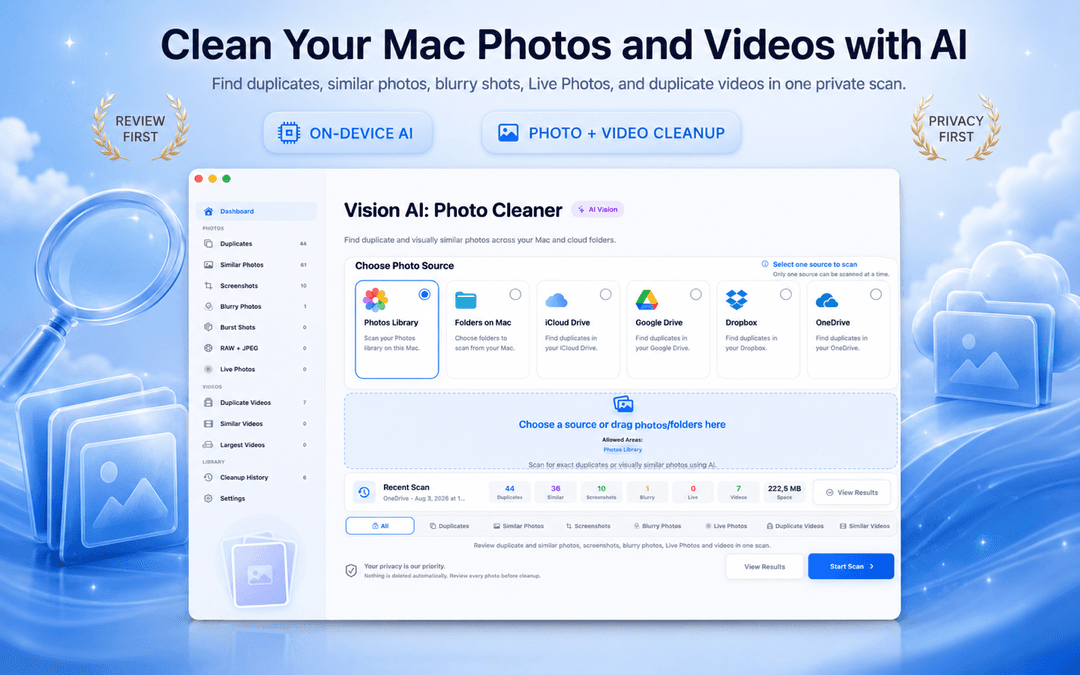
يُعد Vision AI - Photo Cleaner أداة مجانية للبحث عن الصور المكررة وتنظيف صور Mac لنظام macOS. يقوم التطبيق بفحص مكتبة تطبيق الصور، ومجلدات Mac، وiCloud Drive، ومجلدات التخزين السحابي المتزامنة (Google Drive وDropbox وOneDrive)، ويقارن الصور محلياً عبر تقنية Vision المدمجة من Apple مع توفير مجموعات واضحة للمراجعة. يمكنك تنزيله مباشرة من Mac App Store.
إذا كنت تريد معرفة كيفية العثور على الصور المكررة في تطبيق الصور على Mac، وكيفية عمل المطابقة البصرية، وكيف تتخلص من الصور المكررة بأمان دون المخاطرة بذكرياتك الأصلية، فإليك الدليل الكامل.
ثلاثة معايير أساسية لأداة تنظيف الصور المكررة على Mac
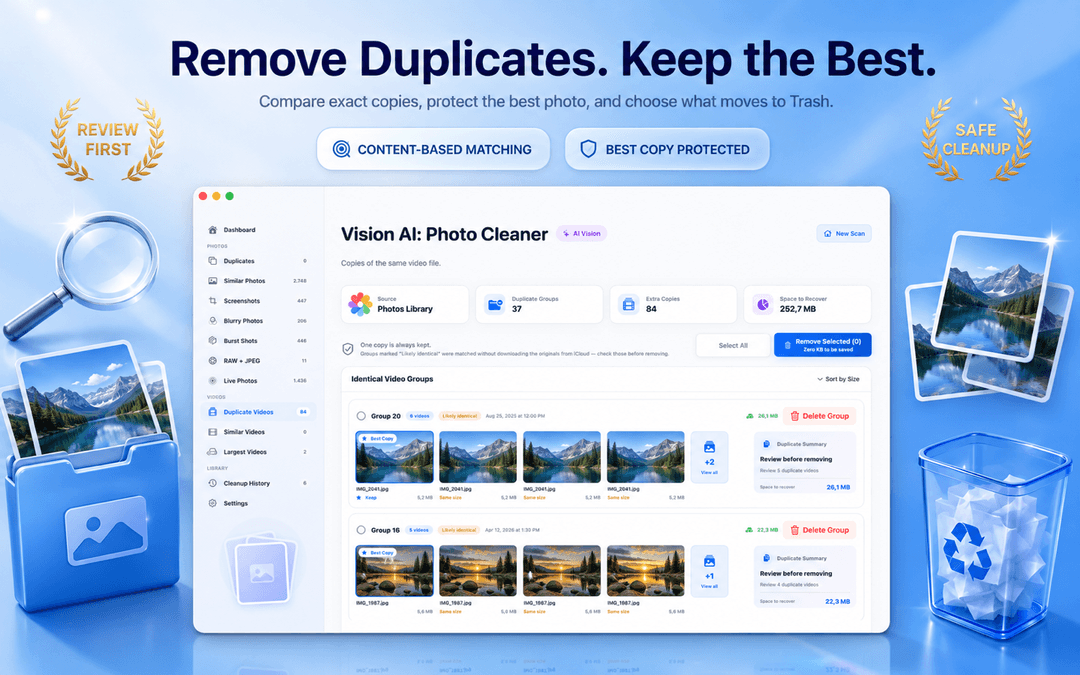
الصور المكررة المتطابقة على Mac: مطابقة بمحتوى الصورة وليس باسم الملف
إعادة تسمية الصورة لا تجعلها صورة جديدة، وسحب نسخة منها إلى مجلد آخر لا يغير محتواها أيضاً. تعتمد المطابقة الذكية على المحتوى البصري للصورة نفسها؛ مما يعني أن الملفات IMG_4021.jpg وIMG_4021 copy.jpg وvacation-final.jpg يتم تجميعها معاً بدقة متناهية متى كانت تحتوي على نفس المشهد.
في كل مجموعة تكرار، يتم تحديد أفضل نسخة تلقائياً لحفظها كأصل معتمد، مما يمنع حذف المجموعة بالكامل عن طريق الخطأ. تعرض كل مجموعة حجم الملف وتاريخ الإنشاء والمساحة القابلة للاسترداد، مع خيارات تصفية بحسب النطاق الزمني والتنسيق والأبعاد لمساعدتك على حذف الصور المكررة على Mac بكل أمان.
الصور المتطابقة تماماً هي الفئة الوحيدة التي يمكنك تنظيفها دفعة واحدة باطمئنان، لأنك تتخلص فقط من نسخ زائدة دون فقدان أي تفاصيل بصرية.
الصور المتشابهة: لماذا يُعد Vision AI أفضل أداة لتنظيف صور Mac
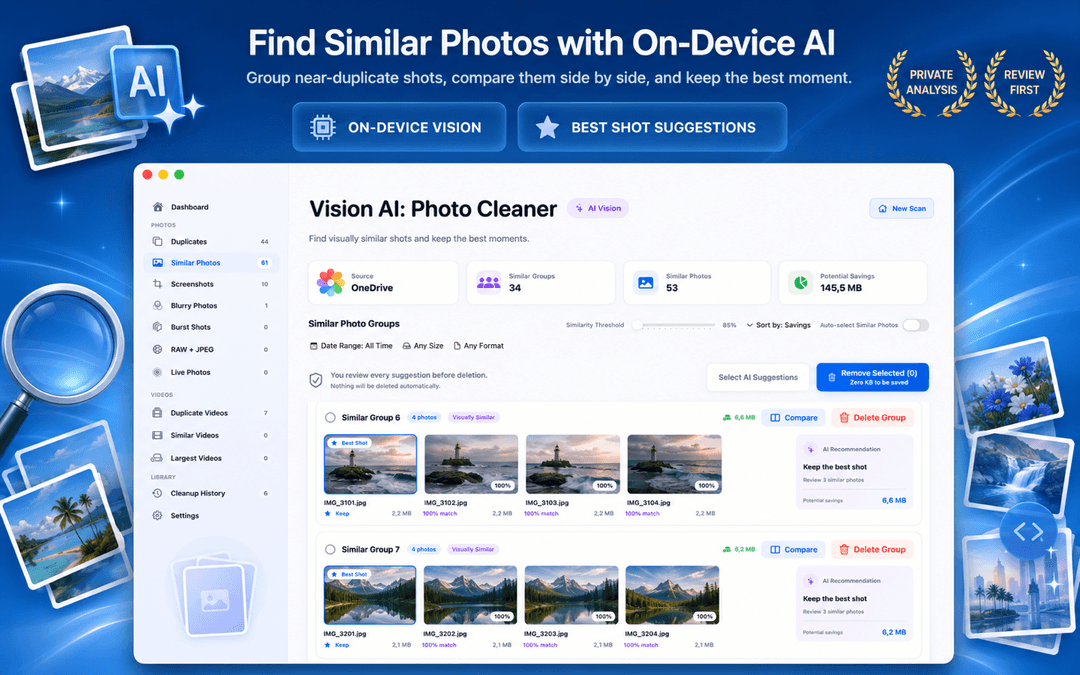
أكبر مكاسب المساحة التخزينية تتحقق من التخلص من الصور المتشابهة بصرياً والتي تُعد تقنياً ملفات مستقلة. يقيس الذكاء الاصطناعي على الجهاز مدى التشابه البصري مباشرة على جهاز Mac أو MacBook الخاص بك، مما يمنحك تحكماً كاملاً في دقة التجميع.
يتيح لك شريط تمرير التشابه تحديد مدى التطابق المطلوب لتجميع اللقطات معاً، بينما يحدد مرشح وقت الالتقاط ما إذا كان سيتم فحص اللقطات المأخوذة بفارق دقائق معدودة. وداخل كل مجموعة، يمكنك فحص الصور جنباً إلى جنب مع ميزة التكبير المتزامن للإجابة عن السؤال الأهم: هل الاحتفاظ بخمس لقطات شبه متطابقة يستحق خسارة غيغابايتات من مساحة القرص؟ يرشح التطبيق اللقطة الأكثر وضوحاً بناءً على التركيز والدقة، تاركاً القرار النهائي بيدك دائماً.
أكثر من مجرد مكررات: الصور غير الواضحة، لقطات الشاشة، Live Photos، واللقطات المتتابعة وملفات RAW
أداة التنظيف التي تبحث فقط عن المكررات المتطابقة تترك معظم سعة تخزينك دون معالجة. إن أداة تنظيف الصور المكررة المتطورة لـ Mac تكشف أيضاً:
- الصور غير الواضحة. يتم تقييم حدة التركيز وضبابية الحركة محلياً على الجهاز لاستبعاد اللقطات المشوشة بسرعة.
- لقطات الشاشة. تتراكم لقطات Retina عالية الدقة بسرعة وتفقد قيمتها في غضون أيام قليلة.
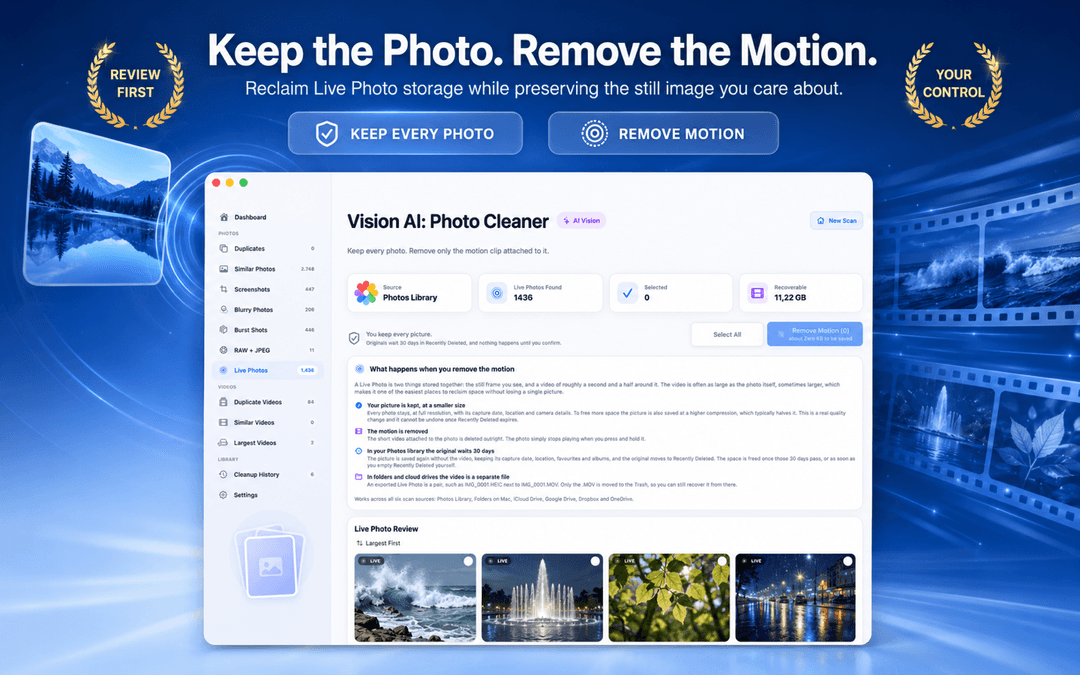
- الصور الحية (Live Photos). تحويل الصور الحية إلى صور ثابتة لاستعادة المساحة مع الحفاظ على الصورة الأساسية.
- اللقطات المتتابعة (Bursts). تقليص 20 لقطة سريعة متتالية إلى لقطة واحدة مثالية هي الأكثر حدة.
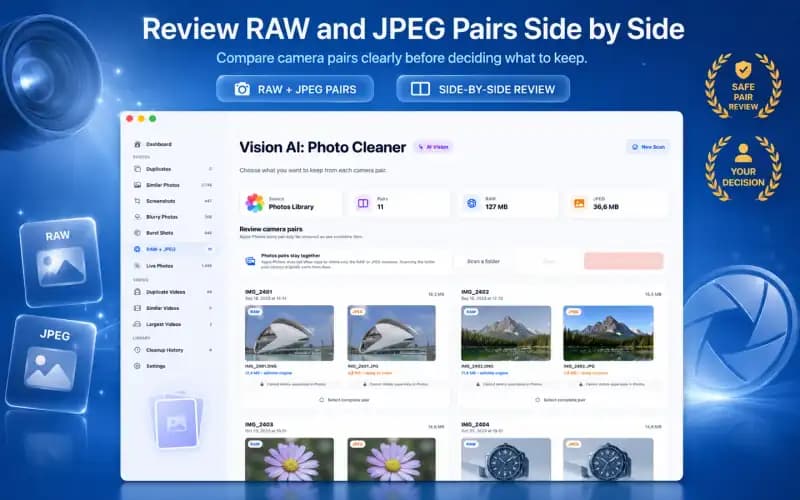
- أزواج RAW + JPEG. التعرف على ملفات RAW غير الضرورية عندما تحتاج فقط إلى صورة JPEG المعالجة.
- مقاطع الفيديو المكررة والملفات الضخمة. العثور على اللقطات المرئية المكررة وأكبر ملفات الوسائط التي تستهلك سعة القرص.
معالجة محلية على جهازك: بدون رفع سحابي للصور، وبدون حذف خفي
تعمل جميع مقارنات الصور محلياً على جهاز Mac الخاص بك باستخدام إطار عمل Vision من Apple. لا يتم رفع صورك إطلاقاً إلى خوادم بعيدة، ولا حاجة لإنشاء حساب، ولا توجد أي ملفات تتبع.
الحذف دائماً إجراء صريح ومؤكد من قبلك. عندما تقرر التخلص من الصور المكررة على Mac، تنتقل العناصر إلى سلة المهملات المعتادة في macOS أو ألبوم "المحذوفة مؤخراً"، مما يمنحك نافذة زمنية آمنة وموثوقة للاسترجاع.
افحص مصدراً واحداً في كل مرة: مكتبة الصور، مجلدات Mac، وiCloud
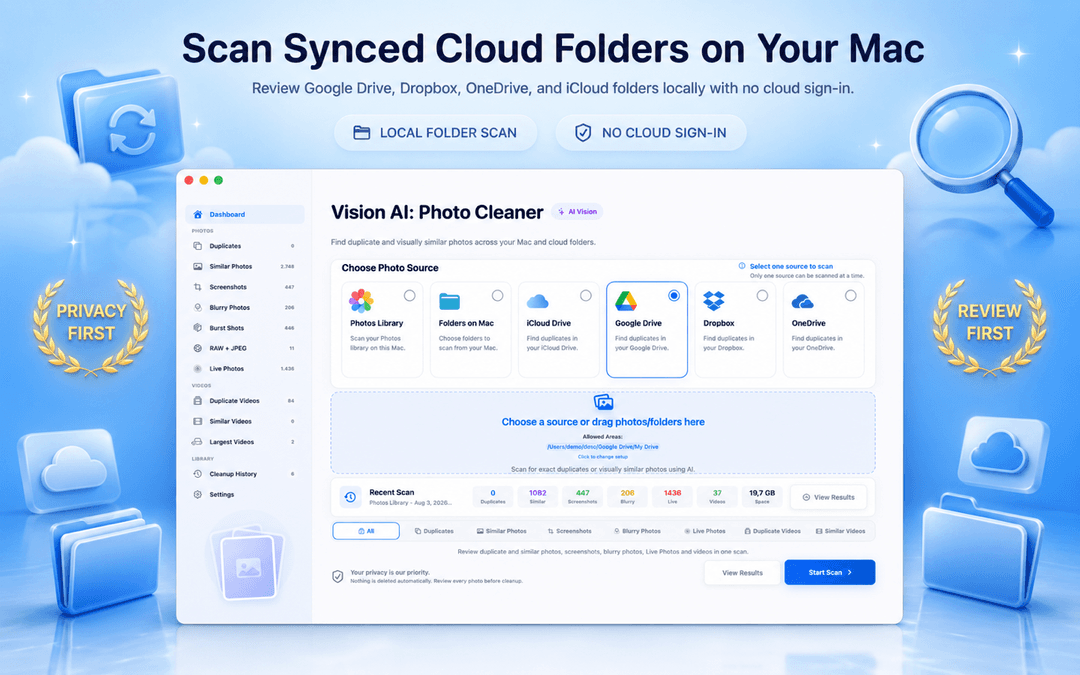
لتجنب الارتباك، قم بتنظيم مصادر صورك بطريقة منهجية بدلاً من فحص محرك الأقراص بأكمله دفعة واحدة:
- أولاً مكتبة صور Apple: نظف مكتبتك الرئيسية أولاً لتعرف ما ترغب في الاحتفاظ به بدقة قبل لمس المجلدات الأخرى.
- ثانياً مجلدات Mac وMacBook: افحص مجلد التنزيلات، وسطح المكتب، ومجلدات النسخ الاحتياطية القديمة.
- التخزين السحابي وiCloud Drive: نظف المجلدات المتزامنة مجلداً تلو الآخر لتتمكن من إزالة الصور المكررة من iCloud ومحركات الأقراص الخارجية دون تعارض في المزامنة.
كيفية حذف الصور المكررة على Mac في 3 خطوات
اختر مصدر الفحص
افتح Vision AI - Photo Cleaner على جهاز Mac أو MacBook واختر مكتبة صور Apple، أو مجلداً في Finder، أو مساحة تخزين سحابية متزامنة.
افحص وراجع مجموعات التكرار
دع الذكاء الاصطناعي على الجهاز يحلل صورك. قارن بين المجموعات المتطابقة والمتشابهة جنباً إلى جنب واضبط شريط تمرير التشابه إذا لزم الأمر.
أكّد واحذف المكررات بأمان
احتفظ بأفضل لقطة مقترحة، وحدد الملفات الزائدة وانقلها إلى سلة المهملات. تحقق من المساحة المستعادة وانتقل لمجلداتك التالية.
الأسئلة الشائعة
ما هو أفضل برنامج لتنظيف الصور المكررة على Mac؟عرض الإجابة
أفضل برنامج لتنظيف الصور المكررة على Mac هو الذي يجمع بين الفحص البصري الذكي على الجهاز ومطابقة بصمة المحتوى بدقة، مع مقارنة الصور جنباً إلى جنب واشتراط موافقتك قبل الحذف. يقدم Vision AI - Photo Cleaner كل هذه الميزات محلياً دون رفع الصور للسحابة.
هل أداة البحث عن الصور المكررة على Mac هذه مجانية؟عرض الإجابة
نعم. برنامج Vision AI - Photo Cleaner مجاني على Mac App Store. يمكنك فحص ومراجعة وحذف الصور المكررة دون وجود قيود دفع تمنعك من إتمام عملية الحذف.
كيف أجد الصور المكررة في تطبيق الصور على Mac؟عرض الإجابة
في نظام macOS Ventura والإصدارات الأحدث، يتضمن تطبيق الصور ألبوماً مدمجاً للتكرارات تحت قسم 'الأدوات المساعدة'. ولإجراء فحص أكثر شمولاً يكتشف الصور الشبيهة واللقطات المتتابعة والنسخ المعدلة وملفات Finder، استخدم Vision AI - Photo Cleaner.
هل يمكنني إزالة الصور المكررة من iCloud Drive ومكتبة الصور؟عرض الإجابة
نعم. عند فحص مكتبة صور Apple أو مجلد iCloud Drive على Mac، فإن حذف المكررات ينقلها إلى 'المحذوفة مؤخراً' وتتم مزامنة المساحة المحررة تلقائياً عبر جميع أجهزتك المتصلة بـ iCloud.
هل يعمل البرنامج بكفاءة على أجهزة MacBook Pro ومعالجات Apple Silicon؟عرض الإجابة
نعم. تم تحسين Vision AI - Photo Cleaner بالكامل لنظام macOS مع تسريع عتادي على رقاقات Apple Silicon (M1/M2/M3/M4)، كما يعمل بسلاسة تامة على طرز Mac المزودة بمعالجات Intel.
هل يقوم التطبيق بحذف الصور تلقائياً دون إذن مني؟عرض الإجابة
على الإطلاق. يحرص التطبيق دائماً على تحديد أفضل صورة للاحتفاظ بها، ويتطلب مراجعتك وموافقتك الصريحة قبل نقل أي ملف إلى سلة مهملات macOS.
نظف مكتبة صور Mac مرة واحدة بعناية، ثم حافظ على ترتيبها دائماً
إن أفضل منظف صور على Mac هو الذي يعرض لك بوضوح ما عثر عليه، ويوضح سبب التطابق، ويمنحك السيطرة المطلقة قبل إزالة أي ملف.
نزّل Vision AI - Photo Cleaner من Mac App Store أو اكتشف المزيد من التفاصيل على صفحة المنتج.
هل لديك أسئلة؟ مركز الدعم
أدلة ذات صلة

· قراءة 9 دقائق
هل تطبيقات تنظيف الصور على Mac آمنة؟ قائمة تحقق للخصوصية
قبل أن يفحص تطبيق العثور على الصور المكررة جهاز Mac، تحقق من هذه النقاط الثماني: ملصقات الخصوصية، والوصول إلى الصور والمجلدات، ومحركات الأقراص السحابية، ونشاط الشبكة، والحذف الآمن.
· قراءة 9 دقائق
صور RAW وJPEG على Mac: أي النسختين تحتفظ بها؟ (دليل 2026)
إدارة زوج RAW + JPEG الرئيسي على Mac. تعرّف على كيفية تعامل Apple Photos مع ملفات الكاميرا الأولية، وكيفية تجنب تضخم التخزين المزدوج، ومتى تحتفظ بملفات RAW الرئيسية.

· قراءة 9 دقائق
كيفية إزالة الصور المكررة من iCloud بأمان (2026)
تعرف على كيفية إزالة الصور المكررة من iCloud وMac وiPhone. قم بتنظيف المكتبات المكررة المتزامنة بأمان دون فقدان النسخ الأصلية عالية الدقة.
جاهز في أي وقت
نزّل Vision AI - Photo Cleaner لنظام Mac
اعثر على الصور المكررة والمتشابهة، وراجع الفيديوهات الكبيرة واضغطها محليًا على Mac. اختر ما تريد الاحتفاظ به وأكّد كل عملية تنظيف.
باستخدام Vision AI - Photo Cleaner فإنك توافق على شروط الاستخدام و سياسة الخصوصية.