Mac에서 사진 보관함의 중복 항목을 제거하는 방법
Apple의 기본 중복 앨범은 정확히 일치하는 것만 찾습니다. iCloud 동기화를 깨지 않고 Mac 사진 보관함에서 거의 중복되는 항목도 정리하는 방법을 소개합니다.


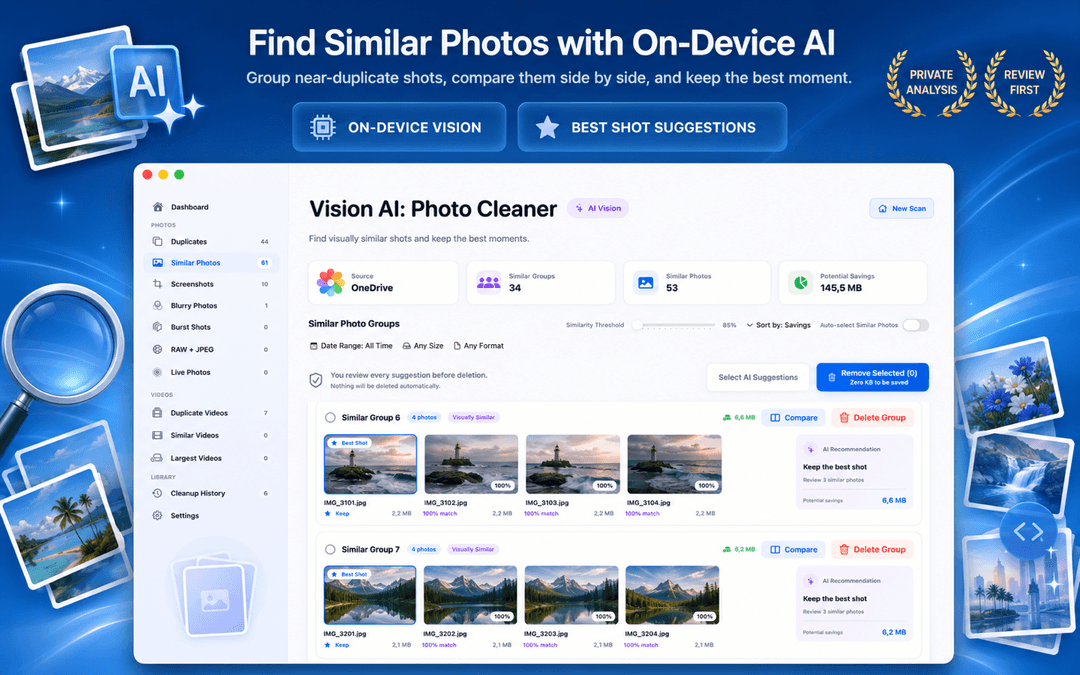
Mac 및 iCloud 사진 보관함에서 중복 사진을 삭제하는 방법 (2026)
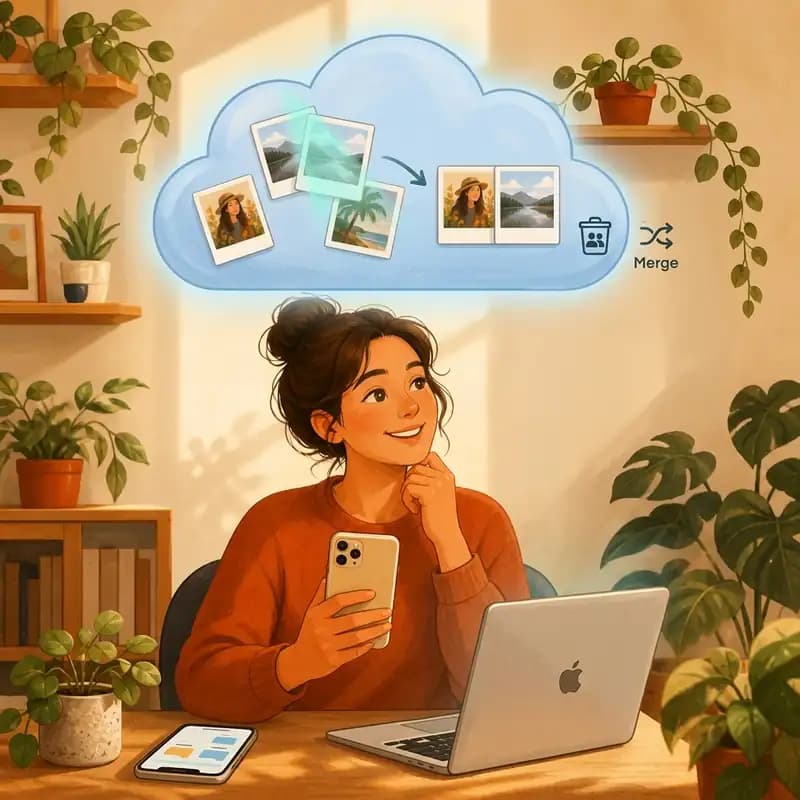
Mac에서 사진 보관함의 중복 사진을 정리하는 방법을 찾고 계신가요? macOS Ventura, Sonoma, Sequoia에 내장된 '중복 항목' 앨범이 있지만 바이트 단위까지 완전히 일치하는 파일만 감지합니다. 하지만 실제로 사진 앱 내 중복 사진의 대다수는 연사 촬영, WhatsApp이나 AirDrop으로 재압축된 사진, 크기 변경된 내보내기, 거의 동일한 포즈의 사진들입니다.
Vision AI - Photo Cleaner는 Apple 사진 보관함을 직접 스캔하는 스마트한 Mac 중복 사진 정리기입니다. 완벽한 복사본뿐만 아니라 시각적으로 유사한 사진까지 찾아내어 Mac 사진 앱에서 중복 사진을 삭제하고 iCloud에서 중복 사진을 안전하게 제거할 수 있습니다. Mac App Store에서 무료로 다운로드하세요.
사진 보관함 중복 정리 시 꼭 확인해야 할 핵심 기능
Apple 내장 중복 항목이 찾는 것과 놓치는 것
macOS 사진 앱에서 기타 → 중복 항목을 열면 콘텐츠와 메타데이터가 동일한 사진이 표시됩니다. 실수로 두 번 가져온 사진을 합칠 때는 유용하지만, Apple의 감지 기준은 의도적으로 매우 보수적입니다.
구도가 약간 다른 사진, 크롭된 사진, 연사 프레임, 노출 차이가 있는 컷은 전혀 감지하지 못합니다. 육안으로는 같아 보이지만 파일 크기가 다른 Mac 사진 보관함의 유사 중복 사진을 찾고 싶다면 온디바이스 AI 스캐너가 필요합니다.
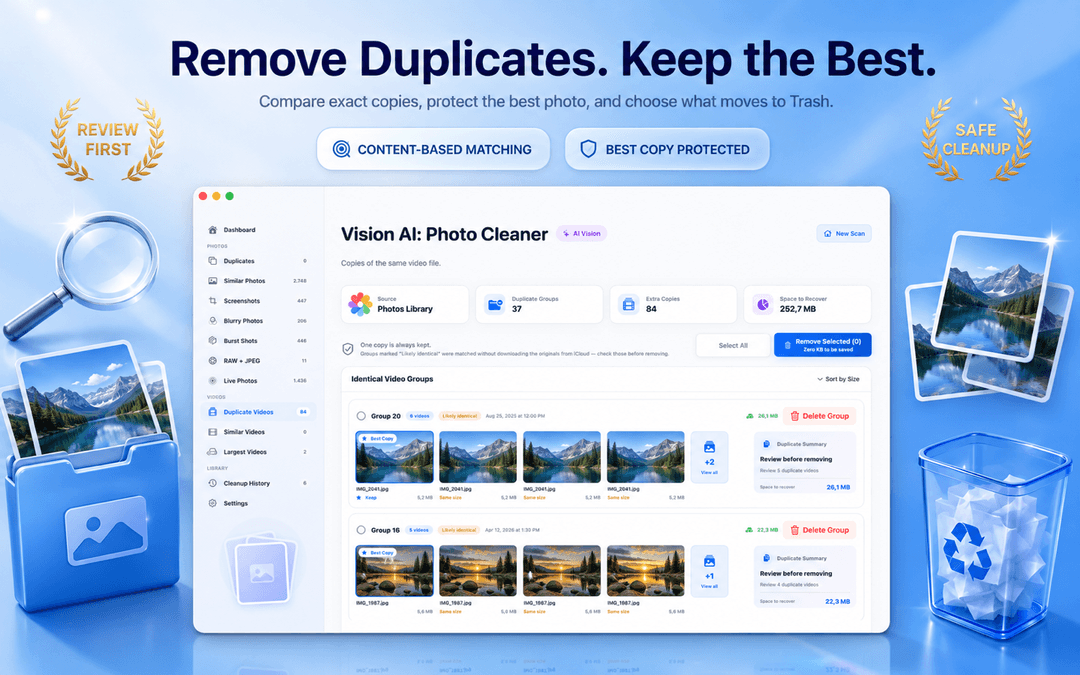
유사 중복 사진: 사진 보관함의 용량을 낭비하는 주범
고속 연사 모드, Live Photo, 여러 번 찍은 인물 사진 등은 갤러리를 가득 채우는 수백 장의 비슷한 사진을 만들어냅니다. 이들은 Apple의 중복 항목 앨범에는 잡히지 않지만, 실제로 낭비되는 기가바이트의 대부분을 차지합니다.
Vision AI - Photo Cleaner는 조절 가능한 시각적 유사도 기준을 통해 보관함을 분석하고, 유사 사진을 나란히 그룹화하여 가장 선명한 사진만 남기고 Mac 사진 앱에서 중복 사진을 안심하고 삭제할 수 있도록 돕습니다.
iCloud 동기화를 깨뜨리지 않고 중복 사진을 삭제하는 방법
Mac의 Apple 사진 앱에서 중복 사진을 삭제하면 macOS가 iCloud 사진을 통해 모든 기기에 삭제를 자동으로 동기화합니다. 삭제된 사진은 30일 동안 최근 삭제된 항목 앨범에 보관되므로 필요한 경우 언제든지 복원할 수 있습니다.
Vision AI는 모든 그룹에서 가장 해상도가 높고 선명한 사진을 보존할 대표 사진으로 자동 지정하므로 전체 사진이 통째로 삭제될 염려가 없습니다.
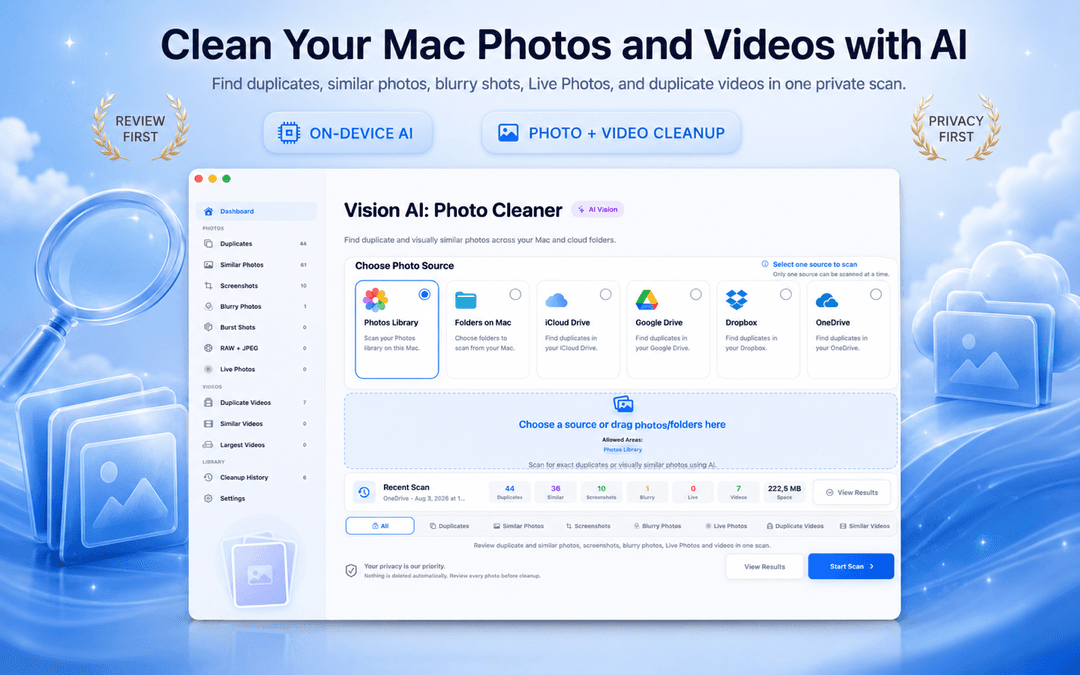
사진 보관함에서 중복 사진을 삭제하는 3단계
사진 보관함 접근 권한 허용
Vision AI - Photo Cleaner를 실행하고 Apple 사진 보관함 읽기 권한을 허용합니다.
완전 일치 및 유사 사진 검토
완전 일치 항목을 먼저 확인한 뒤 유사도 슬라이더를 조절해 연사 사진과 비슷한 컷을 그룹화합니다.
확인 후 '최근 삭제된 항목'으로 삭제
추천된 베스트 컷을 유지하고 불필요한 중복 사진을 선택하여 삭제합니다. 삭제 내용은 iCloud에 즉시 동기화됩니다.
자주 묻는 질문
Mac 사진 보관함에서 중복 사진을 어떻게 지우나요?답변 보기
완전 일치 사진은 사진 앱의 '기타' 아래 '중복 항목'에서 병합할 수 있습니다. Apple이 놓치는 유사 사진, 연사, Live Photo는 Vision AI - Photo Cleaner를 사용하여 안전하게 검사하고 정리하세요.
iCloud에서 중복 사진을 어떻게 삭제하나요?답변 보기
Mac 사진 앱이나 Vision AI에서 중복 사진을 삭제하면 macOS가 이를 '최근 삭제된 항목'으로 이동시키고 iCloud 사진에 연결된 모든 기기에서 동기화하여 삭제합니다.
Mac 사진에서 중복 사진을 삭제하면 iPhone에서도 삭제되나요?답변 보기
네, iCloud 사진이 켜져 있다면 Mac과 iPhone이 동일한 보관함을 공유하므로 함께 동기화됩니다. 단, 영구 삭제 전 30일 동안은 '최근 삭제된 항목'에 보관됩니다.
Vision AI - Photo Cleaner는 Apple 사진 보관함에 안전한가요?답변 보기
네. Vision AI는 macOS의 표준 Photos 프레임워크 API를 사용합니다. 임의로 파일을 자동 삭제하지 않으며, 항상 최상의 사진 1장을 남기고 '최근 삭제된 항목'을 통해 안전하게 처리합니다.
Apple 사진 보관함을 가볍고 깔끔하게 유지하세요
Apple 내장 도구는 완전 일치 파일만 찾지만, Vision AI는 실제 디스크 공간을 차지하는 유사 연사 사진과 중복 컷까지 완벽하게 정리해 줍니다.
Mac App Store에서 Vision AI - Photo Cleaner 다운로드 또는 제품 페이지에서 자세한 정보를 확인하세요.
질문이 있으신가요? 지원 센터
관련 가이드

· 9분 읽기
Mac 사진 정리 앱은 안전할까요? 개인정보 보호 점검표
중복 사진 검색 앱이 Mac을 스캔하기 전에 개인정보 보호 레이블, 사진 및 폴더 접근 권한, 클라우드 드라이브, 네트워크 활동, 안전한 삭제 등 8가지를 점검하세요.
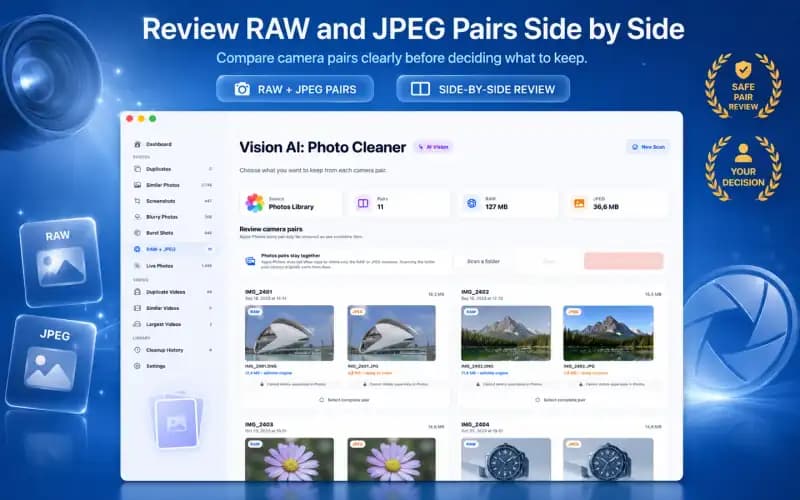
· 9분 읽기
Mac의 RAW + JPEG 사진: 어떤 것을 보관해야 할까요? (2026 가이드)
Mac에서 RAW + JPEG 쌍을 관리하는 방법. Apple Photos가 Camera Raw 파일을 처리하는 방법, 이중 저장 용량 증가를 방지하는 방법, RAW 마스터를 유지해야 하는 경우에 대해 알아보세요.
· 9분 읽기
iCloud에서 중복 사진을 안전하게 제거하는 방법(2026)
iCloud, Mac 및 iPhone에서 중복 사진을 제거하는 방법을 알아보세요. 고해상도 원본을 잃지 않고 동기화된 중복 라이브러리를 안전하게 정리합니다.
준비되셨다면
Mac용 Vision AI - Photo Cleaner 다운로드
Mac에서 중복·유사 사진과 대용량 동영상을 확인하고 동영상을 로컬로 압축하세요. 보관할 파일을 선택하고 정리 전에 직접 확인합니다.
Vision AI - Photo Cleaner를 사용하면 다음에 동의하게 됩니다: 이용약관 및 개인정보 처리방침.