iPhone에서 '문서 및 데이터' 또는 '시스템 데이터'가 이렇게 커지는 이유
시스템 데이터는 설정에 삭제 버튼이 없습니다. 실제로 무엇이 이를 채우는지, 그리고 통제할 수 있는 부분을 어떻게 줄이는지: 메시지 첨부 파일, 앱 캐시, 중복 사진.


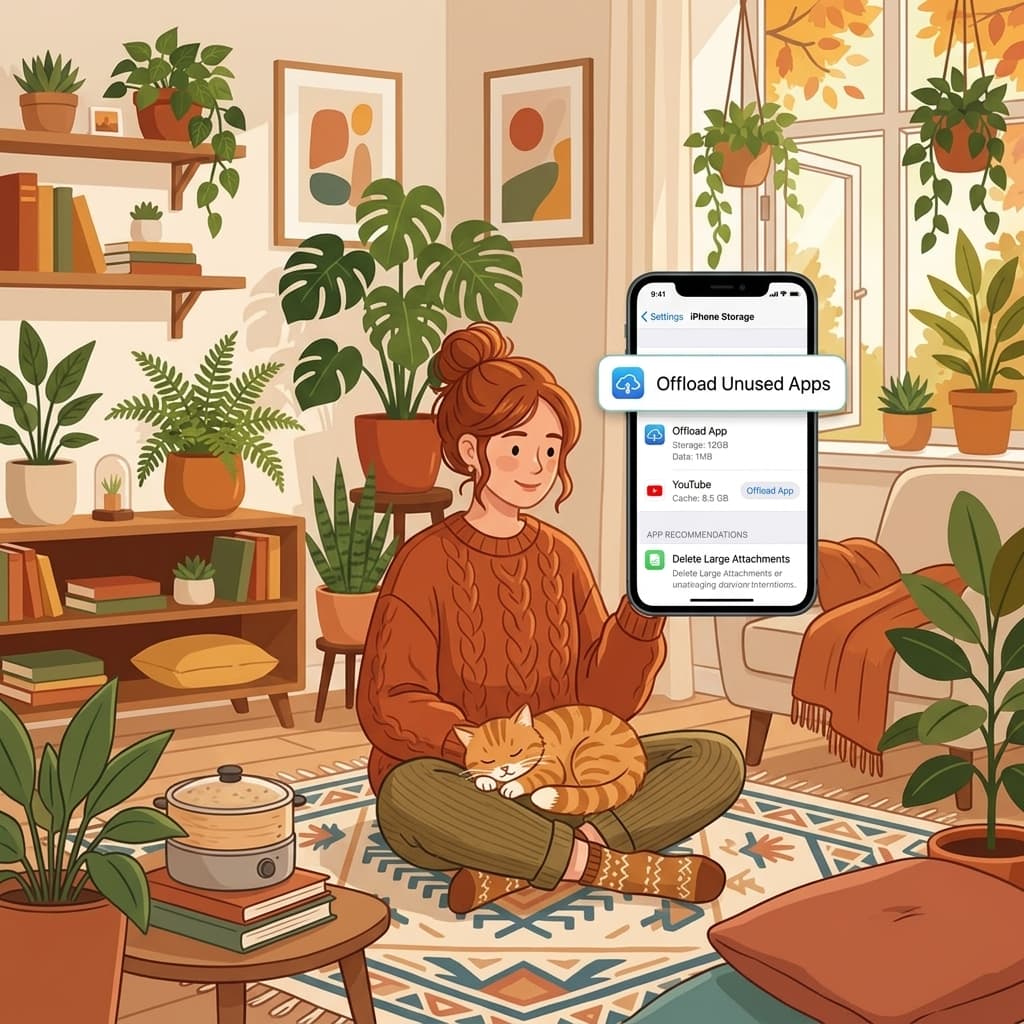
iPhone '시스템 데이터' 및 '문서 및 데이터'가 비정상적으로 커지는 이유
iPhone 저장 공간을 확인했을 때 사진이나 앱 용량은 적당한데, '시스템 데이터'나 앱의 '문서 및 데이터'가 15GB, 20GB, 심지어 40GB까지 차지하는 경우가 있습니다. 설정에는 이를 한 번에 비우는 버튼이 없습니다.
이 공간은 주로 캐시, 메시지 첨부 파일, 오프라인 지도 데이터 등으로 구성됩니다. Photos Cleaner - Cleanup Phone는 기기에서 직접 제어할 수 있는 항목을 스캔하여 안전하게 확보할 수 있는 용량을 보여줍니다. App Store에서 무료로 다운로드할 수 있습니다.
그 수치 뒤에 실제로 숨겨진 항목
'시스템 데이터 삭제' 버튼이 없는 데에는 이유가 있습니다
Apple은 Siri 음성 데이터, Spotlight 검색 색인, 앱 캐시 등을 시스템 데이터로 묶어 관리합니다. 대부분은 운영체제 동작에 맞춰 자동으로 재구성됩니다.
따라서 모호한 항목 전체를 지우려 하기보다, 직접 확인하고 정리할 수 있는 대용량 첨부 파일과 중복 사진에 집중하는 것이 좋습니다.
메시지 첨부 파일이 가장 큰 원인인 경우가 많습니다
메시지 앱에서 주고받은 사진과 동영상은 대화방을 삭제하지 않는 한 기기에 영구 보관됩니다. 단체방 하나에서 수 기가바이트의 영상이 방치되기도 합니다.
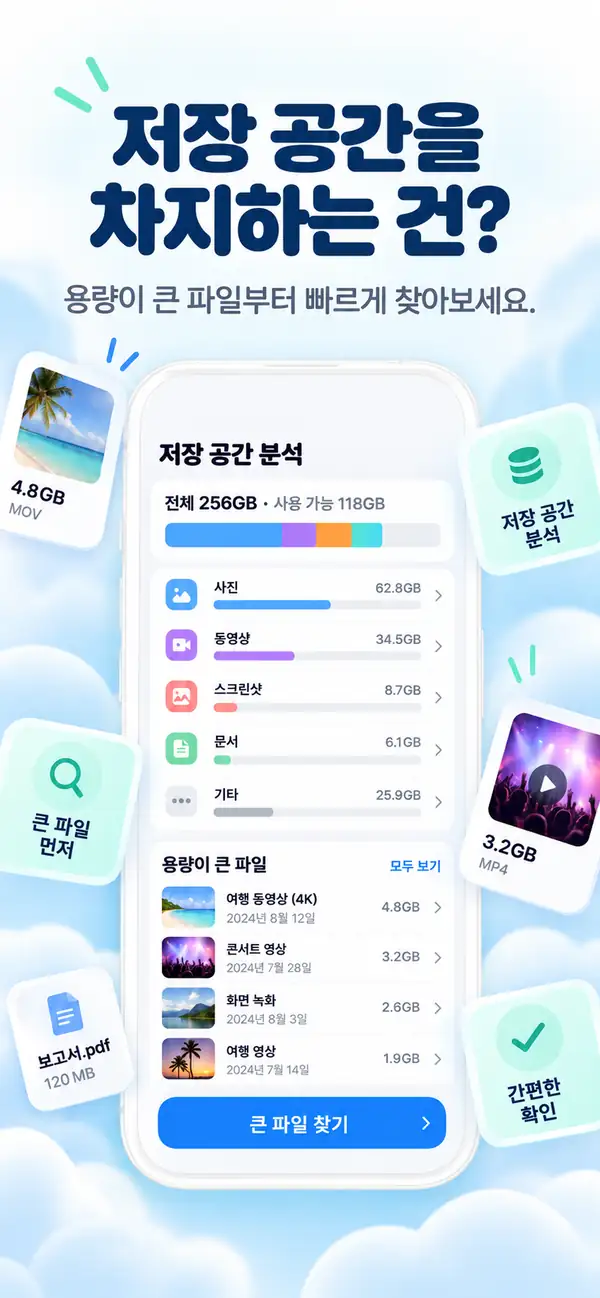
Photos Cleaner - Cleanup Phone은 메시지 첨부 파일을 용량순으로 정렬하여 가장 큰 파일을 한눈에 파악할 수 있도록 돕습니다.

사진 보관함 또한 시스템 데이터 수치에 영향을 줍니다
캐시된 썸네일과 연속 촬영 사진도 시스템 데이터 축적의 원인이 됩니다. 중복 사진을 정리하면 사진 보관함과 시스템 데이터 용량이 함께 줄어듭니다.

숨겨진 저장 공간을 줄이는 3단계 방법
앱별 문서 및 데이터 확인
설정의 iPhone 저장 공간에서 메시지, Safari, 사진 앱의 용량을 확인합니다.
메시지 대용량 첨부 파일 정리
Photos Cleaner - Cleanup Phone을 실행해 가장 큰 동영상과 사진을 찾아 불필요한 파일을 제거합니다.
정리 후 iPhone 재부팅
재부팅하면 임시 메모리 캐시가 지워져 설정 앱의 저장 공간 수치가 올바르게 갱신됩니다.
자주 묻는 질문
시스템 데이터를 정리해도 안전한가요?답변 보기
네, 메시지 첨부 파일과 중복 사진 등 실제 불필요한 파일을 정리하는 것은 매우 안전합니다.
정리 후 시스템 데이터가 다시 늘어나는 이유는 무엇인가요?답변 보기
앱을 사용하면서 자연스럽게 캐시가 다시 생성되기 때문입니다. 정기적으로 점검하는 것이 좋습니다.
Safari도 시스템 데이터에 영향을 주나요?답변 보기
네, 읽기 목록과 방문 기록 데이터가 포함됩니다. Safari 설정에서 방문 기록을 지우면 도움이 됩니다.
iCloud 사진에도 영향을 미치나요?답변 보기
아닙니다. Photos Cleaner - Cleanup Phone은 기기 내부 로컬 저장 공간만 관리하므로 iCloud 백업은 안전합니다.
항목 이름은 지울 수 없지만, 채워진 용량은 줄일 수 있습니다
시스템 데이터 수치는 모호하지만, 그 안에 쌓인 대용량 동영상과 중복 사진은 확실하게 정리할 수 있습니다.
App Store에서 Photos Cleaner - Cleanup Phone 다운로드 또는 제품 페이지를 확인하세요.
질문이 있으신가요? 지원 센터
관련 가이드

· 9분 읽기
iPhone 클리너 앱은 안전할까? 개인정보 보호 체크리스트
클리너 앱에 사진 접근을 허용하기 전에 개인정보 취급 개요표, 권한, 네트워크 활동, 구독, 안전한 삭제 등 9가지를 확인하세요.

· 9분 읽기
iPhone이 느린 이유는 무엇입니까? 저장 문제 및 안전한 수정
저장 공간이 부족하면 iPhone 속도가 느려질 수 있지만 네트워크 상태, 배터리 상태 및 응답하지 않는 앱도 중요합니다. 무작정 삭제하지 않고 원인을 진단하고 공간을 복구해보세요.

· 9분 읽기
iCloud 스토리지는 가득 차 있지만 iPhone에는 공간이 있습니다. 차이점은 무엇입니까?
iCloud 스토리지와 iPhone 스토리지는 별개입니다. 각 저장 공간 부족 경고의 의미, 동기화 중지, 올바른 공간을 안전하게 확보하는 방법을 알아보세요.
당신이 준비되면
iPhone용 Photos Cleaner - Cleanup Phone 다운로드
개인정보 보호를 최우선으로 하는 정리 흐름을 통해 중복된 사진을 제거하고, 비디오를 압축하고, 연락처를 정리하세요.
Photos Cleaner - Cleanup Phone을 사용하면 다음에 동의하게 됩니다: 이용약관 그리고 개인정보 처리방침.